SeatGridView (iOS)
ダウンロード
フォーカスモード
フォントサイズ
Component Overview
The Voice Chat Mic Seat Component (
SeatGridWidget) is a core UI widget designed for Voice Chat Room scenarios. It automatically syncs with mic seat status and supports displaying user information, audio volume indicators, and host badges. This documentation enables you to quickly adjust the mic seat layout or fully customize the mic seat view to meet your business needs, including multi-user social chat or gaming.Prerequisites
Before configuring the Voice Chat Mic Seat component, complete the main workflow setup by referring to Host Live Streaming and Audience Viewing.
Configure Mic Seat List Layout
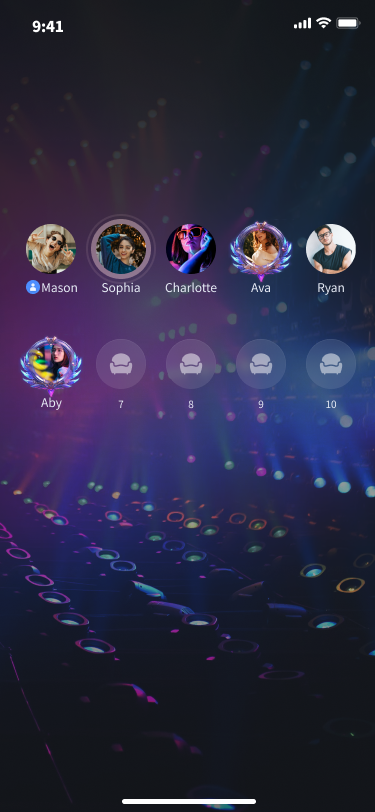
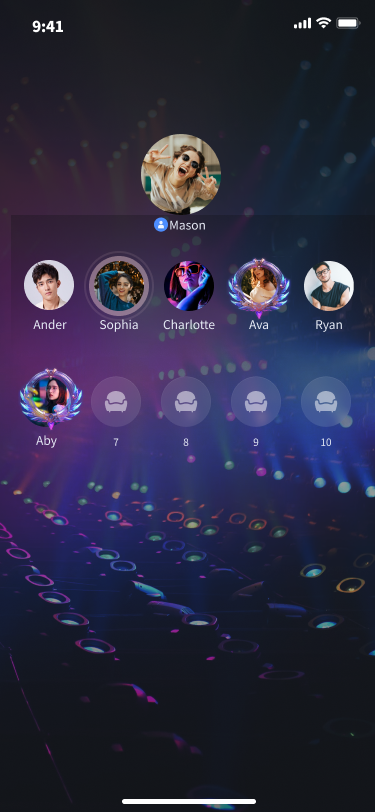
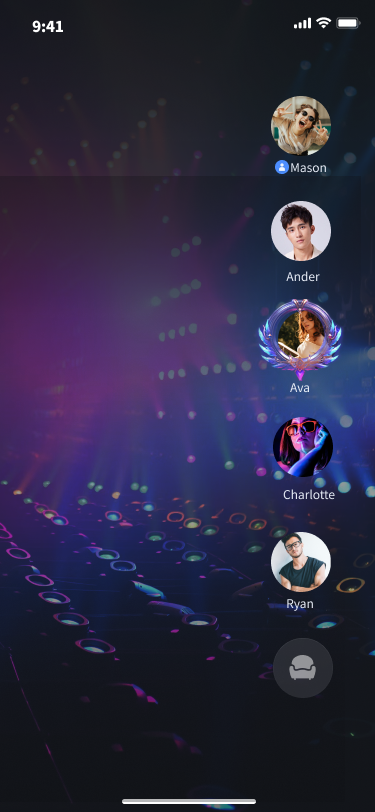
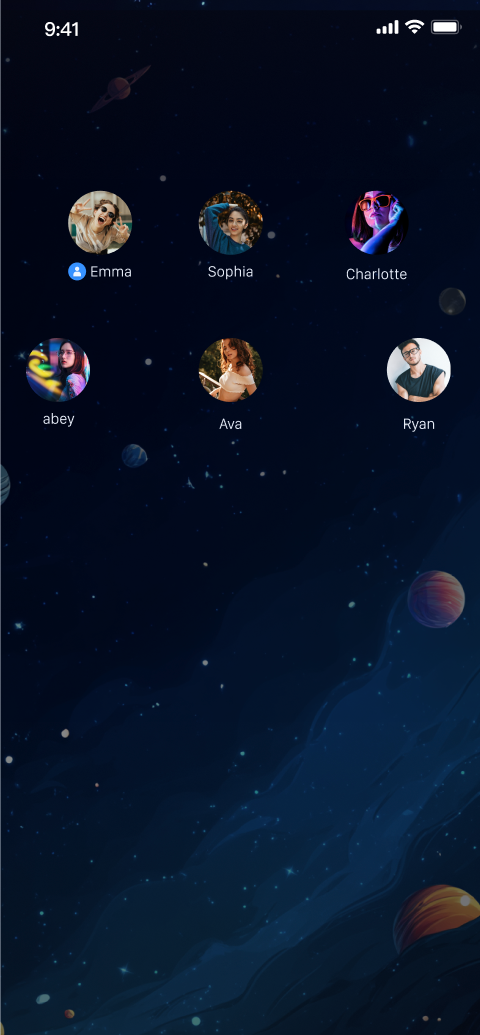
The component provides several built-in layout modes for different voice chat scenarios. Switch between layouts easily using the
setLayoutMode method of SeatGridController—no manual position calculations required.Preview
Grid Layout | Focus Layout | Vertical Layout | Custom Layout |
 |  |  |  |
API Description
void setLayoutMode(LayoutMode layoutMode, SeatWidgetLayoutConfig? layoutConfig)
Parameter | Description |
layoutMode | Layout mode: LayoutMode.grid (Grid Layout): Distributes all mic seats evenly, suitable for multi-user voice chat. LayoutMode.focus (Focus Layout): Highlights the main mic seat, ideal for scenarios with a primary host. LayoutMode.vertical (Vertical Layout): Arranges mic seats vertically, optimized for portrait mode. LayoutMode.free (Custom Layout): Use for fully customized layouts. |
layoutConfig | Custom row and column layout configuration. This parameter is required only when layoutMode is set to FREE. |
Code Example
Use the following code to quickly set the mic seat list layout:
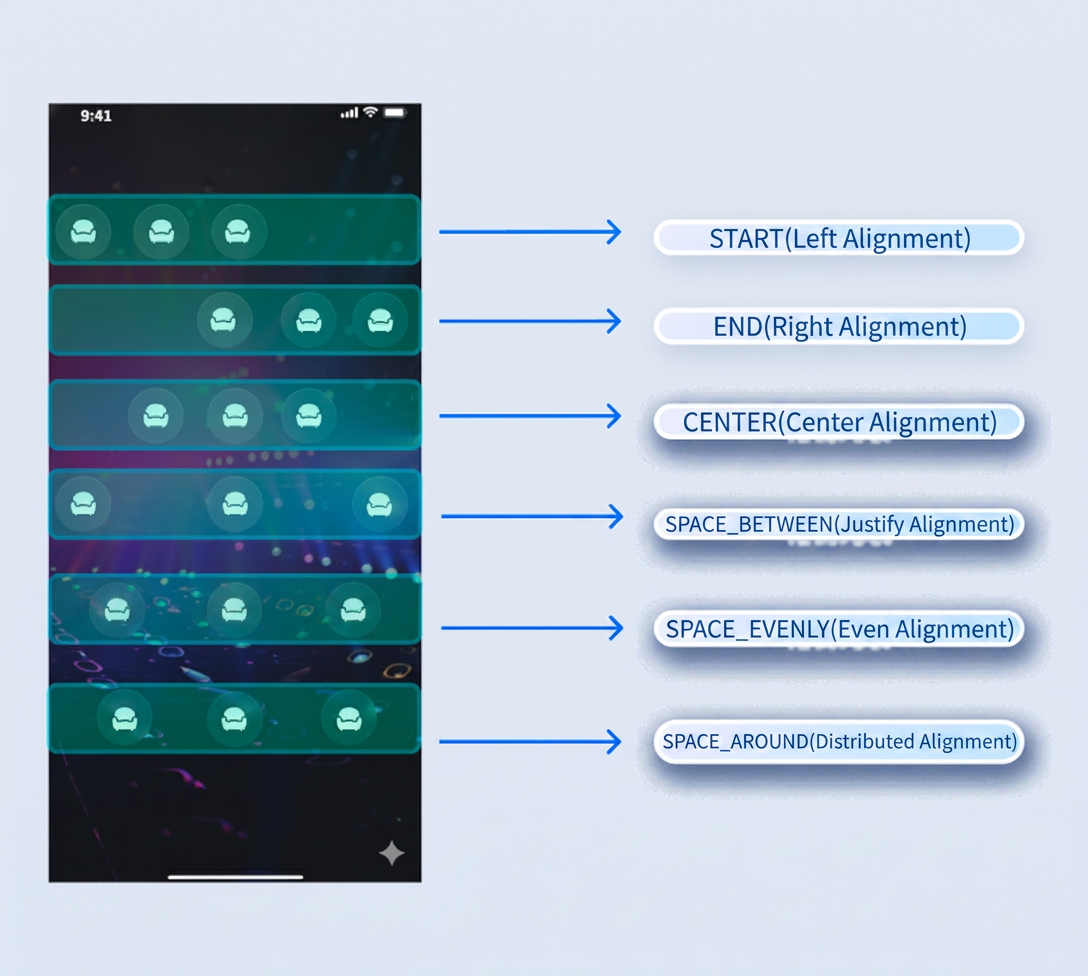
SeatGridController seatGridController = SeatGridController(liveID: 'your live id');// Set grid layoutseatGridController.setLayoutMode(LayoutMode.grid);// Set focus layoutseatGridController.setLayoutMode(LayoutMode.focus);// Set vertical layoutseatGridController.setLayoutMode(LayoutMode.vertical);// Set custom layout// First row configurationfinal rowConfig1 = SeatWidgetLayoutRowConfig(count: 3, // Number of seats in the first rowseatSpacing: 10, // Horizontal spacing between seats in the first rowseatSize: Size(50, 50), // Size of each seat view in the first rowalignment: SeatWidgetLayoutRowAlignment.center); // Alignment for the first row// Second row configurationfinal rowConfig2 = SeatWidgetLayoutRowConfig(count: 3, // Number of seats in the second rowseatSpacing: 10, // Horizontal spacing between seats in the second rowseatSize: Size(50, 50), // Size of each seat view in the second rowalignment: SeatWidgetLayoutRowAlignment.spaceAround); // Alignment for the second rowfinal layoutConfig = SeatWidgetLayoutConfig(rowConfigs: [rowConfig1, rowConfig2], rowSpacing: 10);seatGridController.setLayoutMode(LayoutMode.free, layoutConfig: layoutConfig);
Custom Layout Alignment Diagram:
Customizing Mic Seat UI
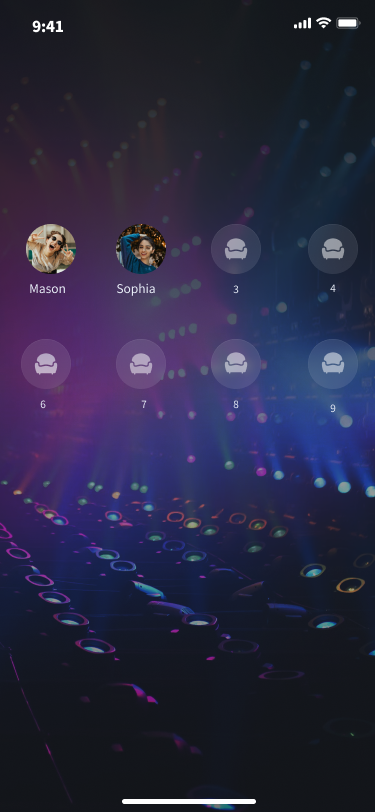
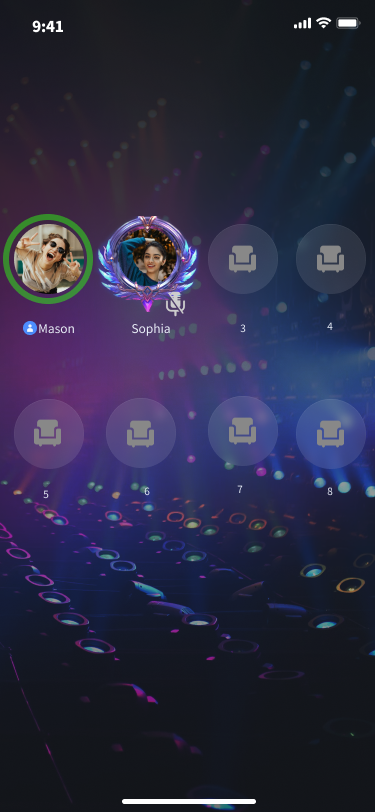
If the default mic seat style does not meet your business requirements, you can take full control of the rendering logic by providing a custom builder (
SeatWidgetBuilder).Preview
Default Mic Seat View | Custom Mic Seat View Example |
 |  |
API Description
SeatGridController seatGridController = SeatGridController(liveID: 'your live id');SeatGridWidget(controller: seatGridController,seatWidgetBuilder:(BuildContext context, ValueNotifier<SeatInfo> seatInfoNotifier, ValueNotifier<int> volumeNotifier) {return SizedBox(); // Replace with your custom mic seat view},);
Parameter | Description |
seatInfoNotifier | Notifier for the current mic seat state. |
volumeNotifier | Notifier for the current user's mic volume. |
Code Example
If the default UI does not fit your requirements, customize the mic seat UI as shown below:
SeatGridController seatGridController = SeatGridController(liveID: 'your live id');SeatGridWidget(controller: seatGridController,seatWidgetBuilder:(BuildContext context, ValueNotifier<SeatInfo> seatInfoNotifier, ValueNotifier<int> volumeNotifier) {return TestSeatInfoWidget(seatInfo: seatInfoNotifier.value, volume: volumeNotifier.value);},);seatGridView.setSeatViewDelegate(TestSeatViewDelegate())class TestSeatInfoWidget extends StatelessWidget {final SeatInfo seatInfo;final int volume;const TestSeatInfoWidget({super.key, required this.seatInfo, required this.volume});@overrideWidget build(BuildContext context) {return Column(children: [Text('userId:${seatInfo.userInfo.userID}'), Text('volume:$volume')],);}}
FAQs
How do I handle mic seat click events after customizing the adapter?
Set up a click listener inside your custom Widget and handle your business logic in the callback.
Will mic seat data be lost after switching layouts?
No.
SeatGridWidget maintains internal state. Calling setLayoutMode only changes the visual arrangement and does not affect users' mic seat status.How can I listen for real-time changes in the mic seat list (such as users taking or leaving mic seats)?
You do not need to manually listen in the adapter.
SeatGridWidget automatically registers mic seat listeners. When a mic seat state changes, the seatWidgetBuilder callback is triggered so you can update the UI accordingly.フィードバック