Modify audit services
다운로드
포커스 모드
폰트 크기
This document describes how to modify the audit service in the console.
Setting the Audit Service
For specific operations, refer to the following two methods for setting the audit service.
Method 1:
1. Log in to the TencentDB for PostgreSQL Console .
2. In the left sidebar, select Database Audit.
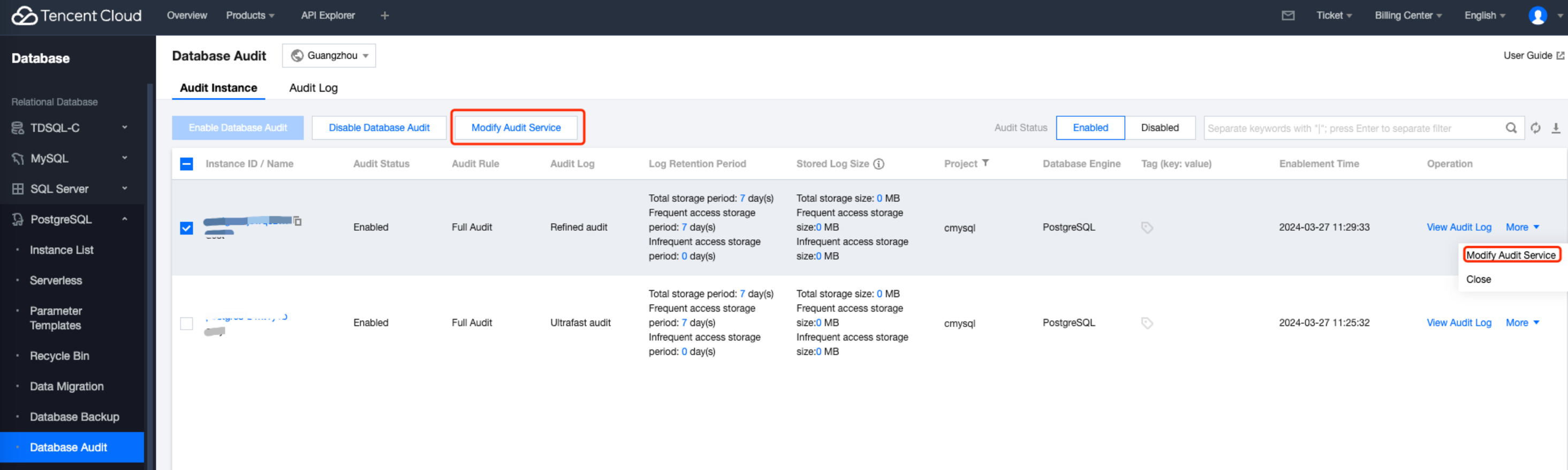
3. Select Region at the top, then on the Audit Instance page, click Audit Status, and select the Enabled option to filter instances with audit enabled.
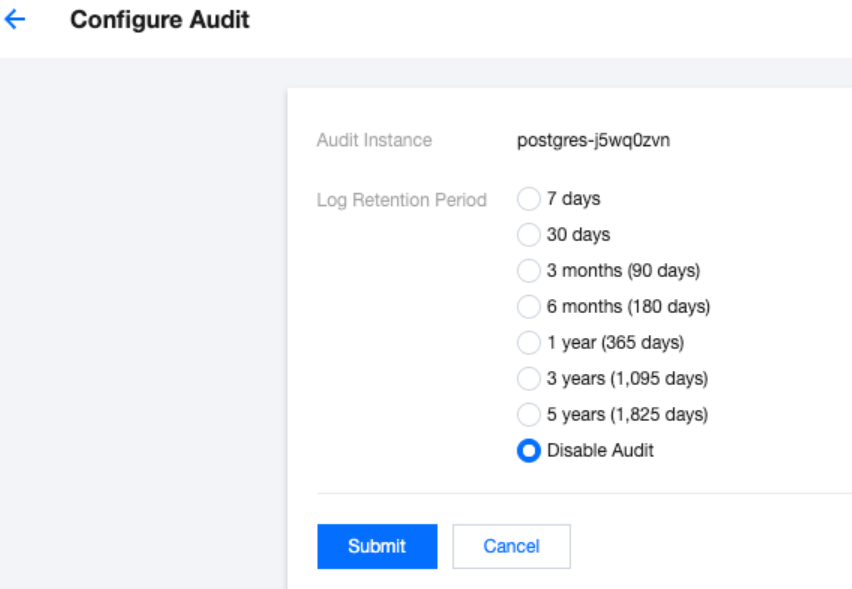
4. You can modify the audit service for one or more instances in the audit instance list, as shown below:
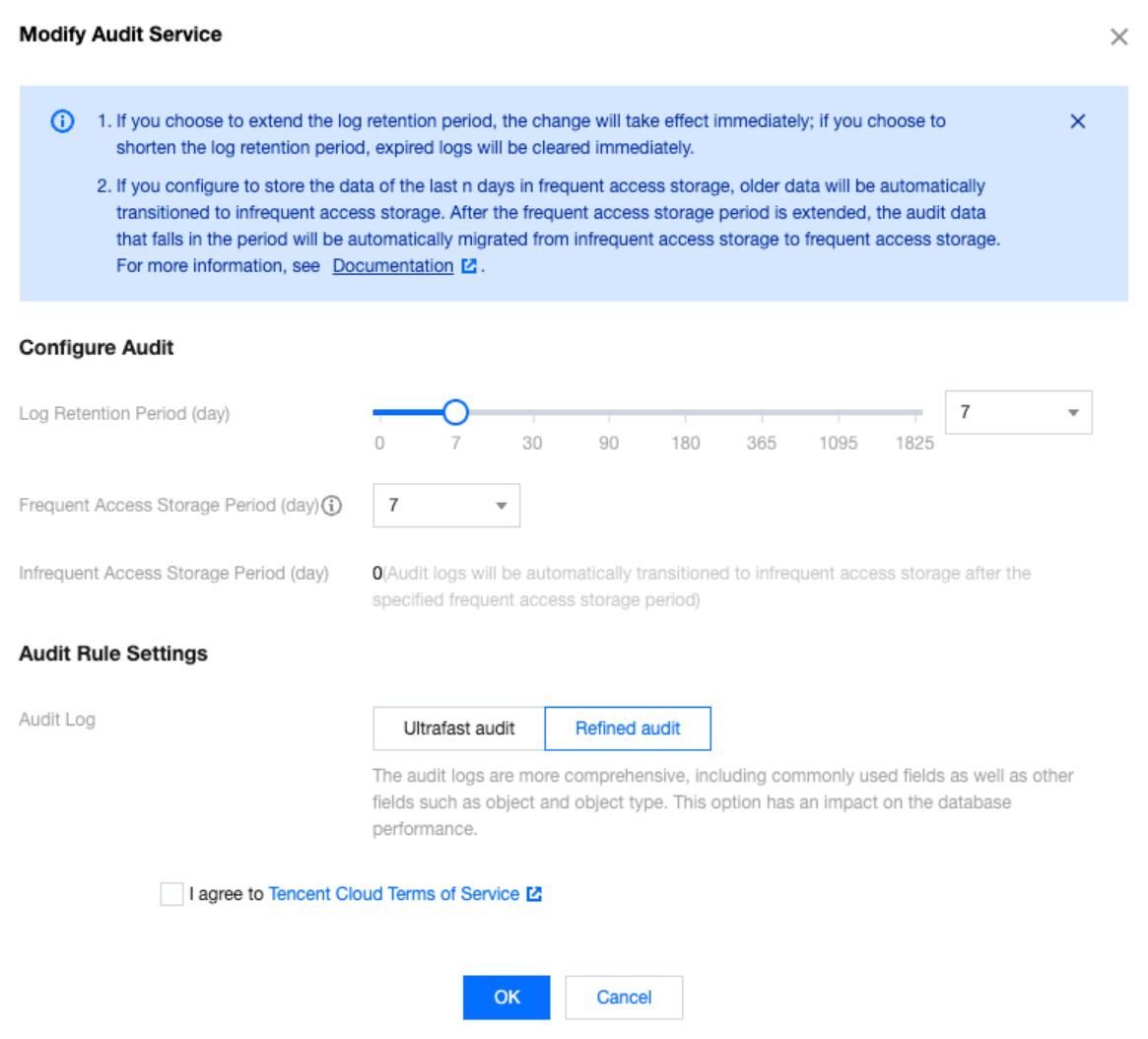
Method 2:
1. Log in to the TencentDB for PostgreSQL Console .
2. In the left sidebar, select Database Audit.
3. Select region at the top, then on the Audit Instance page, click Audit Status, and select the Enabled option to filter instances with audit enabled.
4. Click Instance ID to enter the audit log list of that instance, then click Service Settings to configure the audit service for the instance.
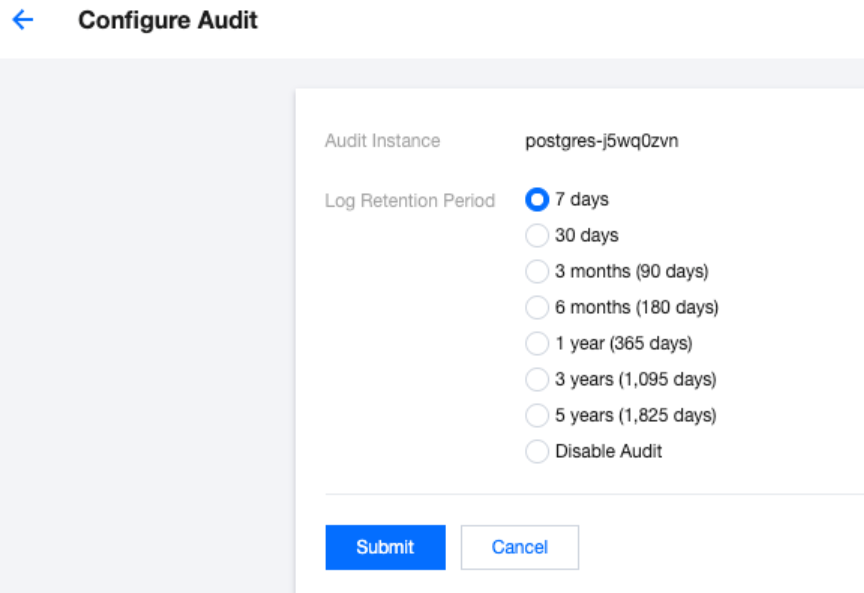
Disabling the Audit Service
Note:
1. After the audit service is disabled, audit for the instance will be stopped and historical audit logs will be cleared. Please proceed with caution.
2. Switching between fast audit and detailed audit will not clear historical audit logs.
You can disable the audit service for one or more instances in the audit instance list, or set the audit service for one or more instances in the audit log list.
1. Log in to the TencentDB for PostgreSQL Console .
2. In the left sidebar, select Database Audit.
3. Select Region at the top, then on the Audit Instance page, click Audit Status, and select the Enabled option to filter instances with audit enabled.
4. You can modify the audit service for one or more instances in the audit instance list, as shown below:
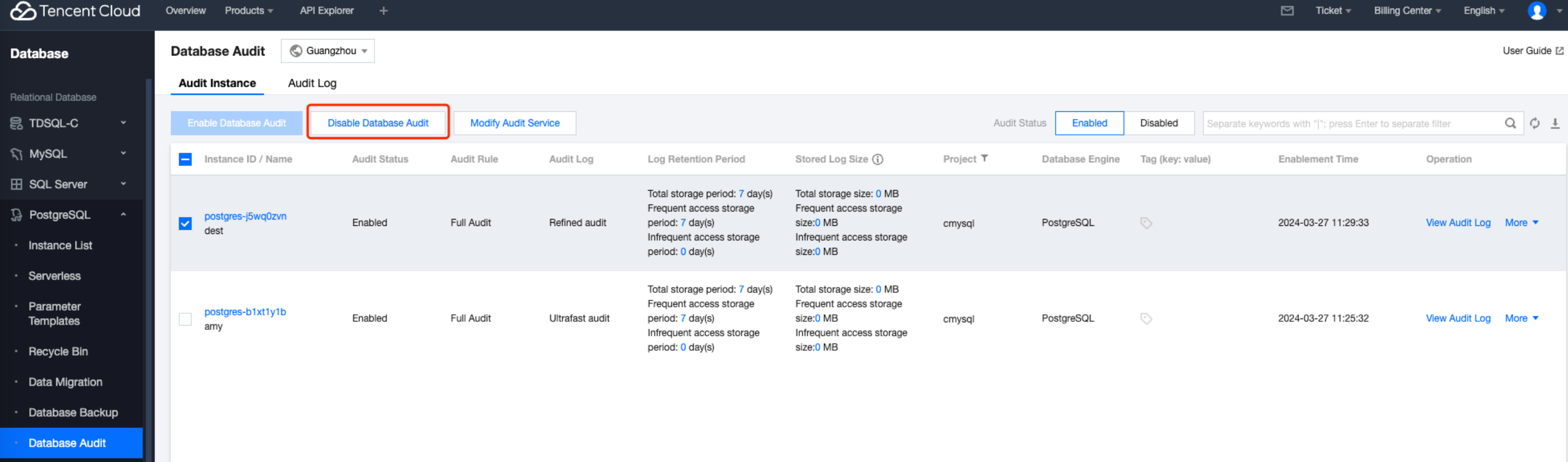
5. You can also click Instance ID to enter the audit log details, and then set or disable the audit service for an individual instance.
피드백