CAM Practices Use Cases
Download
Focus Mode
Font Size
Overview
To use CAM permission management features, please operate with reference to the scenarios below based on your needs.
Authorize a sub-user or collaborator to access (read and write) all DNS resources of a second-level domain (e.g.,
dnspod.cn).Authorize a sub-user or collaborator to access (read-only) all DNS resources of a second-level domain (e.g.,
dnspod.cn).Directions
Step 1. Access the CAM (Cloud Access Management) permission management page.
1. Log in to the DNSPod Console.
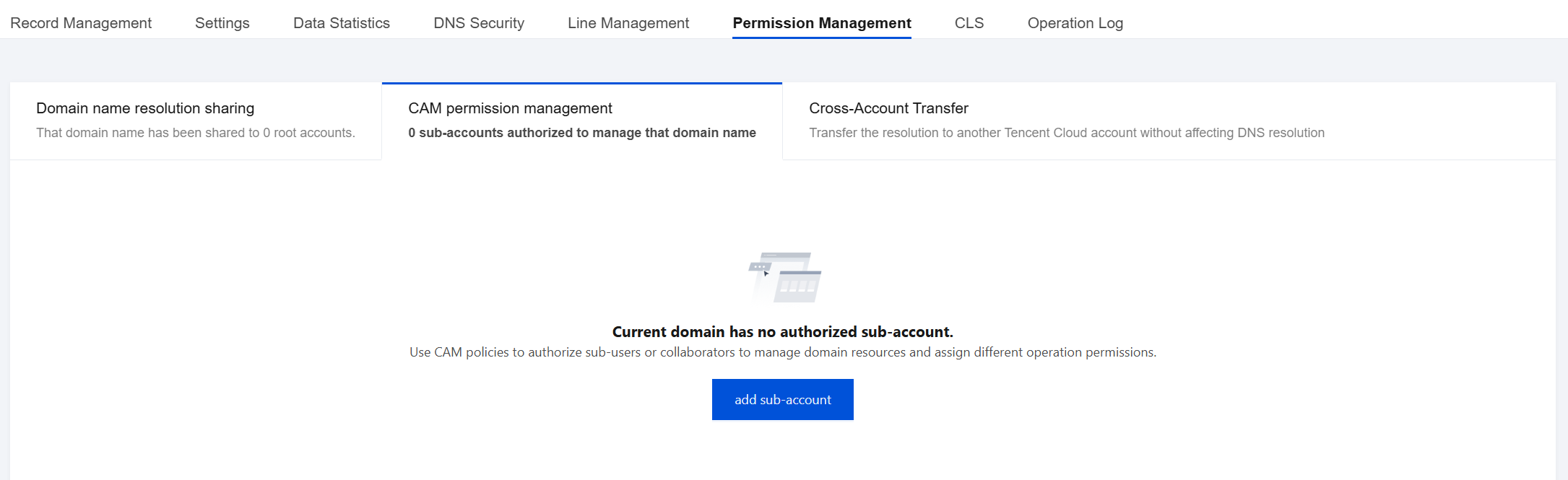
2. Select the domain to set in Authoritative Resolution page, as shown below:

3. In Permission Management page, select CAM permission management click add sub-account.
Step 2. Set permissions
Authorizing a sub-user or collaborator to access (read and write) all DNS resources of a second-level domain (e.g., dnspod.cn).
1. Enter the account ID or username of the sub-user or collaborator for sharing in the search box of the Add a Sub-account window and check the account, and set the resource permission as Full Read/Write, as shown below:
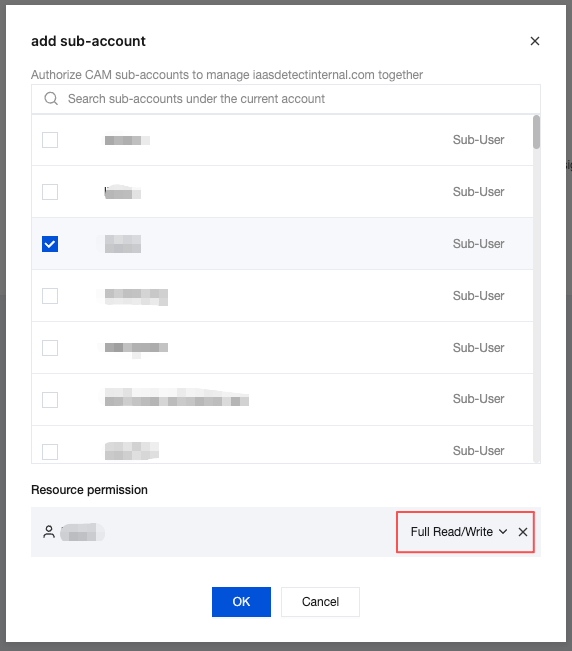
2. Click OK to complete the setting. After setting, the authorized sub-user or collaborator account will have full access to this domain.
Authorizing a sub-user or collaborator to access (read-only) all DNS resources of a second-level domain (e.g., dnspod.cn).
1. Enter the account ID or username of the sub-user or collaborator for sharing in the search box of the Add a Sub-account window and check the account, and set the resource permission as Read-Only, as shown below:
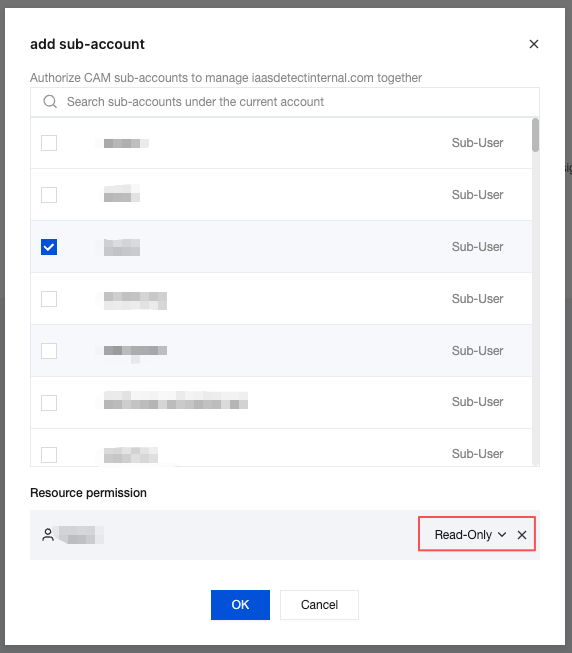
2. Click OK to complete the setting. After setting, the authorized Cloud DNS Resolution user will have read-only access to this domain.
Help and Support
Was this page helpful?
You can also Contact sales or Submit a Ticket for help.
Help us improve! Rate your documentation experience in 5 mins.
Feedback