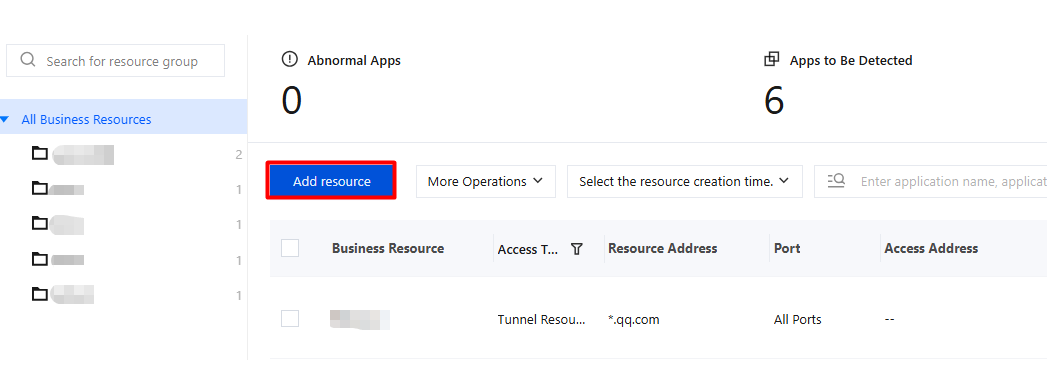
2. On the Resource Configuration Information page, click Add Resource.
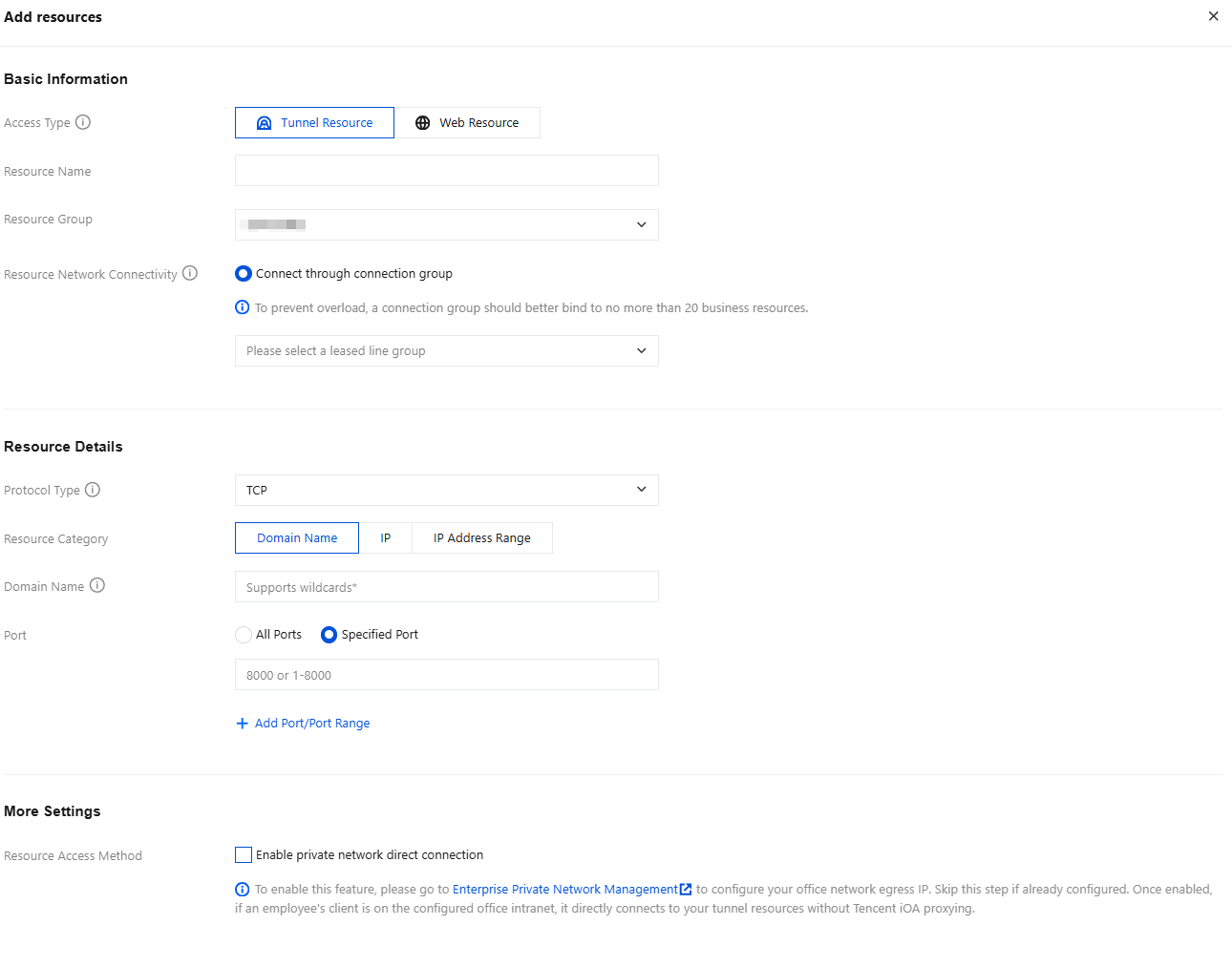
3. On the Add Resource page, select Tunnel Resource for Access Type, configure the relevant parameters, and click Save.
Parameter Name
Description
Access Type
Tunnel resources.
Resource Name
Custom.
Resource Group
Select a resource group from the drop-down list or add a resource group.
Connection Group
The selected connection can connect the currently added business resource.
Resource Network Connectivity
Configures the network access method for business resources, supports two modes of connection through connection groups or VPC, and implements a secure access channel from iOA to business resources.
Connection group connectivity: Access business resources through configured connection groups, which is suitable for non-Tencent Cloud services.
VPC connectivity: Access business resources through a connected VPC instance, which is suitable for Tencent Cloud services.
Protocol Type
Protocol type for accessing the business system, generally TCP, selected based on the actual situation.
Resource Category
Domain name: Wildcards are supported (including wildcard domains and special characters).
IP: You can add multiple IP addresses at a time.
IP range: You can add multiple IP address ranges at a time.
Port
Supports selecting all ports or specified ports, and allows adding multiple ports at a time.
4. Resource access method: After the private network direct connection feature is enabled, when an employee's client is in the private office network you configured, the client directly connects to the tunnel resources you configured in the private office network without being proxied by iOA.
5. After completing the configuration, click Save.
Business Resource Authorization
Authorization management is supported based on two dimensions: users and resources.
User-based Authorization
After resources are added, you also need to grant users resource authorization.
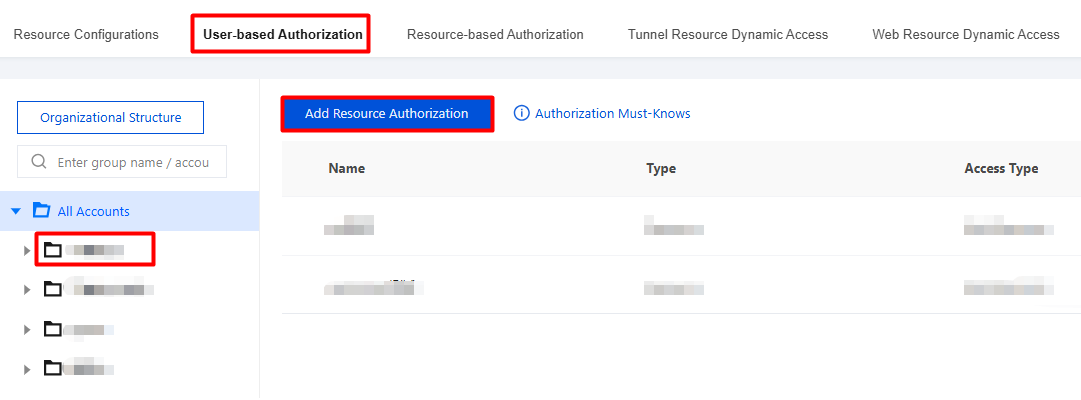
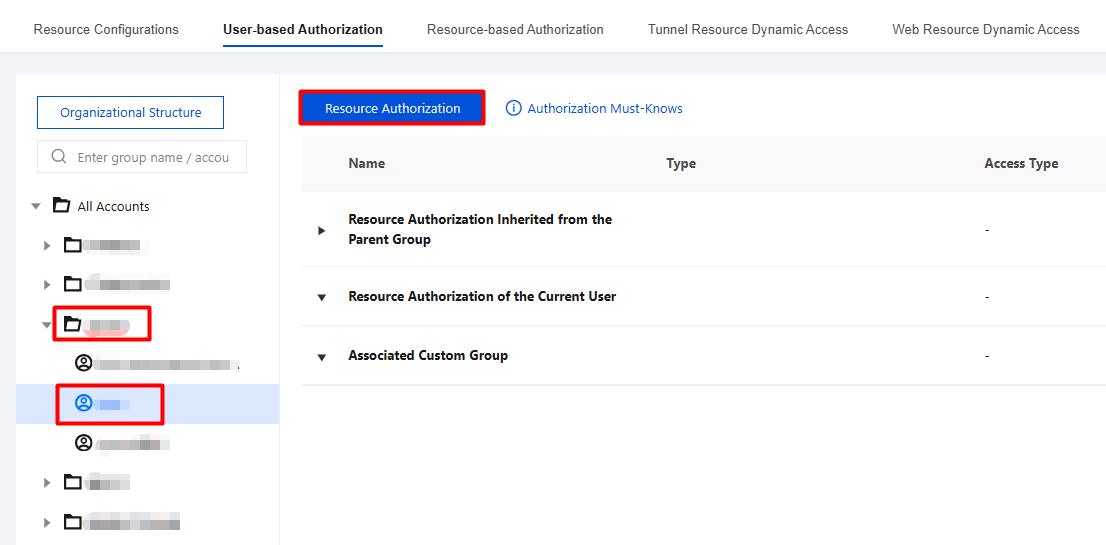
2. On the Authorization by User page, select the desired directory, click the directory name, select the groups or accounts to be authorized, and then perform the authorization.
2.1 Authorize groups:
2.1.1 Select the groups to be authorized, and click Add Resource Authorization.
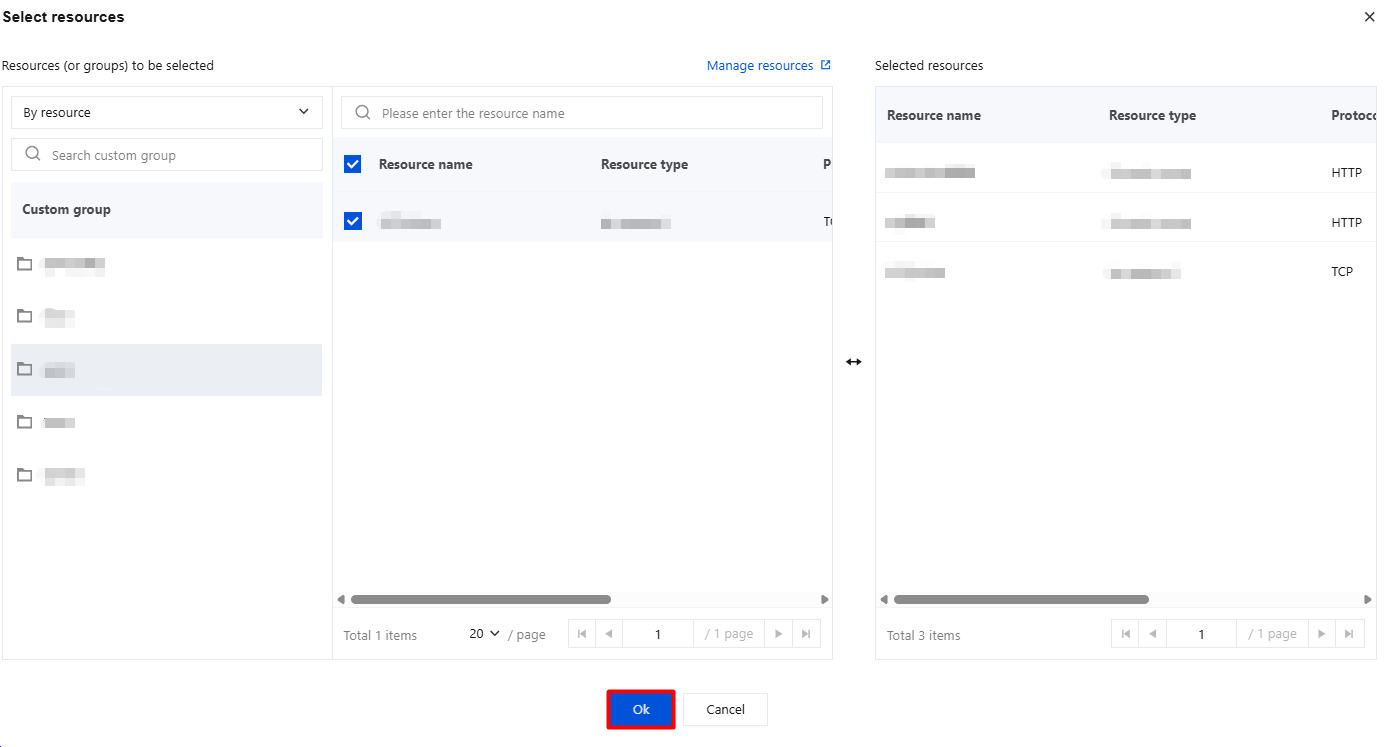
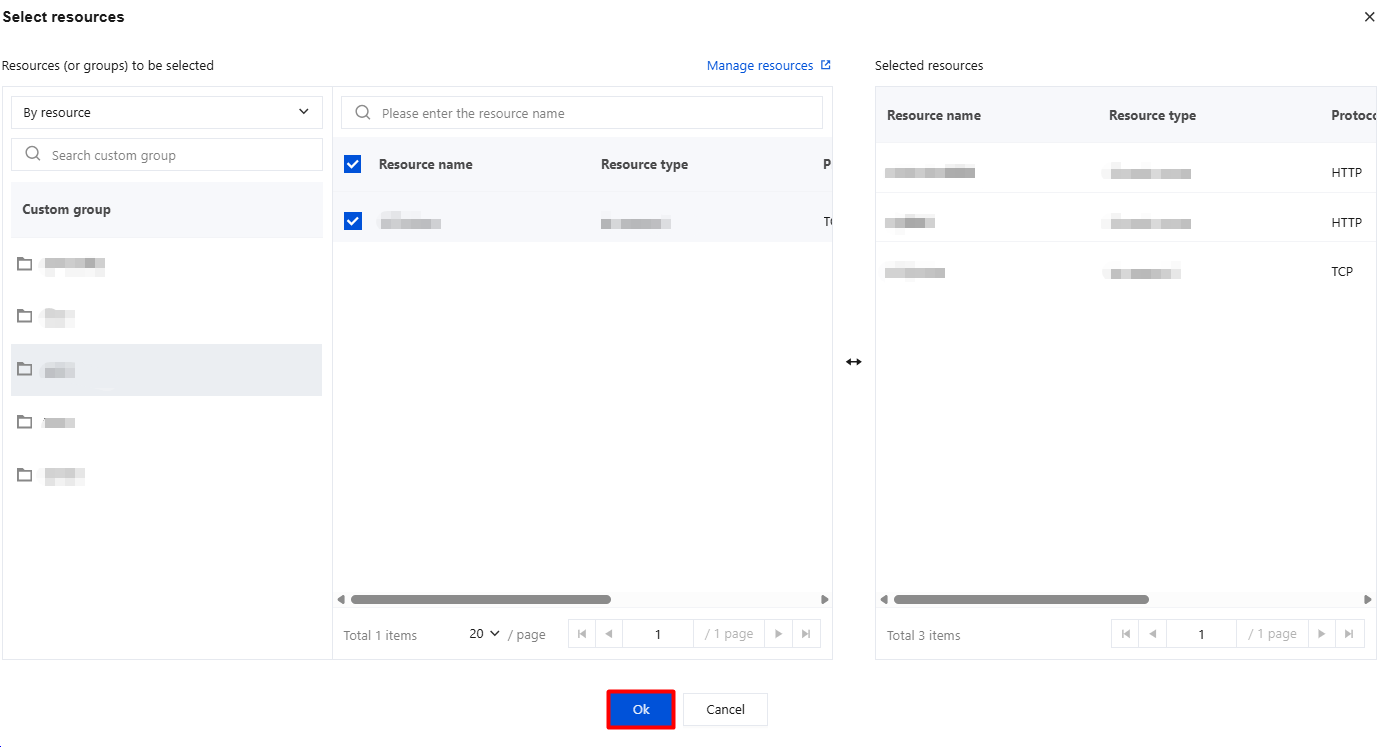
2.1.2 In the resource authorization dialog, select the desired resources, and click OK.
2.2 Authorize accounts:
2.2.1 On the User-based Authorization > Organizational Structure > Account Information page, click the target account, and then click Resource Authorization.
2.2.2 In the resource authorization dialog, select the desired resources, and click OK.
Resource-based Authorization
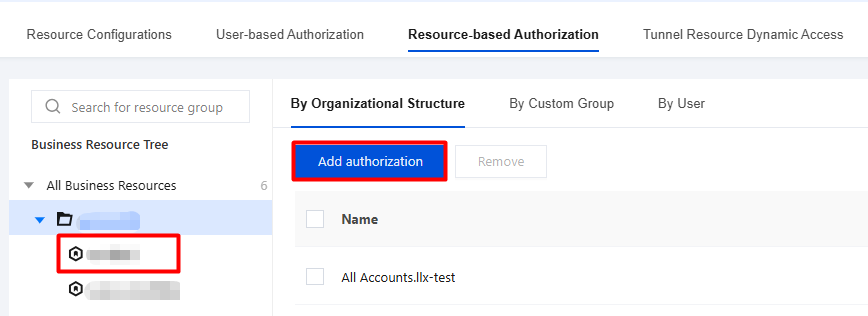
After resources are added, you also need to authorize the resources.
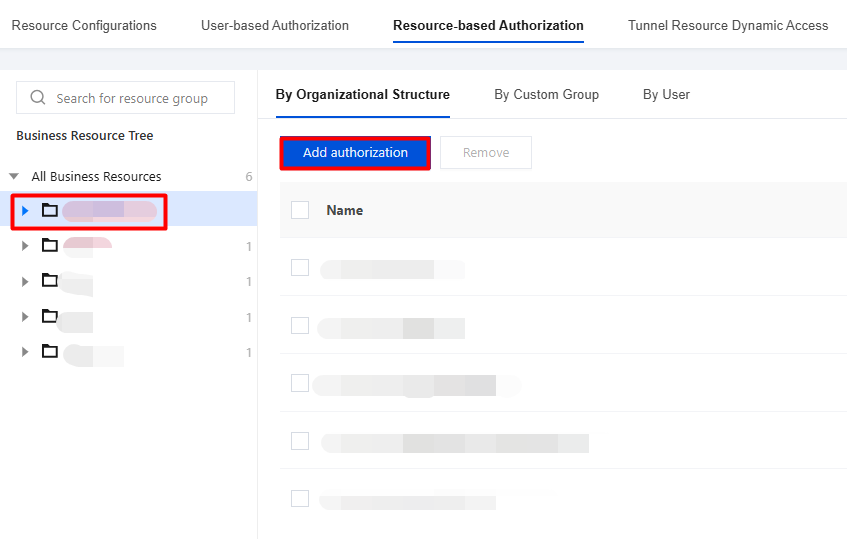
2. On the Authorization by Resource page, select the desired directory, click the resource name, select the resources to be authorized, and then perform the authorization.
2.1 Authorize groups:
2.1.1 Select the groups to be authorized (by organizational structure, custom group, or user), and click Add Authorization.
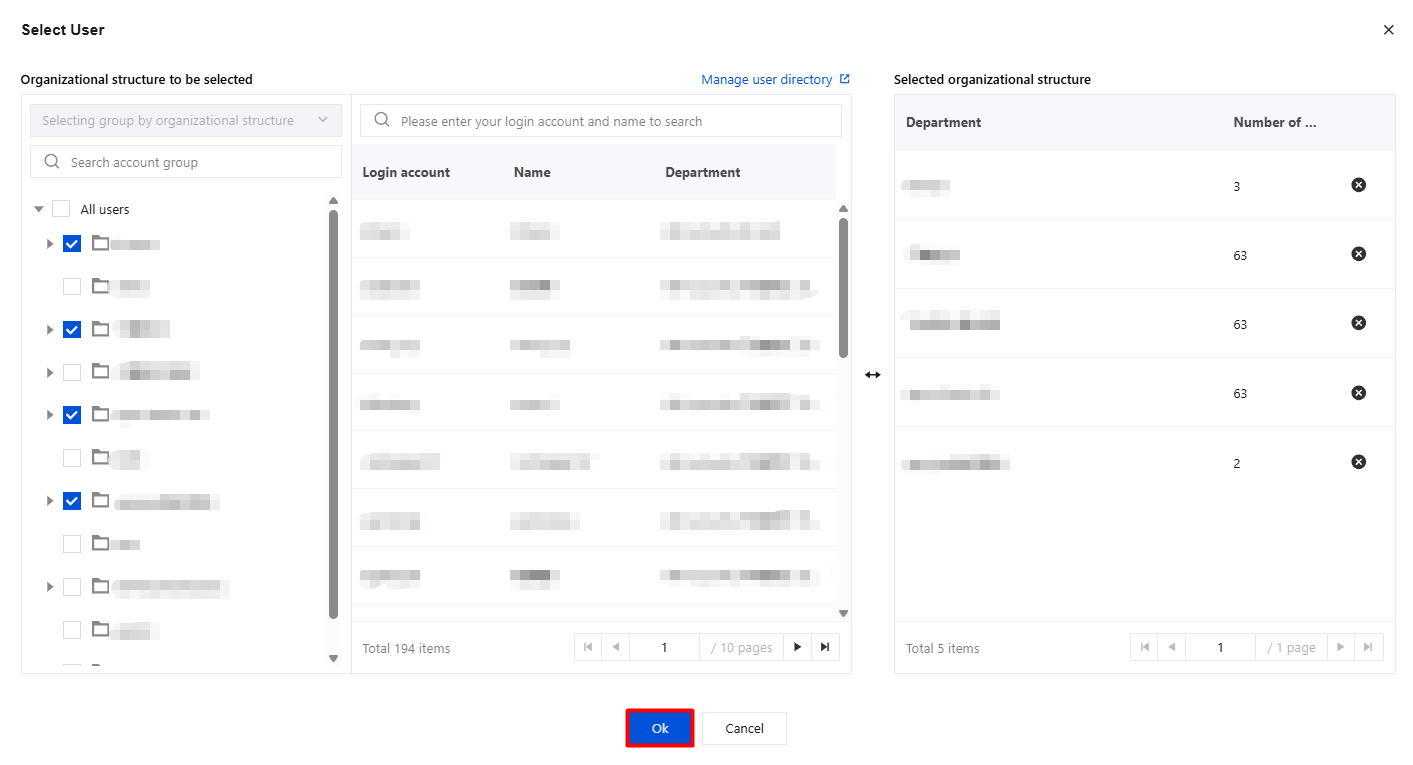
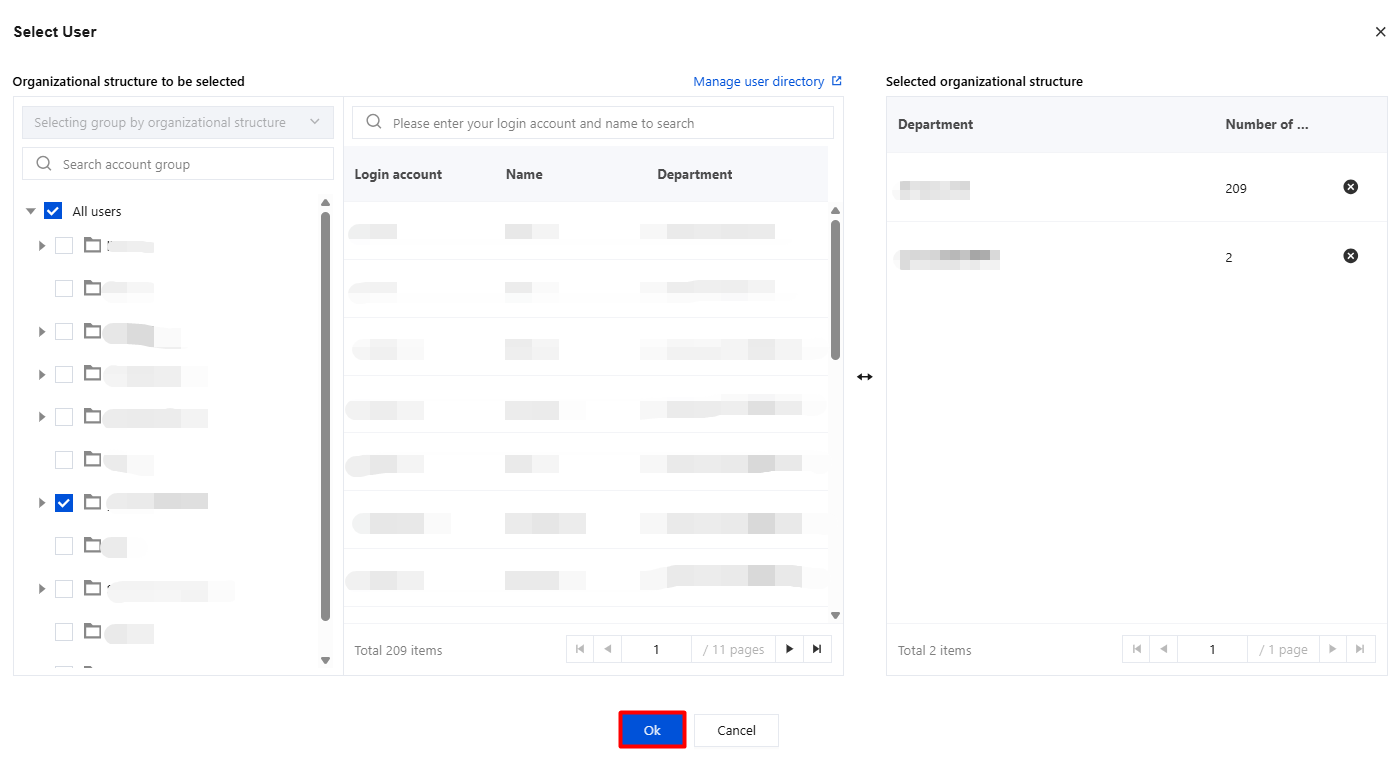
2.1.2 In the resource authorization dialog, select the user/user group, and click OK.
2.2 Authorize a single resource:
2.2.1 On the Resource-based Authorization > Business Resource Tree > Resource Information page, click the target user (supported by organizational structure, custom group, or user) to authorize, and then click Add authorization.
2.2.2 In the resource authorization dialog, select the user/user group, and click OK.
Tunnel Resource Authentication and Access
1. Open the Tencent iOA client.
2. Select the corresponding organizational domain, and then complete user login.
3. The business resources that the user has permission to access were accessed successfully.
4. Log out of the account. Access to business resources fails.
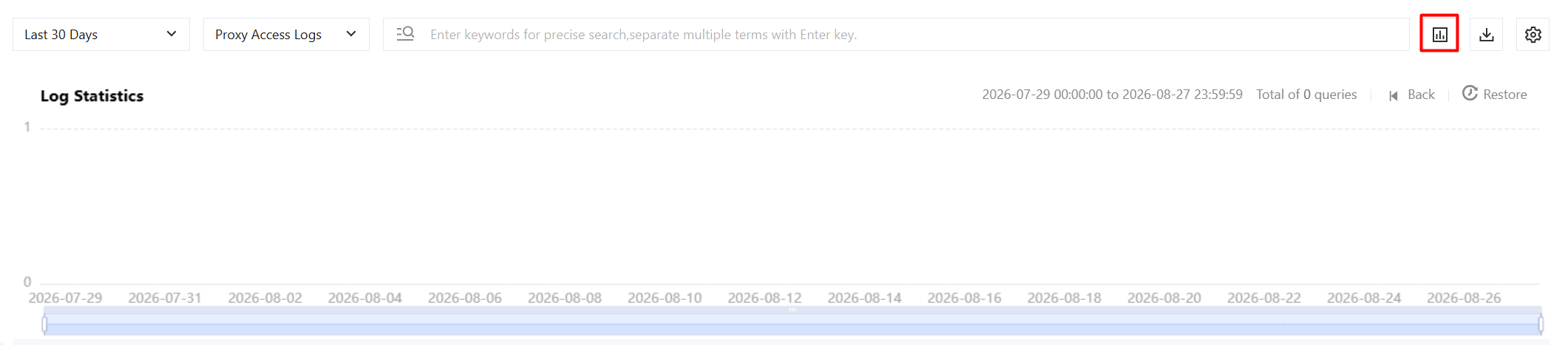
2. On the client access log page, you can query logs in the following ways.
Queries by time range are supported.
You can query logs by terminal access log/dynamic access control log/proxy access log.
Click the search box to display a list of log headers. You can then filter queries by header elements.
Log Quantity Statistics
In the log count statistics module, you can swipe left to view logs from yesterday and earlier, and hover over a bar to view the specific number of logs. For example, 0 logs were generated in the single hour of 8:00 on 202X-07-14.
Tag filtering: In linkage with the search box, Tag filtering displays the header tags that have been queried recently.
When information such as the user name, user directory, or resource name is modified, the log fields are synchronized.