Recording Template
Download
Focus Mode
Font Size
Scenarios
This document describes how to create and manage recording templates in the console, including creating, editing, and deleting real-time upload templates and recording upload to cloud templates. After a recording template is configured, it must be applied to a recording plan to enable data upload to the cloud.
Prerequisites
The ISS service has been activated.
The device has been added and its video channel has been connected. The channel is online.
Template Type Description
Recording templates are divided into two types: real-time upload templates and recording upload to cloud templates.
Comparison Item | Real-Time Cloud Upload Template | Recording Upload to Cloud Template |
Scenario Difference | Real-time device data upload to cloud | Device local recording upload to cloud (that is, recordings stored on the memory card of an IPC or the hard disk of an NVR) |
Scenario | The platform executes immediately within the configured cloud upload time period. | First set the recording period (that is, the device local recordings to be uploaded to the cloud), then set the upload-to-cloud period (that is, the off-peak hours evaluated by the customer, such as early morning/nighttime) and the upload-to-cloud speed. Note: The platform will upload the recording data of the previous day for the device to the cloud at an accelerated speed during the upload period. Therefore, to ensure data integrity, the template settings must satisfy at least the following condition: upload period = recording period of the previous day ÷ upload speed multiplier. |
Real-Time Cloud Upload Template
Operation Steps
1. Log in to the ISS console and choose Recording Management > Recording Templates. The Real-time Upload Templates tab is displayed by default.
2. Click Create Template.
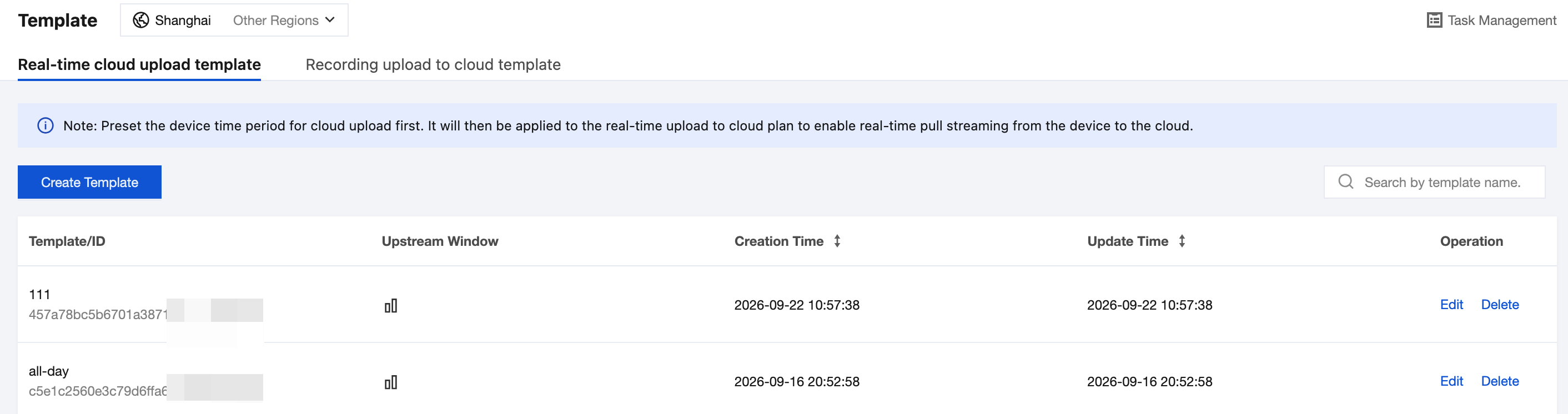
3. In the Create Recording Template drawer that appears, enter the template name.
4. In the Upload Period area, click and drag with the left mouse button to select the upload period you want to set. Each segment must be at least 10 minutes.
5. After dragging, you can click a configured time segment to make the following adjustments:
Drag the handles on either side of the time block to adjust the start and end times with minute-level precision.
Use the Copy to dropdown to copy the current time segment settings to other dates. Select all is supported.
6. (Optional) Click Quick Settings to quickly select the All-day Recording on Workdays or All-day Recording Every Day preset. Click Clear Settings to clear all configured time segments.
7. After confirming that the information is correct, click OK to complete the creation. After the template is created successfully, it will be displayed in the real-time upload template list, where you can click Edit or Delete to manage the template.
Recording Upload to Cloud Template
Operation Steps
1. Log in to the ISS console and choose Recording Management > Recording Templates. Switch to the Recording Upload to Cloud Templates tab.
2. Click Create Template.
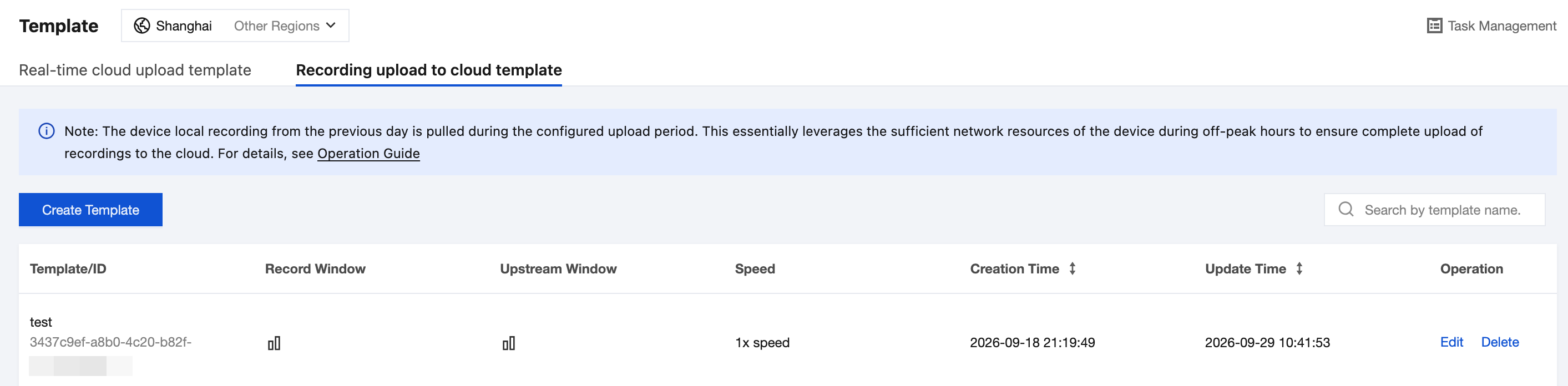
Note:
Pulling the device local recording from the previous day during the configured upload period essentially leverages the ample network resources on the device during idle time to ensure complete recording upload to the cloud.
3. In the Create Recording Template drawer that appears, enter the template name.
Warning:
To ensure complete recording upload to cloud, the following condition must be met at a minimum: upload period = recording period of the previous day ÷ upload speed multiplier. For example, to upload 24 hours of device recording from Sunday to the cloud, you must set an upload period of 6 hours on Monday with a 4x upload speed multiplier.
4. In the Recording Time Segment area, drag to select the device local recording time segment that you want to upload to the cloud. You can also use Quick Settings to quickly select a preset.
5. Set the upload speed multiplier (1x by default), and then in the Upload Time Segment area, drag to select the time segment during which the platform performs pull streaming.
Note:
The platform will pull the recording data of the previous day for the device at an accelerated speed during the upload period. The settings must satisfy at least the following condition: upload period = recording period of the previous day ÷ upload speed multiplier. Otherwise, the template cannot be created successfully.
It is recommended to set the upload period about 10% longer to avoid incomplete data pulling caused by network fluctuations. If the uploaded recording is found to be incomplete, check whether the device local recording is incomplete first.
6. After confirming that the information is correct, click OK to complete the creation. After the template is created successfully, it will be displayed in the recording upload to cloud template list, where you can click Edit or Delete to manage the template.
Help and Support
Was this page helpful?
You can also Contact sales or Submit a Ticket for help.
Help us improve! Rate your documentation experience in 5 mins.
Feedback