Recording Tasks
Download
Focus Mode
Font Size
Scenarios
This document describes how to use recording tasks, including the management and operation of cloud recording retrieval and local recording download tasks.
Prerequisites
The ISS service has been activated, and the video channel has generated cloud recordings.
Cloud recording retrieval applies only to data in cold storage.
Local recording download tasks must be initiated on the recording playback page. For details on how to access the playback page and the download entry, refer to the recording playback document.
Cloud Recording Retrieval
For data in cold storage, use this feature to retrieve (unfreeze) the data. After retrieval, you can play back or download the retrieved recordings.
Operation Steps
1. Log in to the ISS console and choose Recording Management > Recording Tasks. By default, the Cloud Recording Retrieval tab is displayed.
2. Click Create Retrieval Task.
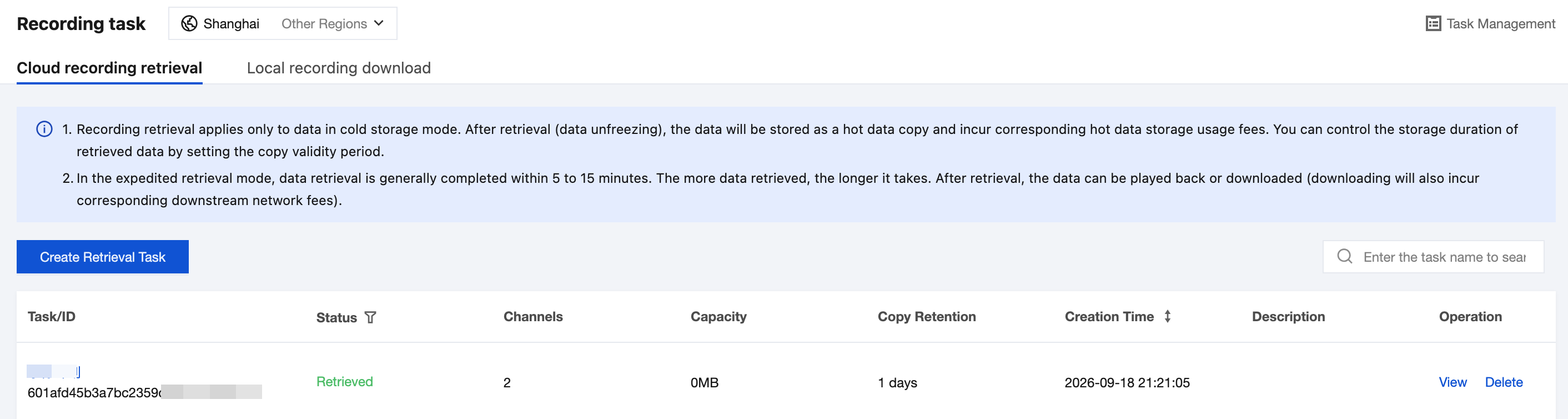
3. On the Create Retrieval Task page, enter the task information, select a video channel, and click OK to complete the creation.
Parameter | Description |
Task Name | Name of the retrieval task |
Retrieval Date | Date of the cloud recording to retrieve. |
Retrieval Time Range | The recording time range to retrieve, with a maximum length of 24 hours (that is, all data of the retrieval day). |
Retrieval Mode | Only express retrieval is currently supported. |
Replica Validity Period | Retrieved data is stored as hot storage, during which it can be played back and downloaded. The copy is automatically deleted upon expiration, with a supported retention period of 1 - 365 days. |
Description | Task description (optional) |
Channel Selection | A single retrieval task can select up to 32 video channels. |
4. After a task is created, you can view its status in the list on the Cloud Recording Retrieval tab. For retrieved tasks, click View or Delete in the operation column to manage them.
Local Recording Download
This feature can pull device local recording data (data on NVR hard disks or camera SD cards) to the cloud for cloud storage or direct download to the client. Applicable scenarios:
You only want to back up critical device local data to the cloud for long-term storage.
The data is not stored in the cloud, but you want to directly download the device's local recording data through the platform.
Operation Steps
1. Log in to the ISS console and choose Recording Management > Recording Tasks. Switch to the Local Recording Download tab.
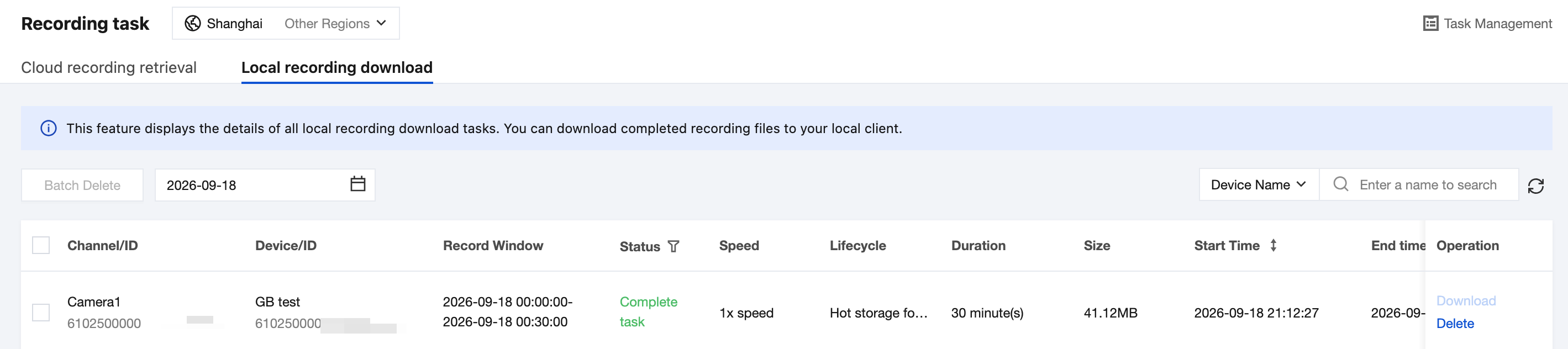
2. For completed tasks, you can directly download the local recording files in MP4 format to your client. For tasks in the Not Executed or Execution Failed state, click Delete in the operation column to manage them.
Note:
In a multi-speed pulling scenario, if the pulling fails, the platform retries up to three times. It waits for one minute and then pulls again at the same speed. If all three attempts fail, the download task is ultimately marked as failed.
There are two scenarios in which a file address does not exist: the data has been deleted after the lifecycle rule expired, or the data is stored in a customer-owned COS bucket and the product no longer transcodes it into MP4 format.
Deletion does not mean deleting cloud storage data. Instead, it means deleting task records in the Not Executed, Execution Failed, or Completed (but file address does not exist) state.
Help and Support
Was this page helpful?
You can also Contact sales or Submit a Ticket for help.
Help us improve! Rate your documentation experience in 5 mins.
Feedback