Snapshot Results
Download
Focus Mode
Font Size
Scenarios
Snapshot results are used to view keyframe images captured by the platform according to the snapshot configuration. You can filter results by snapshot configuration, channel, and time range, and perform preview, view details, and download on individual images for use in scenarios such as AI analysis, manual inspection, and compliance forensics.
Prerequisites
The ISS service has been activated.
A snapshot template and a snapshot configuration have been created. The configuration is associated with a video channel and is within its effective period, and the platform has generated snapshot data.
Operation Steps
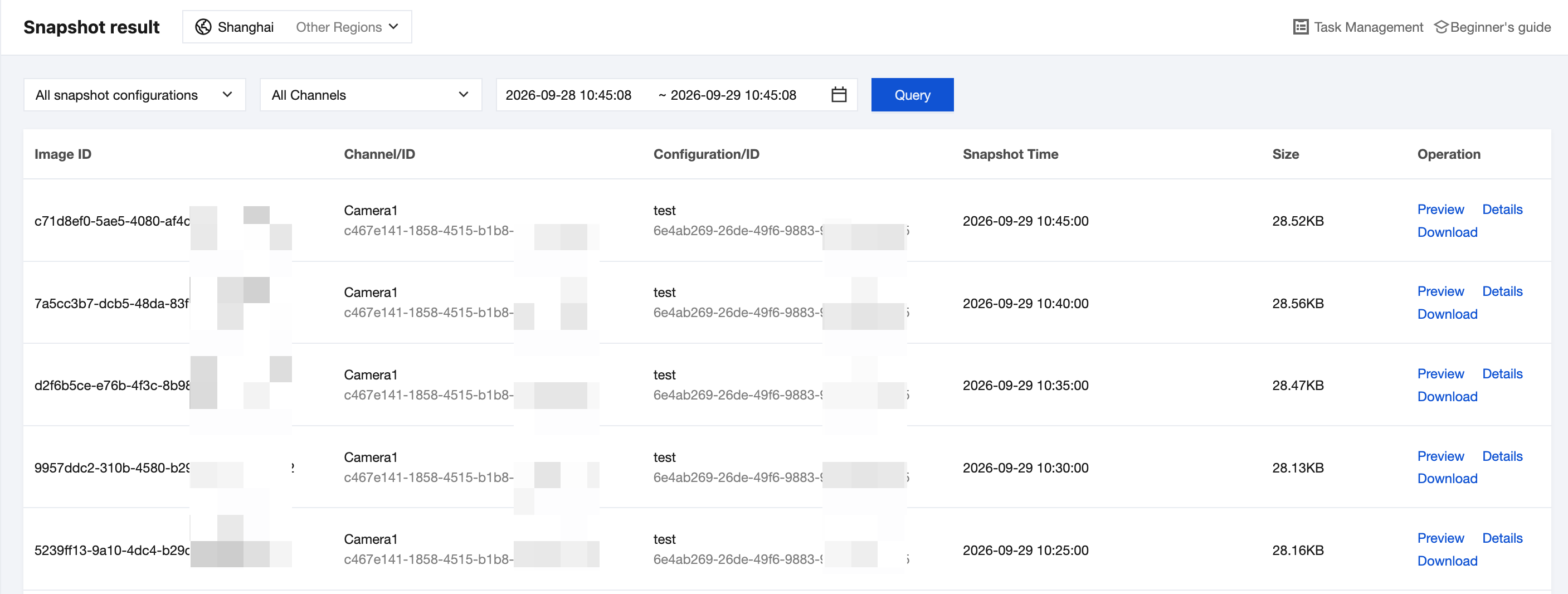
Querying Snapshot Results
1. Set the query conditions at the top of the page and click Query.
Parameter | Description |
Snapshot Configuration | Select a target snapshot configuration, or keep All Snapshot Configurations to query snapshots generated by all configurations. |
Channel | Select a target video channel, or keep All Channels to query snapshots generated by all channels. |
Time Range | Select the start and end time of snapshots. By default, data from the last 24 hours is queried. |
2. View the snapshot information in the result list, including Image ID, Channel/ID, Snapshot Configuration/ID, Snapshot Time, and Size.
Note:
Snapshots can be queried only within the image storage period of the corresponding configuration. Images that exceed the storage period are automatically cleaned up according to lifecycle rules and no longer appear in the list.
Previewing and Downloading Snapshots
1. Click Preview in the operation column of the target snapshot. In the Snapshot Preview window that appears, view the image content. After viewing, click Close.
2. Click Download in the operation column of the target snapshot to save the image locally.
Viewing Snapshot Details
1. Click Details in the operation column of the target snapshot. In the Snapshot Details panel that appears on the right, view the complete information of the image.
Parameter | Description |
Image ID | Unique identifier of the snapshot. |
Channel | ID of the video channel that captures this snapshot. Click to copy. |
Associated Device | Access device to which the channel belongs. If no device is mounted, "-" is displayed. |
Associated Organization | Organization node to which the channel belongs. If not assigned to an organization, "-" is displayed. |
Snapshot Configuration | Name and ID of the snapshot configuration that generates this snapshot. Click to copy. |
Snapshot Time | Capture time of this frame. |
Size | Image file size. |
Temporary Image Link | Address used to temporarily access the image in the business system. |
2. At Image Temporary Link, click Copy Temporary Link to obtain the image access URL. If the link has expired, click Refresh Validity to regenerate it.
Warning:
The temporary link is valid for 10 minutes. Keep your temporary link secure and prevent it from being leaked. Otherwise, your images may be accessed by other users.
3. Click the image area at the top of the panel to directly zoom in and preview the snapshot. Click Close to exit the details panel.
Related Documentation
To adjust the capture frequency, effective period, or burst mode of snapshots, create a template on the Snapshot Management > Snapshot Template page and switch the associated template in the snapshot configuration.
To adjust the storage period, callback settings, or associated channels of snapshots, modify the corresponding configuration on the Snapshot Management > Snapshot Configuration page.
Help and Support
Was this page helpful?
You can also Contact sales or Submit a Ticket for help.
Help us improve! Rate your documentation experience in 5 mins.
Feedback