Snapshot Configuration
Download
Focus Mode
Font Size
Scenarios
A snapshot configuration associates a snapshot template with video channels, specifying which frame capture rules the platform uses, for which channels to capture keyframes, and the storage period and callback method for the capture results. After channels are created and associated, the platform automatically captures and stores keyframes according to the time ranges and frequency defined in the template, for subsequent use in scenarios such as preview, download, AI analysis, and compliance forensics.
Note:
Each account can create up to 5 snapshot configurations, and each configuration can be bound to up to 30 channels. To request higher limits on the number of configurations or bound channels, please contact us.
Prerequisites
The ISS service has been activated.
A snapshot template has been created. A snapshot configuration must be associated with an existing snapshot template, which determines the snapshot type (real-time or low-frequency), frame capture frequency, and effective time range.
Device access has been completed, and an available video channel exists. If no channel is available, you can create a configuration first and then associate channels with it.
Operation Steps
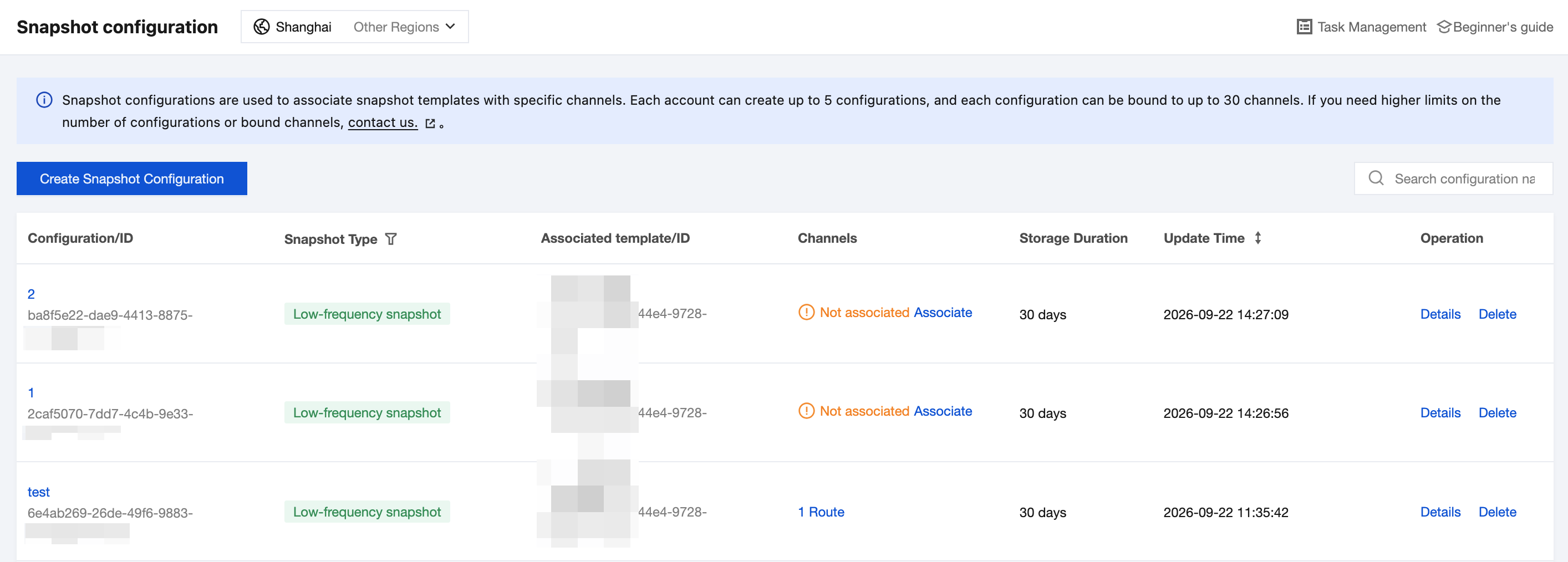
Creating a Snapshot Configuration
1. Click Create Snapshot Configuration and configure the following parameters in the dialog box that appears.
Parameter | Required | Description |
Configuration Name | Yes | Only Chinese characters, English letters, digits, underscores (_), and hyphens (-) are supported. The length cannot exceed 32 characters. |
Associated Snapshot Template | Yes | Select a created snapshot template from the drop-down list. The template determines the snapshot type, frame capture frequency, and effective period of this configuration. If no suitable template is available, click Create Template to create one. |
Image Storage Period | Yes | Retention period of snapshots in the cloud. Options: 7, 15, 30, 60, 90, 180, 270, 360, 540, and 720 days. Default: 30 days. Snapshots are automatically deleted based on lifecycle rules after expiration. |
Snapshot Callback | No | Controls whether to push callback notifications to the business side after snapshots are generated. This feature is enabled by default. After it is disabled, notifications are no longer pushed, and you need to query snapshot results through the console or API. |
Callback URL | Yes (when callback is enabled) | The address for receiving callback notifications must start with http:// or https://. |
Callback Token | No | Used to verify the source of callback requests. Only uppercase and lowercase letters and digits are supported. The length cannot exceed 64 characters. |
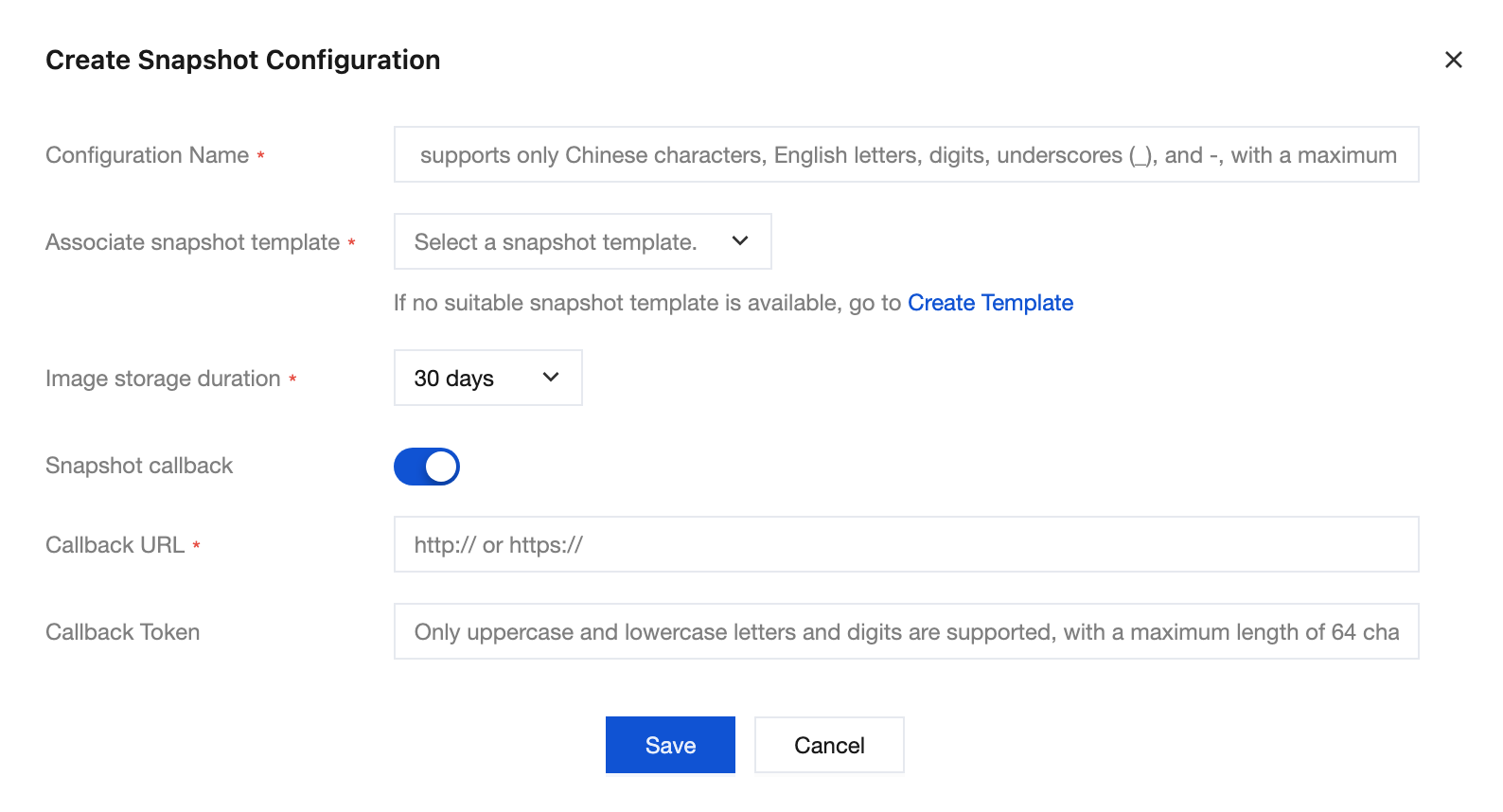
2. Click Save to complete the creation. After the configuration is created, it appears in the configuration list with the Associated Channels column showing Unassociated. You must associate video channels with the configuration before the platform starts capturing snapshots.
Viewing Snapshot Configurations
1. On the Snapshot Configurations page, view the information of created configurations in the configuration list, including Configuration Name/ID, Snapshot Type (real-time or low-frequency), Associated Template/ID, Associated Channels, Storage Period, and Update Time.
2. Enter a configuration name keyword in the search box in the upper-right corner to quickly locate the target configuration. Click the filter icon in the Snapshot Type column to filter the list by snapshot type. Click the sort icon in the Update Time column to sort the list by update time.
Managing Snapshot Configurations
You can perform the following operations on a created snapshot configuration.
1. To associate video channels: In the Associated Channels column of the target configuration, if Unassociated is displayed, click Associate. If channels are already associated, click the number of channels (for example, 1). Both actions take you to the Channel Information section on the configuration details page.
2. In the Channel Information section, manage the video channels associated with this configuration.
Click Add Channel, select the target channels in the dialog box that appears, and confirm to add associated channels to this configuration.
Select the target channels and click Batch Delete, or click Delete in the operation column of the target channel to disassociate the channel from the configuration. After the disassociation, the channel no longer captures snapshots based on this configuration, and previously generated snapshots are not affected.
Switch the search dimension and enter a keyword in the upper-right corner to quickly locate channels by conditions such as device name.
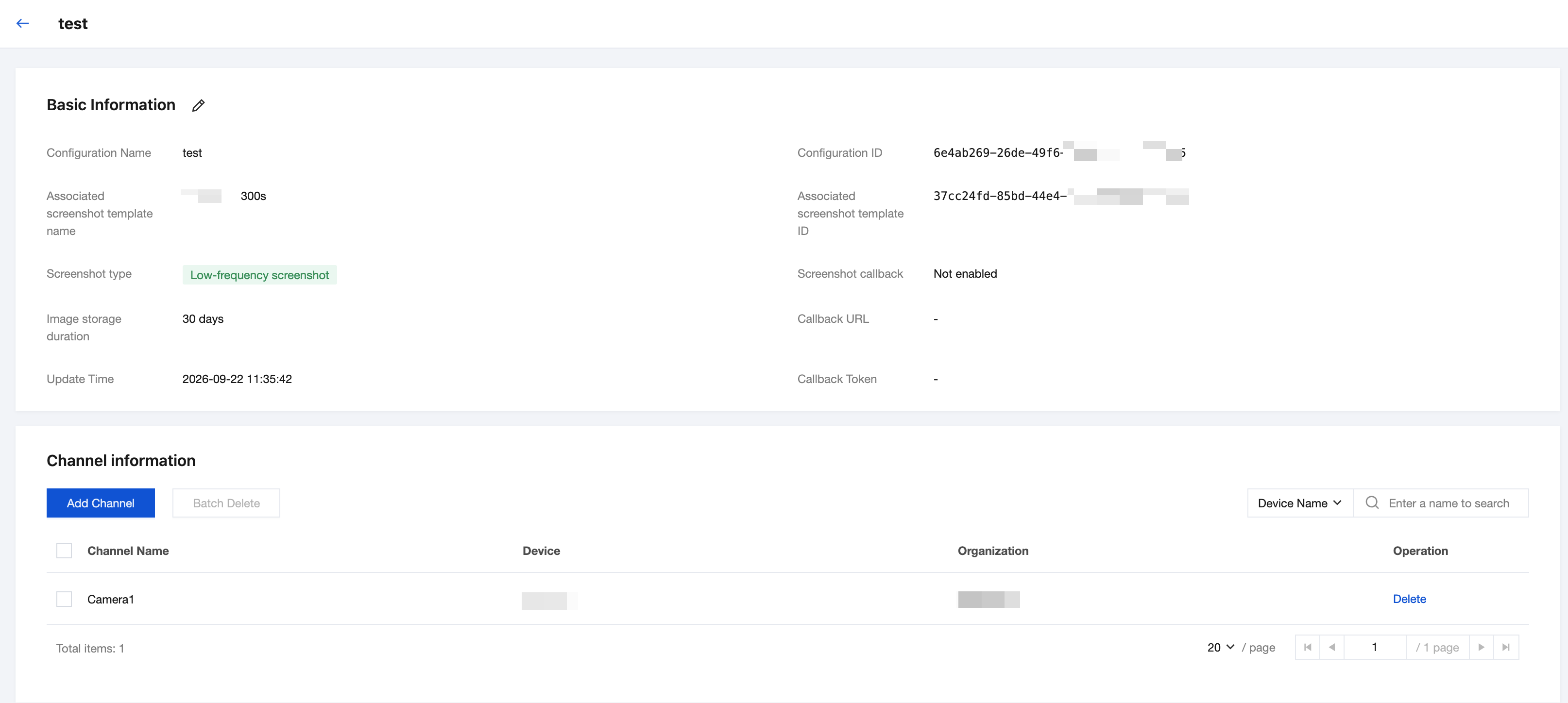
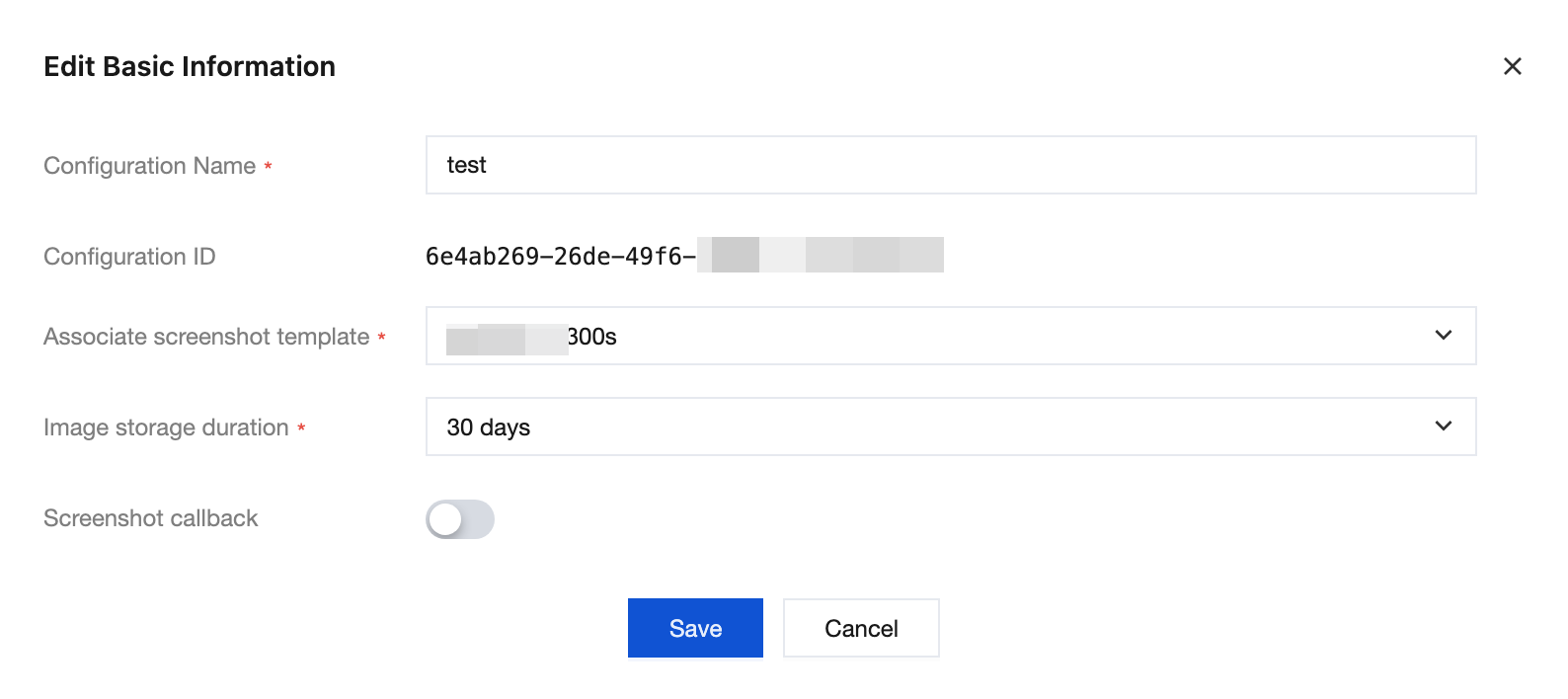
3. To modify basic information: In the Basic Information section on the configuration details page, click the edit icon to the right of the title. In the dialog box that appears, modify Configuration Name, Associated Snapshot Template, Image Storage Period, Snapshot Callback, Callback URL, and Callback Token, and then click Save to apply the changes.
Note:
<The Configuration ID is generated by the system and cannot be modified. Changing the Associated Snapshot Template also changes the snapshot type and frame capture rules of this configuration. Confirm that the new template meets your business expectations before saving.
4. To delete a configuration: On the Snapshot Configurations page, click Delete in the operation column of the target configuration, and then click Confirm Delete in the dialog box that appears.
Warning:
You do not need to disassociate channels before deleting a configuration. The platform will disassociate all channels bound to the configuration. After deletion, the configuration cannot be recovered, and the corresponding channels immediately stop capturing snapshots. Generated and uploaded snapshots are not deleted immediately. They are retained according to the original image storage period rule and automatically cleaned up after expiration. If a snapshot plan of the configuration is in effect, confirm that the deletion does not affect ongoing business before proceeding.
Related Documentation
After you create a snapshot configuration and associate channels with it, you can preview and download captured snapshots on the Snapshot Management > Snapshot Results page.
Help and Support
Was this page helpful?
You can also Contact sales or Submit a Ticket for help.
Help us improve! Rate your documentation experience in 5 mins.
Feedback