Snapshot Template
Download
Focus Mode
Font Size
Scenarios
A snapshot template defines the capture rules for snapshots, including the snapshot type, frame capture frequency, single or continuous capture mode, and weekly effective time range. The template itself does not directly generate snapshots. After being associated with a snapshot configuration, the template takes effect on the video channels bound to that configuration.
Note:
Snapshots generate traffic and storage costs. Higher snapshot frequency and more continuous capture shots lead to higher costs. Configure the settings based on your actual business requirements.
Prerequisites
The ISS service has been activated.
Operation Steps
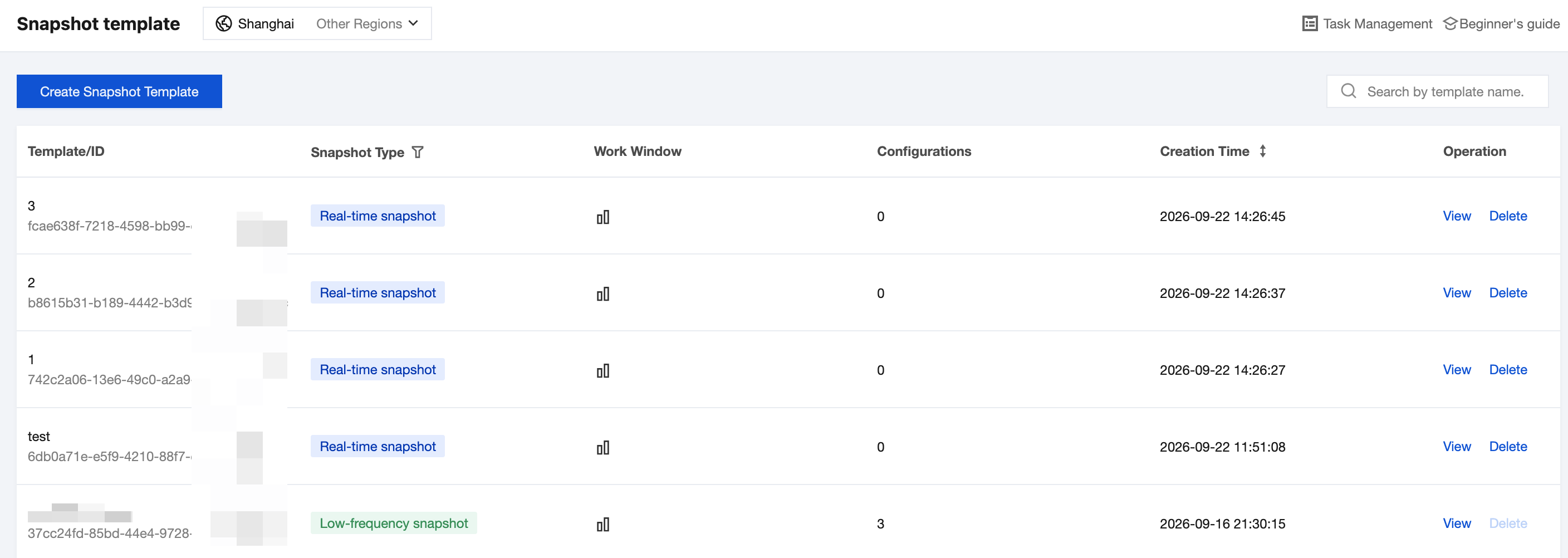
Creating a Snapshot Template
1. Click Create Snapshot Template and configure the following parameters in the panel that appears on the right.
Parameter | Required | Description |
Template Name | Yes | Only Chinese characters, English letters, digits, underscores (_), and hyphens (-) are supported. The length cannot exceed 32 characters. |
Snapshot Type | Yes | Determines the platform's pull streaming method and frequency range, and cannot be switched after creation. Real-time snapshot: The real-time stream is continuously pulled, and a snapshot is captured at intervals of 5 to 180 seconds. This mode is suitable for scenarios that require intensive frame capture and incurs higher costs. Low-frequency snapshot: Streams are pulled on demand in real time, and a snapshot is captured at intervals of 30 to 36,000 seconds. This mode is suitable for low-frequency inspection scenarios. |
Snapshot Frequency (Seconds) | Yes | Time interval between two adjacent snapshot periods. Default value: 10 seconds. The value range varies with the snapshot type: The real-time snapshot interval ranges from 5 to 180 seconds. The low-frequency snapshot interval ranges from 30 to 36,000 seconds. |
Snapshot Mode | Yes | Single-shot mode: Captures only one image in each snapshot period. Multi-shot mode (continuous capture): Continuously captures multiple images in each snapshot period. The number of images is determined by the number of continuous captures and interval, significantly increasing storage usage. |
Number of Consecutive Snapshots | Yes (in multi-shot mode) | Number of images captured consecutively within each snapshot period. Value range: 1 to 10. Default value: 1. |
Consecutive Snapshot Interval (Seconds) | Yes (in multi-shot mode) | Time interval between two adjacent images during continuous capture. Value range: 10 to 600 seconds. Default value: 10 seconds. |
Effective Time Range | Yes | Days of the week and time range during which the template takes effect. In the time grid from Monday to Sunday, 0:00 to 24:00, hold down the left mouse button and drag to select the time range. Snapshots are not captured during unselected periods. |
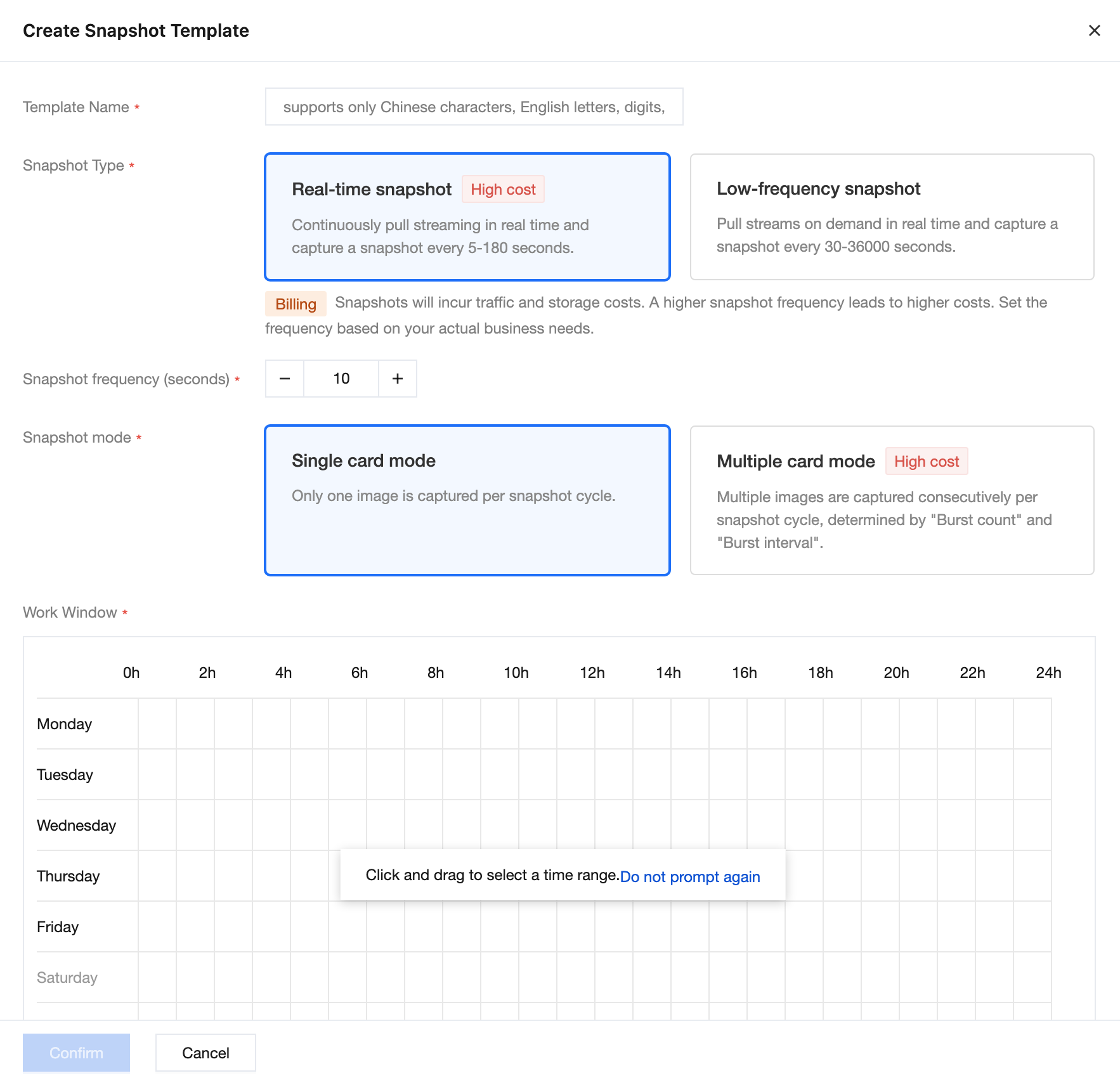
2. (Optional) When configuring the effective time range, click Quick Settings to select a preset and quickly apply common time segments. Click Clear Settings to clear the selected time segments and select again.
3. Click OK to complete the creation. After the template is created, it appears in the template list with Associated Configurations set to 0. The template takes effect only after it is associated with a snapshot configuration.
Viewing Snapshot Templates
1. In the template list on the Snapshot Templates page, view the information of created templates, including Template Name/ID, Snapshot Type, Effective Period, Associated Configurations, and Creation Time.
2. Enter a template name keyword in the search box in the upper-right corner to quickly locate the target template. Click the filter icon in the Snapshot Type column to filter the list by snapshot type. Click the sort icon in the Creation Time column to sort the list by creation time.
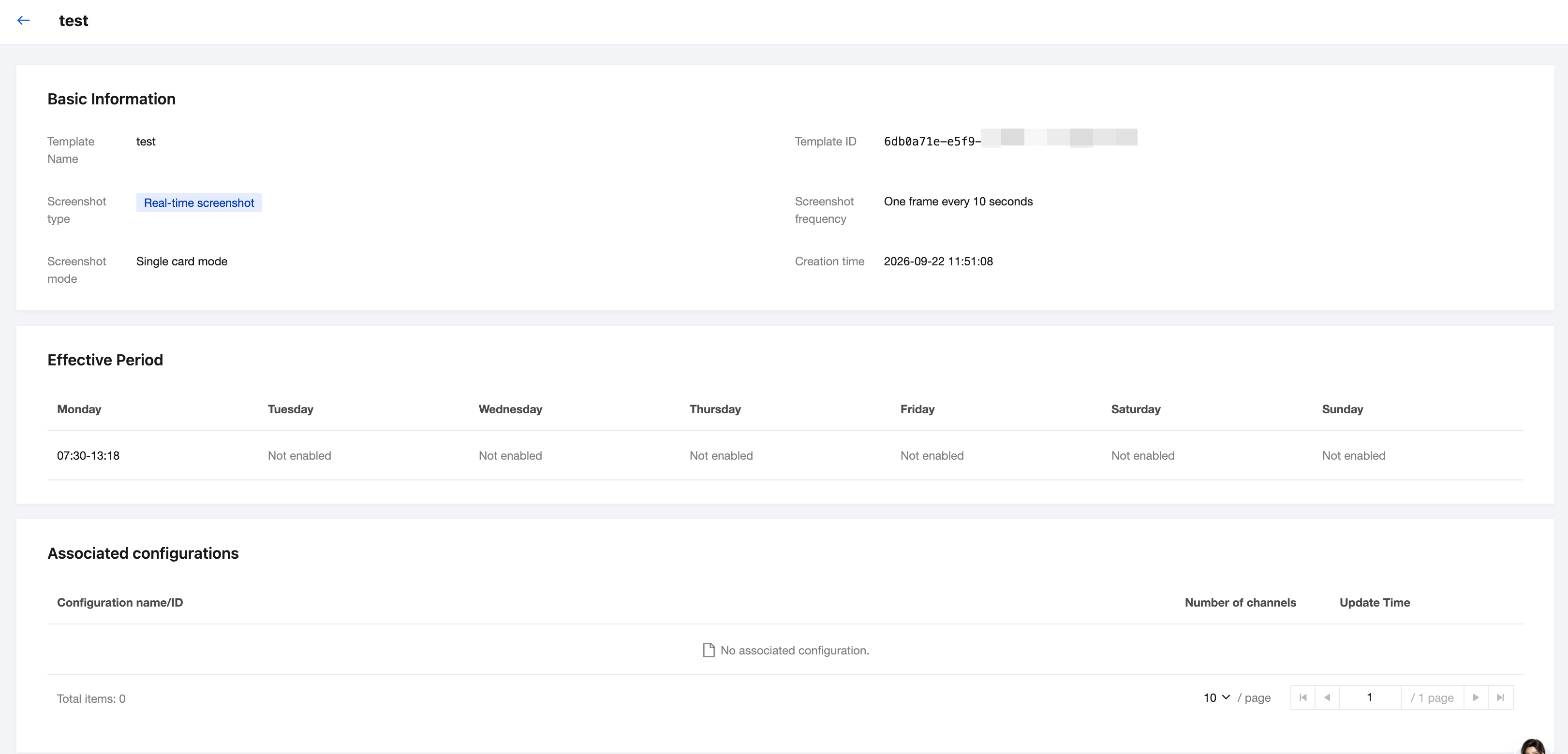
3. Click View in the operation column of the target template to go to the template details page and view the following information.
Area | Content |
Basic Information | Template name, template ID, snapshot type, snapshot frequency, snapshot mode, and creation time. |
Effective Time Range | The effective time range for each day from Monday to Sunday. Dates that are not configured are displayed as Not enabled. |
Associated Configuration | List of snapshot configurations that reference this template, including configuration name/ID, number of channels, and update time. |
Note:
The template details page is read-only, and template parameters cannot be modified. To adjust frame capture rules, create a new template and switch the associated template in the snapshot configuration.
Deleting a Snapshot Template
1. On the Snapshot Templates page, click Delete in the operation column of the target template.
Note:
When the number of Associated Configurations of a template is greater than 0, the Delete button is unavailable. To delete the template, switch to another template in the snapshot configurations that reference it so that the number of associated configurations becomes 0. You can view which configurations are referencing the template in the Associated Configurations section on the template details page.
2. In the dialog box that appears, confirm the prompt message and click Delete.
Warning:
Deletion is permanent. Once a template is deleted, it cannot be recovered or referenced by new snapshot configurations.
Related Documentation
After creating a snapshot template, you need to create a snapshot configuration on the Snapshot Management > Snapshot Configuration page and associate it with the template. Then bind video channels to the configuration so that the platform can capture snapshots according to the template rules.
Help and Support
Was this page helpful?
You can also Contact sales or Submit a Ticket for help.
Help us improve! Rate your documentation experience in 5 mins.
Feedback