Watermark Configuration
Download
Focus Mode
Font Size
Scenarios
A watermark configuration is used to apply a created watermark template to specified video features and video channels. After the configuration is created, when a user views the video feed of the corresponding channel in the console, the watermark content preset in the watermark template is overlaid on the video feed to identify the data source and prevent the feed from being untraceable after leakage.
After a watermark configuration is enabled, the video feeds viewed by all accounts (including sub-accounts) can contain watermark content, further ensuring data security.
Note:
The watermark feature is currently available to some users through an allowlist. To use it, please contact us.
Prerequisites
The ISS service has been activated, and the permission to use the watermark feature has been obtained.
A watermark template has been created. A watermark configuration must be associated with an existing watermark template, which determines the watermark type (such as text watermark) and style (single or tiled).
Device access has been completed, and an available video channel exists.
Operation Steps
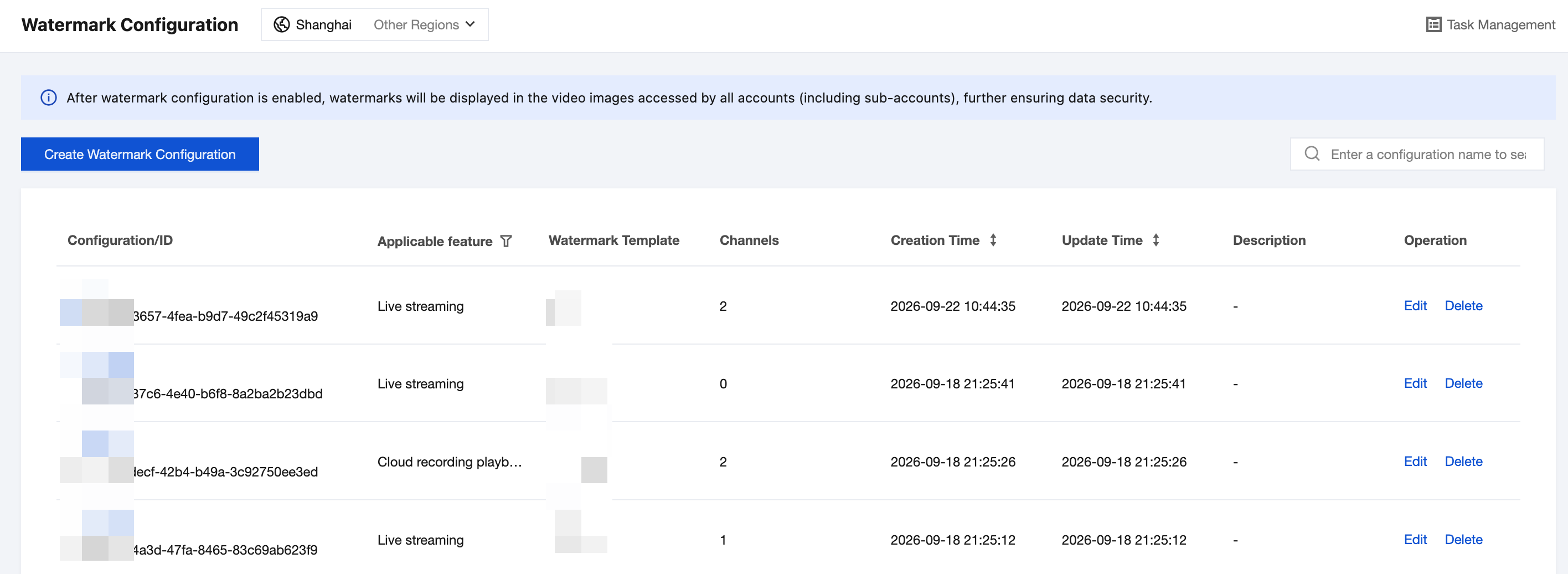
Creating a Watermark Configuration
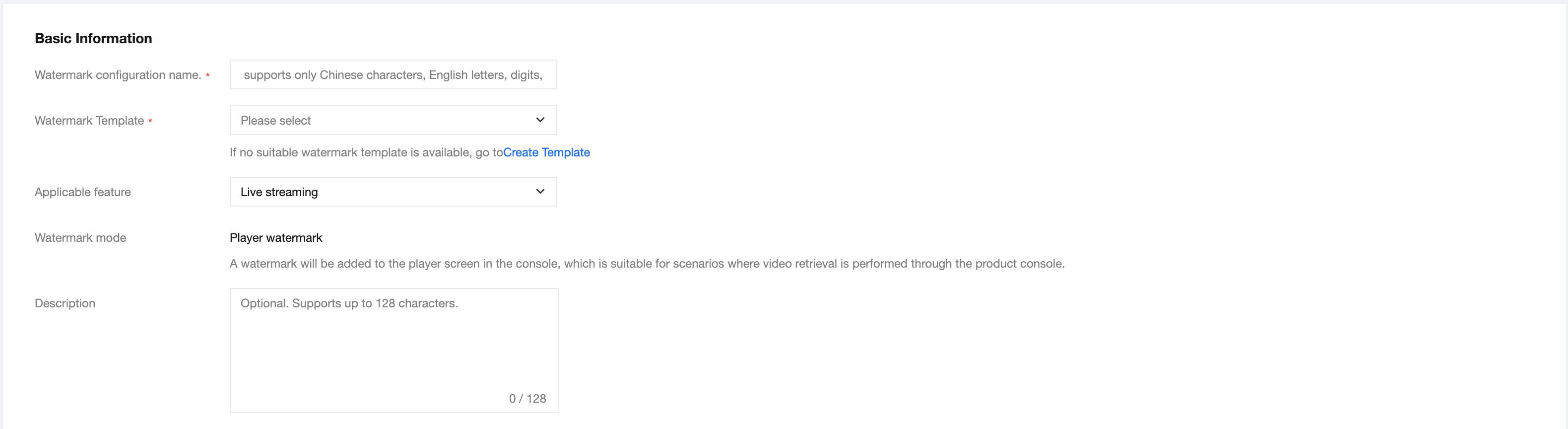
1. Click Create Watermark Configuration and configure the following parameters in the Basic Information area.
Parameter | Required | Description |
Watermark Configuration Name | Yes | Only Chinese characters, English letters, digits, underscores (_), and hyphens (-) are supported. The length cannot exceed 32 characters. |
Watermark Template | Yes | Select a created watermark template from the drop-down list. The template determines the watermark type and style. If no suitable template is available, click Create Template to create one. |
Applicable Feature | Yes | Select the video feature for watermark to take effect. Single choice is supported. Options include Live Streaming, Cloud Recording Playback, and Local Recording Playback. Modification is not supported after creation. |
Watermark Mode | - | Fixed as Player Watermark. A watermark will be added to the player screen in the console, which is suitable for scenarios that rely on the product console for video retrieval. |
Description | No | Describes the purpose of the configuration. The length cannot exceed 128 characters. |
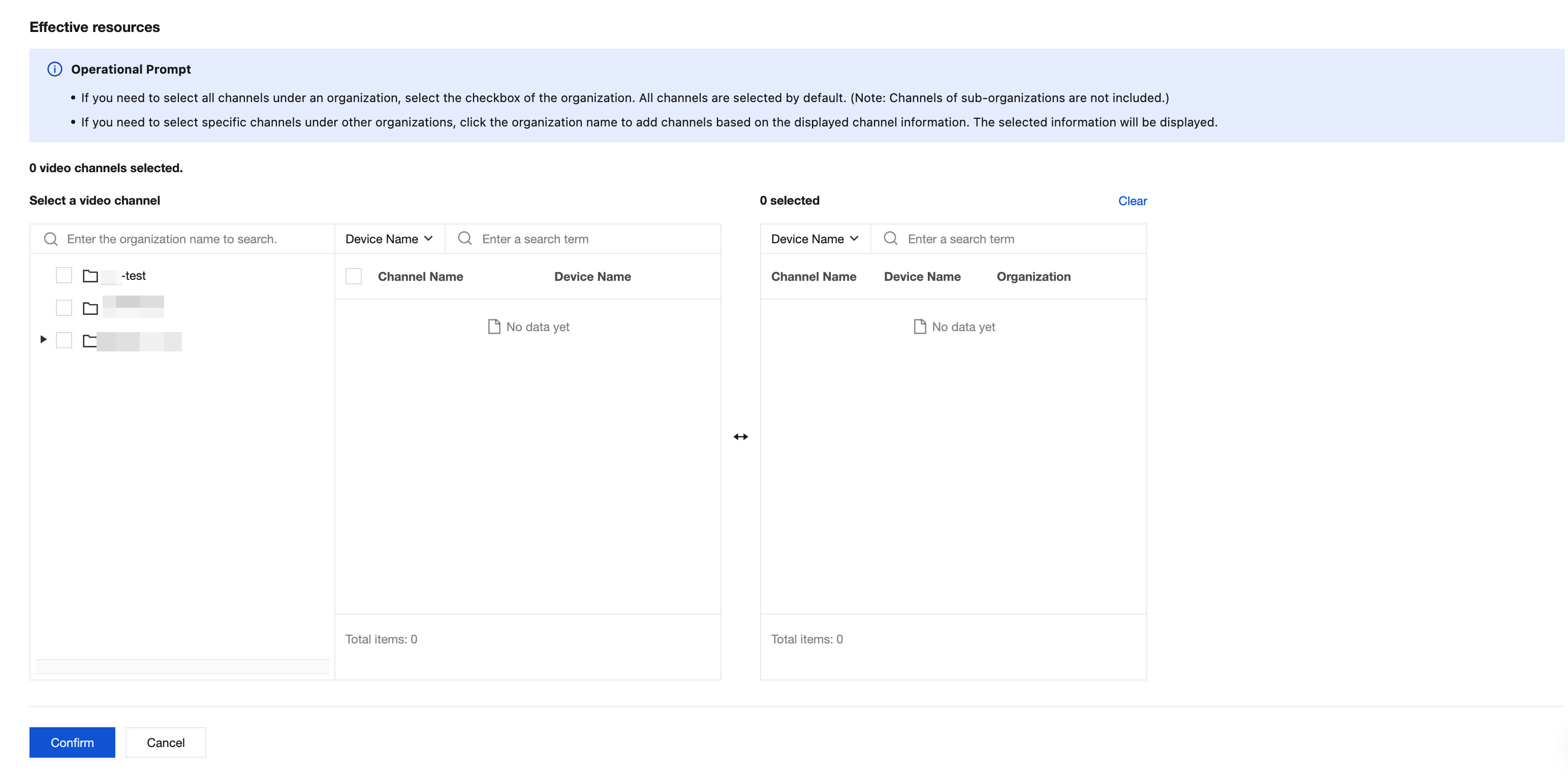
2. In the Effective Resources section, select the video channels to be effective from the left list. The selected channels are displayed in the Selected list on the right.
Select the checkbox to the left of the organization name to select all channels under the organization.
Click an organization name to add specific channels under the organization one by one in the channel list on the right.
You can quickly locate target channels by searching by organization name or device name. Click Clear to remove all selected channels.
Note:
When you select the organization checkbox, all channels under the organization are selected by default, excluding channels of sub-organizations. To configure watermarks for channels under a sub-organization, expand and select them individually.
A single feature of a single channel can be associated with only one watermark configuration. If the feature of the target channel is already occupied by another watermark configuration, disassociate it from the original configuration first.
3. Click OK to complete the creation. After the creation is completed, the platform takes effect according to this configuration. When users subsequently view the corresponding video channel feeds, the preset watermark content will be displayed.
Viewing Watermark Configurations
1. In the list on the Watermark Configuration page, view the information of created configurations, including Watermark Configuration Name/ID, Applicable Feature, Watermark Template, Number of Video Channels, Creation Time, Modification Time, and Description.
2. Enter a configuration name keyword in the search box in the upper-right corner to quickly locate the target configuration. Click the filter icon in the Applicable Feature column to filter the list by feature. Click the sort icon in the Creation Time or Modification Time column to sort the list by time.
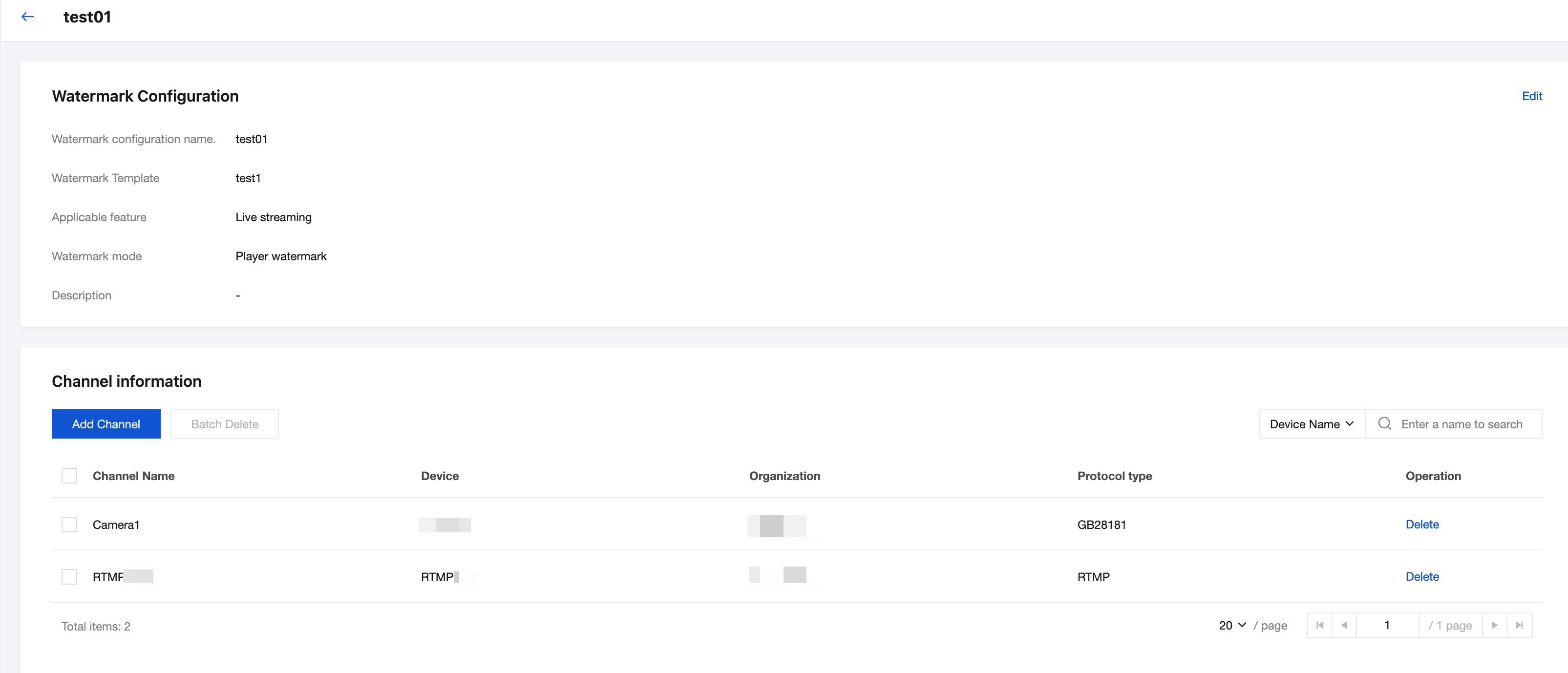
3. Click the name of the target configuration to go to the configuration details page and view the basic information of Watermark Configuration and the Channel Information list. The channel information includes Channel Name, Device, Organization, and Protocol Type.
Editing a Watermark Configuration
1. On the Watermark Configuration page, click Edit in the operation column of the target configuration to go to the configuration details page, and then click Edit in the upper-right corner of the Watermark Configuration area.
2. Modify the Watermark Configuration Name, Watermark Template, or Description, and then click Save.
3. To adjust the video channels that take effect, perform the operation in the Channel Information section on the configuration details page.
Click Add Channel, select the target channels, and confirm to add effective channels to this configuration.
Select the target channels and click Batch Delete, or click Delete in the operation column of the target channel to disassociate the channel from the configuration. After the disassociation, the watermark will no longer be overlaid when the channel feed is viewed.
Switch the search dimension and enter a keyword in the upper-right corner to quickly locate channels by conditions such as device name.
Deleting a Watermark Configuration
1. On the Watermark Configuration page, click Delete in the operation column of the target configuration.
2. In the dialog box that appears, confirm that the configuration name is correct, and then click Delete.
Warning:
After deletion, the watermark configuration will be permanently invalid and cannot be recovered, and watermarks will no longer be overlaid on the video feeds of the corresponding features when all channels under this configuration are accessed.
Related Documentation
To adjust the watermark content, font size, color, or layout, modify the corresponding template on the Video Watermark > Watermark Template page, or create a template and then switch the associated template in the watermark configuration.
If the same batch of channels needs to display watermarks in live streaming, cloud recording playback, and local recording playback, create three separate watermark configurations, each corresponding to one applicable feature.
Help and Support
Was this page helpful?
You can also Contact sales or Submit a Ticket for help.
Help us improve! Rate your documentation experience in 5 mins.
Feedback