By configuring custom policies, users can push the events they care about in the form of alarm messages. For example, in Ops scenarios, users can promptly obtain "device offline event" messages for quick troubleshooting.
Operation Steps
Alarm Policy
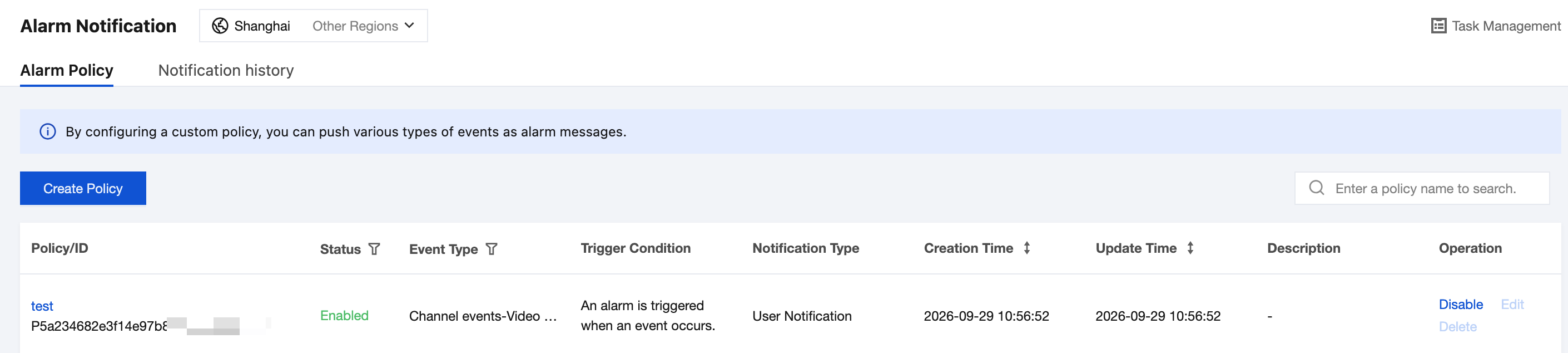
1. Log in to the ISS console and choose Event Alarm > Alarm Notification. By default, the Alarm Policy tab is displayed.
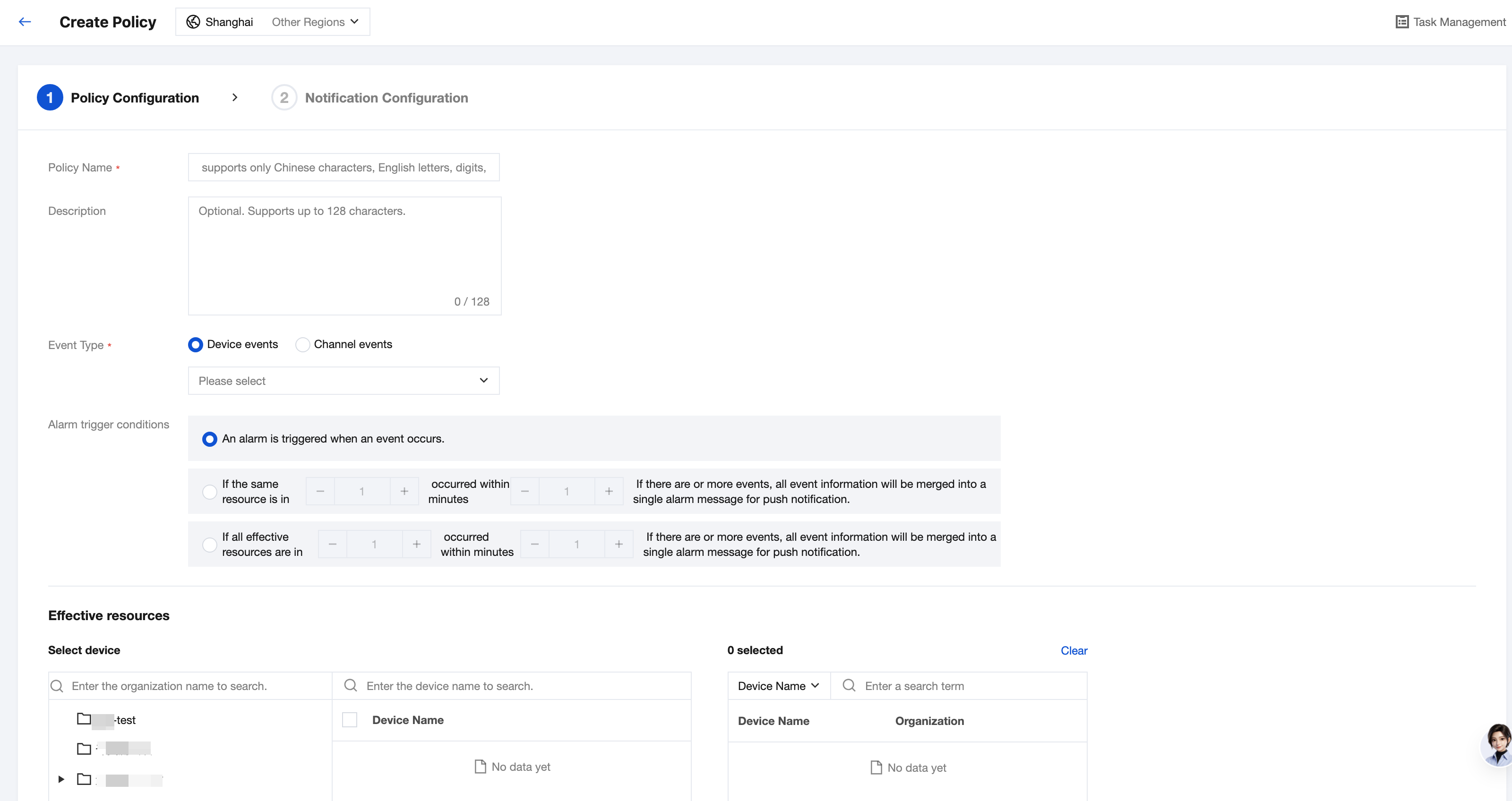
2. Click Create Policy. Configure the policy by following the prompts. Three types of alarm trigger conditions are currently supported. For example, if the event type is set to Device Offline, the corresponding effect is as follows:
Alarm on Event Occurrence
One Alarm per XX Events on the Same Resource Within XX Minutes
One Alarm per XX Events on All Effective Resources Within XX Minutes
A separate alarm message is generated for each selected device each time it goes offline, with no monitoring time range limit. The policy takes effect immediately after it is created.
This is suitable for scenarios where alarm messages need to be obtained promptly, but the number of alarm messages may be large.
Parameter settings: An alarm is triggered once when 10 or more events occur for the same resource within 60 minutes, and the policy is created at 12:00.
Final result: Only when 10 or more events occur within 60 minutes will all event information be consolidated into a single alarm message, which is then pushed at 13:00. The push occurs every 60 minutes and is not sent immediately in between.
A separate alarm message is generated for each selected device each time it goes offline, with no monitoring time range limit. The policy takes effect immediately after it is created.
This is suitable for scenarios where alarm messages need to be obtained promptly, but the number of alarm messages may be large.
Parameter settings: An alarm is triggered once when 10 or more events occur for the same resource within 60 minutes, and the policy is created at 12:00.
Final result: Only when 10 or more events occur within 60 minutes will all event information be consolidated into a single alarm message, which is then pushed at 13:00. The push occurs every 60 minutes and is not sent immediately in between.
Parameter settings: An alarm is triggered once when 20 or more events occur for all effective resources within 60 minutes, and the policy is created at 12:00.
Final result: All selected resources are monitored. Only when 20 or more events occur within 60 minutes will all event information be consolidated into a single alarm message, which is then pushed at 13:00. The push occurs every 60 minutes and is not sent immediately in between.
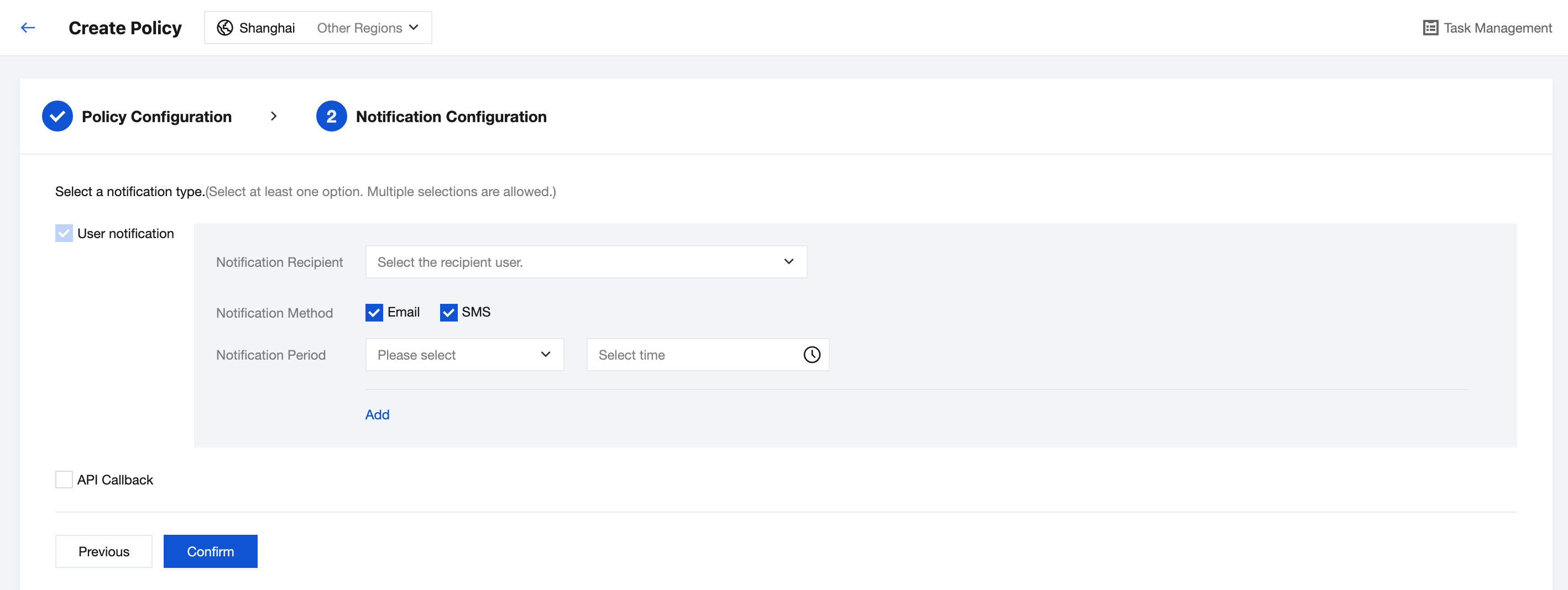
3. Click Next and choose to send notifications to different root accounts/sub-accounts by email or SMS, or to your user service via HTTP API callback.
4. Complete the alarm policy creation. The platform will then execute according to the policy.
Notification History
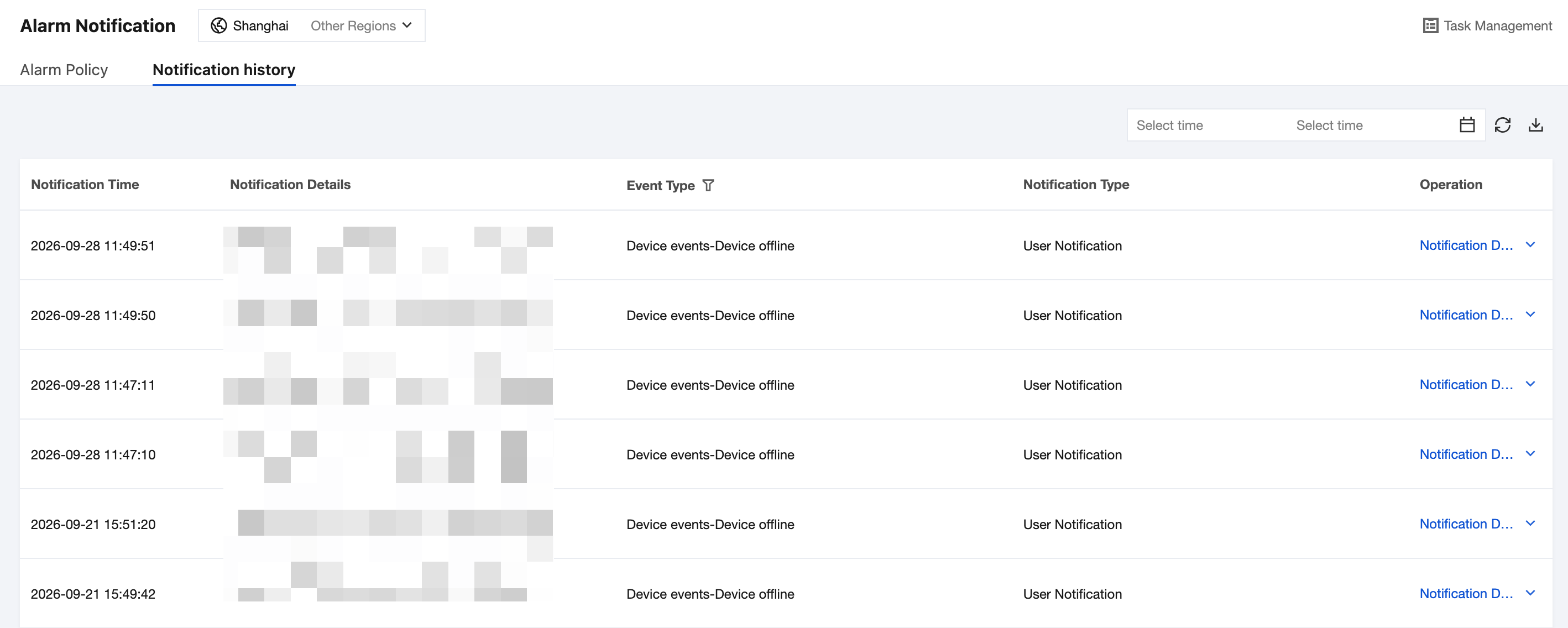
1. Log in to the ISS console, click Event Alarm > Alarm Notification, and switch to the Notification History tab.
2. This page records all previously pushed alarm messages and supports batch export of messages.
Note:
Notification records of alarm messages are retained for one month by default. For long-term storage, you are advised to export them to a local client.
3. Click Notification Details to view which accounts received the same alarm message. You can also add remarks for business record-keeping.