Analysis Results
Download
Focus Mode
Font Size
Scenarios
Analysis results are used to view the analysis pipeline and VLM output of visual understanding. You can filter by analysis plan and time range to view the channel, associated plan, and completion time of each analysis, and obtain the structured recognition conclusions returned by the VLM and the corresponding original frames in the details for scenarios such as business system integration, manual review, and effectiveness evaluation.
Prerequisites
You have activated the ISS service, and visual understanding is available in the current region. For the regions where each feature is supported, see Specifications and Limits.
Analysis templates and analysis plans have been created, and the plans have been associated with video channels. The platform must complete at least one analysis within the effective time period specified in the template before analysis results are generated.
Operation Steps
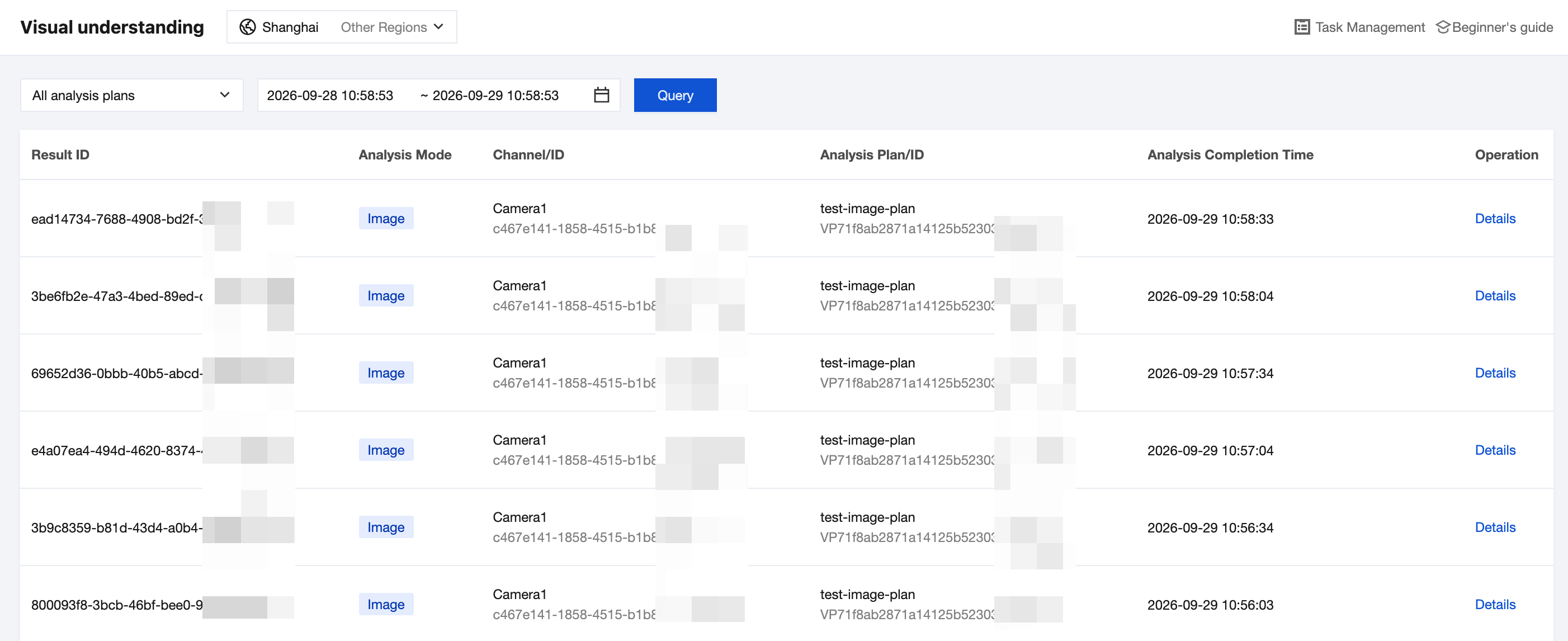
Querying Analysis Results
1. Set the query conditions at the top of the page and click Query.
Parameter | Description |
Analysis Plan | Select a target analysis plan, or keep all analysis plans to query the results generated by all plans. |
Time Range | Select the start and end time of analysis completion. By default, data from the last 24 hours is queried. |
2. View the analysis pipeline in the result list, including Result ID, Analysis Mode, Channel/ID, Analysis Plan/ID, and Analysis Completion Time.
The list is sorted in descending order by analysis completion time, and each record corresponds to one VLM analysis. If the analysis template uses the multi-image mode (continuous capture), multiple frames within the same capture cycle generate separate result records.
Note:
Analysis results can be queried only within the storage period of the corresponding plan. Results that exceed the storage period are automatically cleaned up according to lifecycle rules and no longer displayed in the list. If there are no analysis records in the selected time range, the list prompts that no analysis results are available for the current period.
Viewing Result Details
1. Click Details in the operation column of the target result to open the AI Analysis Result Details window.
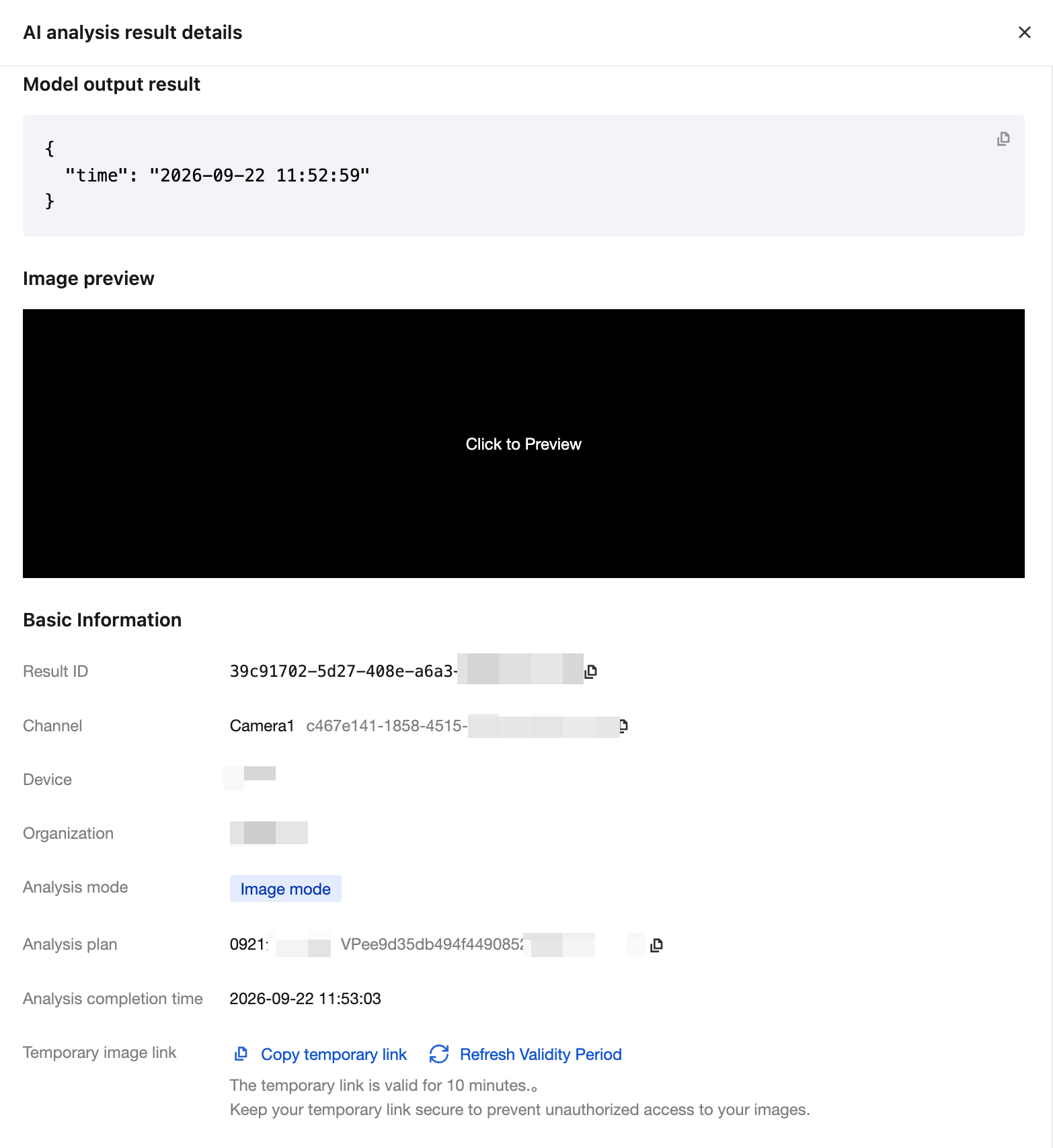
2. In the Model Output area, view the original recognition conclusions returned by the VLM.
3. In the Image Preview area, click the image area to view the original frame on which this analysis is based.
Note:
By comparing the model output with the original frame, you can determine whether the recognition conclusion is accurate, which helps evaluate the prompt effectiveness and perform targeted optimization.
4. In the Basic Information area, view the complete information of this result.
Parameter | Description |
Result ID | Unique identifier of this analysis result. Click to copy. |
Channel | Name and ID of the video channel that generates this frame. Click to copy. |
Associated Device | Access device to which the channel belongs. |
Associated Organization | Organization node to which the channel belongs. |
Analysis Mode | Material organization method used for this analysis, such as image mode. |
Analysis Plan | Name and ID of the analysis plan that executes this analysis. Click to copy. |
Analysis Completion Time | Time when the VLM returns the conclusion of this analysis. |
Temporary Image Link | Address used to temporarily access the original frame in the business system. |
5. At Image Temporary Link, click Copy Temporary Link to obtain the frame access URL. If the link has expired, click Refresh Validity to regenerate it.
Warning:
The temporary link is valid for 10 minutes. Keep your temporary link secure and prevent it from being leaked. Otherwise, your images may be accessed by other users.
6. After viewing, click the close icon in the upper-right corner to exit the details window.
Related Documentation
To adjust recognition capabilities (prompts) or frame capture policies (screenshot frequency and effective time ranges), create a template on the Visual Understanding > Analysis Templates page and switch the associated template in the analysis plan.
To adjust the storage period, callback settings, or associated channels of results, modify the corresponding plan on the Visual Understanding > Analysis Plans page.
Help and Support
Was this page helpful?
You can also Contact sales or Submit a Ticket for help.
Help us improve! Rate your documentation experience in 5 mins.
Feedback