Monitor and manage files/folders specified in policies.
Monitoring: Records operations such as creation, modification, deletion, and read.
Management: Reinforces permissions for sensitive enterprise files, for example, prohibits operations such as modification, copying, moving, and reading.
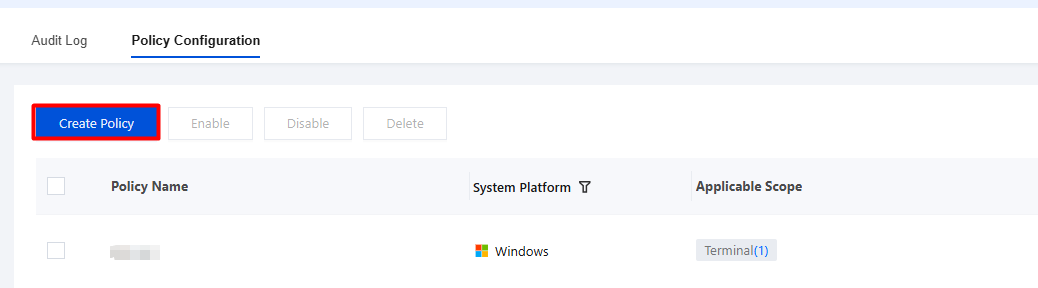
2. On the File Management page, select Policy Configuration and click Create Policy.
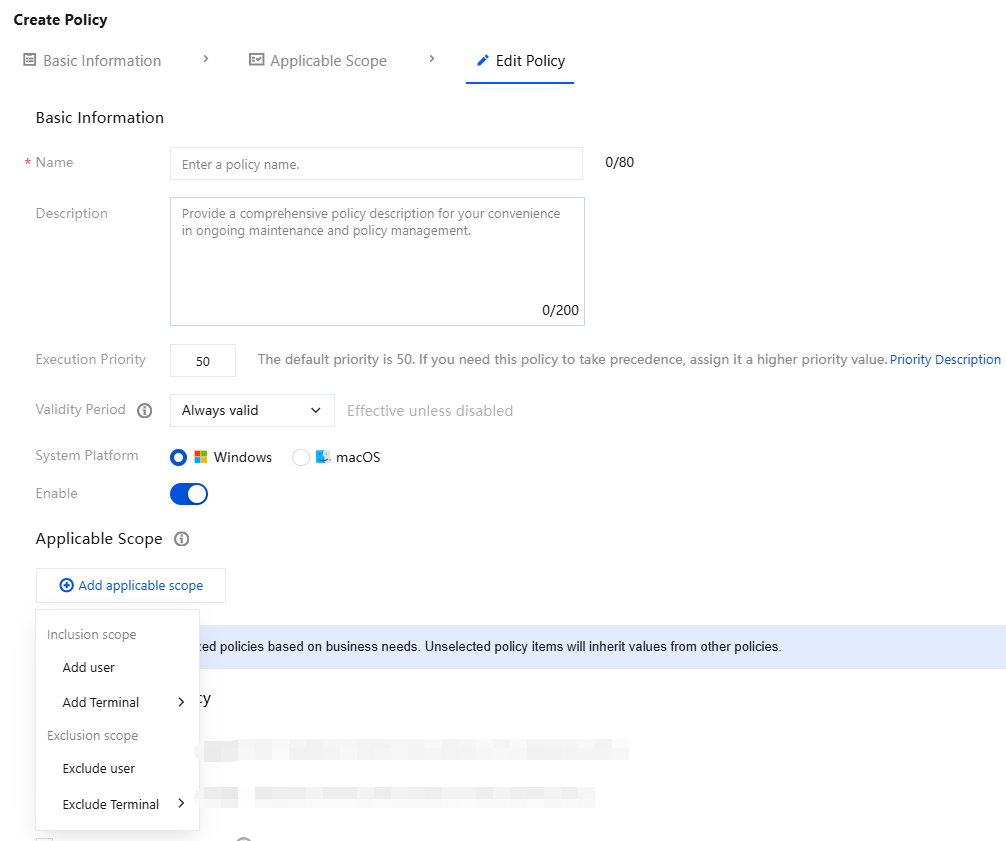
3. On the Create Policy page, configure the relevant parameters.
3.1 Enter the policy name and parameters such as the policy description.
3.2 Click Add Applicable Scope, select the names of users/terminals to be managed/excluded, and click OK.
4. Select the following file Management policy as needed, and click Save.
File Access Control
Attention:
After it is enabled, it may affect the use of the terminal. For example, a larger control scope may affect file operation performance. Operate with caution.After it is enabled, perform thorough testing and verification to confirm that there are no exceptions before gradually expanding the scope of impact.
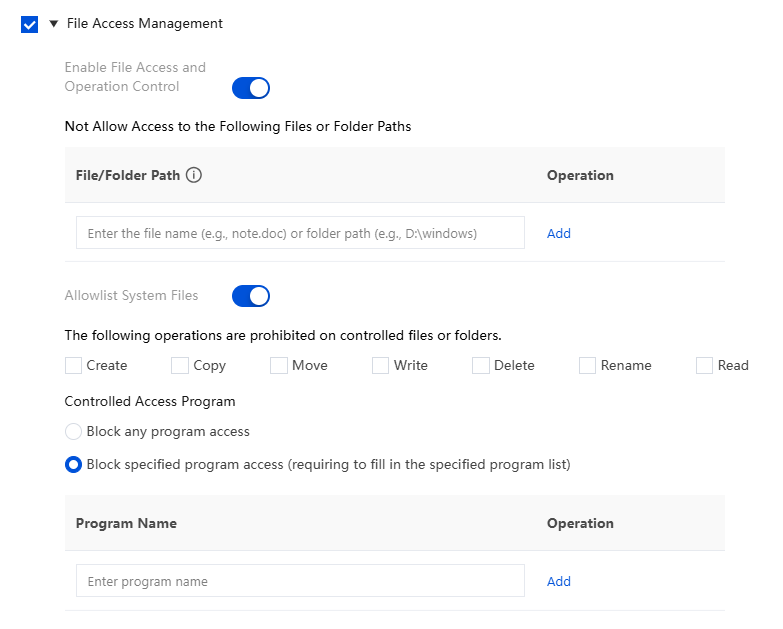
1. Select File Access Control and click
Enable File Access and Operation Control.
Parameter Name
Description
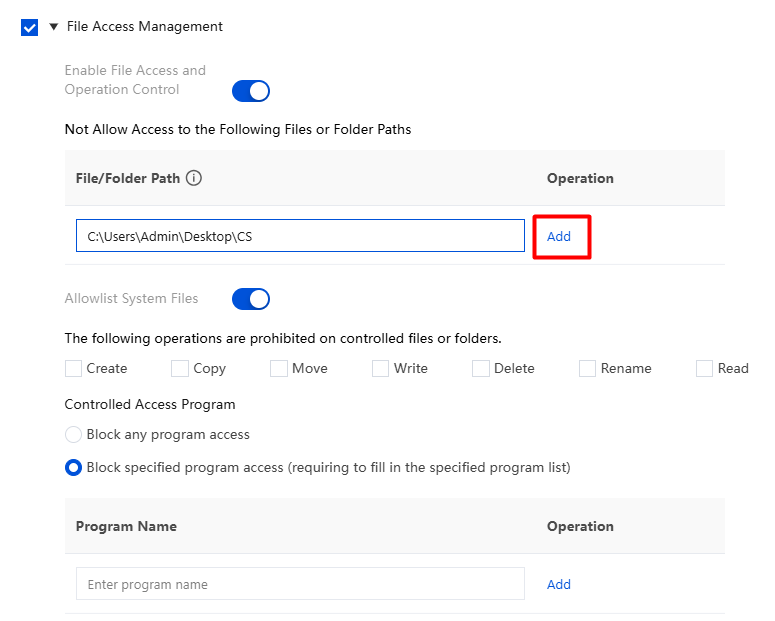
Block access to the following file or folder paths.
When a file name is configured, the system will fuzzy-match all files that match the entered file name (for example, note.doc will match 123note.docx).
When the configured path ends with "\\", an exact match is performed (for example, D:\\Windows\\). If it does not end with "\\", it matches any folder whose name starts with the input path (for example, D:\\Windows matches D:\\Windows123).
Do not disable folders on the C drive to avoid system crashes. If you need to add a C drive folder, select "Block specified programs from accessing it".
Add System Files to Allowlist or Not
After the allowlist is enabled, files in system directories will not be blocked from access.
If you do not add system files to the allowlist, select the "Block specified programs from accessing" mode to prevent system crashes caused by inaccessible system files.
Prohibit the following operations on controlled files or folders.
Select create, copy, move, write, delete, rename, and read based on actual control conditions.
Controlled access programs
Block access by any program: Controlled files/folders are blocked from access by any program.
Block specified programs from accessing: Enter the name of the specified program.
Configuration Example
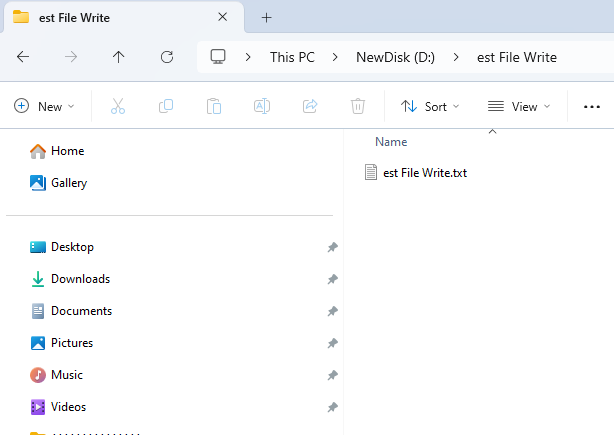
1. Create a document named "Test File Write" in txt format.
2. Block access to the following file or folder path: Enter the path where the new document is located, C:\\Users\\Admin\\Desktop\\CS.
3. Add system files to the allowlist. After that, system files will not be blocked from access.
4. Write operations are prohibited on controlled files or folders.
5. For the controlled access program, select "Block access by any program".
6. After completing the addition, click Save.
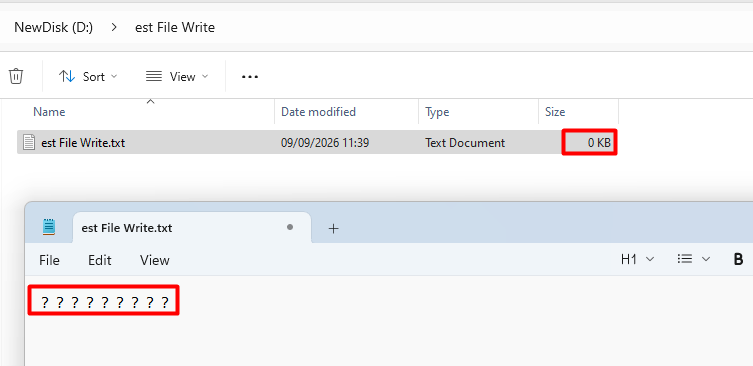
7. Open the specified file "Test File Write".txt in the terminal, write content to it, and save it. A message indicates that the operation is successful. However, the file size remains unchanged and the content is not written, indicating that writing content to the controlled file failed.
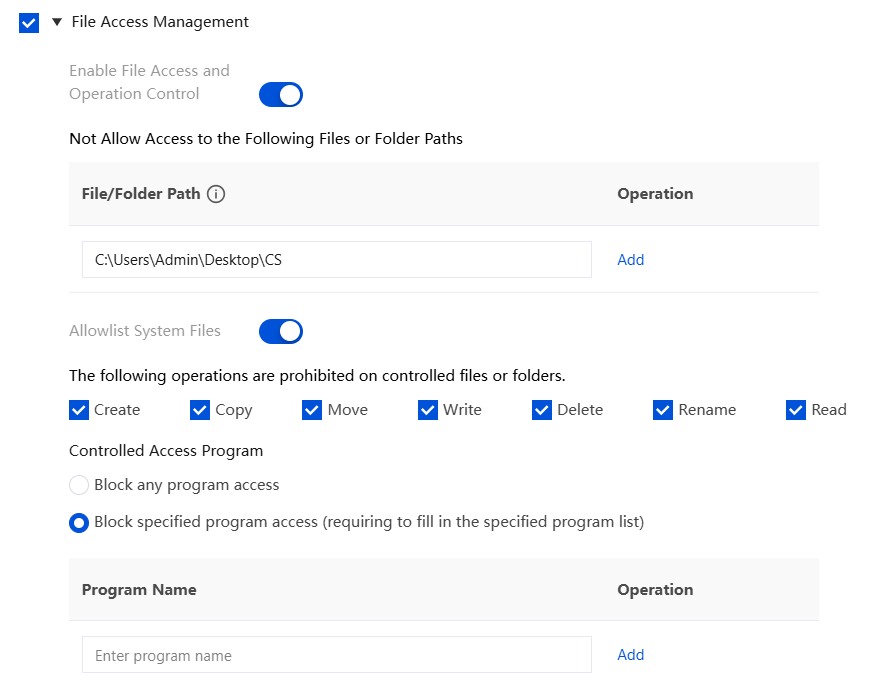
8. If you configure the system to prohibit operations such as creating, copying, and moving on controlled files or folders.
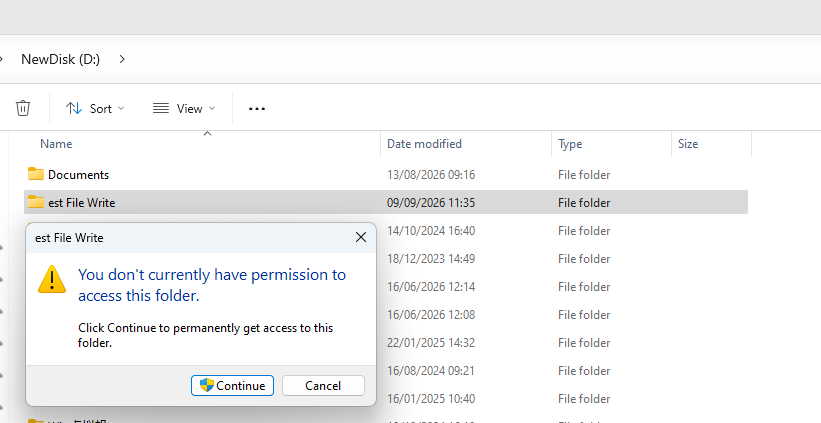
9. When you access files or folders under C:\\Users\\Admin\\Desktop, a system permission error dialog appears with the message "Access Denied".
File Operation Auditing in CloudAudit
Attention:
After it is enabled, it may affect the use of the terminal. For example, a larger audit scope may affect file operation performance. Operate with caution. After it is enabled, perform thorough testing and verification to confirm that there are no exceptions before gradually expanding the scope of impact.
1. Sensitive file operations can be traced through CloudAudit.
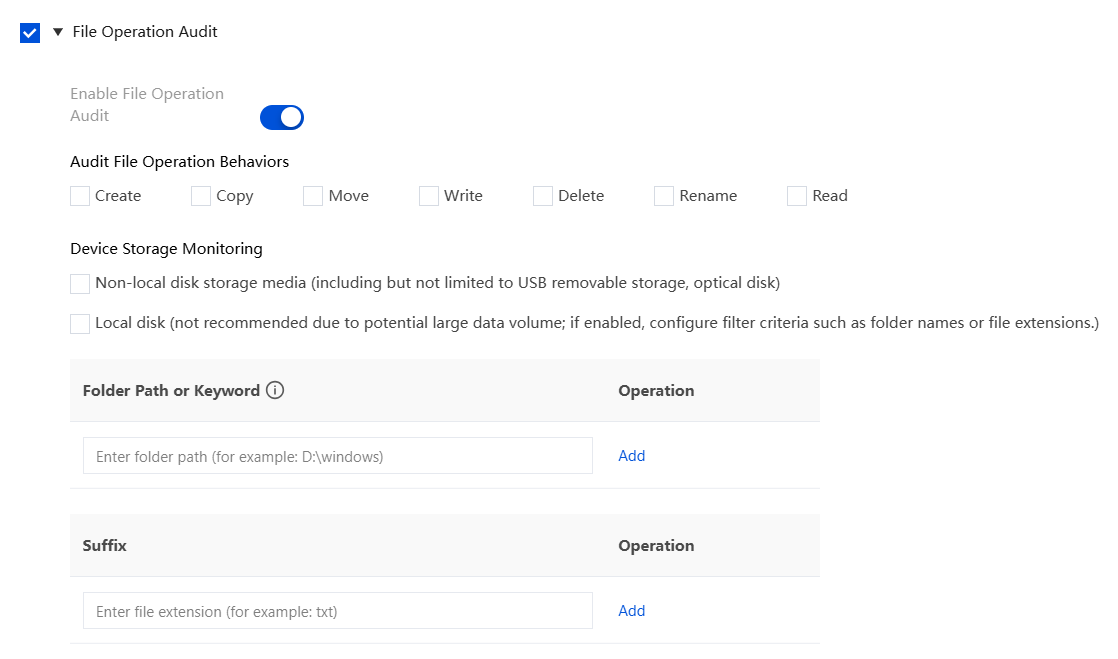
2. Select File Operation Audit and click
Enable File Operation Audit.
Parameter Name
Description
Audit file operation behavior
Select create, copy, move, write, delete, rename, and read based on actual control conditions.
Device storage monitoring
Storage media other than local hard disks, including but not limited to USB removable storage and optical discs.
Local hard disk (not recommended to avoid excessive data volume; if it is enabled, configure the corresponding filter parameters for folders or suffixes).
Folder path or keyword
When a file name is configured, the system will fuzzy-match all files that match the entered file name (for example, note.doc will match 123note.docx).
When the configured path ends with "\\", an exact match is performed (for example, D:\\Windows\\). If it does not end with "\\", it matches any folder whose name starts with the input path (for example, D:\\Windows matches D:\\Windows123).
Suffix
Enter the file extension, such as txt.
Configuration Example
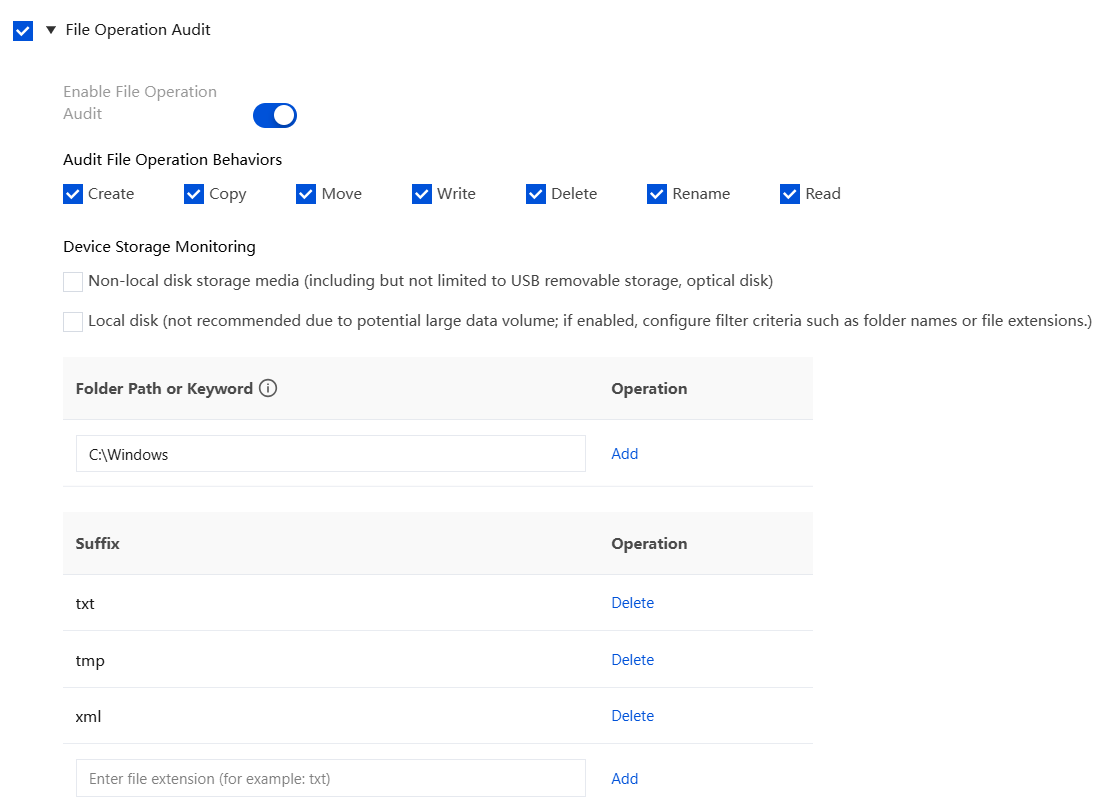
1. Select all file operation behaviors.
2. Device storage monitoring is empty (not selected).
3. Enter the folder path C:\\Windows.
4. Enter the file extensions txt, tmp, and xml.
5. After completing the addition, click Save.
6. In the terminal C:\\Windows, perform create, copy, move, write, delete, rename, and read operations on files with the txt, tmp, and xml extensions.
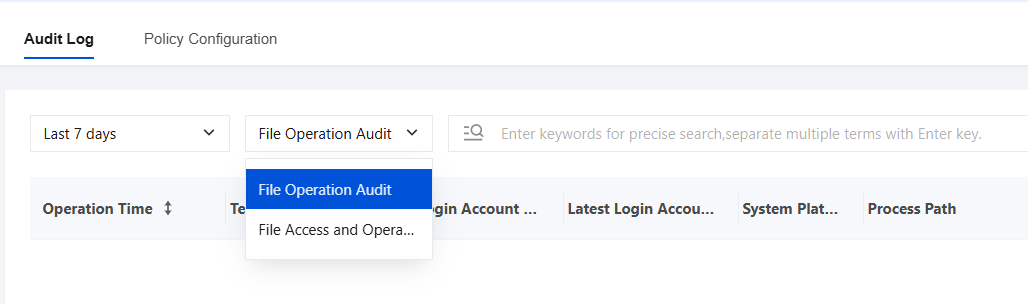
7. Go to Terminal Management > File Management > Audit Logs, and select File Operation Audit. Logs of the related operation audit are reported to the backend and displayed on the Web console.
Shared Directory Auditing
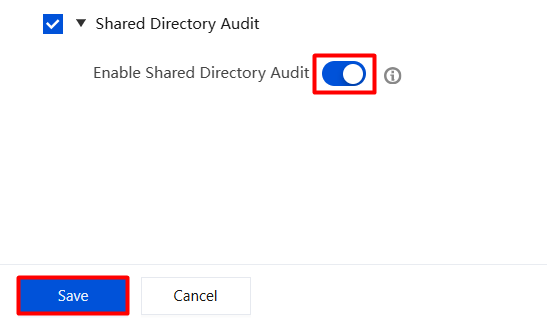
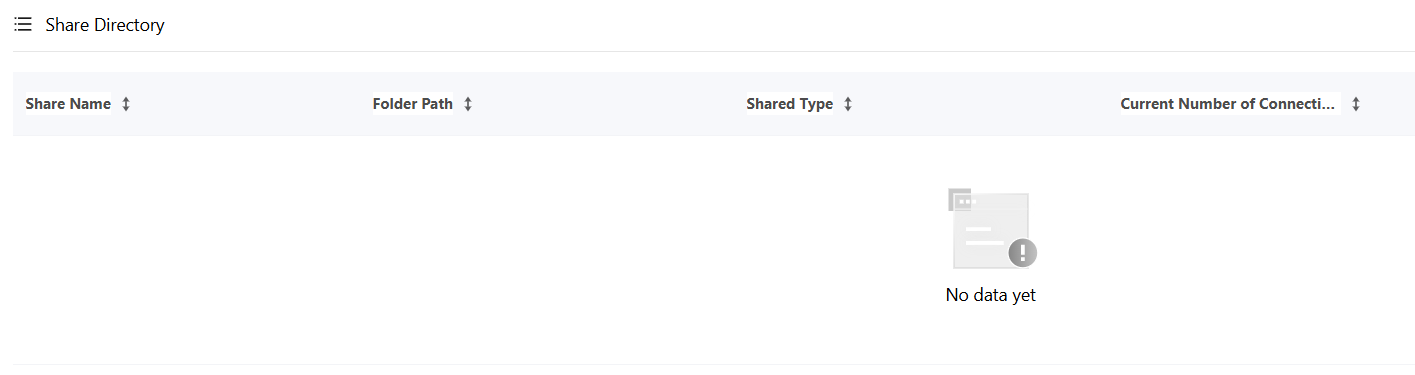
1. Click Enable Shared Folder Audit. After it is enabled, terminals that receive this policy report the shared folder information of the local device.
Note:
Shared folders are supported only on Windows.
2. On the Asset Management > Terminal Control > Terminal List > Terminal Information page, click the terminal name to go to the terminal details. The details are enumerated and displayed on the Operation Monitoring > Share Directory page.