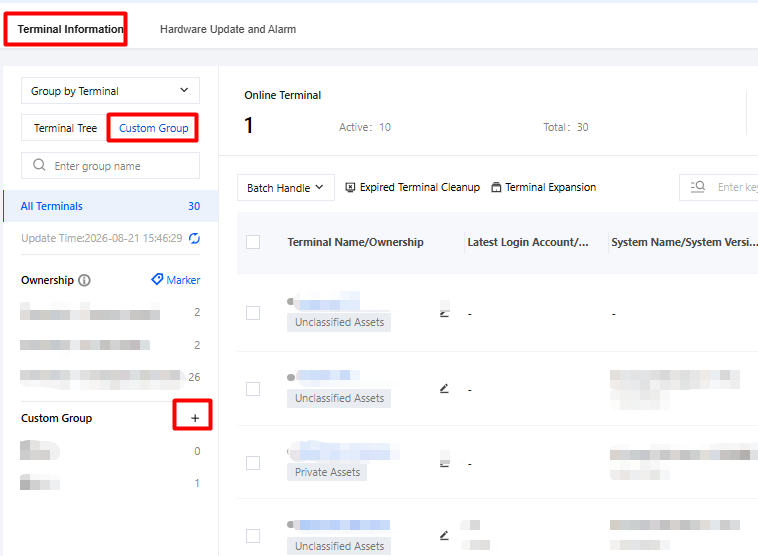
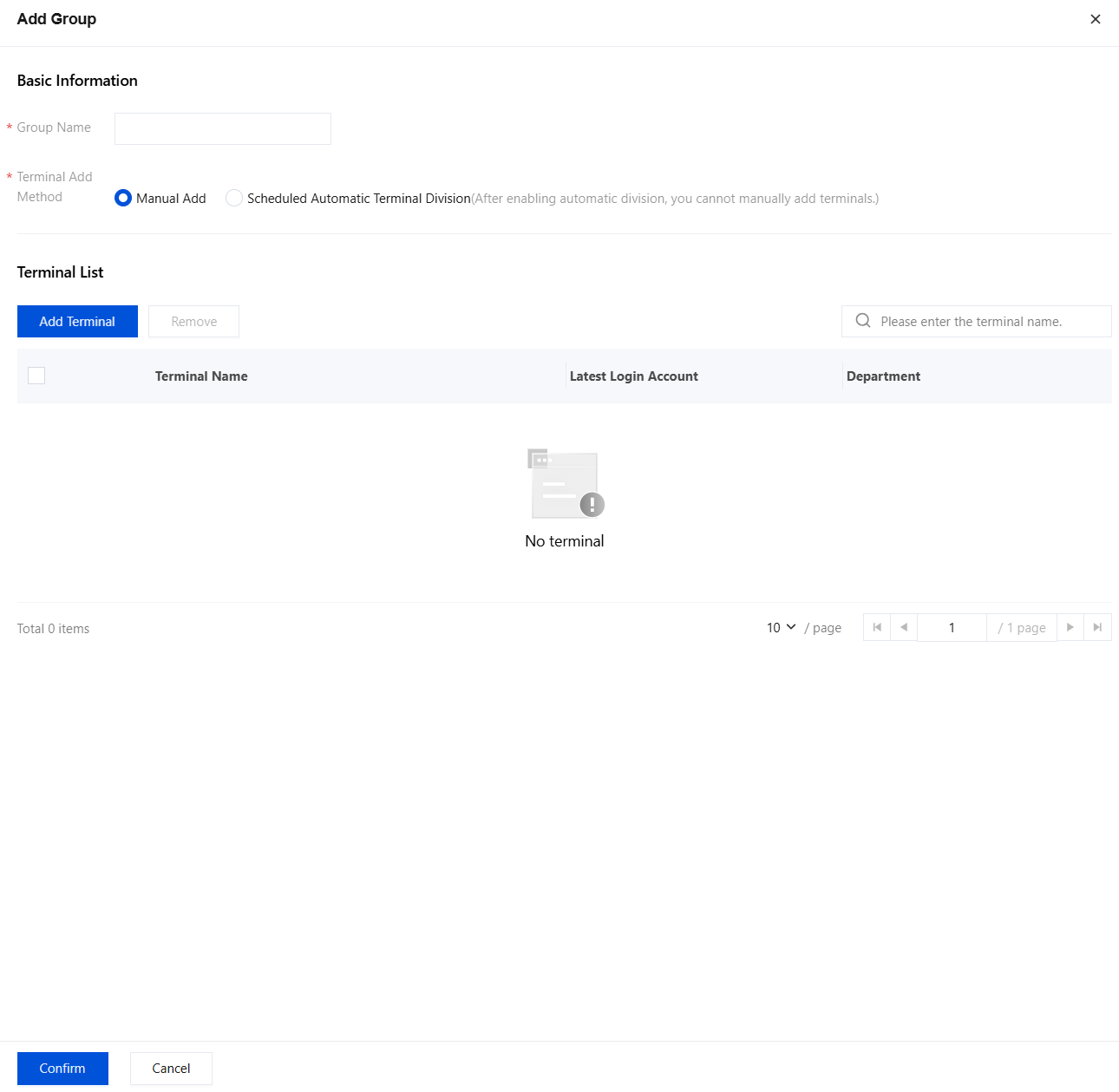
Applicable scenario: Terminals are typically grouped by company organizational structure, and the same applies to resource authorization.
When executing a specific project, you may need to draw employees from different departments to form a new project team, and then manage and authorize the terminals of these employees.
Each department owns some special devices that need to be managed separately.
Expected result:
When account A accesses specific resources on a terminal in a custom group, challenge authentication is triggered.
When account A accesses specific resources on another terminal, challenge authentication is not triggered.
Prerequisites
1. The iOA client is deployed successfully.
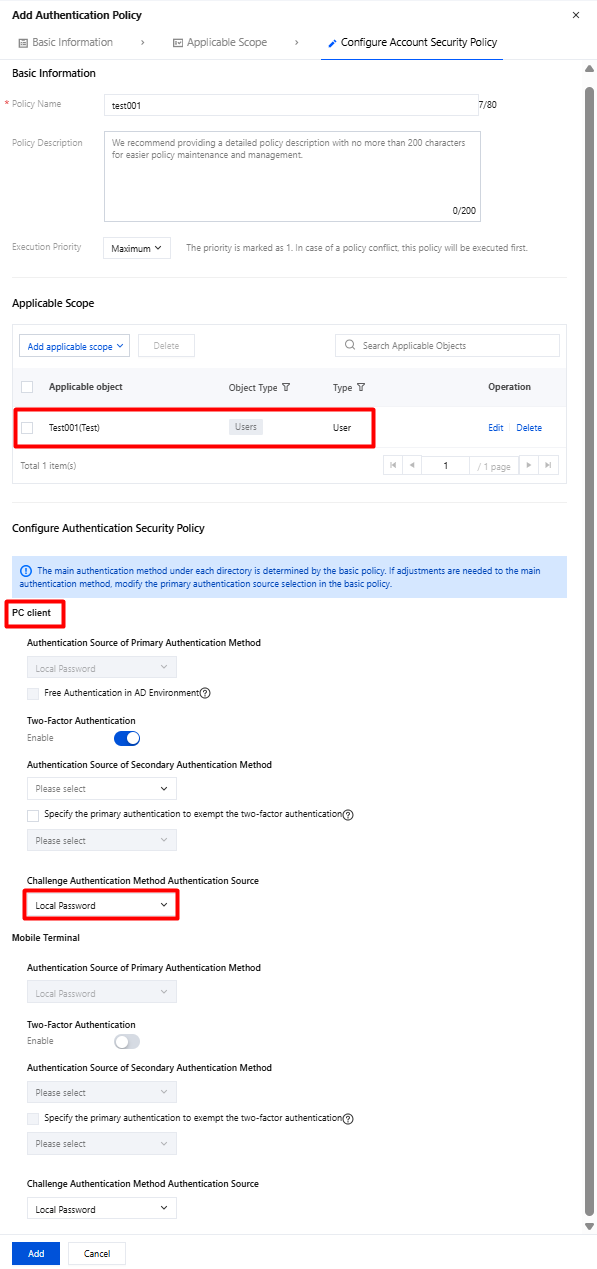
2. Complete account creation and authentication source configuration.
3. Add the business resources.
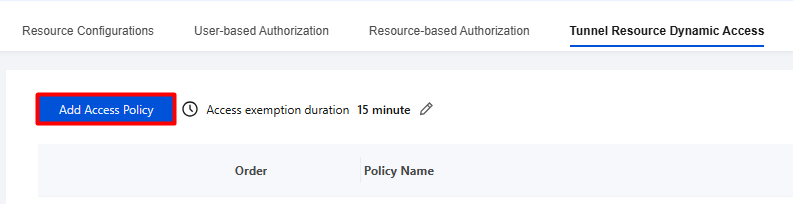
4. Complete authorization for the corresponding users and resources.
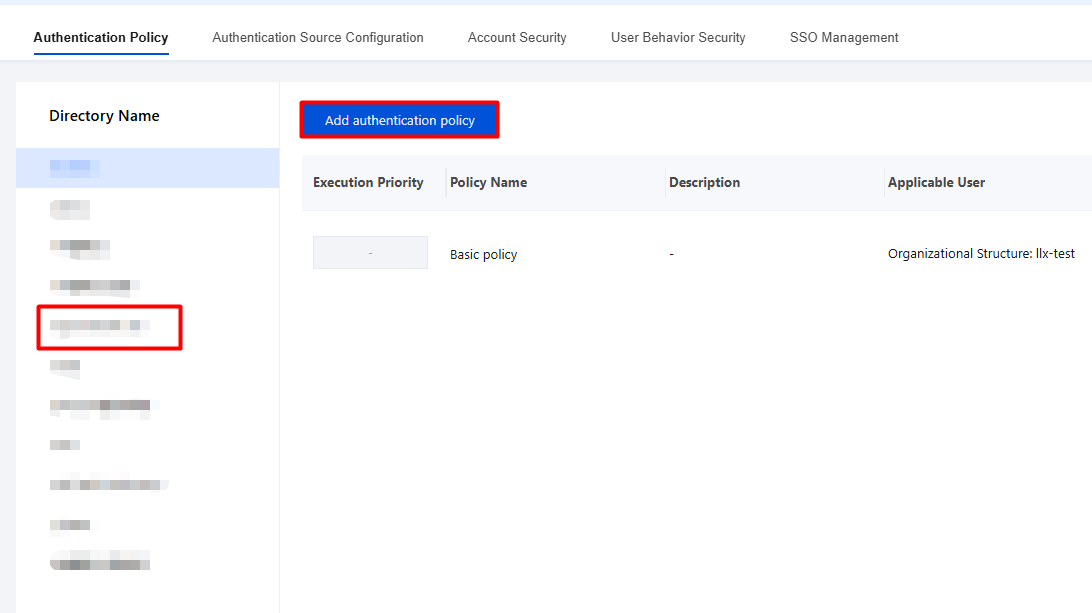
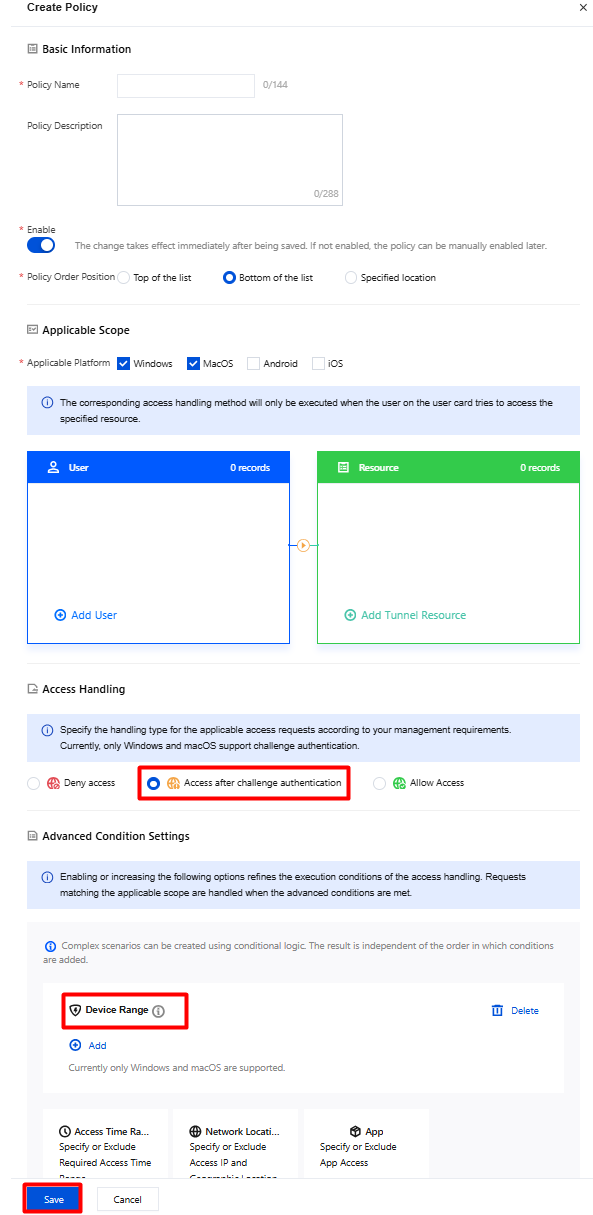
2. On the Create Policy page, configure the relevant parameters. For Access Action, select Access After Challenge Authentication, choose Device Scope, and click Add This Condition.
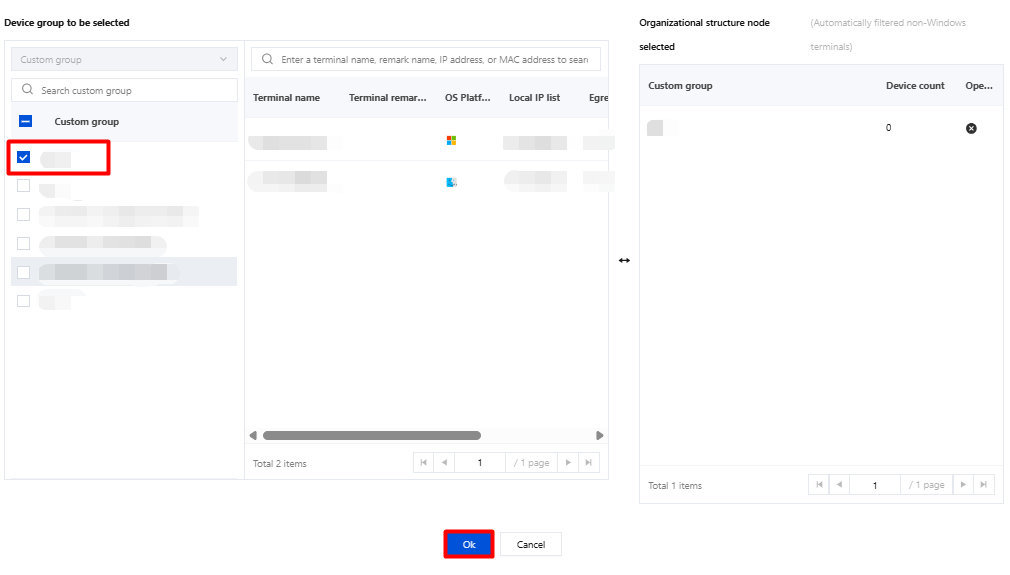
3. Select the custom group created in Step 1 and click OK > Save.
Step 4: Terminal Verification
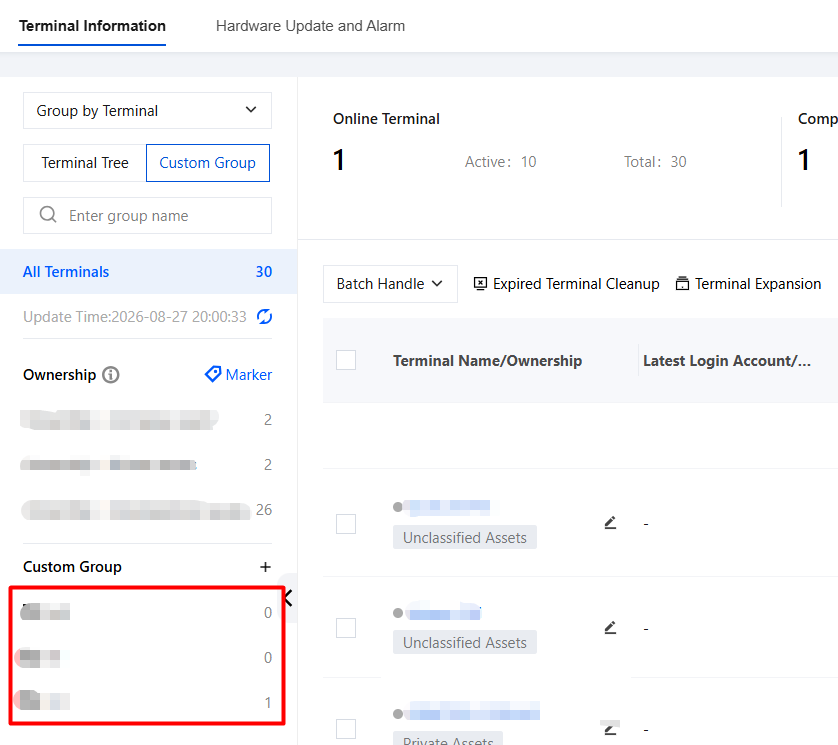
1. Log in with account A on a terminal in the custom group - Strategic Group, access specific resources to trigger challenge authentication, and access is granted after successful authentication.
2. When account A accesses specific resources on another terminal, challenge authentication is not triggered, and the access succeeds.