Software Pop-up Blocking
Unduh
Mode fokus
Ukuran font
Prevent or limit the software from displaying ad windows, malicious pop-ups, and other unnecessary intrusive pop-ups on the user terminal interface.
1. Log in to the Tencent iOA Zero Trust Security Management System console. In the left sidebar, choose General Management Policy > Client Policies.
2. On the Client Management page, select Software pop-up block and click Create Policy.
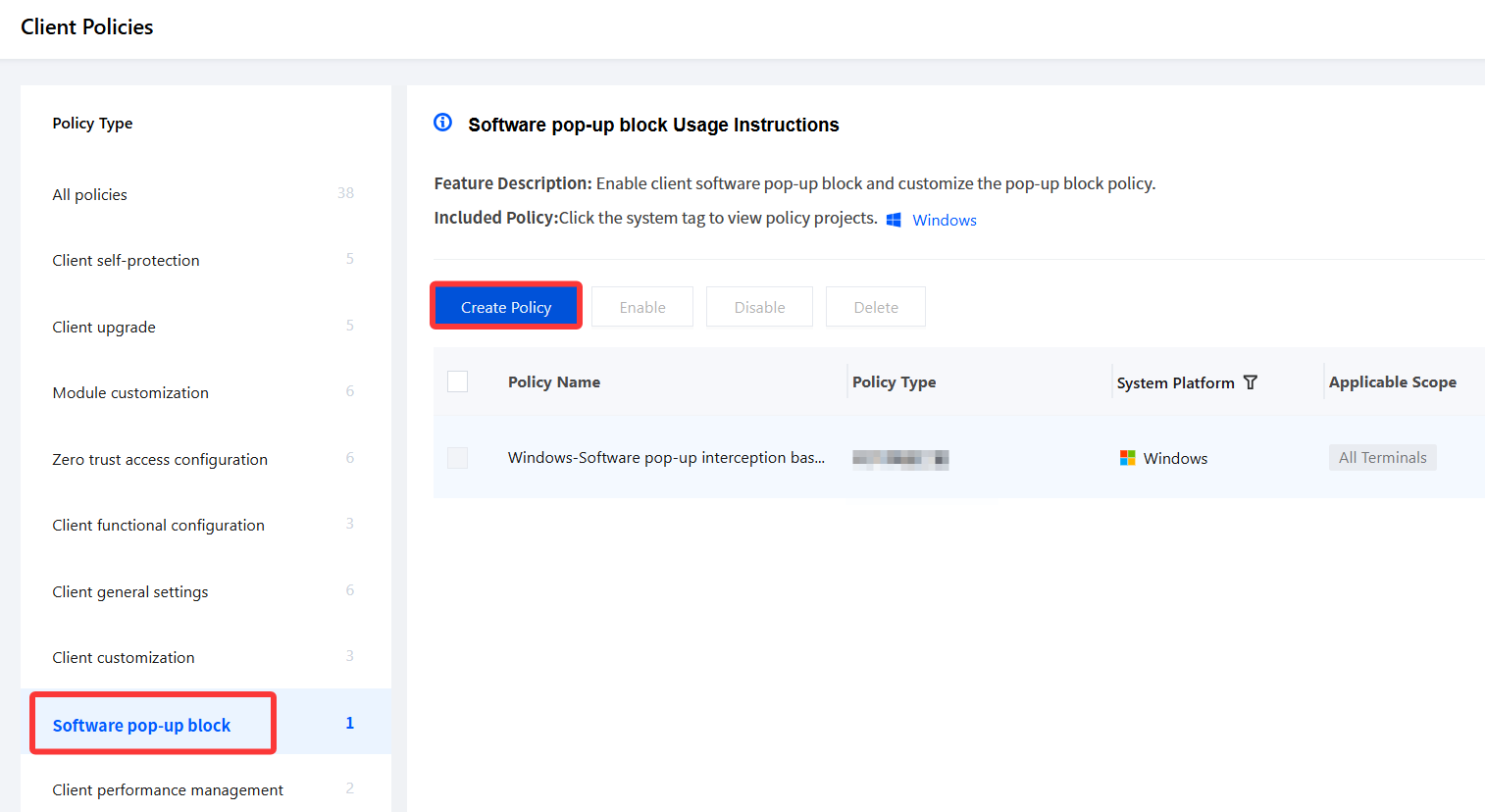
3. On the New Software Pop-up Blocking Policy page, configure the relevant parameters.
3.1 Enter the policy name and other parameters such as the policy description.
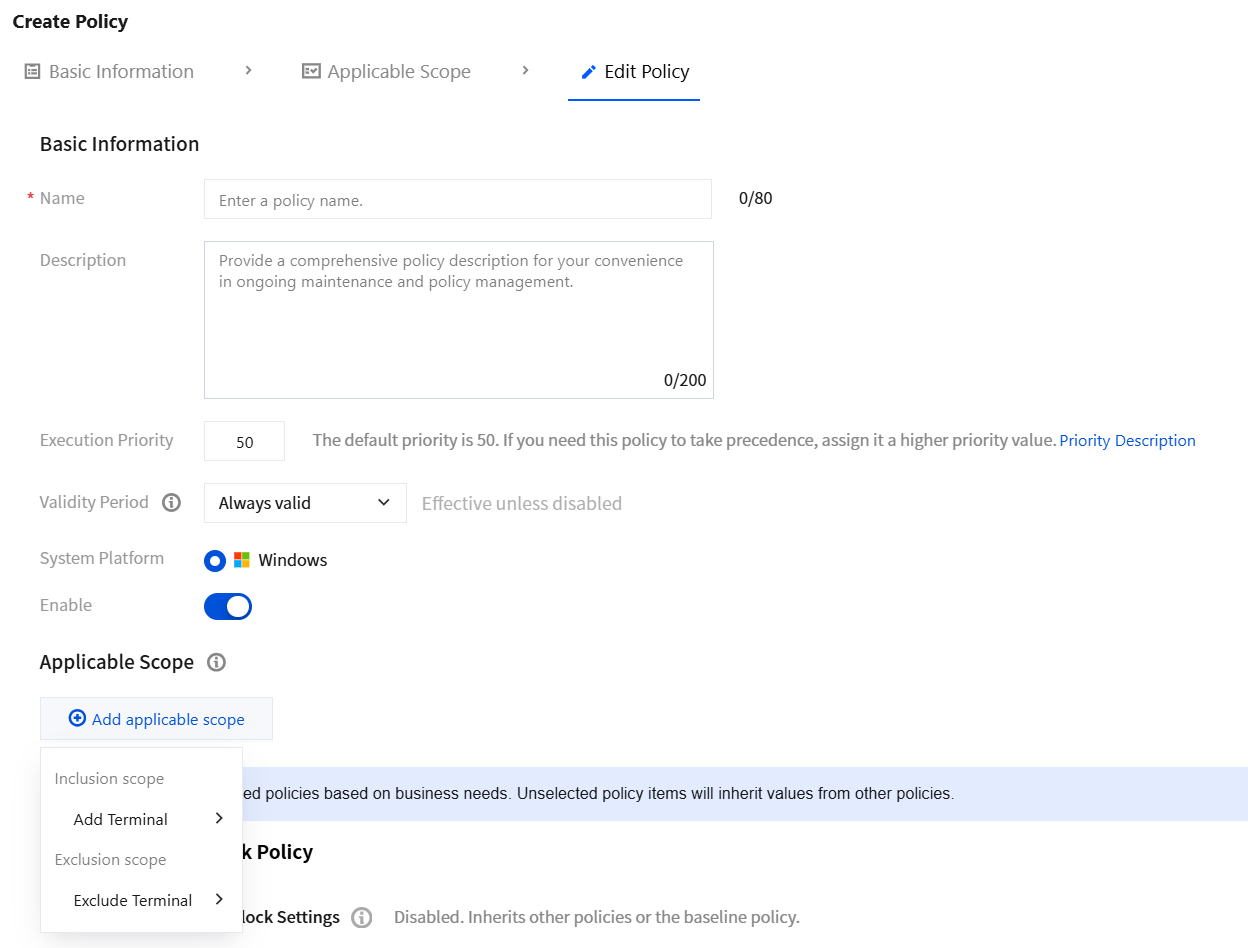
3.2 Click Add applicable scope, select the terminal names to be managed/excluded, and click OK.
4. Select Software Pop-up Blocking, enable software pop-up blocking, and click Save.
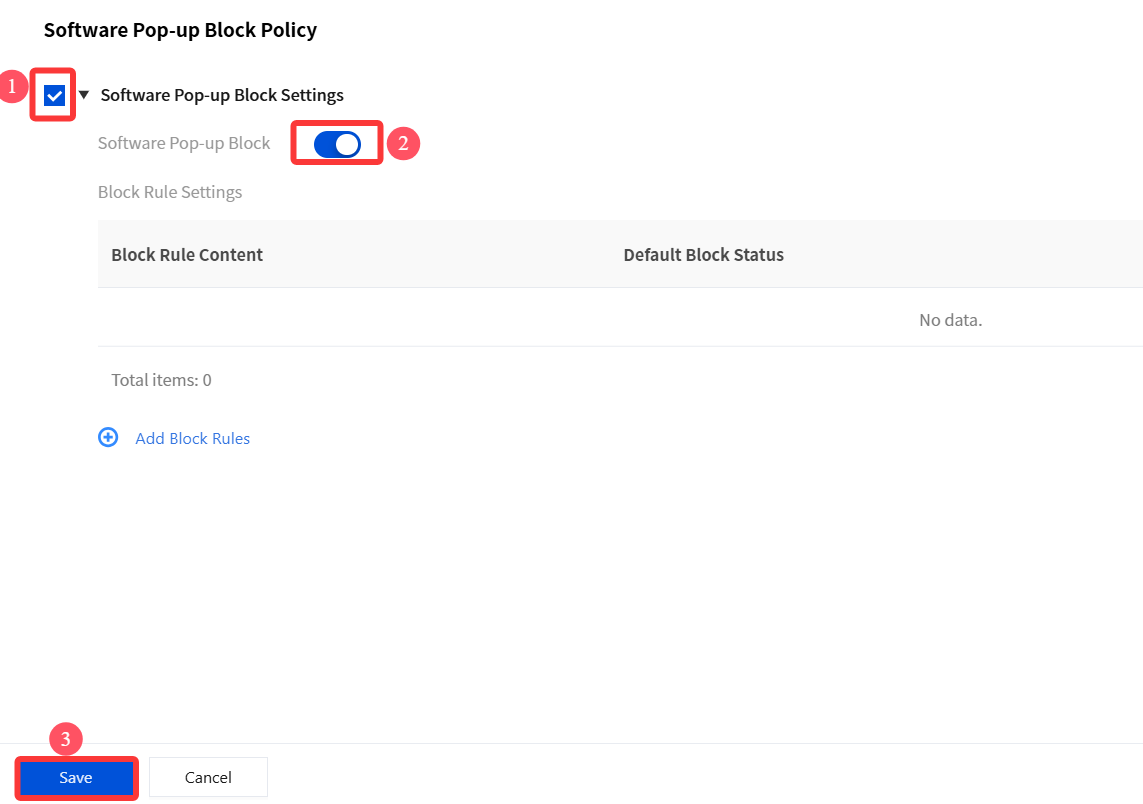
Note:
The interception rules for software pop-ups are configured as special rules. Under normal circumstances, administrators only need to select Software Pop-up Blocking, enable software pop-up blocking, and click Save to implement the software pop-up blocking capability.
If there are pop-ups that cannot be blocked, you need to create special rules for these pop-ups. Click the link to select Online Support for manual service, and our staff will contact you in a timely manner.
5. Go to General Management Policy > Client Policies > Module customization page to configure whether to enable software pop-up blocking on the client. After configuration, click Save.
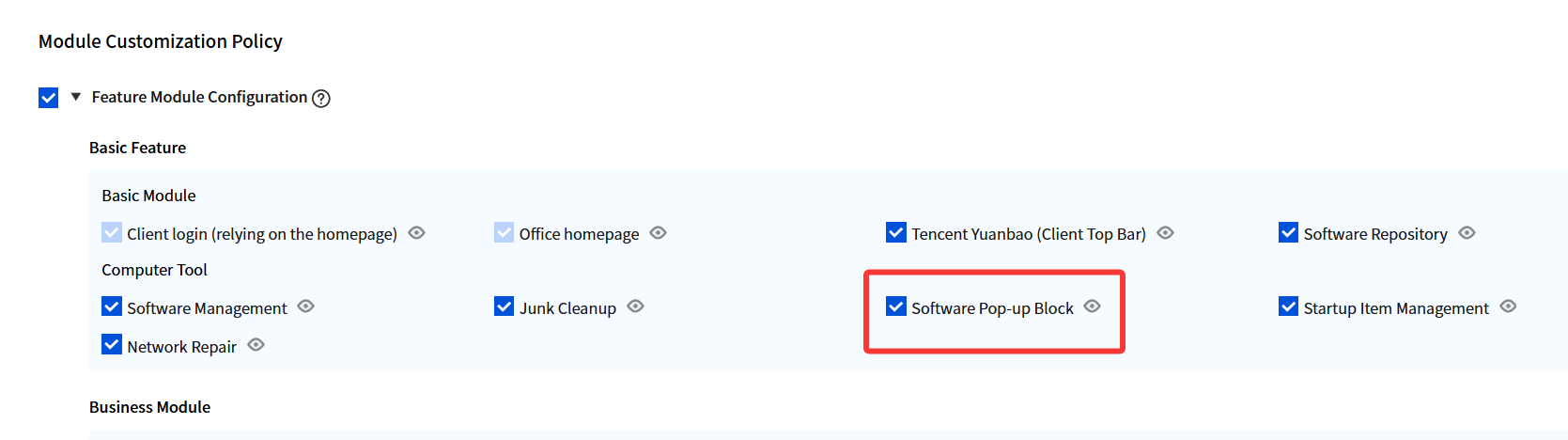
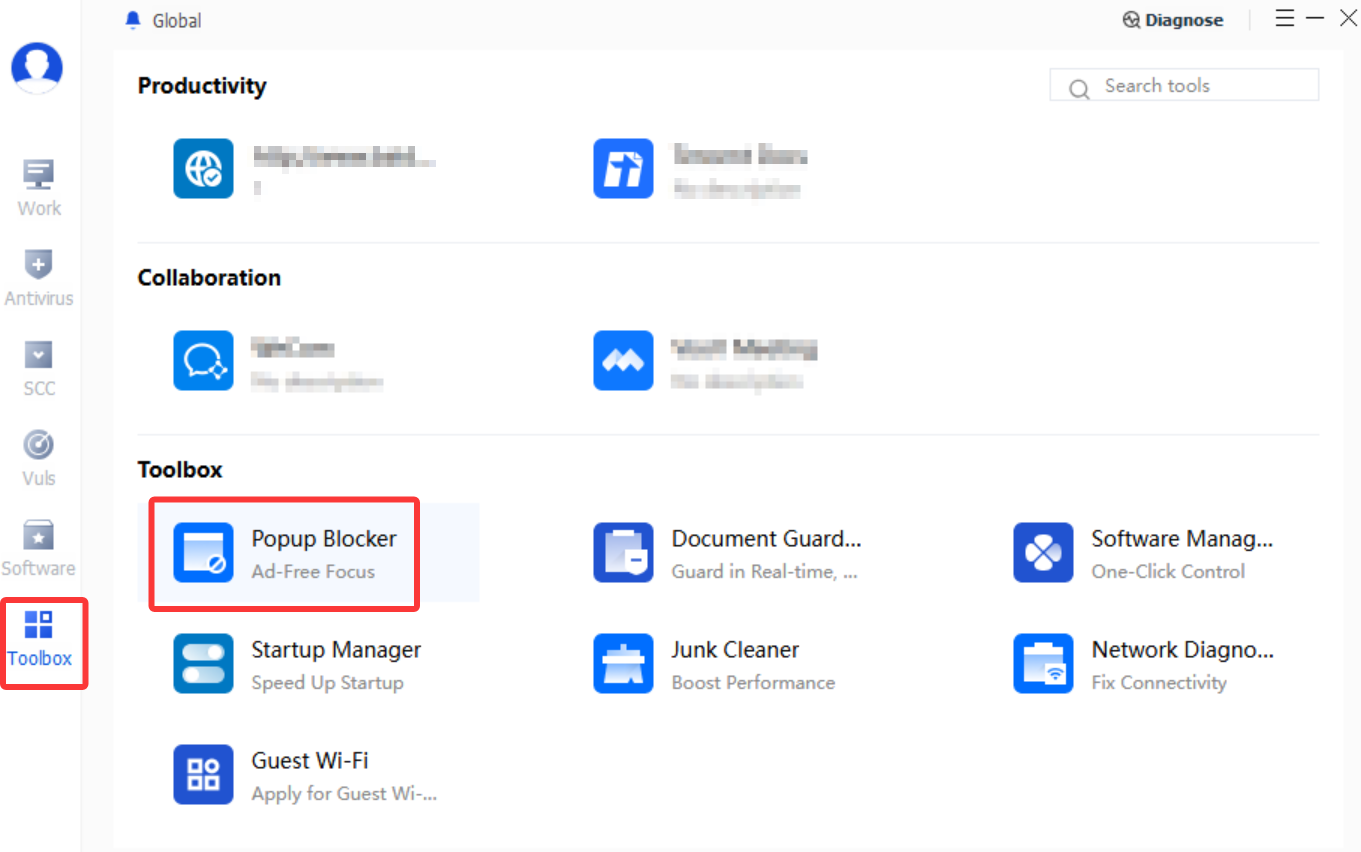
6. The iOA client PC Tools Tab displays pop-up blocking.
Bantuan dan Dukungan
Apakah halaman ini membantu?
Anda juga dapat Menghubungi Penjualan atau Mengirimkan Tiket untuk meminta bantuan.
masukan