Access topology
Download
Focus Mode
Font Size
The database risk monitoring access management module provides refined control over database access behaviors through complementary governance from the dual dimensions of "source IP address" and "instance". It supports visual display of access behaviors (such as access topology diagrams) and IP address/account tagging operations, enabling refined access control. It manages access behaviors from both the "source IP address" and "instance" dimensions, addressing the core questions of "who can access, from where, and what", and preventing security vulnerabilities caused by coarse-grained access control. This document introduces the access management capabilities of Data Security Audit.
Management Perspective | Description | Scenario |
Source IP perspective | With the source IP address of the access initiator as the core control dimension, integrate the access data of this IP address to database instances, provide capabilities such as access topology visualization, precise IP address/account labeling, and quick security group policy adjustment, and implement centralized and refined control over access initiators. | Identify cross-instance access risks of a single IP address and batch mark certain types of access sources. |
Instance perspective | With the database instance on the access target side as the core resource dimension, integrate the access data of source IP addresses to this instance, provide capabilities such as asset access topology visualization, precise IP address/account labeling, and quick security group policy adjustment, and implement centralized and refined control over access targets. | Sort out all access sources of a single instance and implement dedicated control for core instances. |
Source IP Address Perspective
1. Log in to the TencentDB for SQL Server console.
2. Select DSAudit in the left sidebar.
3. On the DSAudit page, choose Access Management > Source IP Perspective.
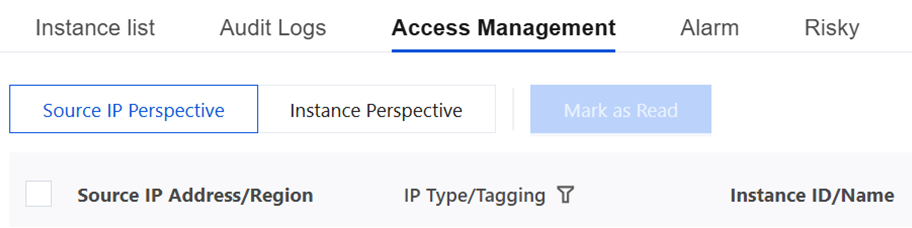
4. On the Source IP View tab page, you can view information such as Source IP Address/Region, IP Type/Tagging, Instance ID/Name, Region, Visiting User/Type, and Last Access Time.
IP Address Access Topology
Visually display the access relationships, access frequency, and security status between a single source IP address and all associated accounts and database instances in the form of a visual topology graph.
On the Source IP View tab page, click IP Access Topology in the operation column of the target IP address to view the access relationship graph between this IP address and its associated database instances.

IP Address Tagging
Note:
Tagging operations in the Source IP View and Instance View are mutually linked. After you tag an IP address in the Source IP View, the tag status will be updated synchronously when you view that IP address in the Instance View, and vice versa.
Add preset or custom tags to the target source IP address to classify and manage the IP address, facilitating differentiated assessment during subsequent risk monitoring.
1. On the Source IP View tab page, click More > Tag Source IP in the operation column of the target IP address.

2. In the pop-up window, edit Source IP Remarks and click Confirm to complete the tagging.
Account Tagging
Add preset or custom tags to the accounts used by the source IP address to access databases, enabling classified management of access accounts for subsequent auditing and risk investigation.
1. On the Source IP View tab page, choose More > Tag Account in the operation column of the target IP address.

2. In the pop-up window, select Account Type, edit the Remarks information, and click Confirm to complete the tagging.
Note:
You can edit the access account type only when it is a self-built account. If the current access account is a Tencent Cloud root account/sub-account, the system will automatically identify it, and no manual editing is required.
Modifying a Security Group Policy
Quickly jump to the asset page of the database instance associated with the target IP address and directly modify the security group policy to achieve rapid control over access permissions for this IP address (allow/deny access).
On the Source IP View tab page, click More > Modify Security Group Policy in the operation column of the target IP address to go to the database instance asset page and modify the security group policy.

Instance Perspective
1. Log in to the TencentDB for SQL Server console.
2. Select DSAudit in the left sidebar.
3. On the CDS page, choose Access Management > Instance Perspective.
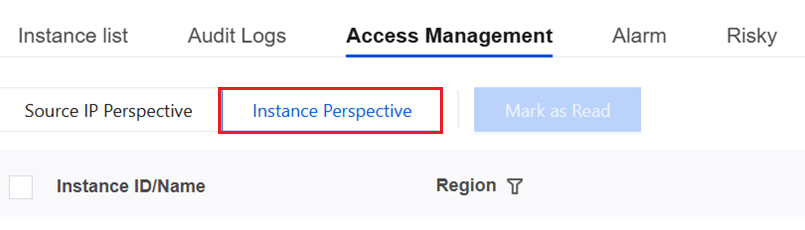
4. On the Instance View tab page, you can view information such as Instance ID/Name, Region, Visiting User/Type, Source IP Address/Type, and Last Access Time.
Asset Access Topology
Visually display the access relationships, access frequency, and risk status between all source IPs and associated access accounts of a single database instance in the form of a visual topology graph.
On the Instance View tab page, click Asset Access Topology in the operation column of the target instance to view the topological relationships between all source IPs and associated accounts of the instance.

IP Tagging
Note:
Tagging operations in the Source IP View and Instance View are mutually linked. After you tag an IP address in the Source IP View, the tag status will be updated synchronously when you view that IP address in the Instance View, and vice versa.
Add preset or custom tags to the specified source IPs that access the target instance to achieve precise classification and control over the IPs accessing the instance, facilitating subsequent risk monitoring and auditing.
1. On the Instance View tab page, click More > Tag Source IP in the operation column of the target instance.

2. In the pop-up window, edit Source IP Remarks and click Confirm to complete the tagging.
Account Tagging
Add preset or custom tags to the specified accounts that access the target instance to achieve precise classification and control over the accounts accessing the instance, facilitating subsequent risk investigation and permission auditing.
1. On the Instance View tab page, click More > Tag Account in the operation column of the target instance.

2. In the pop-up window, select Account Type, edit the Remarks information, and click Confirm to complete the tagging.
Note:
You can edit the access account type only when it is a self-built account. If the current access account is a Tencent Cloud root account/sub-account, the system will automatically identify it, and no manual editing is required.
Modifying a Security Group Policy
Quickly jump to the asset page of the target database instance and directly modify the security group policy to control all source IPs that access the instance.
On the Instance View tag page, click More > Modify Security Group Policy in the operation column of the target instance to go to the database instance asset page and modify the security group policy.

Help and Support
Was this page helpful?
You can also Contact sales or Submit a Ticket for help.
Help us improve! Rate your documentation experience in 5 mins.
Feedback