Overview of DLC Permission
Download
Focus Mode
Font Size
Data Lake Compute permissions include data permissions and data engine permissions. If you have the admin permission, you can log in to the Data Lake Compute console or use an API to grant a sub-user(only SuperSQL engine) data and data engine permissions. Sub-users cannot use, modify, or delete data or data engines before they are authorized.
User and work group
DLC provides two personnel management modes for customers: User Mode and Working Group Mode. Both modes can be used to manage permissions for DLC users.
User: Users in CAM include sub-accounts and collaborator accounts.
Working group: A group managed internally by the product that includes a batch of users, where all users within the group have the same permissions.
Note:
If users are granted different permissions from those granted in their work groups, all the granted permissions will take effect.
A work group allows you to quickly grant permissions to a batch of users, so it is recommended for batch user authorization. For detailed directions, see User and User Group.
User type
In Data Lake Compute, User type can be Admin or General user.
Admin: An admin have all the data, engine, and task permissions and can add, authorize, and remove users and work groups in Data Lake Compute.
General user: A general user is added by an admin, has no Data Lake Compute permissions by default, and needs to be authorized. Only data and engine permissions that can be regranted can be granted to general users.
Permission and Operation | Admin | General User |
Data permission | All permissions | None by default (to be authorized by an admin) |
Data engine permission | All permissions | None by default (to be authorized by an admin) Standard Engine is available by default, which can be managed through CAM. For details, see Standard Engine Permission Management. |
User management | Allowed | No |
Working group management | Allowed | No |
Authorization scope | All permissions | Permissions that can be regranted |
Note:
The above permissions only include those defined in Data Lake Compute. To perform purchase, configuration adjustment, and refund operations that involve billing, log in to the CAM console and get the financial collaborator permission
QCloudFinanceFullAccess (for detailed directions, see Creating and Authorizing Sub-account).Data permissions
Data Lake Compute data permissions allow operations on data catalogs, databases, and data tables. To facilitate your management and configuration, permissions can be granted in the standard or advanced mode.
In standard mode, you can grant roles while ignoring the specific permission configuration (for more information on roles and permissions, see Sub-Account Permission Management). The authorization granularity can be data catalog, database, or data table. This mode is suitable for quick authorization with no complex permission management involved.
In advanced mode, you can grant permissions at the database, data table, view, or function level. It is suitable for refined permission management.
SQL statements for permission operations are as follows:
Action | CREATE | ALTER | DROP | SELECT | INSERT | DELETE | Target |
CREATE DATABASE | ✓ | - | - | - | - | - | Cataglog |
ALTER DATABASE | - | ✓ | - | - | - | - | Database |
DROP DATABASE | - | - | ✓ | - | - | - | Database |
CREATE TABLE | ✓ | - | - | - | - | - | Database |
CREATE TABLE AS SELECT | ✓ | - | - | ✓ | ✓ | - | Database/Table |
DROP TABLE | - | - | ✓ | - | - | - | Table |
ALTER TABLE LOCATION | - | ✓ | - | - | - | - | Table |
ALTER PARTITION LOCATION | - | ✓ | - | - | - | - | Table |
ALTER TABLE ADD PARTITION | - | ✓ | - | - | - | - | Table |
ALTER TABLE DROP PARTITION | - | ✓ | - | - | - | - | Table |
ALTER TABLE | - | ✓ | - | - | - | - | Table |
CREATE VIEW | ✓ | - | - | - | - | - | Database |
ALTER VIEW PROPERTIES | - | ✓ | - | - | - | - | View |
ALTER VIEW RENAME | - | ✓ | - | - | - | - | View |
DROP VIEW PROPERTIES | - | ✓ | ✓ | - | - | - | View |
DROP VIEW | - | - | ✓ | - | - | - | View |
SELECT TABLE | - | - | - | ✓ | - | - | Table |
INSERT | - | - | - | - | ✓ | - | Table |
INSERT OVERWRITE | - | - | - | - | ✓ | ✓ | Table |
CREATE FUNCTION | ✓ | - | - | - | - | - | Database |
DROP FUNCTION | - | - | ✓ | - | - | - | Function |
SELECT VIEW | - | - | - | ✓ | - | - | View |
SELECT FUNCTION | - | - | - | ✓ | - | - | Function |
Note:
Specifically, if you use the Unified Data Catalog TCCatalog service as the built-in metadata service for DLC (currently in beta and available only to invited users on the allowlist.), the data operation permissions will be changed to the following model:
Action | USE | CREATE | ALTER | DROP | SELECT | INSERT | DELETE | Target |
USE CATALOG | ✓ | - | - | - | - | - | - | CATALOG |
ALTER CATALOG | - | - | ✓ | - | - | - | - | CATALOG |
DROP CATALOG | - | - | - | ✓ | - | - | - | CATALOG |
USE SCHEMA | ✓ | - | - | - | - | - | - | CATALOG |
CREATE SCHEMA | - | ✓ | - | - | - | - | - | SCHEMA |
ALTER SCHEMA | - | - | ✓ | - | - | - | - | SCHEMA |
DROP SCHEMA | - | - | - | ✓ | - | - | - | SCHEMA |
CREATE TABLE | - | ✓ | - | - | - | - | - | SCHEMA |
CREATE FUNCTION | - | ✓ | - | - | - | - | - | SCHEMA |
SELECT TABLE/VIEW | - | - | - | - | ✓ | - | - | TABLE/VIEW |
INSERT TABLE/VIEW | - | - | - | - | - | ✓ | - | TABLE/VIEW |
DELETE TABLE/VIEW | - | - | - | - | - | - | ✓ | TABLE/VIEW |
ALTER TABLE/VIEW | - | - | ✓ | - | - | - | - | TABLE/VIEW |
DROP TABLE/VIEW | - | - | - | ✓ | - | - | - | TABLE/VIEW |
USE FUNCTION | ✓ | - | - | - | - | - | - | FUNCTION |
DROP FUNCTION | - | - | - | ✓ | - | - | - | FUNCTION |
ALTER FUNCTION | - | - | ✓ | - | - | - | - | FUNCTION |
Data engine permissions
DLC data engines are divided into SuperSQL engine and standard engine. For detailed differences and use cases, see Data Engines. The earlier-released SuperSQL engine permissions are managed through the DLC console, where you can quickly manage permissions for SuperSQL engines in the DLC Console > Permission Management. The permission management for standard engines is controlled by CAM. The standard engine can be managed as a cloud resource through CAM, allowing highly flexible resource-level authentication settings to meet enterprise-level security management needs. For details on resource-level authentication, see Resource-Level Authentication Guide.
SuperSQL Engine Permission Management
The operation permissions of the DLC SuperSQL data engine include usage, modification, operation, monitoring, and deletion. Specific permissions are as follows:
Use: The permission to use engines to perform tasks.
Modify: The permission to modify the basic information and configuration information of engines (modifying the configuration information requires the CAM financial collaborator permission).
Manipulate: The permission to suspend and restart engines.
Monitor: The permission to view the running tasks and monitoring information of engines.
Delete: The permission to return engines.
A single user can be granted multiple permissions. For detailed directions, see Sub-Account Permission Management.
Standard Engine Permission Management
DLC standard engine permissions are uniformly controlled by CAM. To ensure that sub-accounts can use the DLC standard engine smoothly, the root account needs to authorize sub-accounts. Once the standard engine is created, all sub-users with QcloudDLCFullAccess (DLC full read and write access) policies automatically have standard engine permissions. If you need fine-grained control over standard engine permissions, such as granting User A access to only Engine A, you can achieve this by creating a custom policy.
Scenario | Operation |
Scenario 1: A sub-account has all standard engine permissions. | Associate the sub-account with the QcloudDLCFullAccess preset policy. |
Scenario 2: A sub-account has partial standard engine permissions. | Create a custom policy. |
Note:
You can select one of the following methods to manage standard engine user permissions based on your specific needs.
Scenario 1: Granting All Standard Engine Permissions to a Sub-User
After logging in as the root account or a sub-account with CAM operation permissions, you can find the target sub-account in the sub-account list, click Authorization in the Operation column, search for QcloudDLCFullAccess, select it, and click Yes. For detailed operations, see the entire process of opening a new user.
Note:
QcloudDLCFullAccess grants sub-accounts full read/write permissions for DLC, including all standard engines' usage and management permissions.
Scenario 2: Granting Partial Standard Engine Permissions to a Sub-User
DLC supports resource-level authentication based on CAM tags. You can use tags to categorize and manage permissions for existing standard engine resources and engine-related APIs in DLC, enabling multi-dimensional resource classification management and fine-grained authorization. For details on Tencent Cloud tags, see Tencent Cloud Tags.
Note:
Based on Tencent Cloud tags, you can quickly achieve the following effects in the DLC standard engine:
All users in Department A can only use standard engine resources labeled with Department A and cannot access resources with other tags.
When creating DLC standard engine resources, users in Department A should apply the Department A tag. If no tag or an incorrect tag is applied, the creation will fail (optional).
Directions
Step 1: Create a Tag
Enter the tag key and value, and then click OK to create it successfully. For example, to create a tag for Department Analyze, set the Key as "department" and the Value as "Analyze".
Step 2: Tag the standard engines
Go to the DLC console, select the standard engine, and bind tags in the tag option. For detailed engine tag binding operations, see Computing Engine Associated Tags.
Note:
Once a specific tag, such as "department: Analyze" in the above example, is applied to a standard engine, only the sub-users who are associated with this tag can see and use the engine.
Step 3: Create a custom policy
1. Go to the Tencent Cloud CAM console, select Policies and click Create Custom Policy. In the pop-up dialog box, select Tag-based Authorization.
2. In the custom policy generation wizard, search for and select DLC, and check All Operations (dlc:*) for Action.
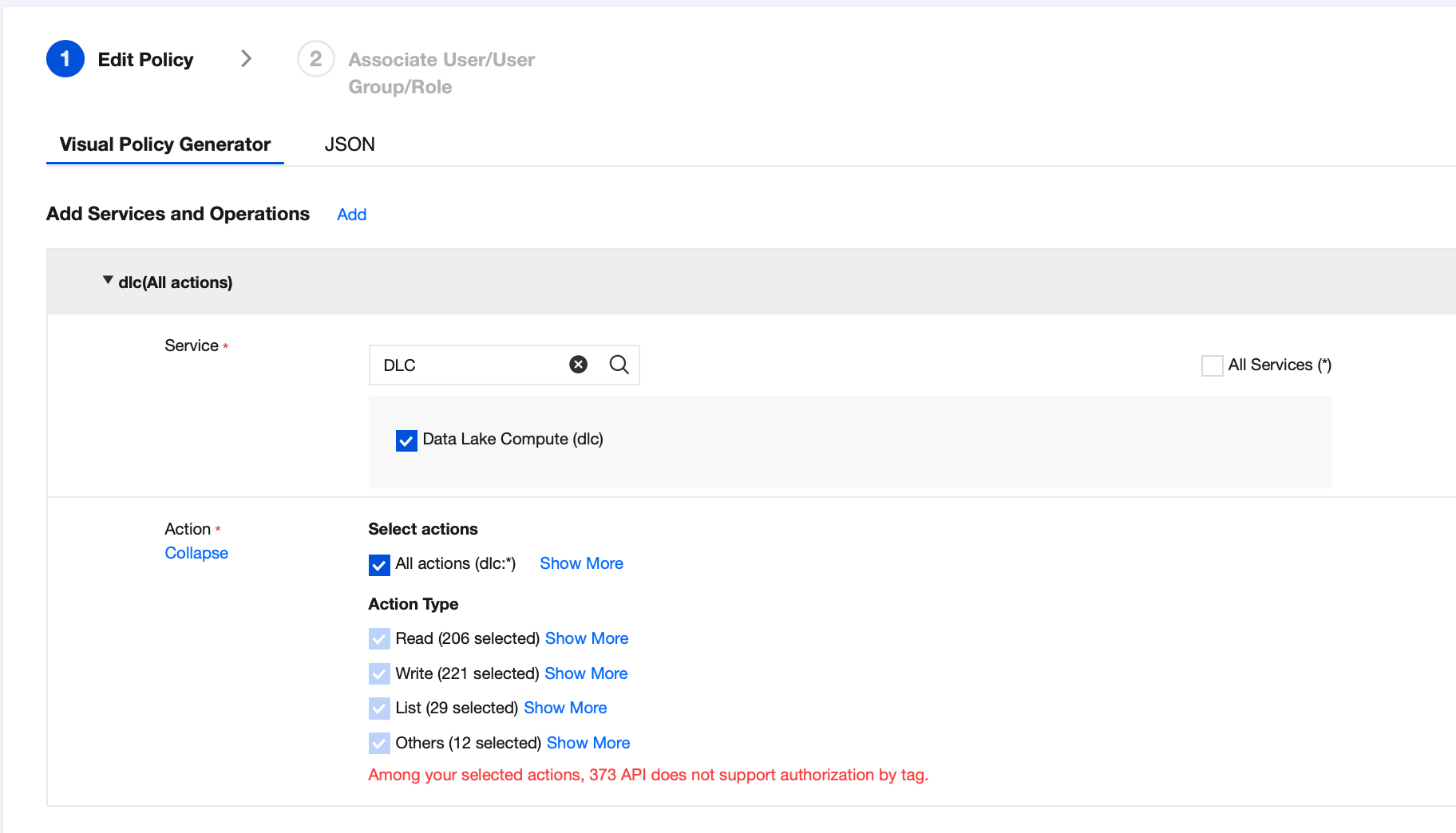
Note:
All operations (dlc:*) means granting the user permissions to operate all DLC TencentCloud APIs. If you need to restrict the user from terminating, creating, or modifying the standard engine, uncheck the corresponding APIs for the above All operations (dlc:).
Situation | DLC APIs to Be Unchecked |
Unable to terminate the engines | DeleteDataEngine |
Unable to create the engines | CreateDataEngine |
Unable to modify the engines | UpdateDataEngine |
3. Select the tag previously created, "department: Analyze," and the Condition Key is set to "Resource_tag." by default value. Note that for the option of whether to grant permission "resource": "*" for APIs that do not support tags, Yes should be checked. If it is not checked, the associated sub-users will not have the permissions for non-tag-level authentication APIs in the DLC console, resulting in abnormal access to the DLC console.
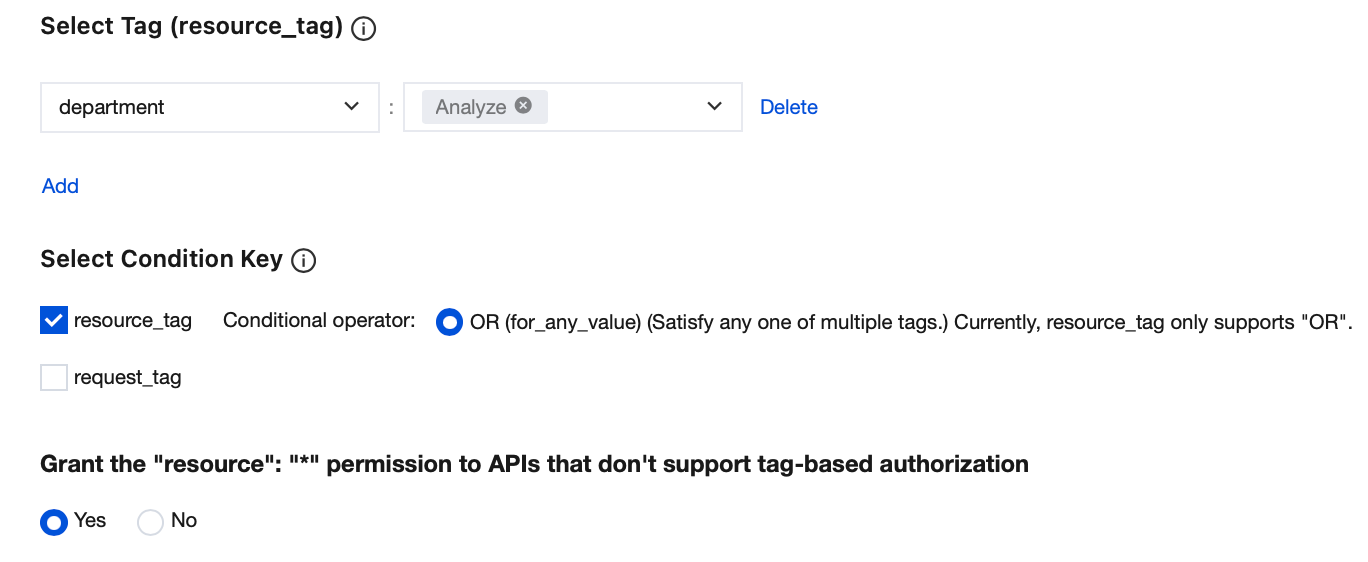
Notes:
If you need to enforce that users in the Analyze department associate the "department: Analyze" tag with created DLC standard engine resources, you can check request_tag.
4. Click Next. Since there are many DLC APIs involved, CAM will create multiple partitioned sub-policies, and you can give a convenient name for the partitioned sub-custom policies for easy search, such as DLC-department-analyze-tag-policy. Select the users/user groups to be associated with this custom policy, such as sub-accounts for all employees in the Analyze department in this example.
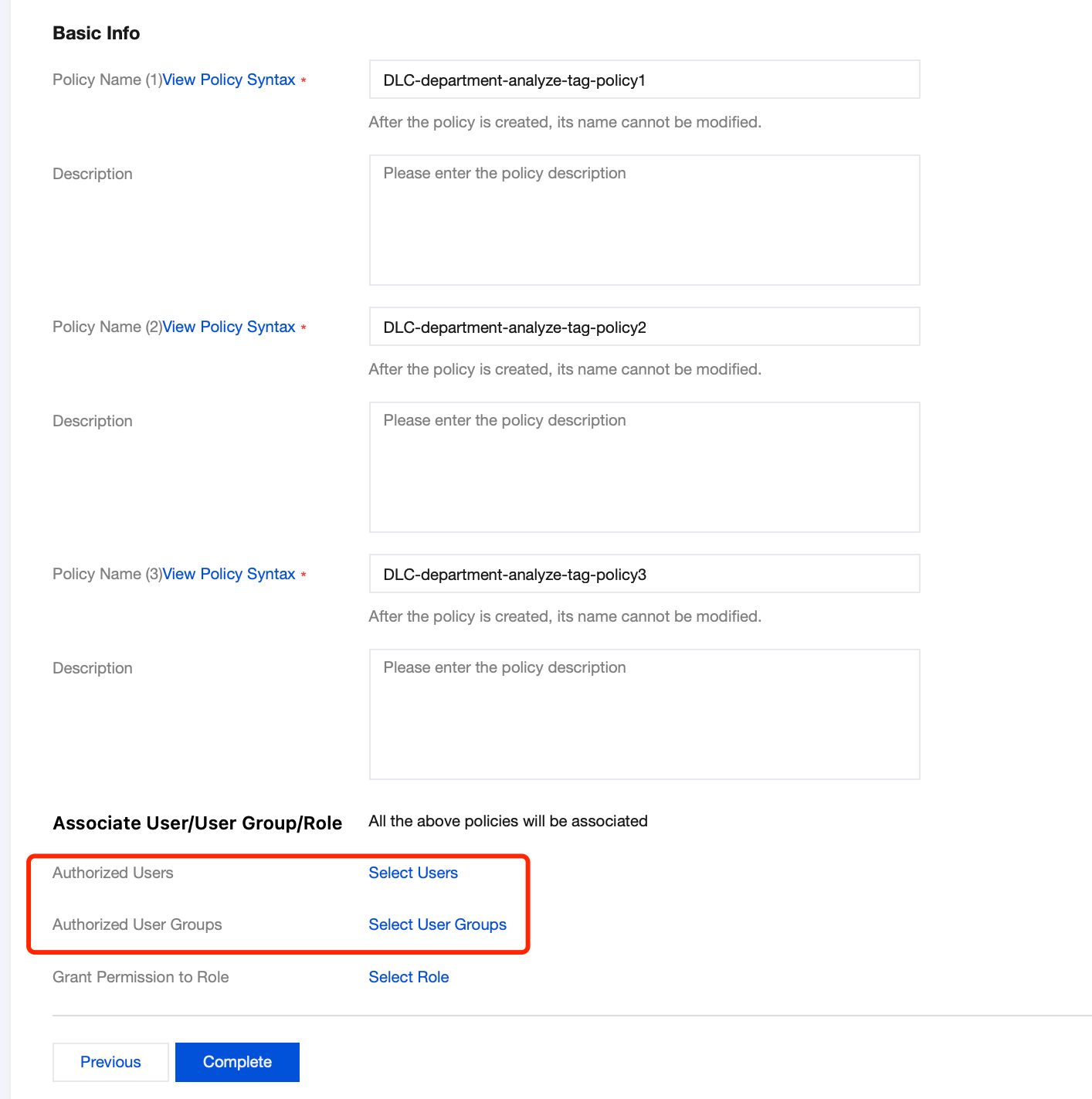
5. Click Finish to complete the custom policy creation. After the above custom policy is created, all DLC users associated with this policy will only be able to access standard engines tagged with "department: Analyze".
Note:
1. For easier maintenance of users in the future, it is recommended to use user groups for association.
2. If a user associated with the custom policy has already been associated with the QcloudDLCFullAccess preset policy, the user will still have permissions for all standard engines.
Help and Support
Was this page helpful?
You can also Contact sales or Submit a Ticket for help.
Help us improve! Rate your documentation experience in 5 mins.
Feedback