The Cloud Load Balancer (CLB) resource package is a new billing mode for performance capacity instances. Compared to the pay-as-you-go mode, the unit price of a CLB resource package is more favorable, and the effective time of the resource package can be set according to actual business needs. This document will guide you on how to quickly purchase a suitable resource package.
Notes
CLB resource packages only support deducting instance fees and Loadbalancer Capacity Unit (LCU) fees for performance capacity instances.
When purchasing a CLB resource package, you can choose to activate it immediately or at a specified time.
There is no limit to the number of resource packages at the account level. You can purchase up to 20 at a time.
When there are multiple resource packages under an account, deductions are made based on the package expiration time; the package that expires first is deducted first.
Deductions are not supported for consumption incurred before a resource package becomes effective. If all resource packages in your billing region have expired and have not been renewed, the generated instance fees and LCU fees are settled on a pay-as-you-go basis.
Purchasing Resource Packages
You can select the most suitable resource package based on your business scale, usage region, and the time you need it to take effect.
For information on the supported regions, specifications, and pricing of resource packages, refer to CLB Resource Package Overview.
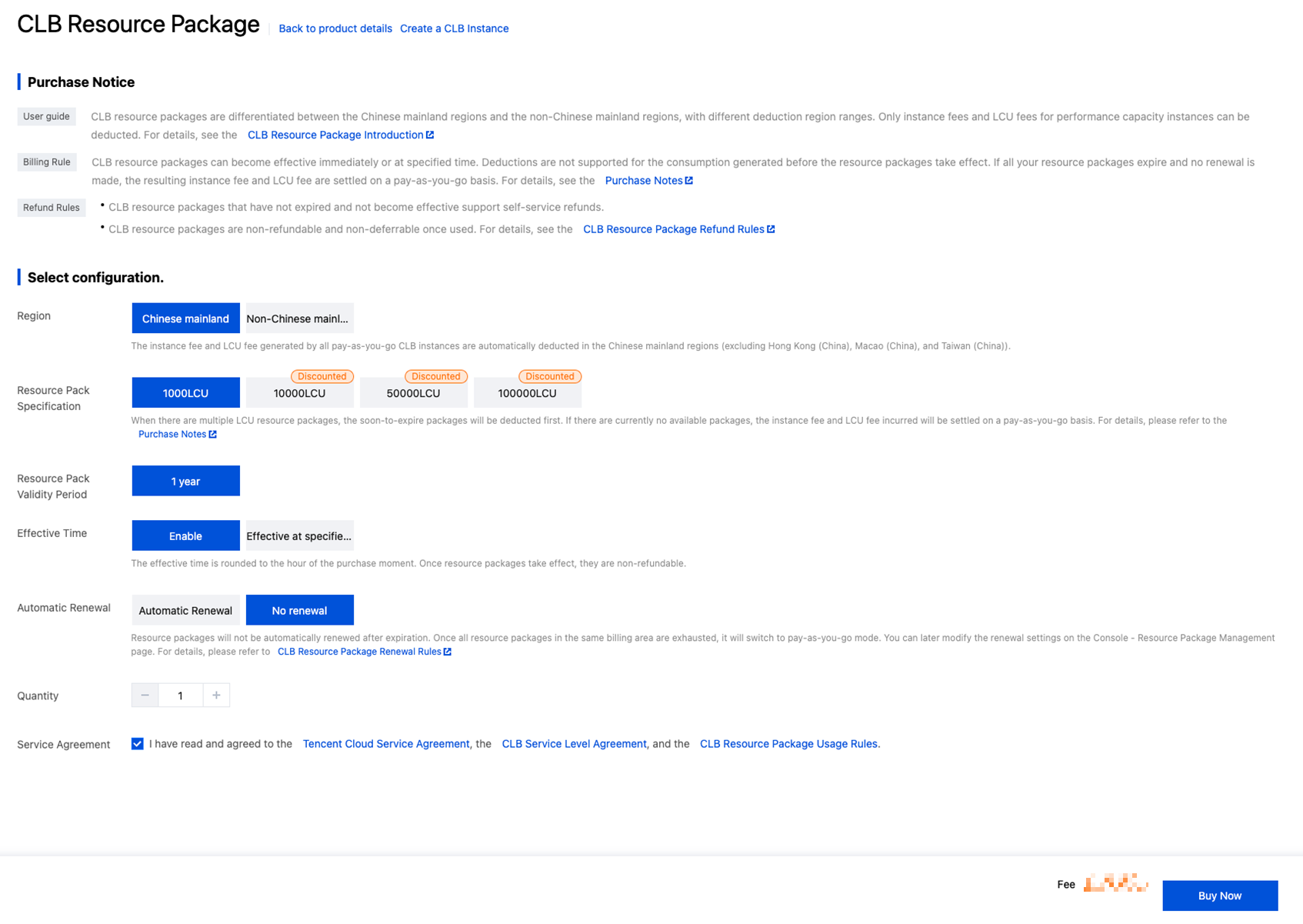
2. Select the configuration information as needed. After configuration, click Buy Now.
Parameter
Description
Region
The regions for resource package deduction, which can be either Chinese mainland regions or non-Chinese mainland regions.
Resource Pack Specifications
Resource packages come in different specifications, each corresponding to a different number of LCUs. Choose an appropriate resource package specification as needed. For details, see Resource Package Specifications and Pricing.
Resource Pack Validity Period
The default value is 1 year.
Time to Take Effect
The effective time of a resource package, which can be chosen to take effect immediately or at a specified time.
Immediate Effect: Take effect immediately after purchase.
Effective at Specified Time: Take effect at the specified time after purchase, within any time in the next 6 months.
Auto-renewal
The default setting is not to renew. We recommend choosing auto-renewal as it offers better prices on resource packages.
Note:
After the current resource package is exhausted, the automatically renewed resource package enjoys discounts. For details, see Resource Package Renewal.
Purchase Quantity
The number of resource packages purchased at a time. The default value is 1. You can select an integer between 1 and 20. There is no limit to the number of resource packages at the account level.
3. Confirm the resource package information on the order confirmation page. If everything is correct, proceed to payment.
2. On the LCU Resource Package Management page, click the desired resource package ID or click View Usage in the Operation column of a resource package.
3. On the resource package details page, you can view usage details by setting a time range or entering an instance ID.
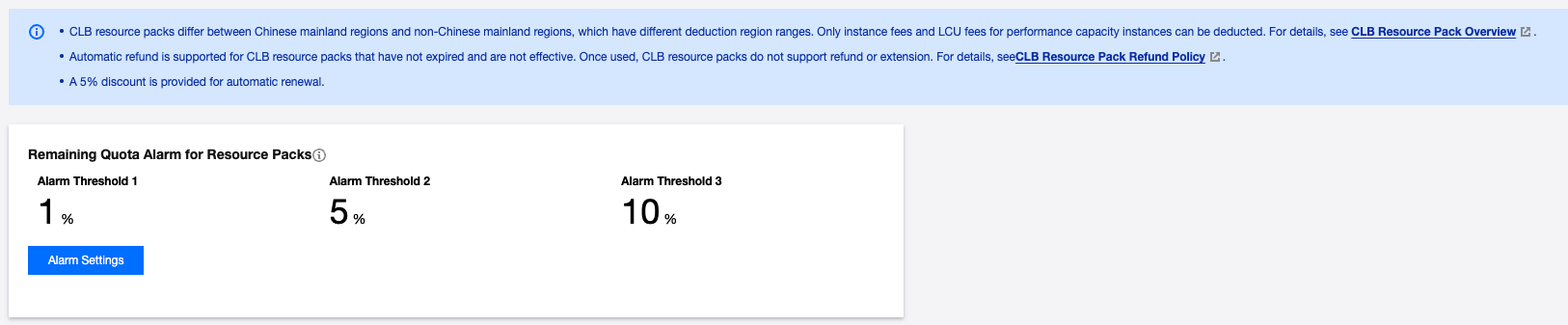
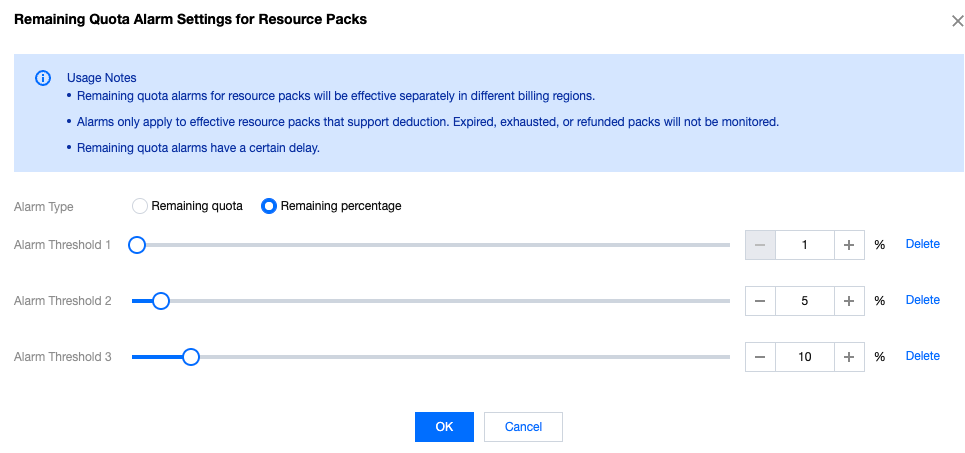
Remaining Quota Alarm for Resource Packages
By setting a remaining quota alarm, you can receive warnings and notifications in a timely manner.