Administrators can limit terminal access to specified sites and collect information about terminal access to blocklisted and allowlisted sites as needed. The web access blocking scenario (for example, access to non-work-related websites is not allowed during working hours) supports the device network strong control scenario (devices are prohibited from accessing any network, and while ensuring basic normal network communication, only access to specified URLs or resources is allowed to ensure device security).
2. On the policy settings page, click Create Policy.
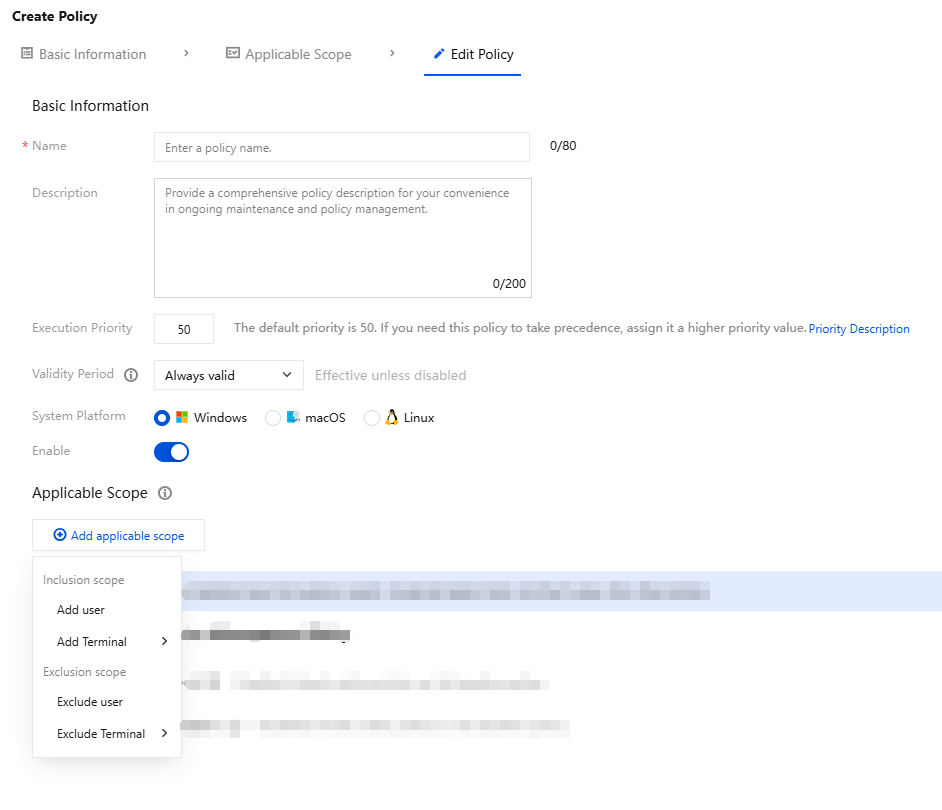
2.1 Enter the policy name and parameters such as the policy description.
2.2 Click Add applicable scope. You can add or exclude users, organizational structures, custom user groups, and terminals to configure a refined control scope.
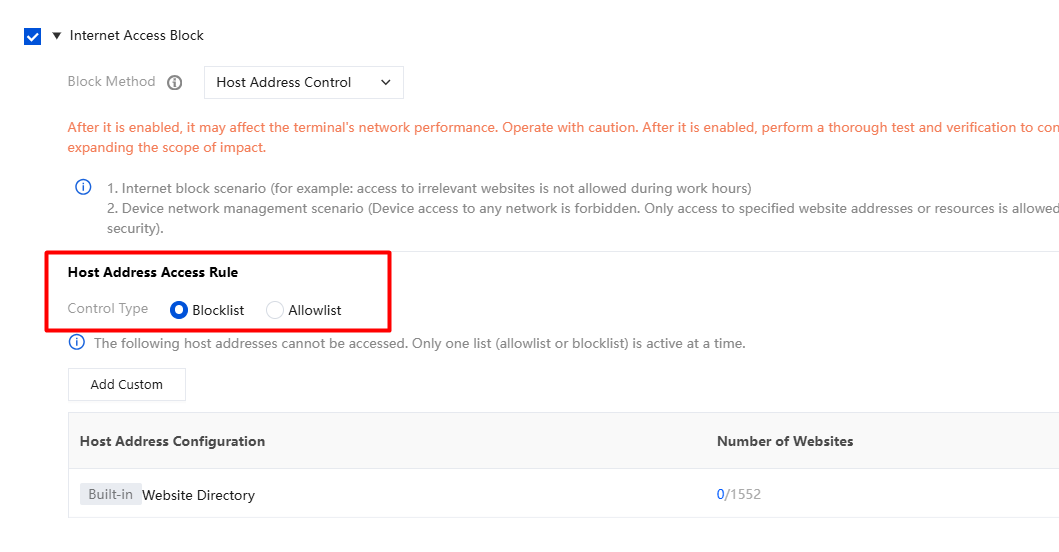
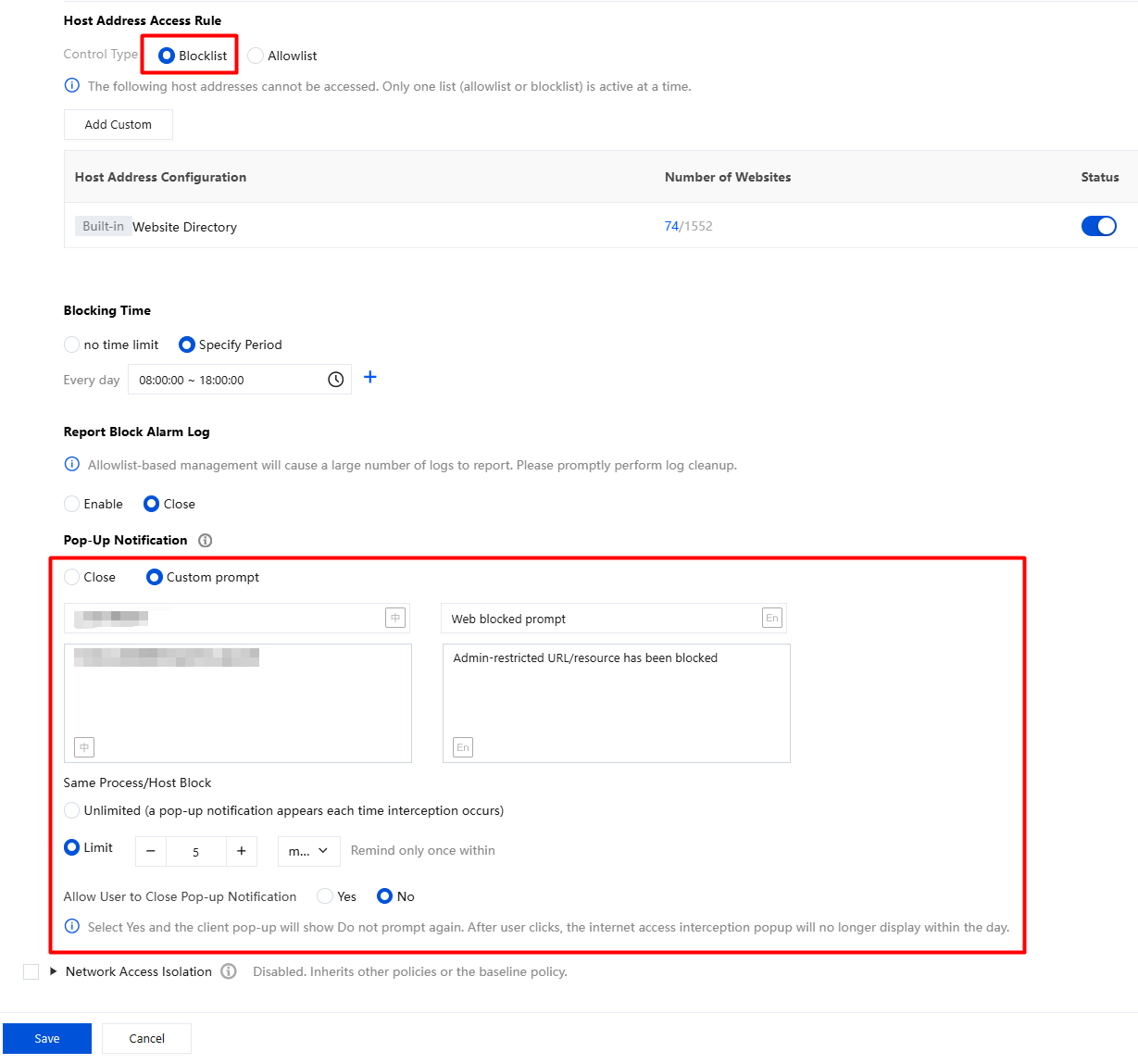
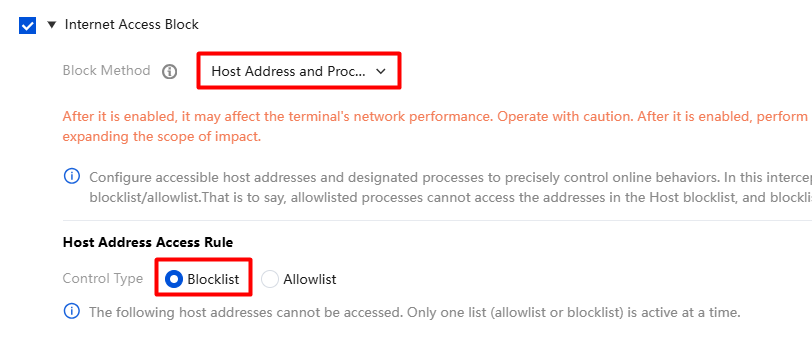
1. On the Policy Configuration > Create Policy page, select Internet Access Block and choose Host Address Control as the interception method.
2.
Note:
Blocklist: Terminals to which the policy is delivered cannot access the configured blocklisted sites, while access to other sites is not affected.
Allowlist: Terminals to which the policy is delivered can only access the configured allowlisted sites, while other sites cannot be accessed.
Host address control interception rules support configuring the UDP protocol.
This document uses blocklist configuration as an example.
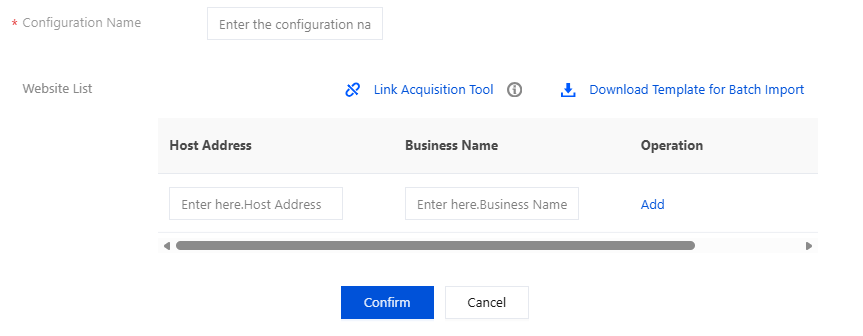
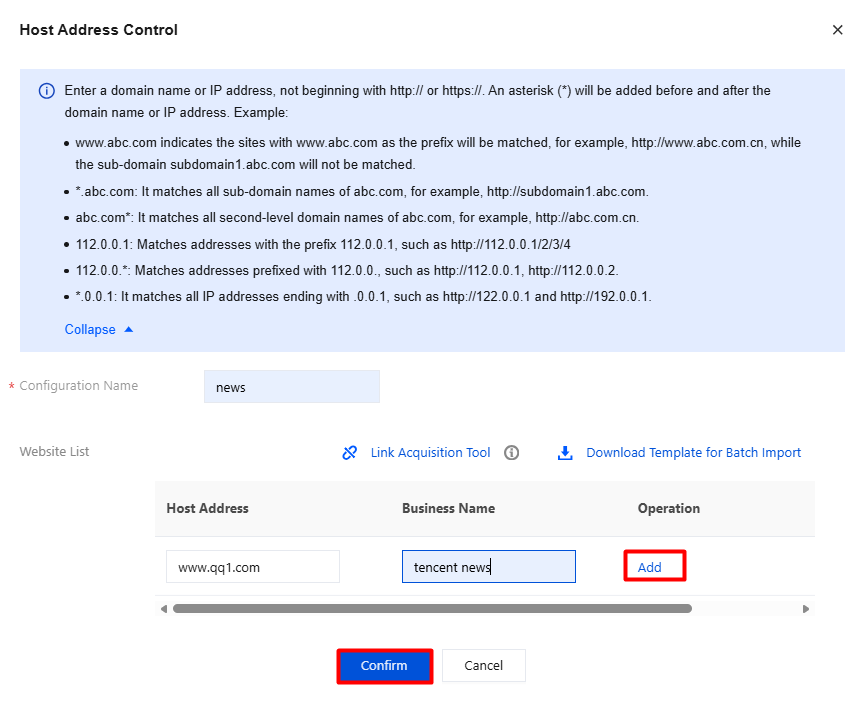
Click Add Custom, enter the Host information, and click Confirm to save.
URL Entry Instructions:
Domain names or IP addresses are supported, for example: www.abc.com or 112.0.0.1.
You do not need to enter http:// or https://. Enter the domain name directly, for example: www.abc.com (www.abc.com is only an example domain name).
When you add www.abc.com to the blocklist, only websites with the prefix www.abc.com are blocked, while subdomains such as oa.abc.com are not blocked.
To block all subdomains, you can add *.abc.com to the blocklist. Then, all subdomains of abc.com will be blocked. Currently, * is supported only at the beginning of a domain name.
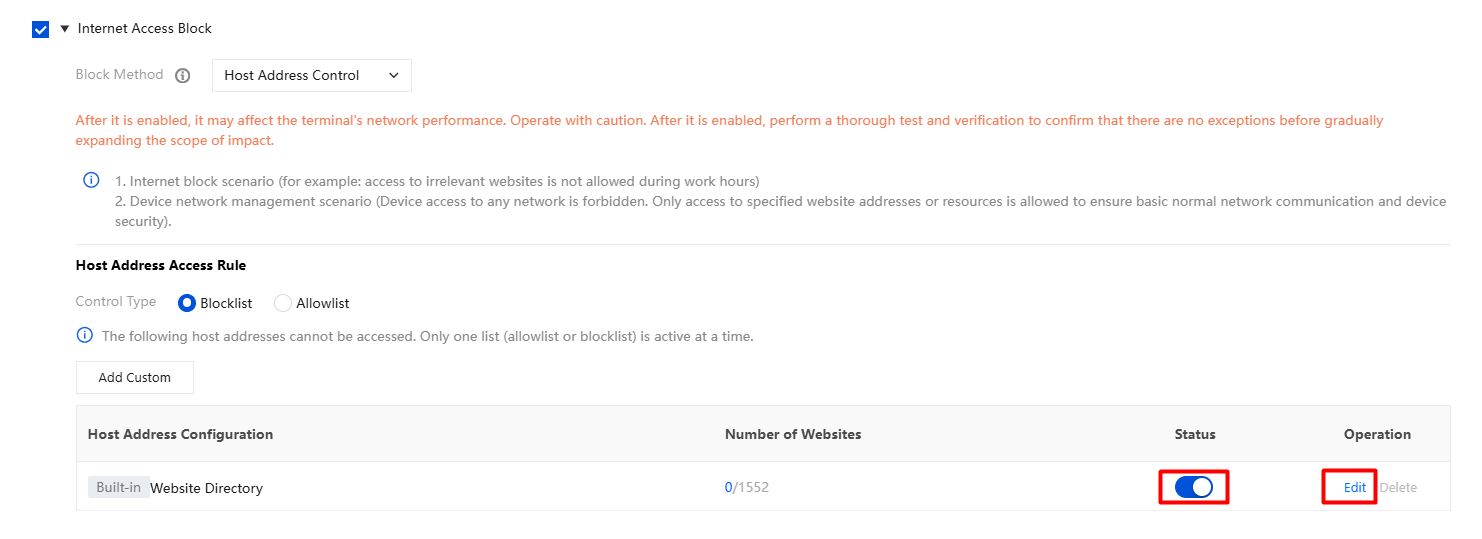
To use the built-in URL directory, click
to enable it, and click Edit to modify it.
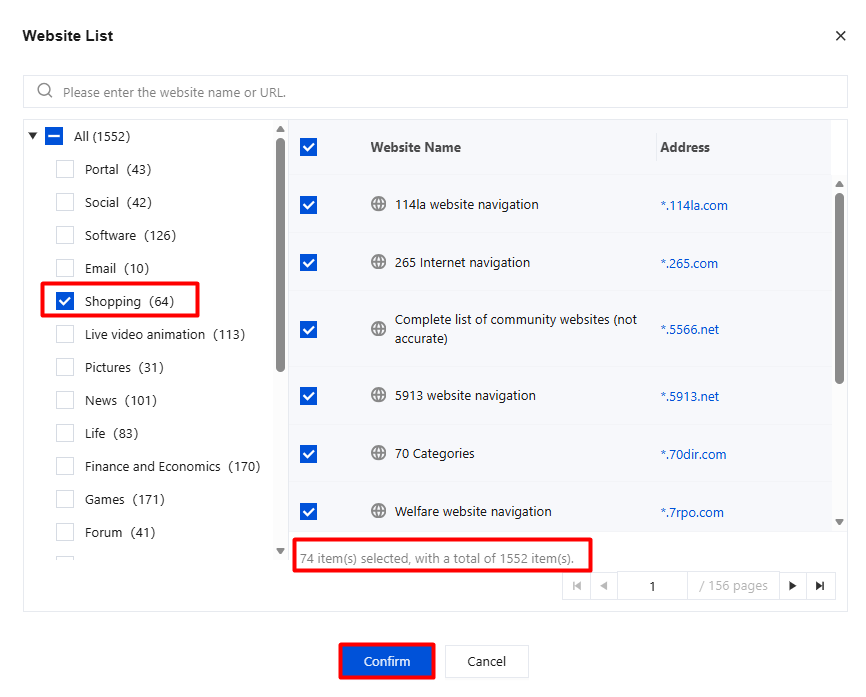
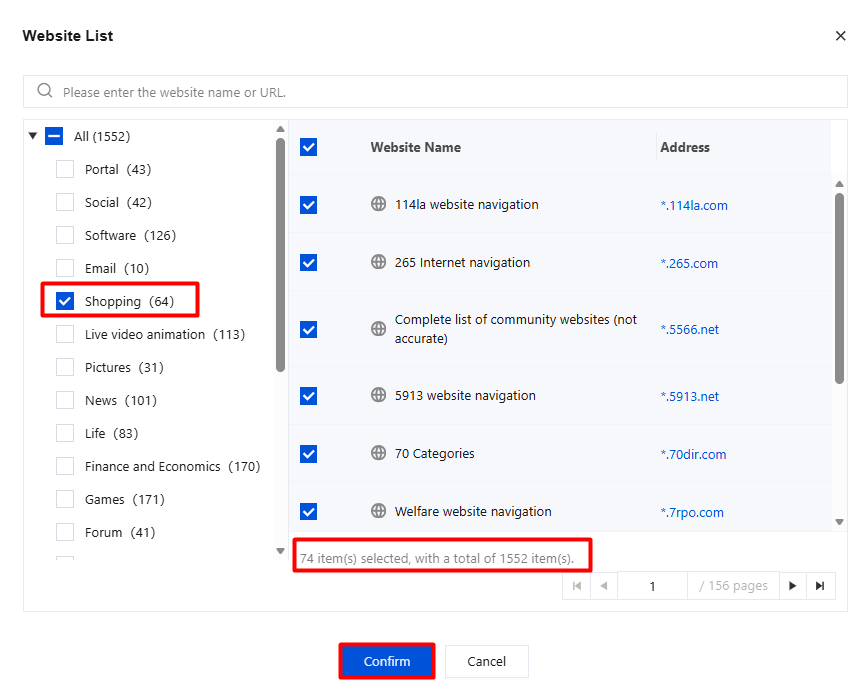
Example: For Shopping, select the shopping website information and click Confirm.
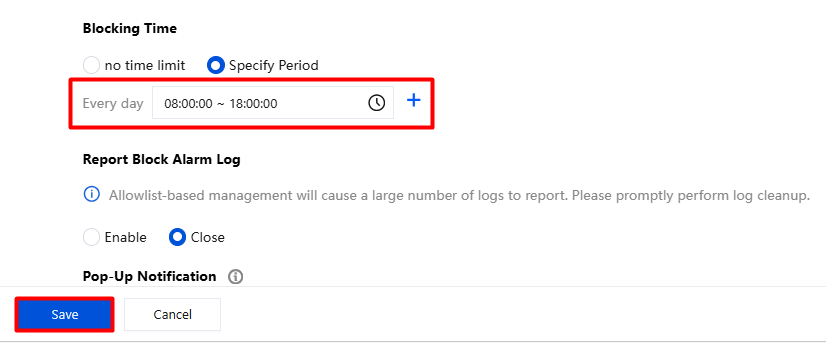
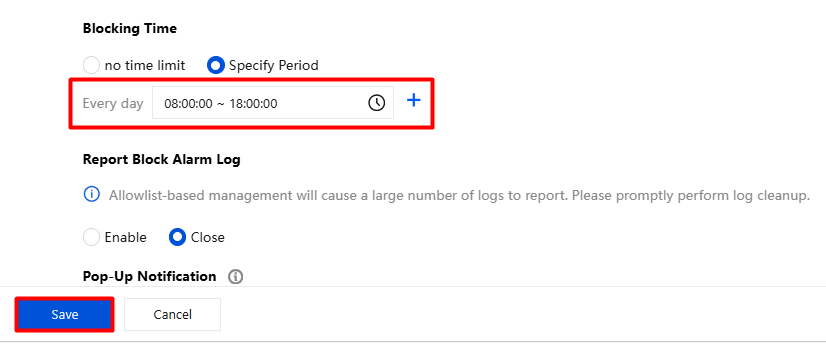
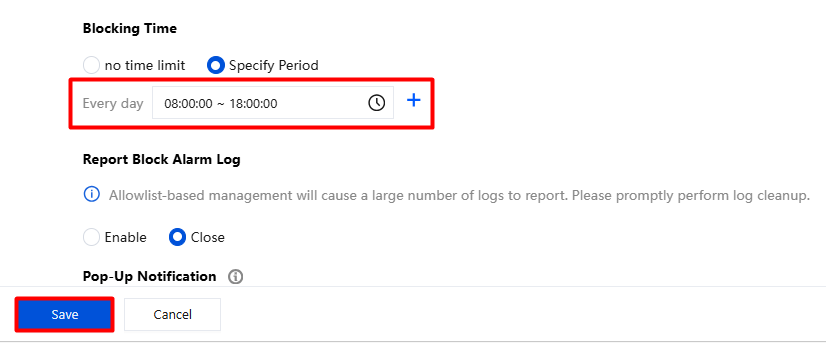
3. Select no time limit or Specify Period, and set Report Block Alarm Log.
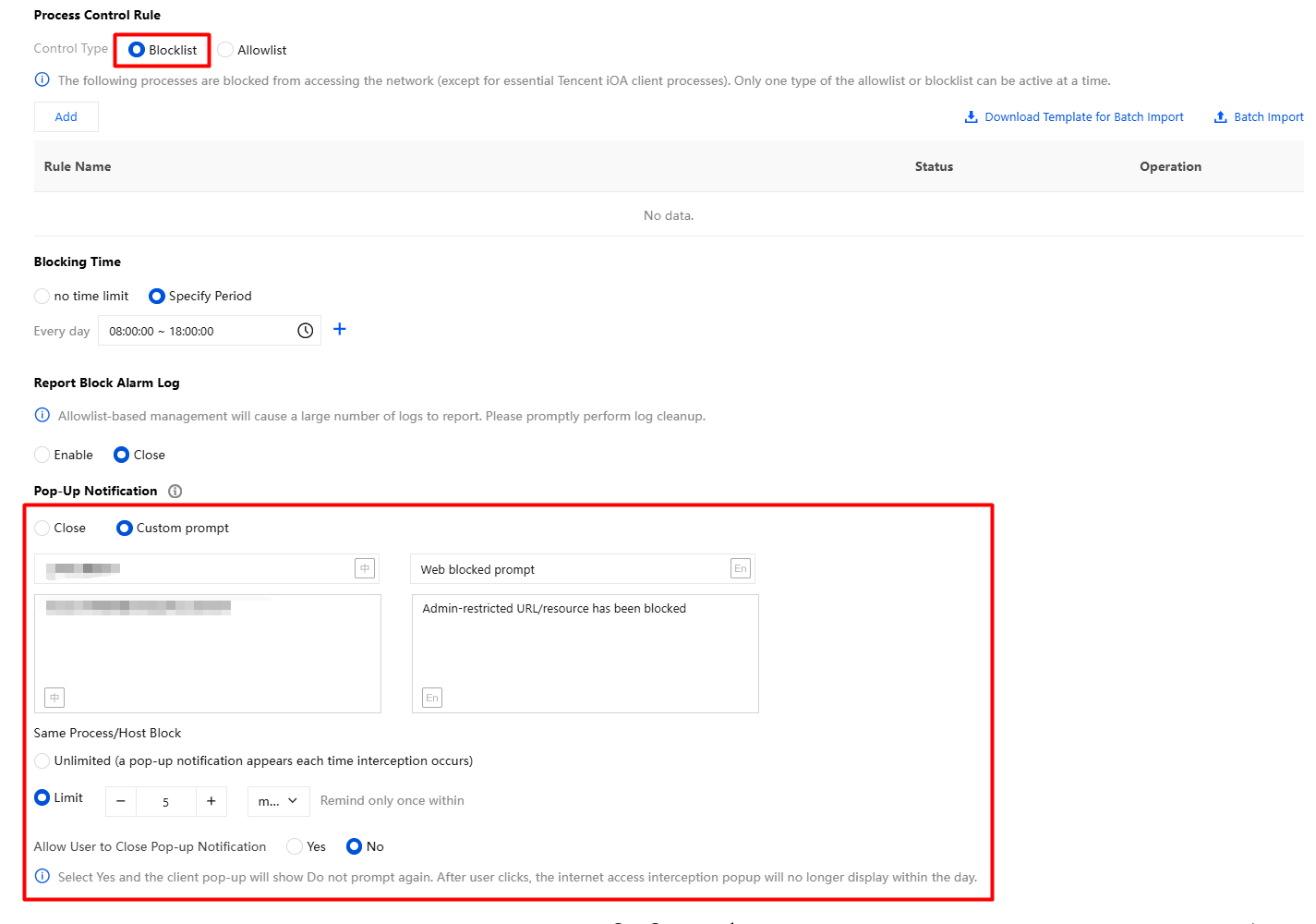
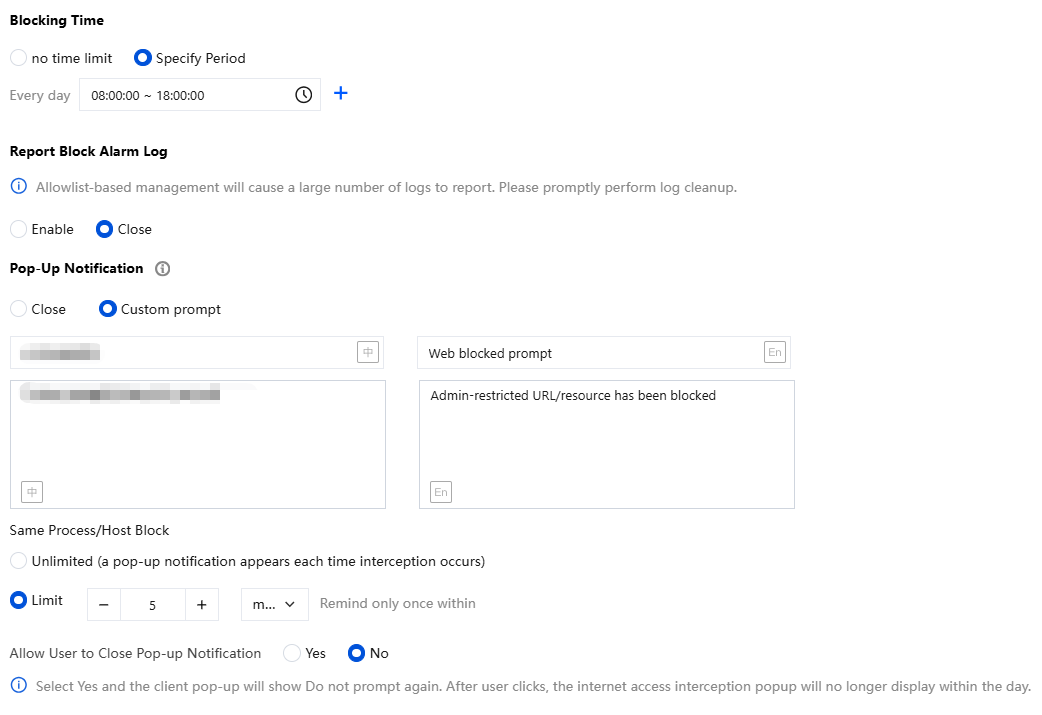
4. Pop-Up Notification: When the Host address access rule is set to "Blocklist", the system allows you to customize the popup content. For the popup style, refer to "Internet Access Blocking Pop-up Reminder".
5. After the configuration is complete, click Save.
6. Host address control: Access to shopping websites fails from 8:00 to 18:00.
Process Control
1. On the Policy Configuration > Create Policy page, select Internet Access Blocking and choose Process Control as the interception method.
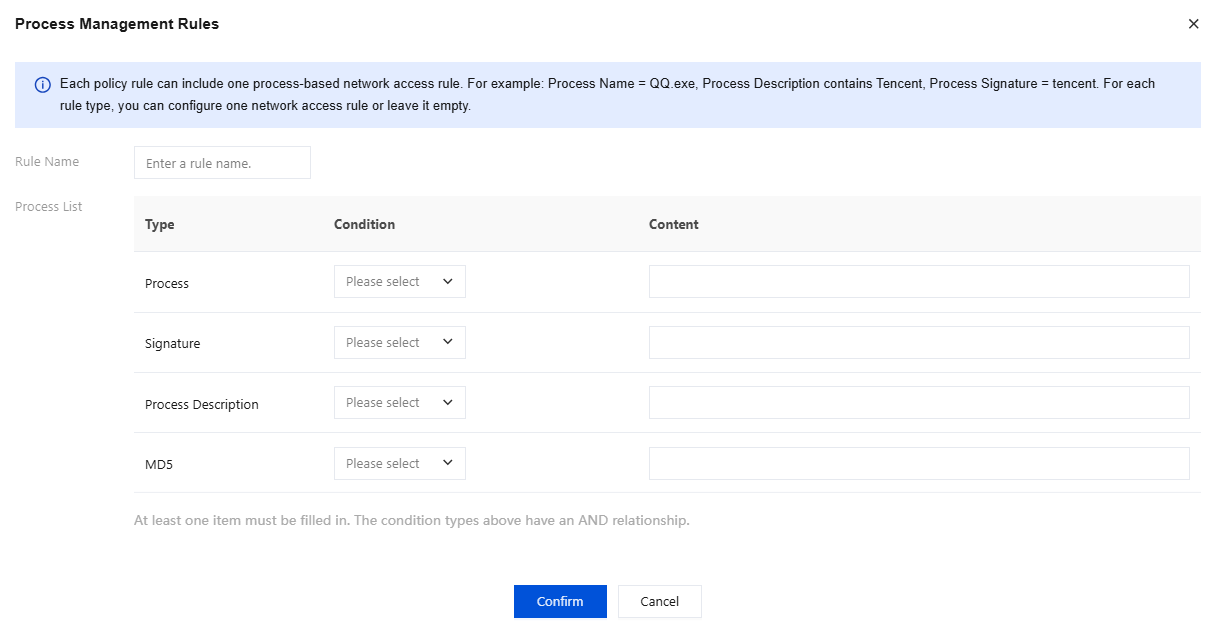
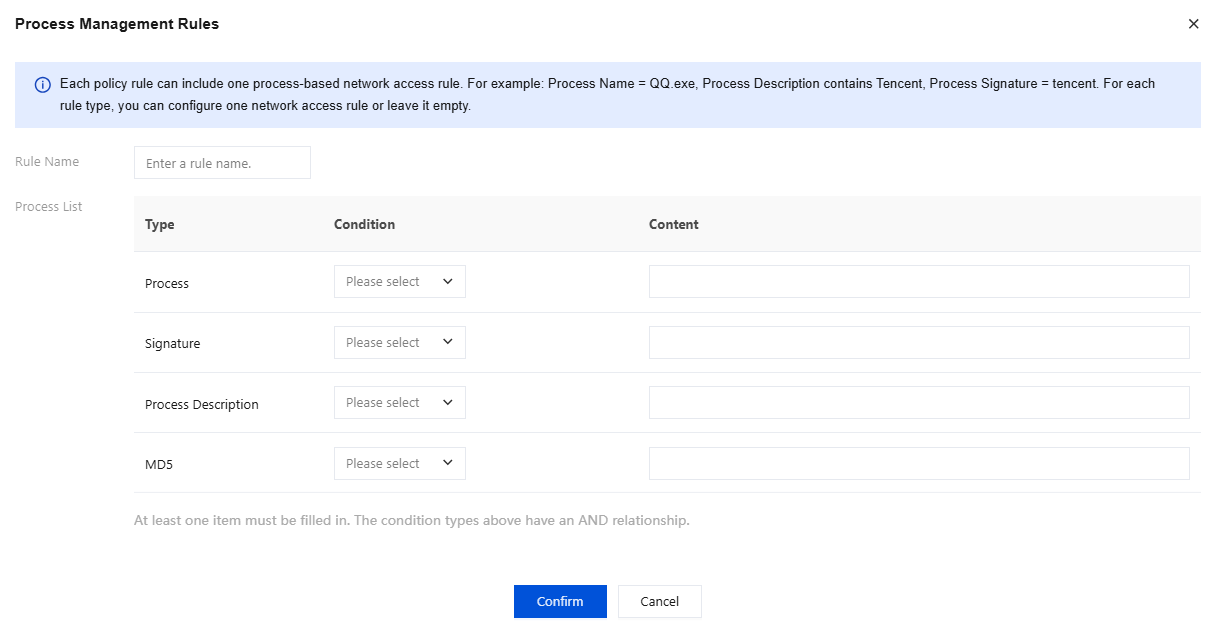
2. Select Control Type, click Add, configure the process list information, and click Confirm.
Note:
Blocklist: The following processes are not allowed to access the network (excluding processes necessary for the IOA client).
Allowlist: Only the following processes are allowed to access the network (including processes necessary for the IOA client by default).
Only one of the allowlist and blocklist can take effect at a time. This document uses the blocklist as an example.
3. Select no time limit or Specify Period, and set Report Block Alarm Log.
4. Pop-Up Notification: When the process control rule is set to "Blocklist", the system allows you to customize the popup content. For the popup style, refer to "Internet Access Blocking Pop-up Reminder".
5. After the configuration is complete, click Save.
6. Process control: Access to the QQ process fails from 8:00 to 18:00.</1>
Host Address and Process Control
1. On the Policy Configuration > Create Policy page, select Internet Access Block and choose Host Address and Process Control as the interception method.
2. Select Control Type and set the required hosts. Both custom and built-in hosts are supported.
Note:
Blocklist: Terminals to which the policy is delivered cannot access the configured blocklisted sites, while access to other sites is not affected.
Allowlist: Terminals to which the policy is delivered can only access the configured allowlisted sites, while other sites cannot be accessed.
This document uses blocklist configuration as an example.
3. Click Add Custom, enter the Host information, and click Confirm to save after the addition is complete.
Note:
Host address allowlists/blocklists and process control allowlists/blocklists are independent of each other. This means you can enable the Host allowlist and the process blocklist at the same time.
Process control rules take overall precedence over Host allowlist and blocklist rules. For example, abc.com is on the allowlist, but the Word process is prohibited from accessing the network. In this scenario, if the Word process is on the blocklist, it cannot access any domain, including the allowlisted domain abc.com.
To use the built-in URL directory, click
to enable it, and click Edit to modify it.
Example: For shopping, select the shopping website information and click Confirm.
4. Process control rules: Click Add, enter the process information, and click OK.
5. Select no time limit or Specify Period, and set Report Block Alarm Log.
6. Popup reminder: When set to "Blocklist", the system allows you to customize the popup content. For the popup style, refer to "Internet Access Blocking Pop-up Reminder".
7. Host address and process control: From 8:00 to 18:00, access to the Host addresses and process information specified in the access rules fails.
Internet Access Blocking Pop-up Reminder
1. Supports custom popups for internet blocking prompt content.
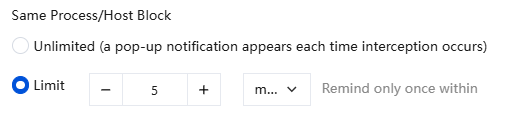
2. You can set the popup interception frequency for the same process/Host.
3. Supports selecting whether to allow users to close popup reminders.
Select No: The popup has only an "OK" button.
Select Yes: The client popup will display a "Do Not Remind Again" button. After the user clicks it, the internet blocking popup will not be displayed again for the rest of the day.