Installation Management
Unduh
Mode fokus
Ukuran font
A software installation control policy manages internal software installation rules, ensuring that only verified software can be installed on company computers to reduce security risks. The system provides flexible control methods, including Blocklist mode and Allowlist mode. In Allowlist mode, the system provides two actions for non-allowlisted software installations: blocking and auditing, ensuring that software installation rules comply with company security policies across multiple scenarios.
Software compliance and security enhancement scenario: Establish standardized software usage processes and management mechanisms to require employees to download and install software only from official channels or the enterprise software library, preventing the unauthorized installation of non-compliant, pirated, unknown-source, or malicious software to reduce security and compliance risks.
Office productivity enhancement scenario: Prevent employees from installing non-work-related software such as remote control and entertainment applications on office computers to improve work efficiency.
Software Installation Policy
1. Log in to the Tencent iOA Zero Trust Security Management System console and choose Software Management > Installation Management in the left sidebar.
2. On the Installation Control page, select Policy Configuration and click Create Policy.
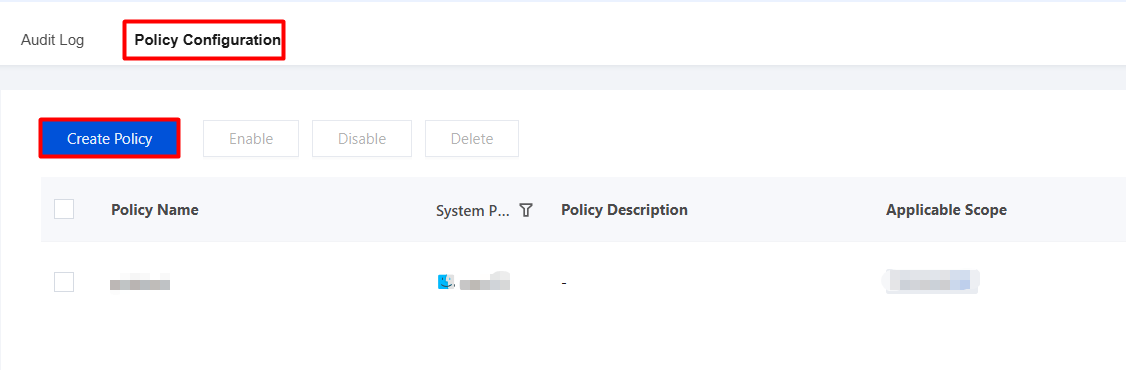
3. On the Create Software Installation Policy page, configure the relevant parameters.
3.1 Enter the policy name and parameters such as the policy description.
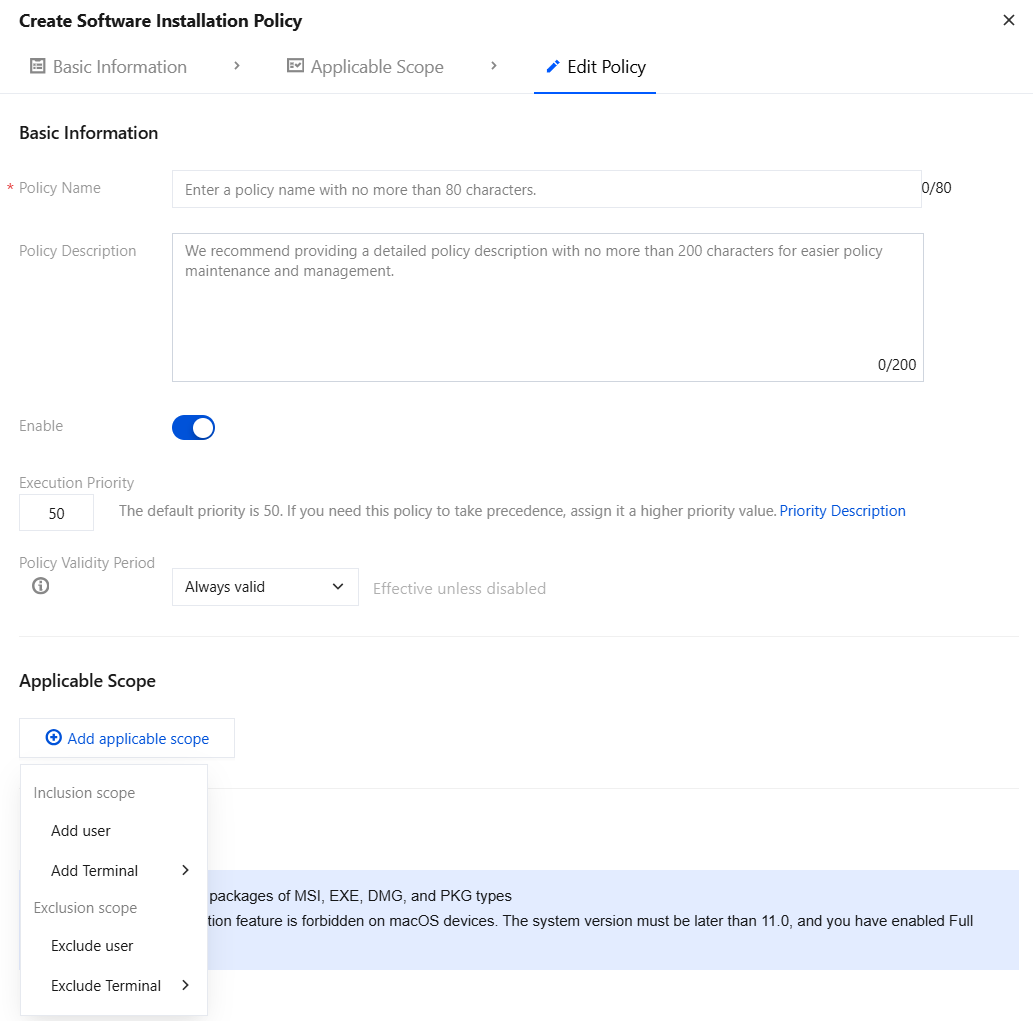
3.2 Click Add Applicable Scope and select the user/terminal names to be controlled/excluded.
3.3 Select the action to be controlled: Audit Only or Forbid Install, and click Save.
Audit Only

Prohibited Installation
Prohibited Software List
1. Software within the control scope will be prohibited from installation, and audit logs will be automatically reported.
All software: Prohibit the installation of all software on terminals.
Specified software: Add a list of prohibited software. You can configure built-in software, custom software, and user-installed software.
Category | Description |
Built-in software | Select the software that iOA prohibits from installation by default. After selection, click OK to save. 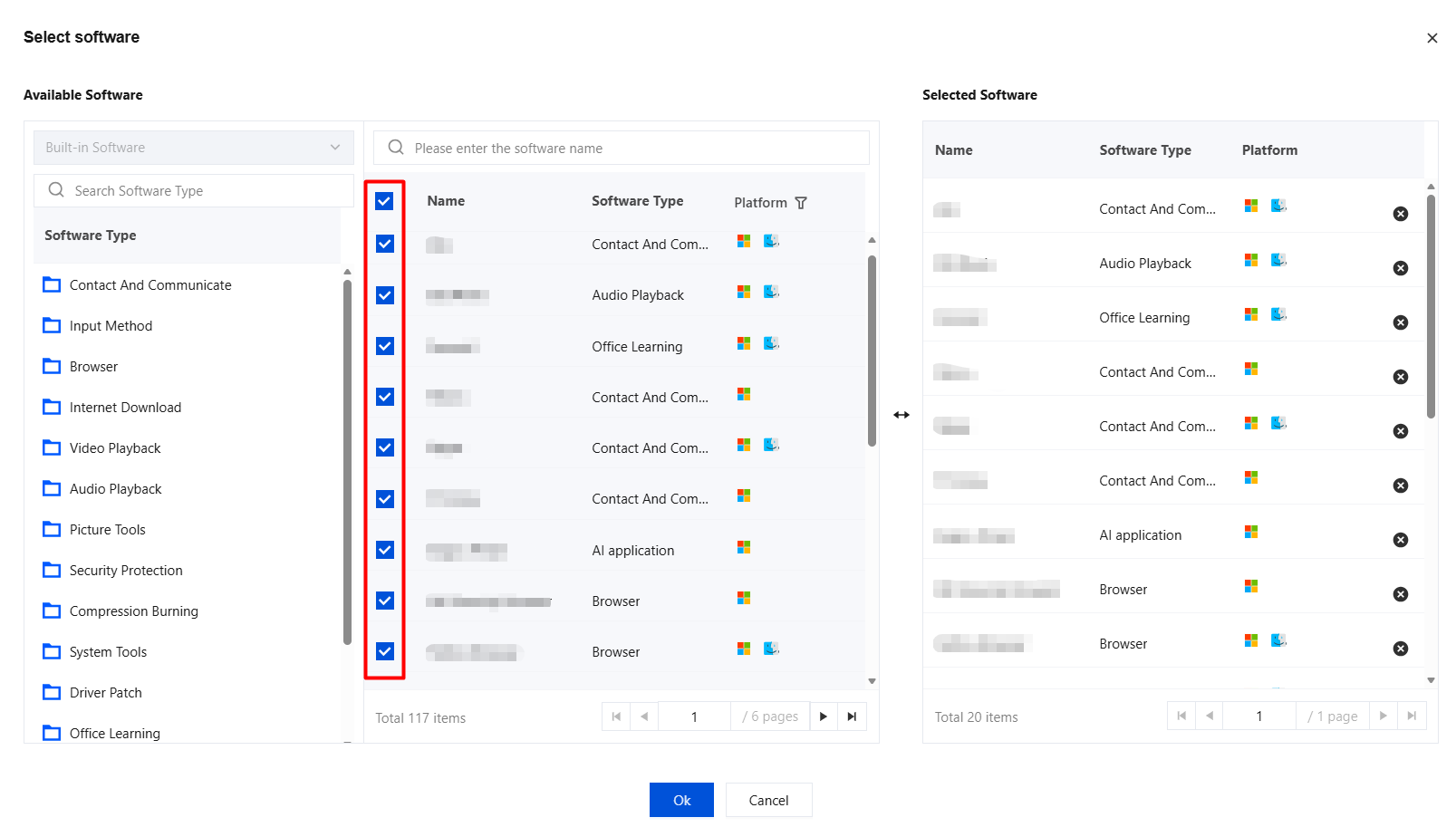 |
Custom software | Software name: Custom. Operating system: Select Windows/macOS. After selection, you can configure parameters for prohibited software. 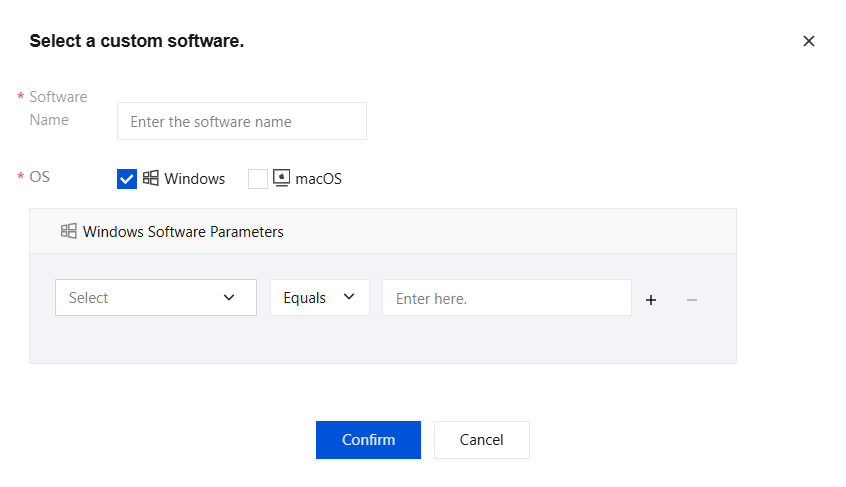 |
User-installed software | The list is empty initially. After the software installation policy is delivered to terminals, the terminals audit employee installation behaviors, collect and parse software information. Successfully installed software is reported to the user-installed software list. 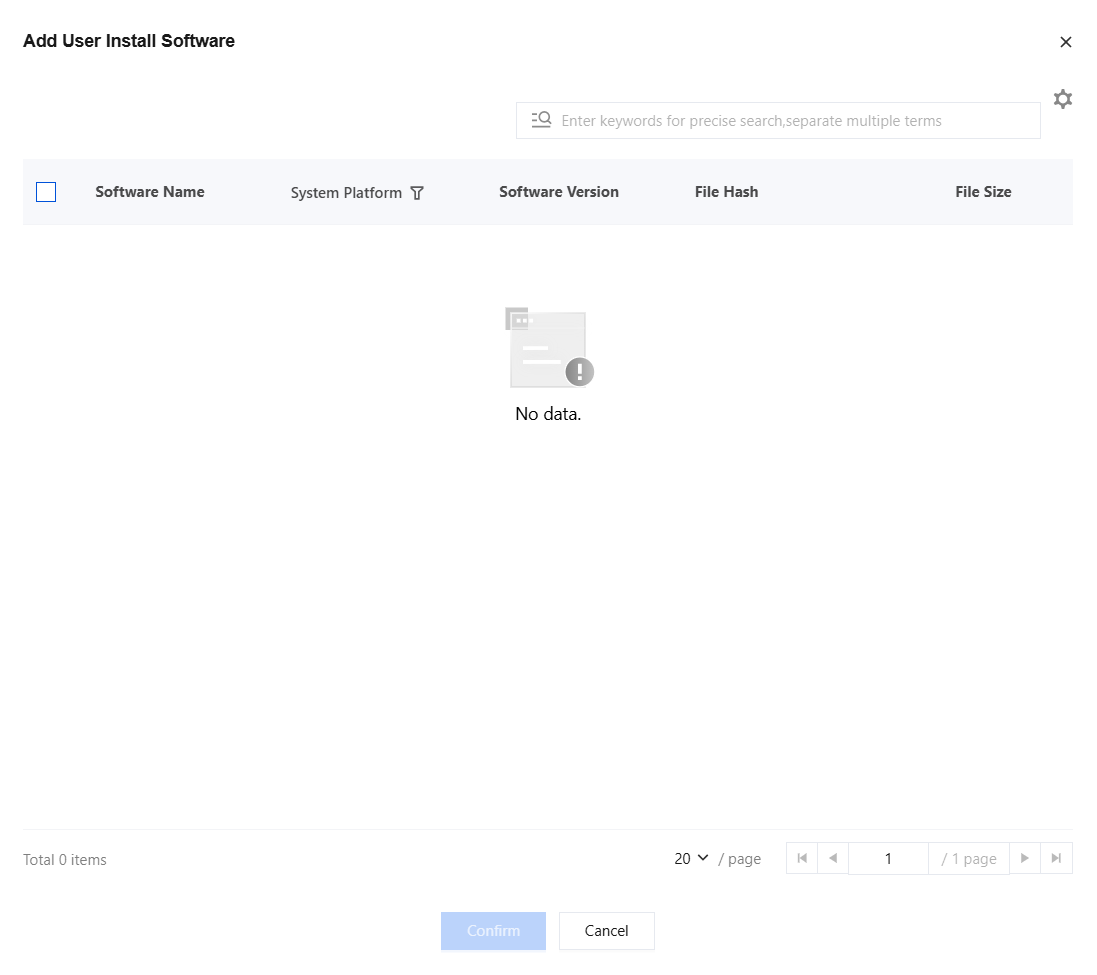 |
Prohibited Software Allowlist
1. Set exception rules for prohibited software to allow installation operations for software within the specified scope.
Software with specified download channels: After this option is selected, software from the specified channels is allowed to be installed. If Software Repository is selected, employees can download the software from the client software repository after the administrator publishes it on the console.
Specified exception software: Add a list of prohibited software to the allowlist. You can configure built-in software, custom software, user-installed software, and software repository.
Category | Description |
Built-in software | Select the software that iOA prohibits from installation by default. After selection, click OK to save. 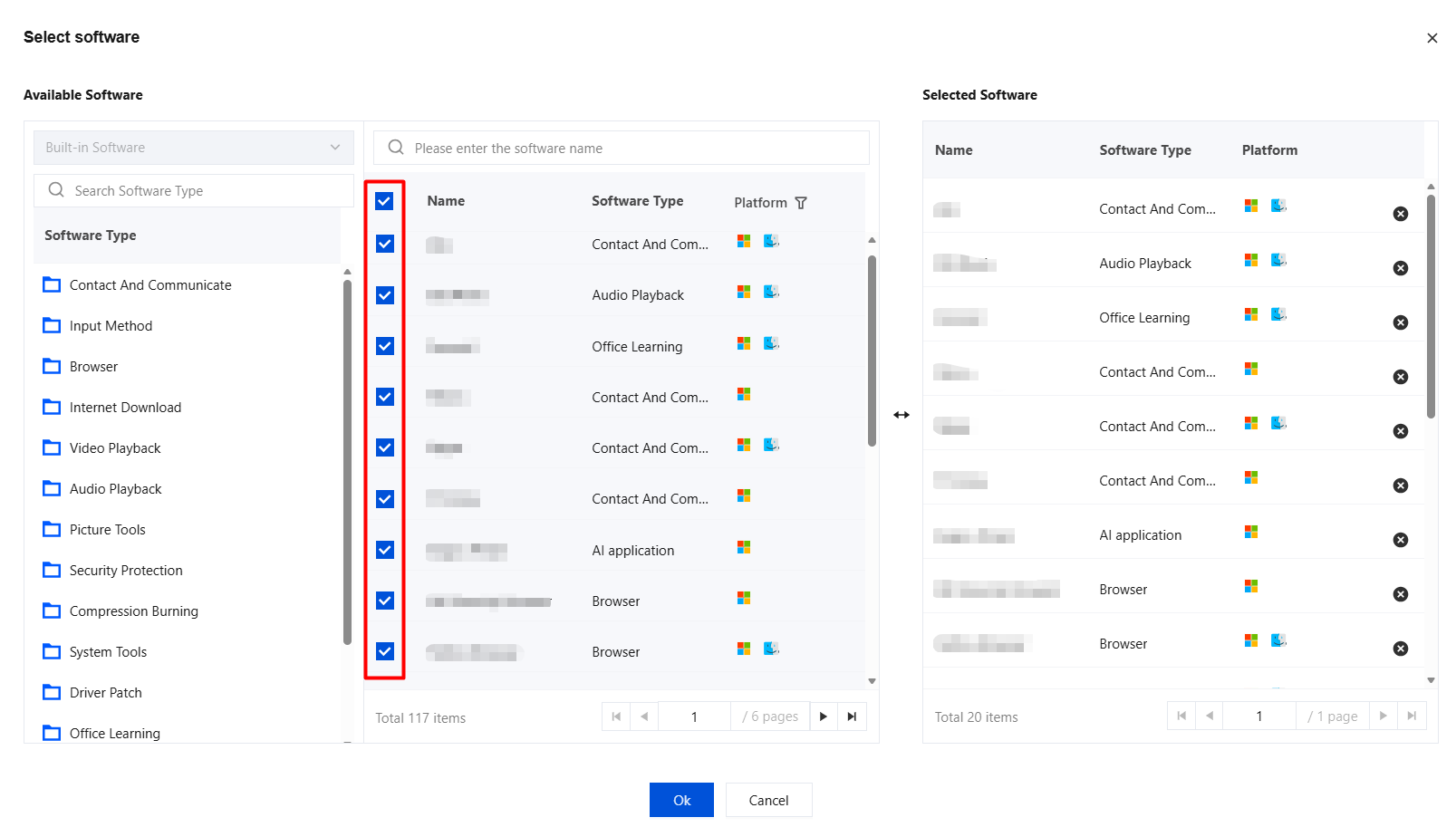 |
Custom software | Software name: Custom. Operating system: Select Windows/macOS. After selection, you can configure parameters for prohibited software. 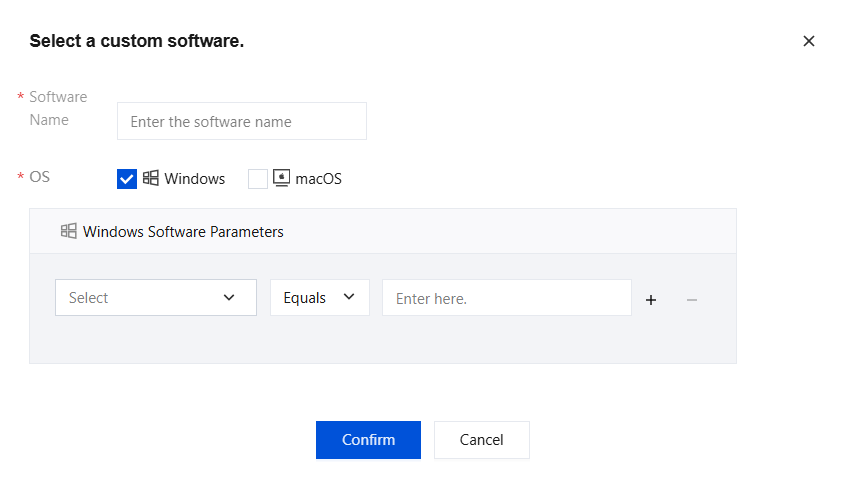 |
User-installed software | The list is empty initially. After the software installation policy is delivered to terminals, the terminals audit employee installation behaviors, collect and parse software information. Successfully installed software is reported to the user-installed software list. 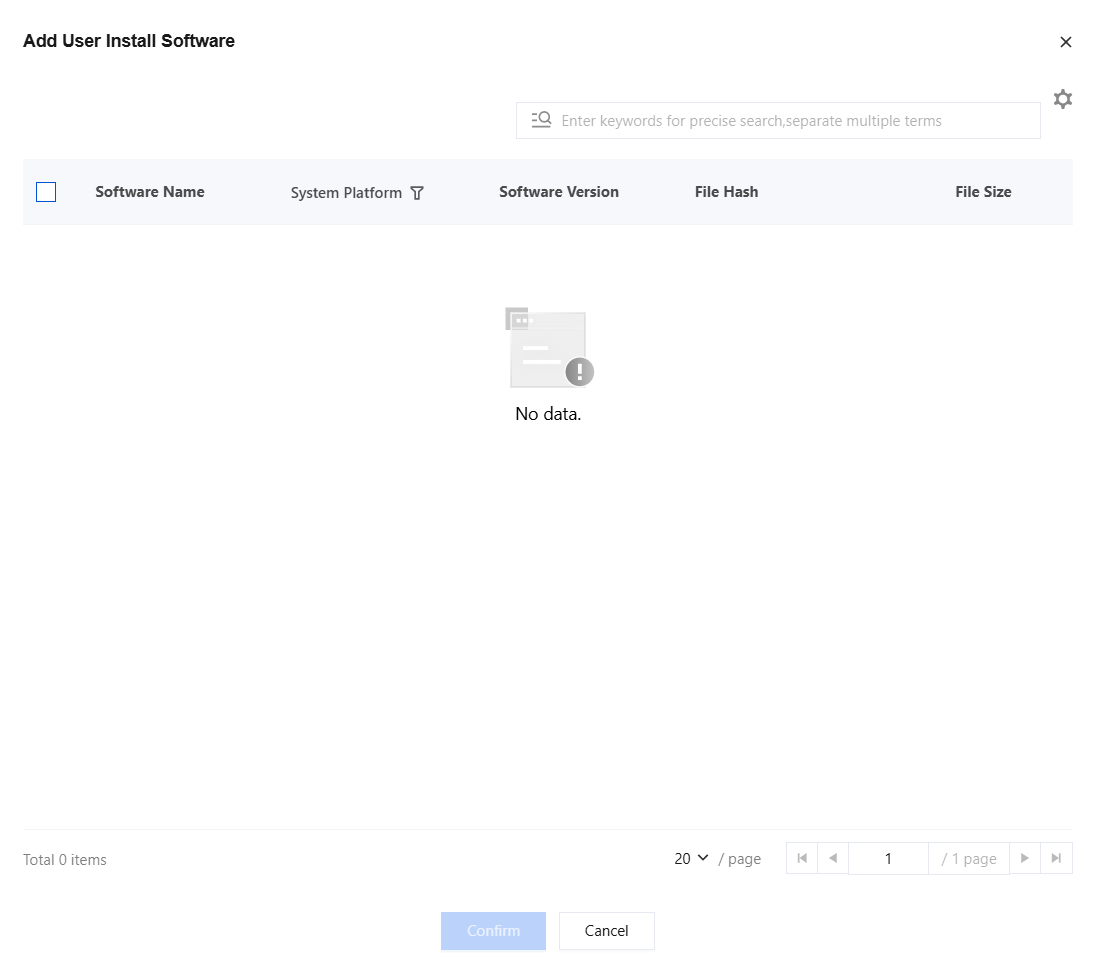 |
Software Repository | Software information listed in Software Control > Software List > Software Repository is displayed here. Select the software name and click OK to save. 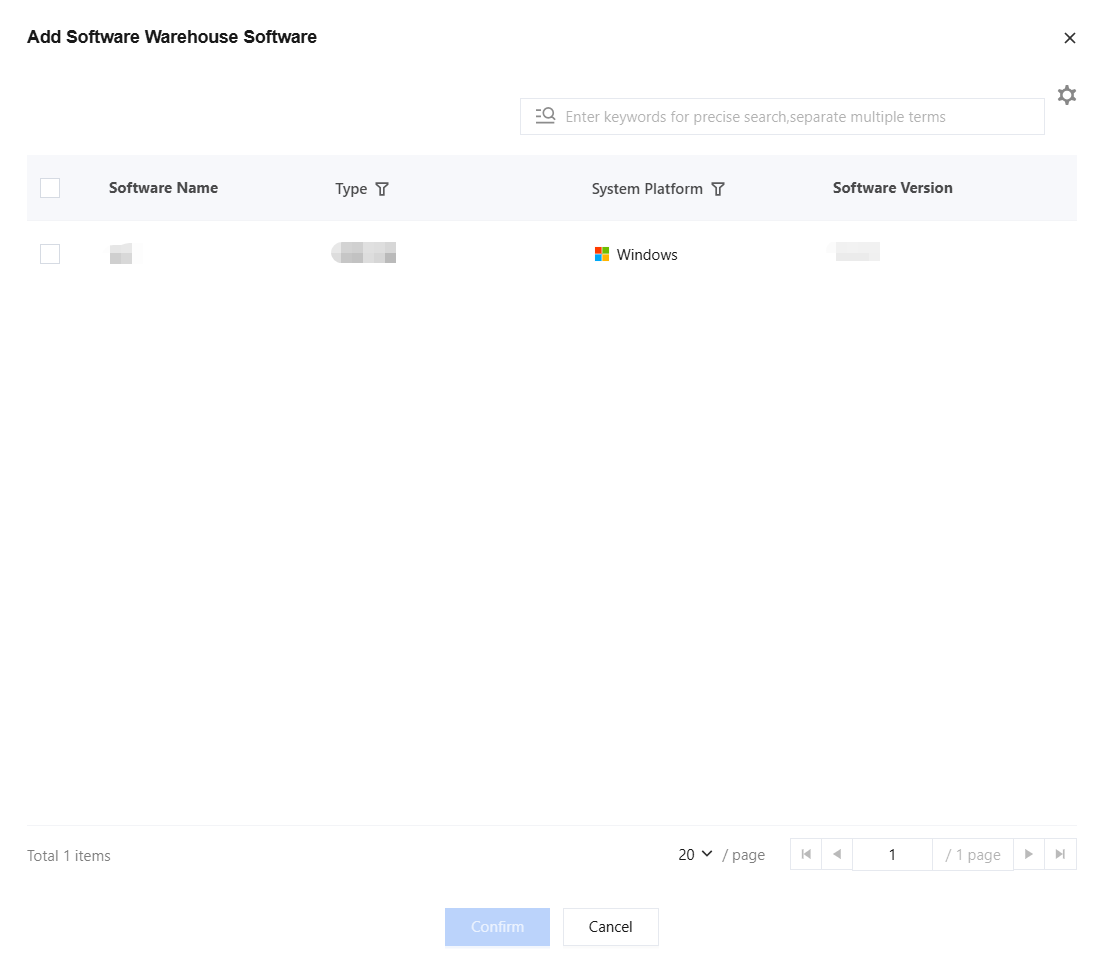 |
Popup Notification
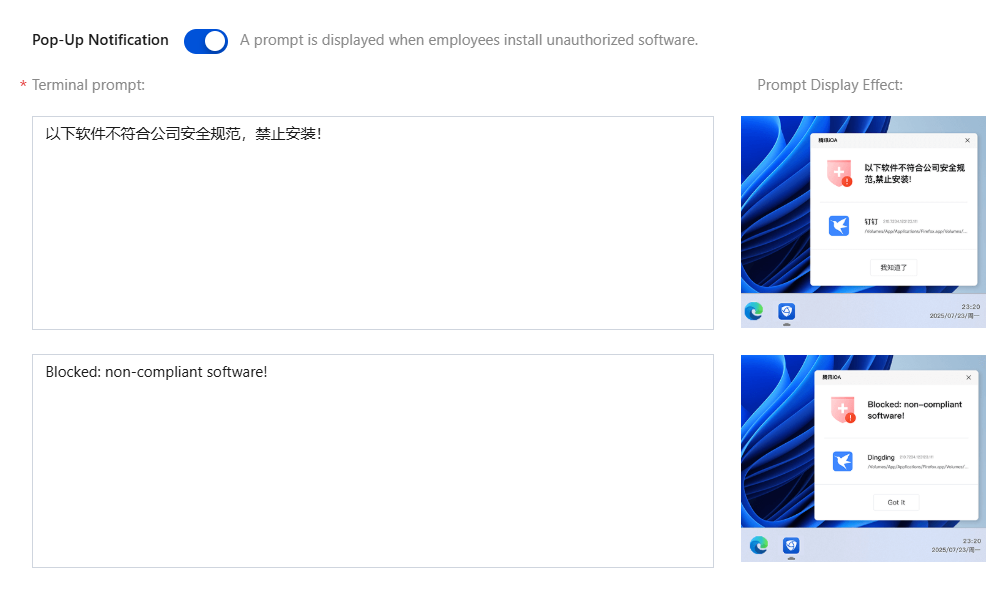
Supports enabling client reminders: When employees install unauthorized software, a prompt is displayed to the employees.
Audit Log
Help enterprise IT administrators promptly detect unauthorized installation activities and provide data support for software asset management.
1. Log in to the Tencent iOA Zero Trust Security Management System console, choose Installation Management > Audit Log in the left sidebar.
2. Software installation auditing covers software installation behaviors on all Windows and macOS terminals.

Icon | Icon Description |
 | Supports quick selection of preset time ranges (last 7 days/last 10 days/last 30 days) and custom exact time ranges. |
 | Data statistics charts are displayed as bar charts. |
 | Supports exporting audit data to files for offline analysis. |
 | Supports custom display of report fields. |
 | Supports quickly searching for and displaying identical content in reports. |
3. The software installation record list displays detailed installation audit information, including:
Operation time: The specific time when the software was installed.
Matched policy: The name of the triggered security policy.
Installation handling: Allow installation or prohibit installation.
Software name: The identifier of the installed software.
File size: The size of the software installation package.
Terminal information: The identifier of the device where installation is performed.
Bantuan dan Dukungan
Apakah halaman ini membantu?
Anda juga dapat Menghubungi Penjualan atau Mengirimkan Tiket untuk meminta bantuan.
masukan