Basic Configuration
Download
Focus Mode
Font Size
The RADIUS server is the core authentication engine and policy enforcement node in the dumb terminal network access system. It receives access requests from network devices (switches, wireless controllers, and so on), verifies device identities (such as MAC addresses), and returns authorization results (allow/deny + VLAN/Filter/QoS).
Prerequisites
1. The RADIUS server requires internet access permissions.
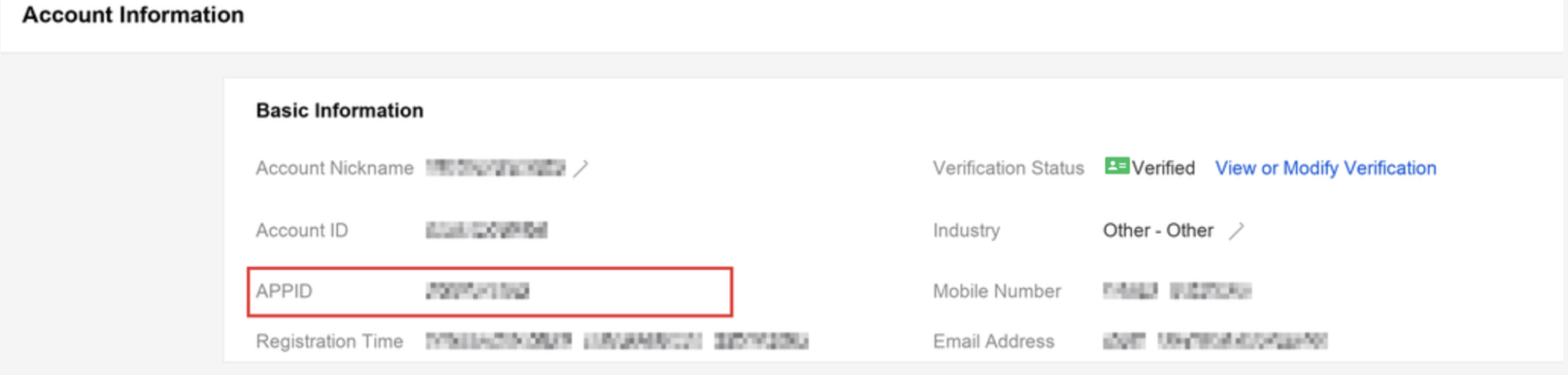
2. Go to the Tencent Cloud Account Center and collect the tenant ID, also known as the APPID, in advance.
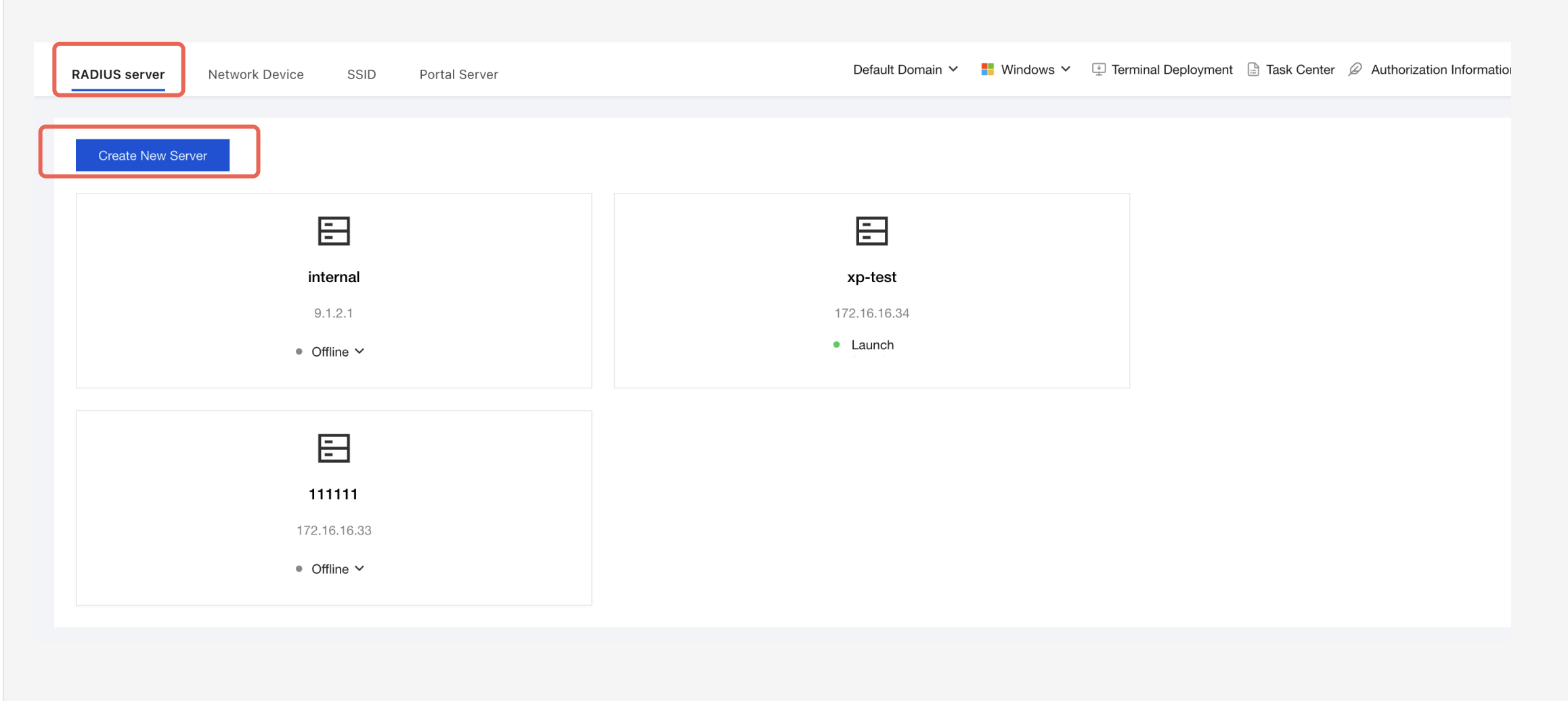
3. Log in to the iOA Zero Trust Management Platform console and choose Basic Settings > RADIUS server in the left sidebar.
4. On the RADIUS Server page, click Create New Server.
Creating a New Server
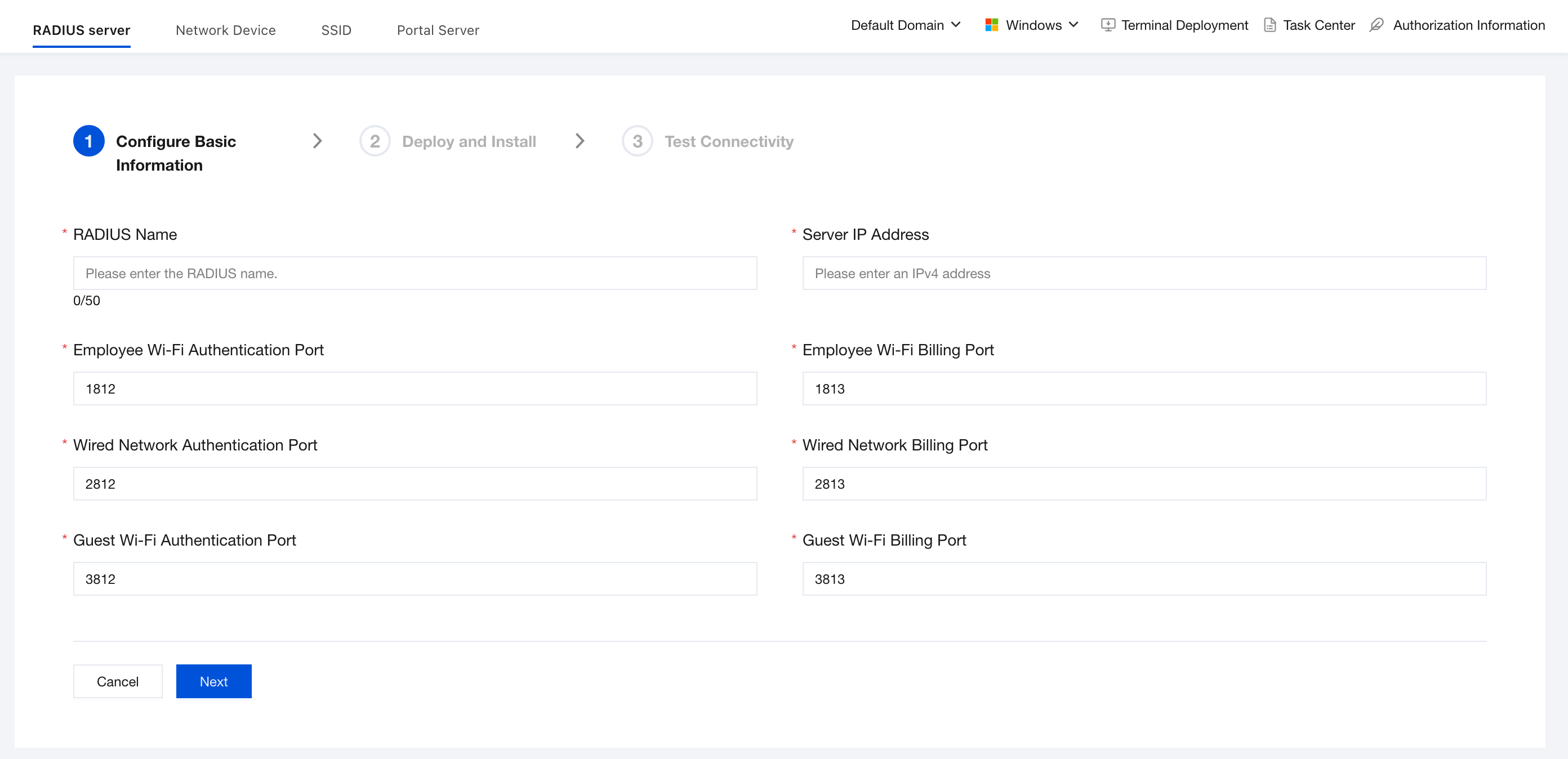
1. On the Basic Information page, configure the RADIUS server name, IP address, and other information, and then click Next.
Parameter Name | Description |
RADIUS Name | Custom name (for example, primary RADIUS - Beijing data center, secondary RADIUS - Shanghai disaster recovery site) for easy identification and management of multiple nodes. |
Server IP address | Enter the private network address of the RADIUS server. |
Employee Wi-Fi authentication port | Standard RADIUS authentication port, used for employee wireless device access authentication. The default port is 1812, and custom port modification is supported. |
Employee Wi-Fi accounting port | Standard RADIUS accounting port, used to record session duration and traffic (optional). The default port is 1813, and custom port modification is supported. |
Wired network authentication port | Dedicated to MAC authentication for wired dumb terminals (printers, cameras, and others). The default port is 2812, and custom port modification is supported. |
Wired network accounting port | Accounting port for wired devices. The default port is 2813, and custom port modification is supported. |
Guest Wi-Fi authentication port | Dedicated port for guest Portal or temporary device authentication. The default port is 3812, and custom port modification is supported. |
Guest Wi-Fi accounting port | Accounting port for guest sessions. The default port is 3813, and custom port modification is supported. |
Deployment and Installation
1. The system provides a one-click deployment solution. You do not need to manually compile source code. Instead, you only need to run three commands on the target Linux server to complete component installation and registration.
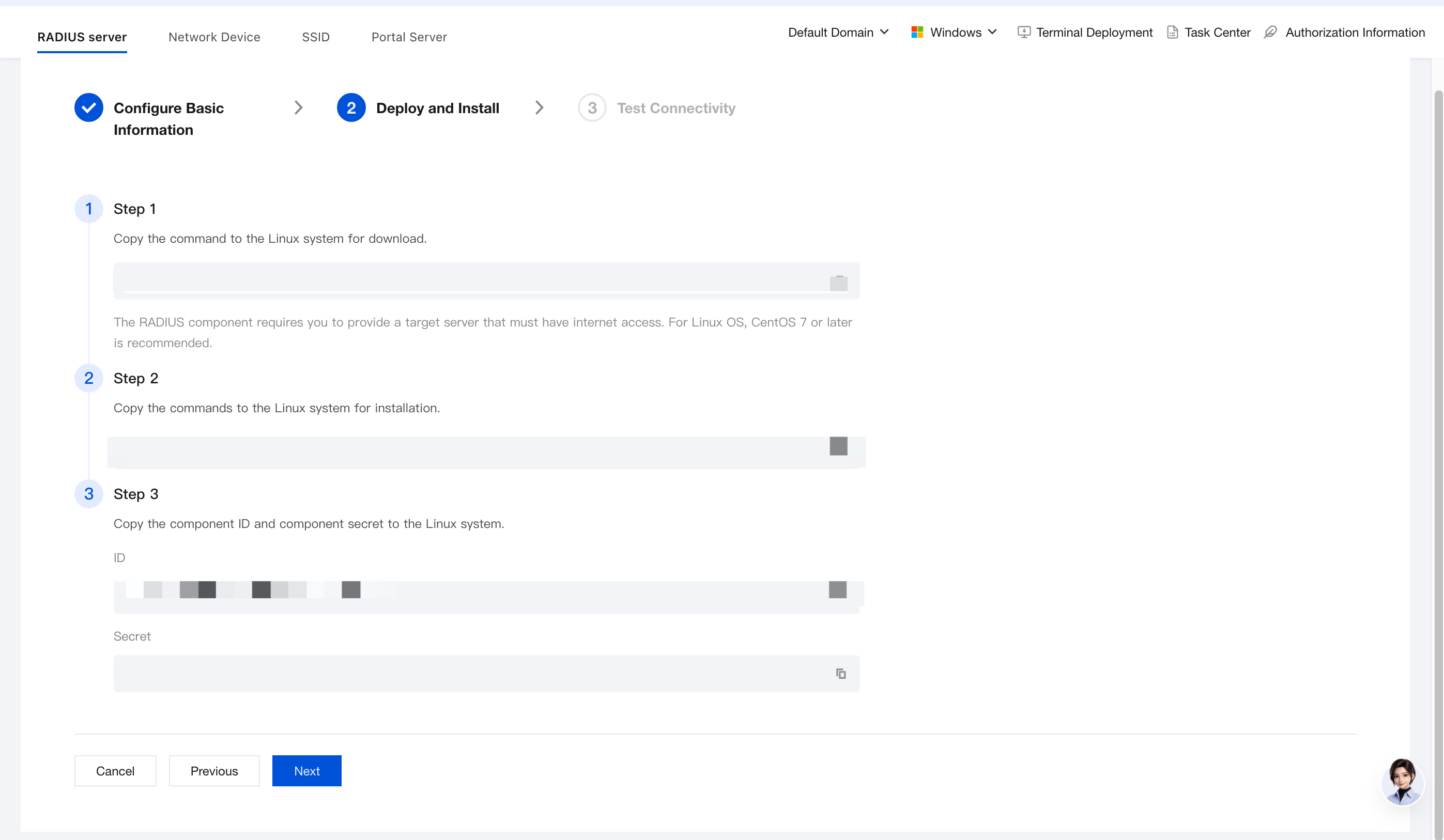
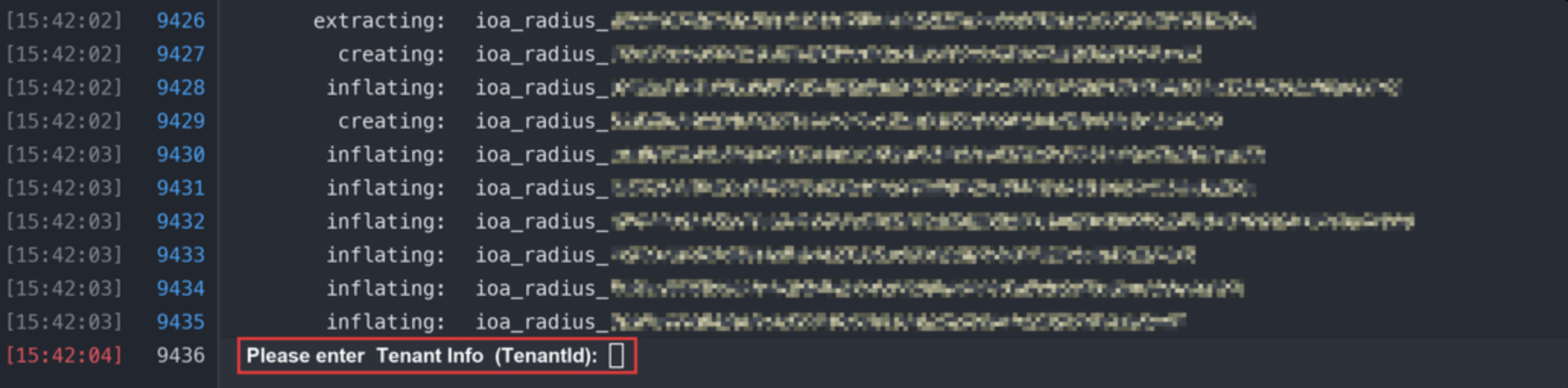
2. After you copy the installation command automatically generated during deployment and installation to the server and run it, the following page appears on the server:
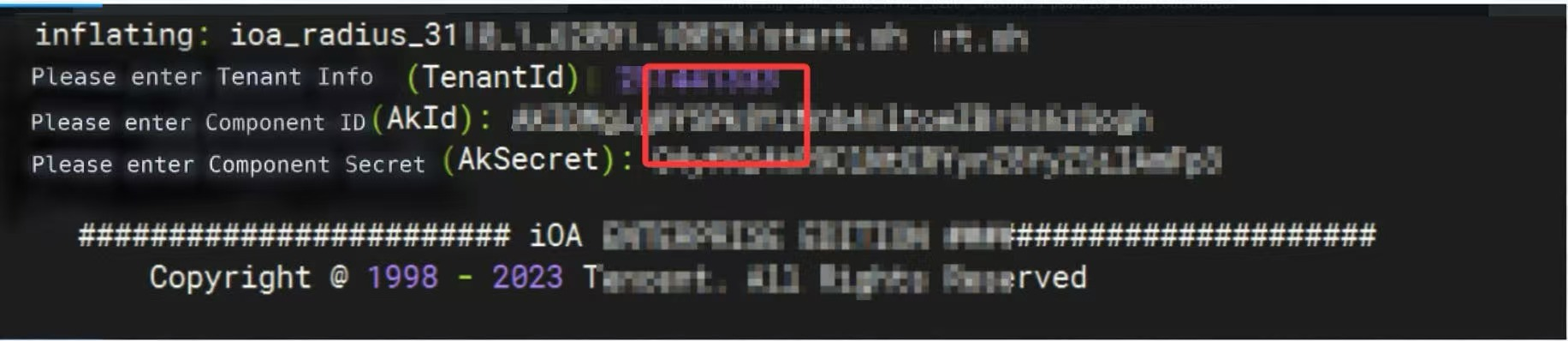
3. Enter the tenant ID and the ID and Secret from Step 3 of Deployment and Installation.
Connectivity Test
1. After deployment is complete, click Start Detection. The system automatically initiates the following checks:
Check Item | Check Content |
TCP port reachability | Test whether ports 1812/2812/3812 are open. |
UDP communication quality | Simulate sending an Access-Request packet and wait for a Response. |
Certificate/key matching degree | Verify whether the ID and Secret are correctly paired. |
Firewall rule compatibility | Check whether iptables/firewalld rules are blocking traffic. |
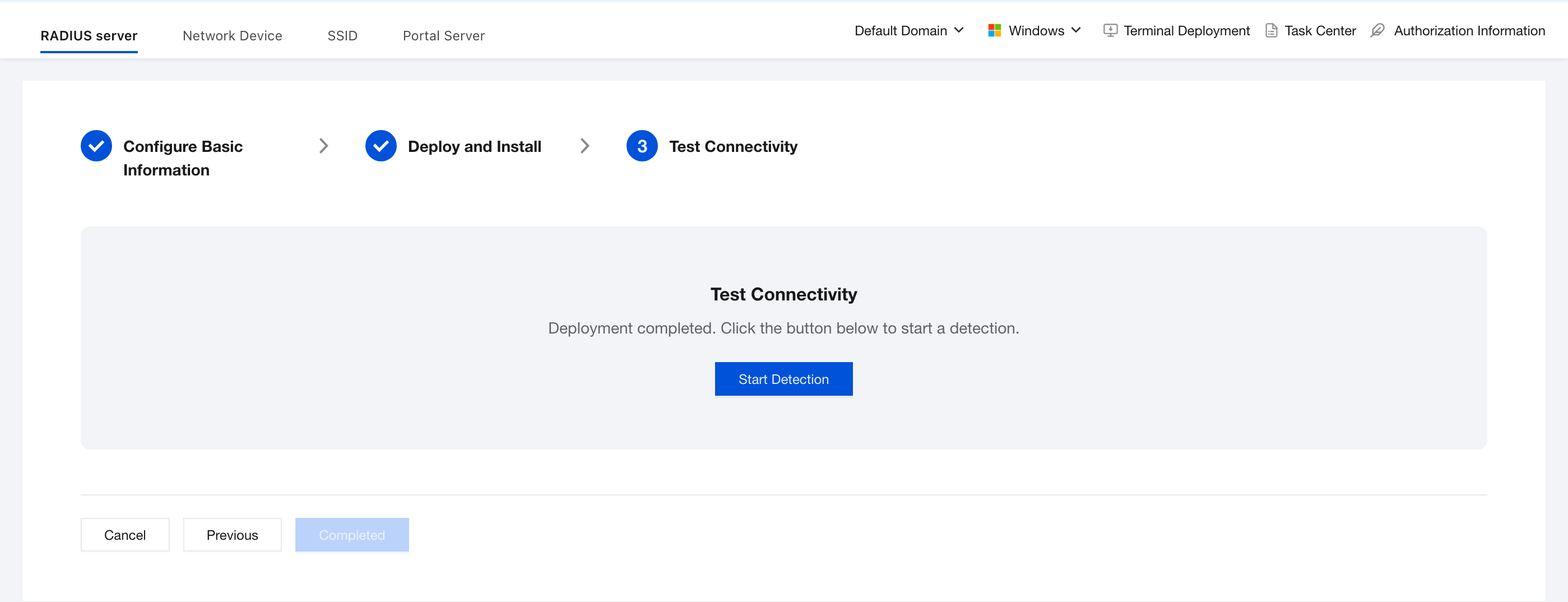
2. Connectivity test completed, and the server status is online. The RADIUS server deployment is complete.

Attention:
When RADIUS is being installed, if you enter incorrect information such as the tenant ID or server ID, the mistake is irreversible. The installation may still succeed, but the server cannot go online.
Remedial measure: Run the uninstall script
uninstall_ioa.sh with root privileges.
After the uninstallation is complete, delete the installation folder completely, run the
rm -rf installation folder command, and then extract and install again.Server Status Monitoring and Maintenance
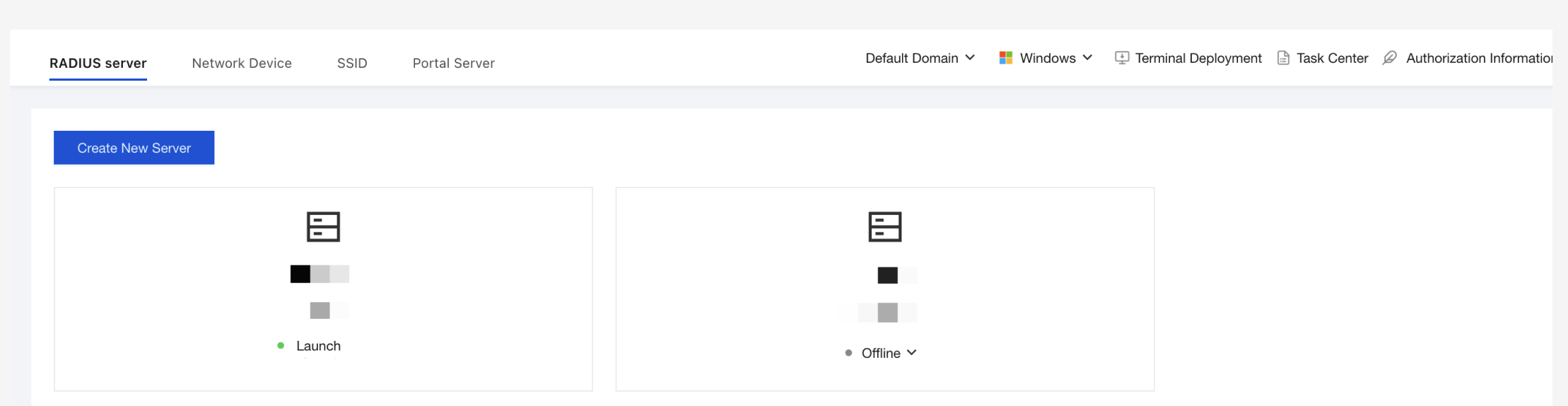
On the RADIUS Server page, each configured RADIUS server is displayed as a card that contains the following information:
Server name: the previously entered RADIUS name.
IP address: the IP address of the actual deployment host.
Online: The service is running normally and can process authentication requests.
Offline: The service is stopped or disconnected and cannot provide authentication.
Modifying and Decommissioning Servers
Attention:
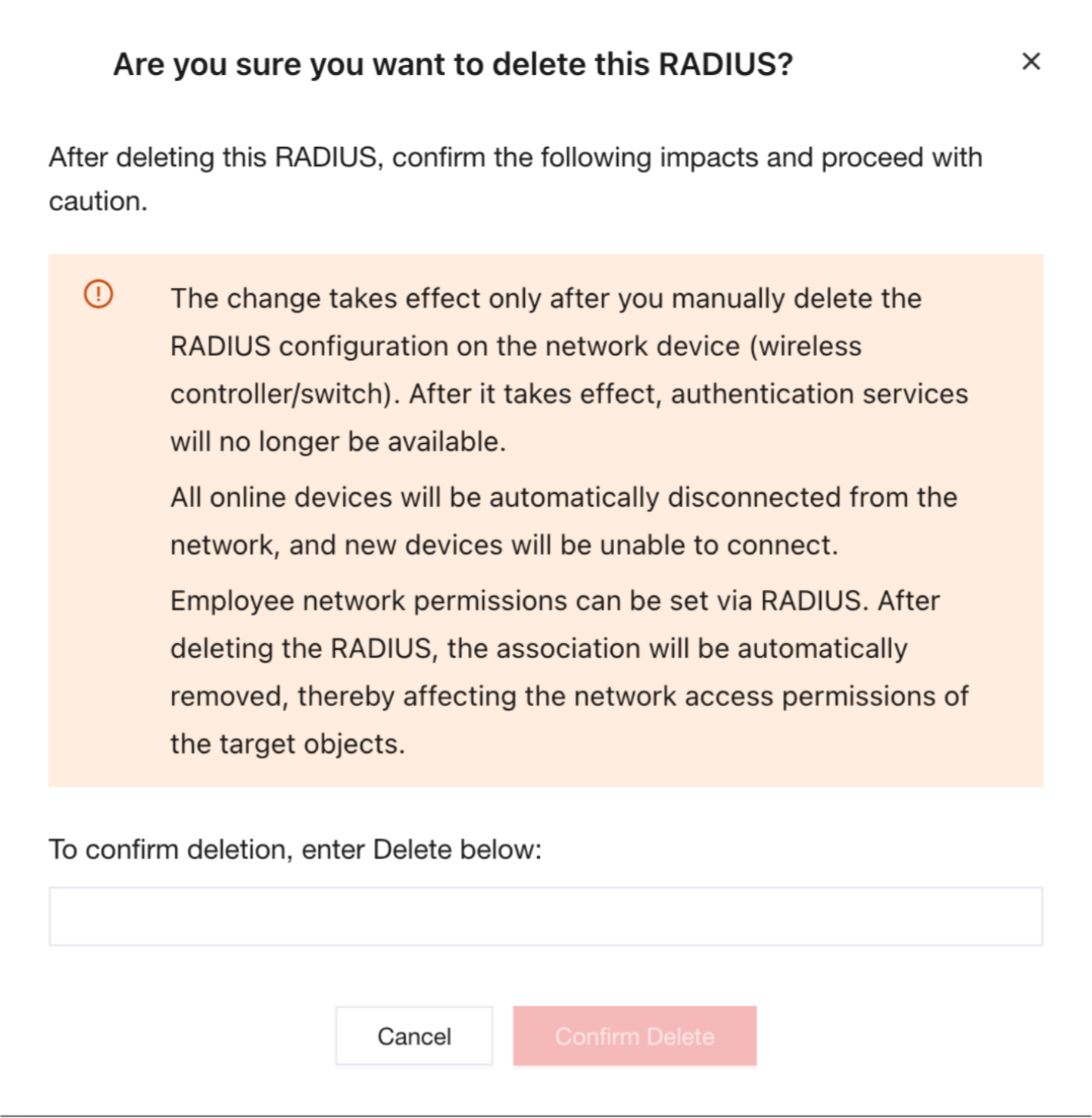
Once a server is deleted, it cannot be restored. New users cannot connect to the enterprise Wi-Fi, and users who are already connected will be automatically disconnected. Please proceed with caution.
1. On the RADIUS Server page, you can modify and take servers offline:
If a server is in the Online state, most fields cannot be edited and are grayed out.
To modify the port or IP address, you must first take the server offline, then edit the settings, and finally bring it back online.
2. On the RADIUS Server page, select the server that you want to take offline and click Delete. When you perform the offline operation, a confirmation warning dialog box appears. Enter Delete and click Confirm Delete. to complete the operation.
Help and Support
Was this page helpful?
You can also Contact sales or Submit a Ticket for help.
Help us improve! Rate your documentation experience in 5 mins.
Feedback