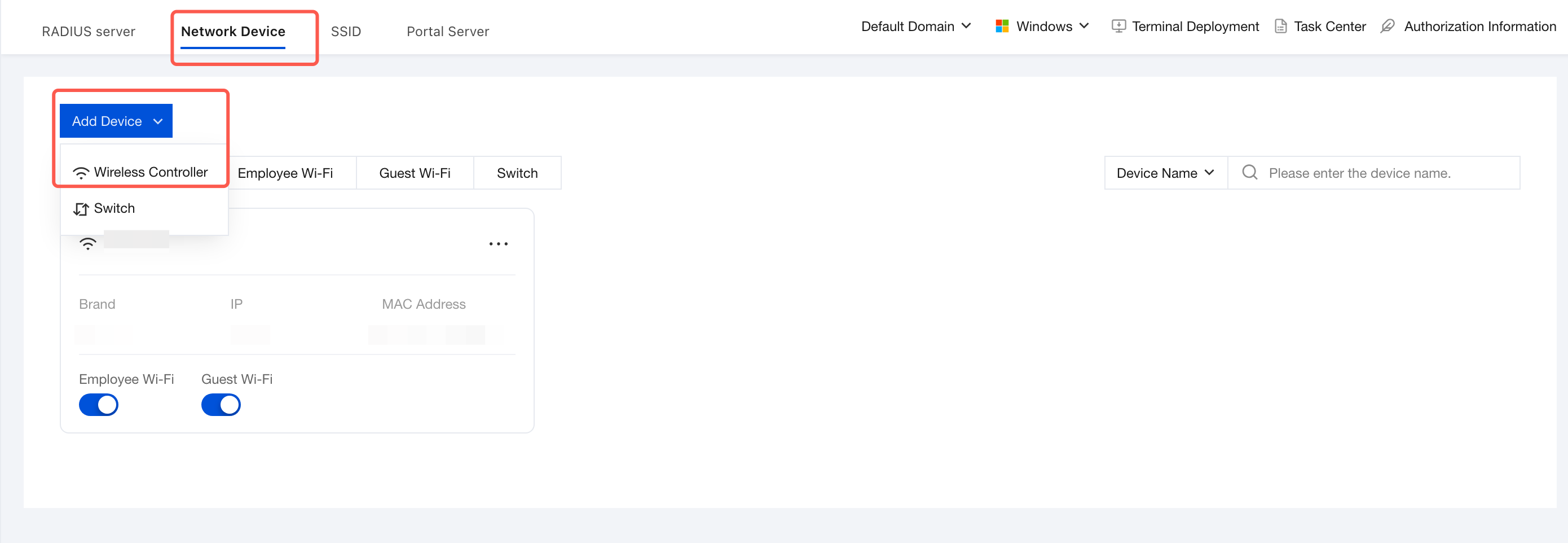
Administrators complete device registration, type identification, IP address, shared Secret configuration, and status monitoring. Only after devices are successfully onboarded and configured correctly here can RADIUS authentication requests be forwarded to the authentication server, thereby implementing port-based access control.
Note:
When the network device is a chassis device (where multiple service boards can be inserted into the chassis, such as switch boards and AC boards), the AC and switch are integrated. For iOA control integration, they must be added separately, but the MAC addresses and IP addresses cannot be the same.
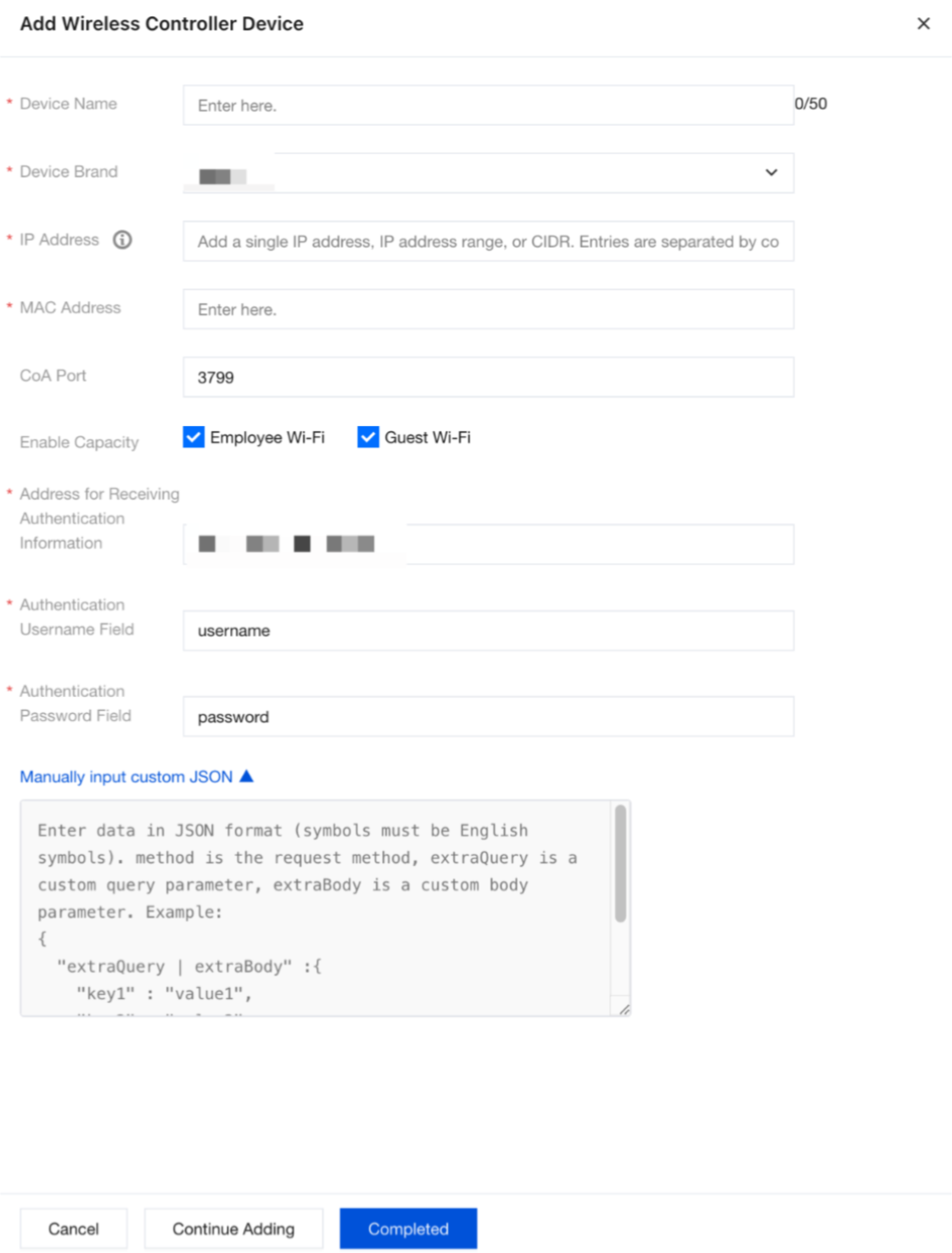
3. In the Add Wireless Controller Device dialog box, configure the device information and other parameters.
Parameter Name
Description
Device Name
Custom device name, used to identify the wireless controller.
Device Brand
Select a vendor from the preset list (for example, Huawei, H3C, Cisco, Aruba, Ruijie).
IP address
The IP address here is the address used for communication with the RADIUS server, typically the management address.
Single IP addresses, IP address ranges, and CIDR blocks are supported. When adding multiple entries, separate them with commas or spaces.
MAC Address
The MAC address is the MAC address of the interface associated with the above IP address.
How to obtain: Log in to the device CLI, run the display device or dis arp command, or check the device label. Enter the information based on the actual device.
CoA Port
The Change of Authorization port is used to dynamically adjust the permissions of online users in real time, such as forced logout, VLAN switching, and rate limiting.
This configuration must be consistent with the CoA port on the wireless controller. The default value is 3799.
Enable Capability
Employee Wi-Fi: Provides the capability for employees to connect to the corporate Wi-Fi network.
Guest Wi-Fi: Provides the capability for guests to connect to the corporate Wi-Fi network.
Note:
You need to fill in the authentication information receiving address, authentication username field, authentication password field, and custom JSON only when Portal authentication is used for employee or guest network access. However, if 802.1X authentication is selected for employee network access, these fields are not required.
Authentication Information Receiving Address
Specify the destination address to which the wireless controller forwards authentication requests, http://IP address of the RADIUS server:9100/login.
Attention:
The IP address must be consistent with the IP address configured in the RADIUS server module. Otherwise, authentication packets cannot be delivered.
Authentication Username Field
Fill in the RADIUS User-Password field.
If no changes are made, keep the default settings.
Authentication Password Field
Fill in the RADIUS Password field.
If no changes are made, keep the default settings.
Enter Custom JSON.
Click Enter Custom JSON to expand the advanced configuration area, which applies to scenarios where integration with non-standard APIs or passing additional parameters is required.
4. After configuration, click Done to save. After the addition is complete, the SSID will be matched automatically.
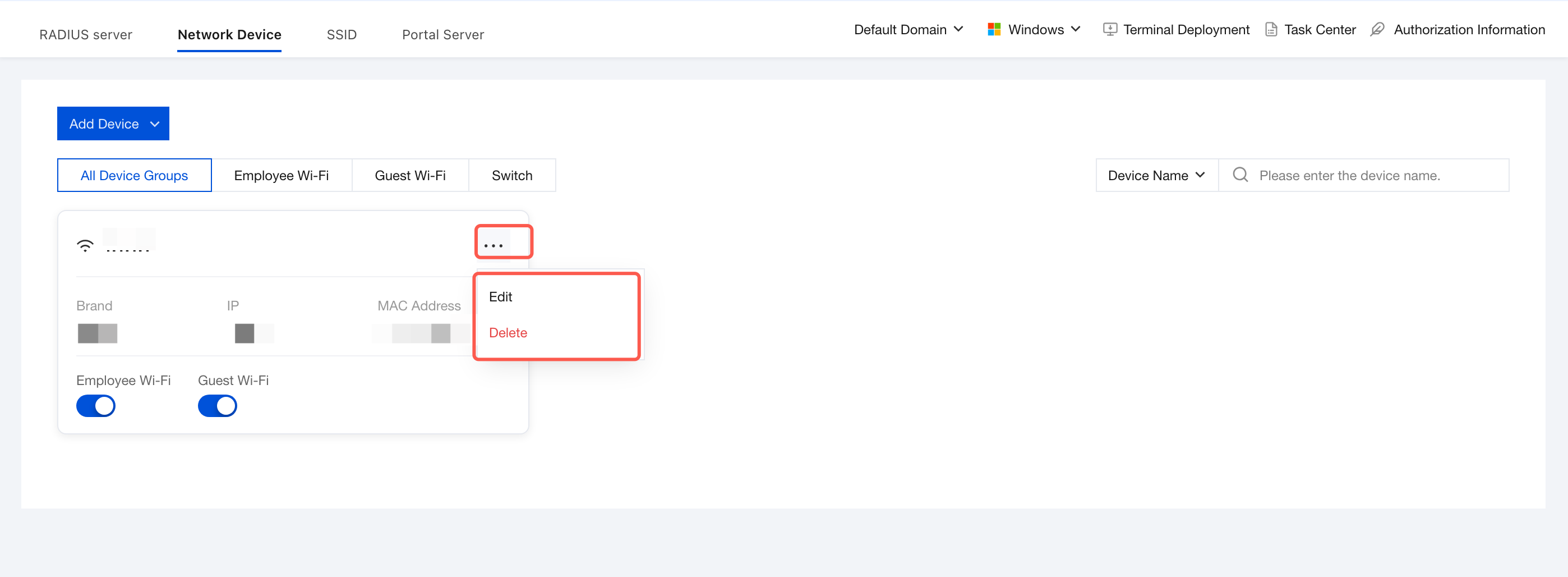
2. On the Network Devices page, select the wireless controller you want to modify. The following edit/delete operations are supported.
Click Edit: In the Edit Wireless Controller dialog box, manually adjust the basic device information, enabled capabilities, and authentication configuration.
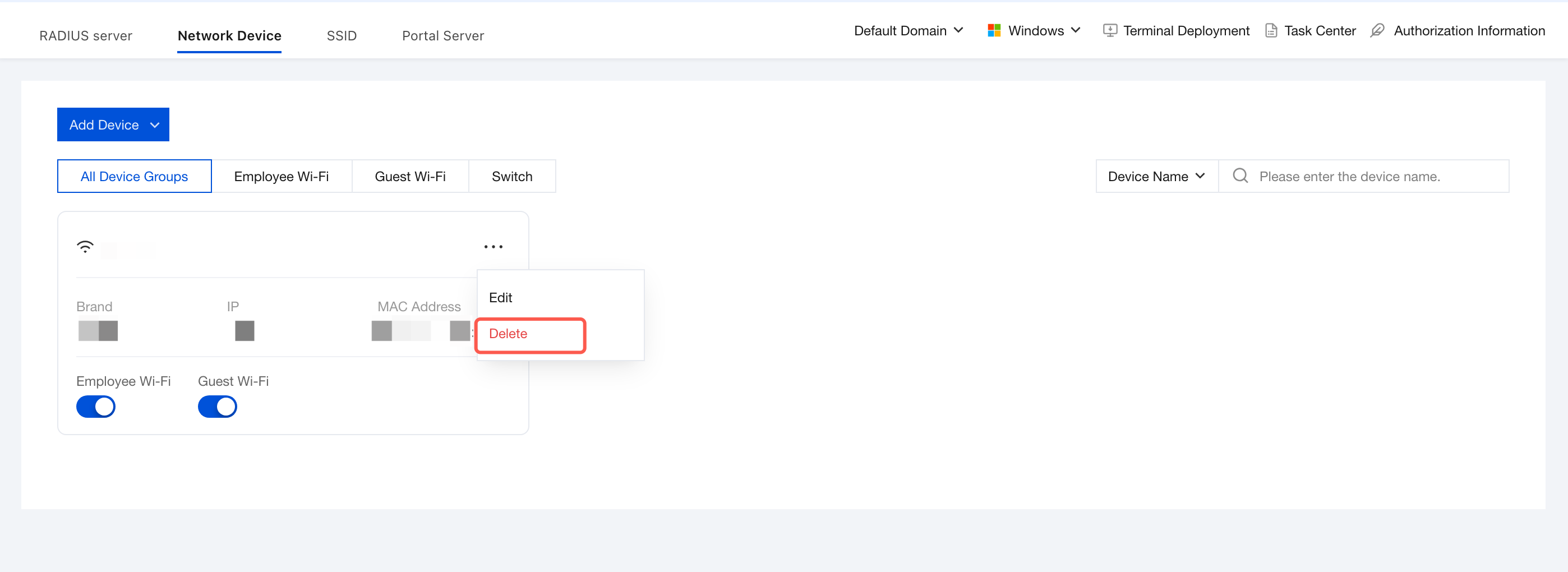
Click Delete: This deletes the current wireless controller, and the Wi-Fi network will be automatically disconnected after the deletion.
Attention:
After deletion, the Wi-Fi network will be automatically disconnected. Please proceed with caution.
3. On the Network Devices page, click
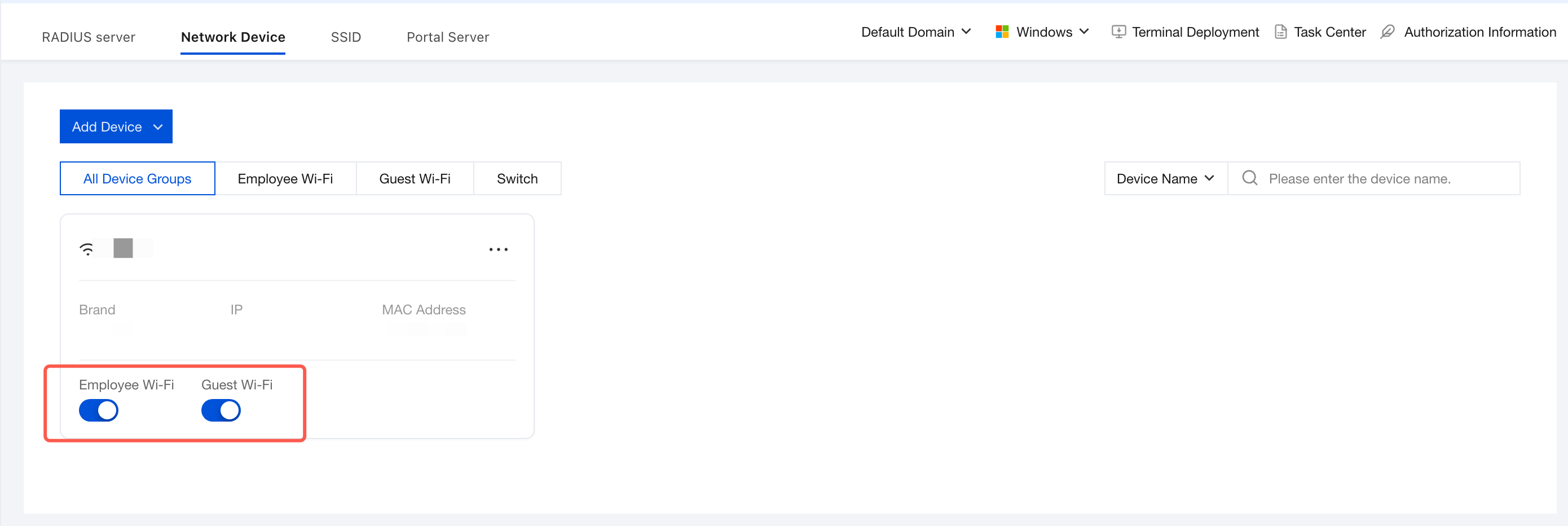
to enable employee Wi-Fi and guest Wi-Fi capabilities.
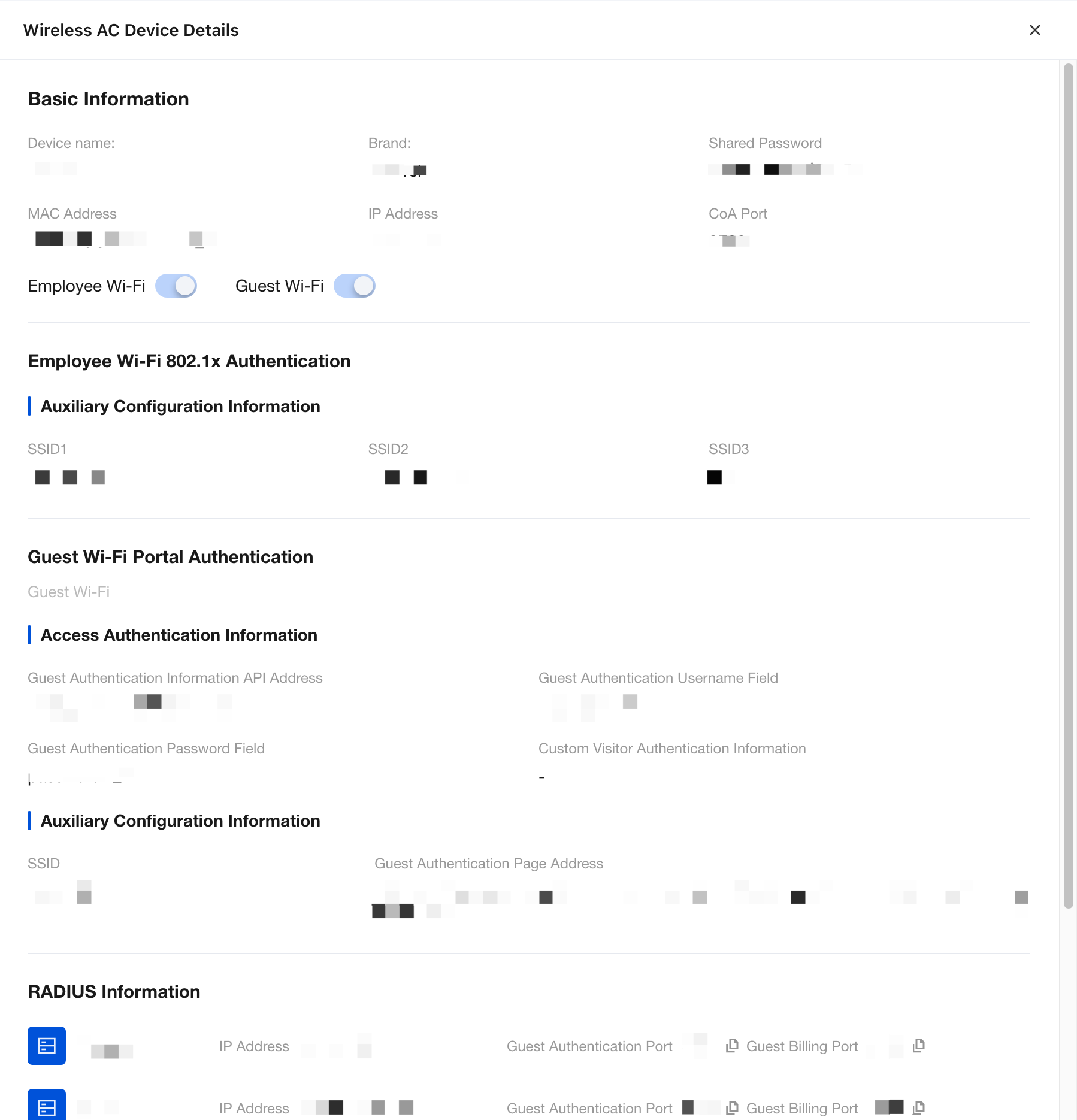
4. On the Network Devices page, click the wireless controller card to go to its details page, where you can view basic information, employee Wi-Fi 802.1X authentication, and more.
Displayed Item
Description
Device Name
Name of the configured wireless controller
Brand
Brand name of the wireless controller.
Shared Key
A shared secret is used to verify the legitimacy of the peer's identity by checking whether the peer has the same password. In this context, the shared secret refers to the one used when the device creates the RADIUS server, and it is randomly generated by iOA.
This is the shared secret for interconnection with the RADIUS server and the AC.
MAC Address
MAC address of the wireless controller.
IP address
Edit the source IP address of the wireless controller. The following IP address formats are supported.
IP address, for example, 10.10.0.0.
IP address range, for example, 10.10.0.0 - 10.10.0.5.
CIDR
CoA Port
After employees successfully connect to the network and pass authentication, you can use the RADIUS server to dynamically modify their network access permissions or perform re-authentication. This configuration must be consistent with the CoA port of the wireless controller, with a default value of 3799.
Employee Wi-Fi 802.1X Authentication
View access authentication information.
View auxiliary configuration information.
Guest Wi-Fi Portal Authentication
View and edit access authentication information.
View the guest Wi-Fi SSID and the corresponding RADIUS server information.