Setting the Wi-Fi SSID
Unduh
Mode fokus
Ukuran font
After completing the RADIUS server configuration and the wireless controller configuration, you need to configure the Wi-Fi SSID accordingly. The SSID is the wireless network name displayed on user devices, and its configuration must be consistent with the WLAN name of the wireless access point. If an enterprise does not want the Wi-Fi network used by employees to be freely connected to by external devices, it can enable the SSID hiding feature.
Must-Knows
The Wi-Fi SSID configuration includes both employee Wi-Fi and guest Wi-Fi.
If the employee Wi-Fi capability is enabled on the wireless controller, you need to configure the employee Wi-Fi SSID.
If the guest Wi-Fi capability is enabled on the wireless controller, you need to configure the guest Wi-Fi SSID.
Adding a Wi-Fi SSID
1. Log in to theTencent iOA Zero Trust Management Platform console and choose Basic Settings > SSID in the left sidebar.
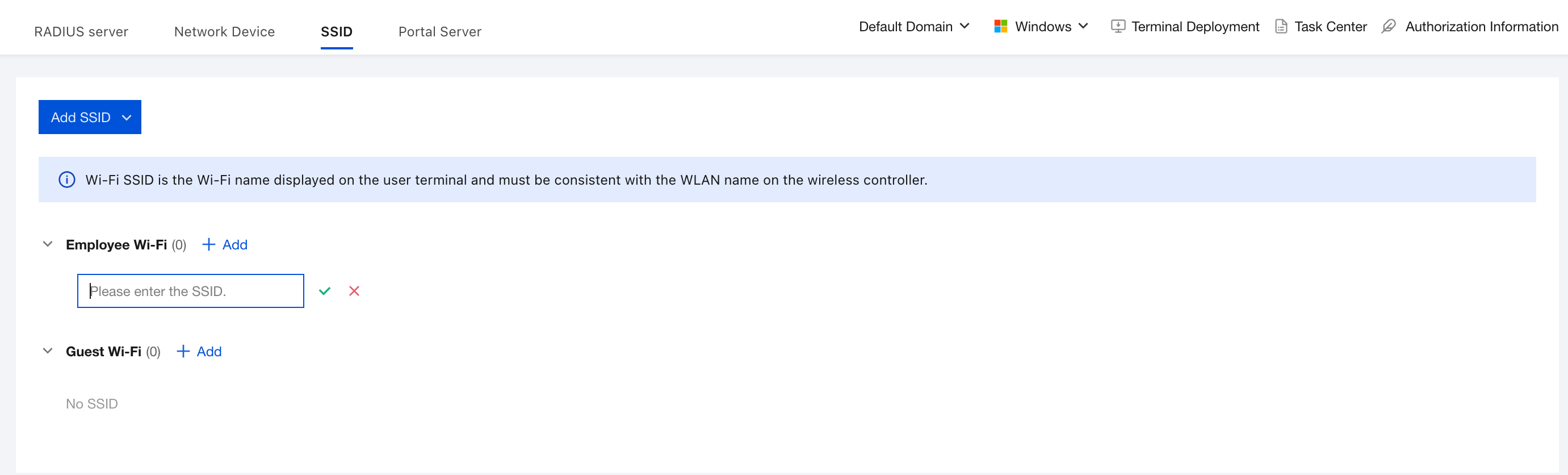
2. Click Add under any category to open the configuration window, enter the SSID, and save.
SSID name: the Wi-Fi name that user terminals search for.
Attention:
It must be exactly the same as the WLAN name configured on the wireless controller (AC). Otherwise, the terminal cannot associate successfully.
Editing or Deleting a Wi-Fi SSID
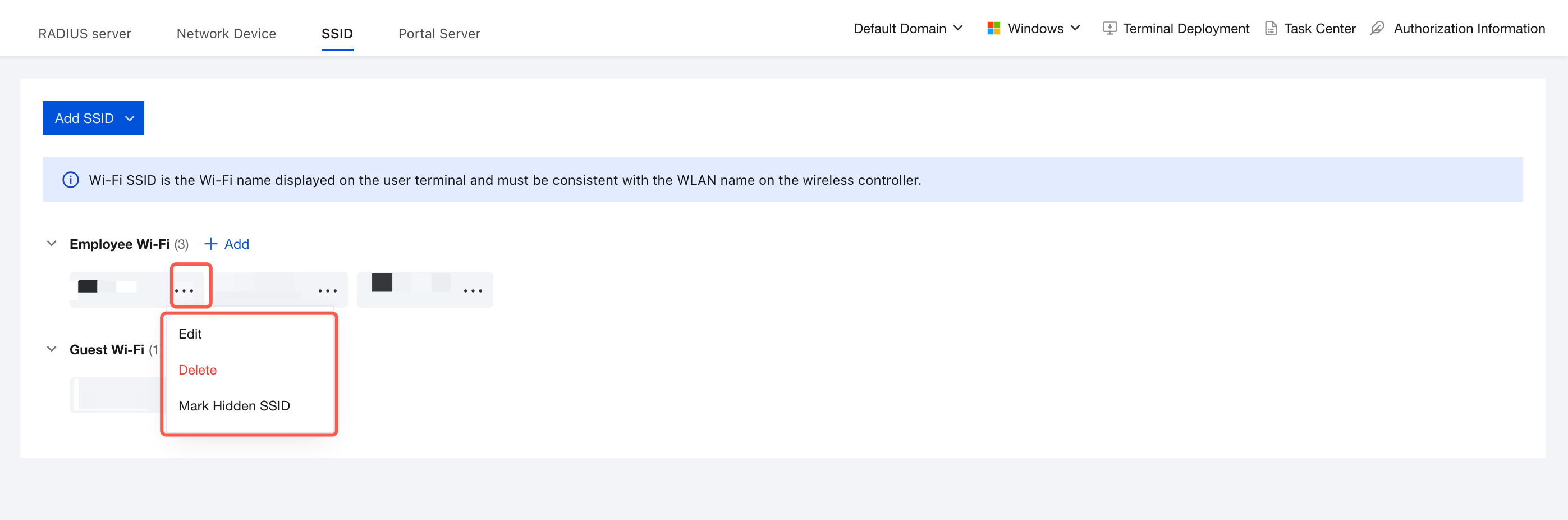
On the SSID page for employee Wi-Fi/guest Wi-Fi, click ···. You can edit or delete the SSID.
Attention:
After an SSID is deleted, all terminal devices connected to the Wi-Fi network are immediately disconnected and cannot continue to access the Internet. If the SSID is bound to RADIUS/Portal authentication, the related authentication policies also become invalid, and users cannot reconnect.
Hiding the Employee Wi-Fi SSID
If you have hidden the Wi-Fi SSID on the wireless controller, you also need to mark it as hidden in the corresponding SSID settings in the iOA admin console. Otherwise, employees cannot connect to the SSID with one click through the client.
1. On the SSID page for employee Wi-Fi/guest Wi-Fi, find the employee Wi-Fi SSID card for which you want to hide the SSID.
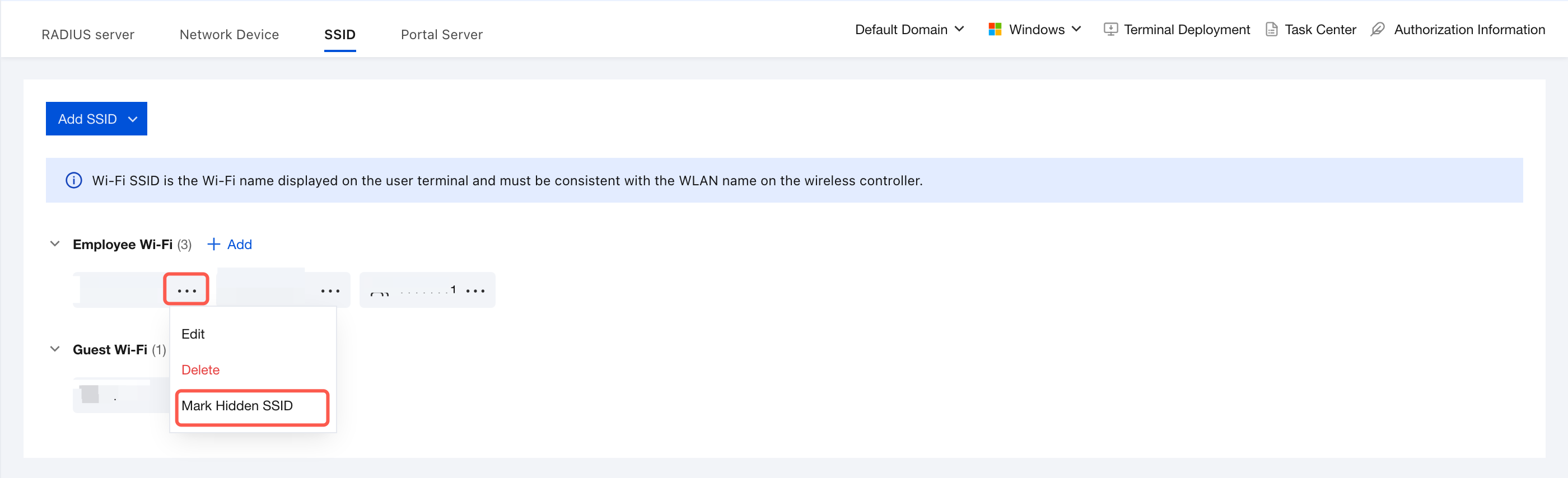
2. On the right side of the card, click ··· and then click Mark Hidden SSID.
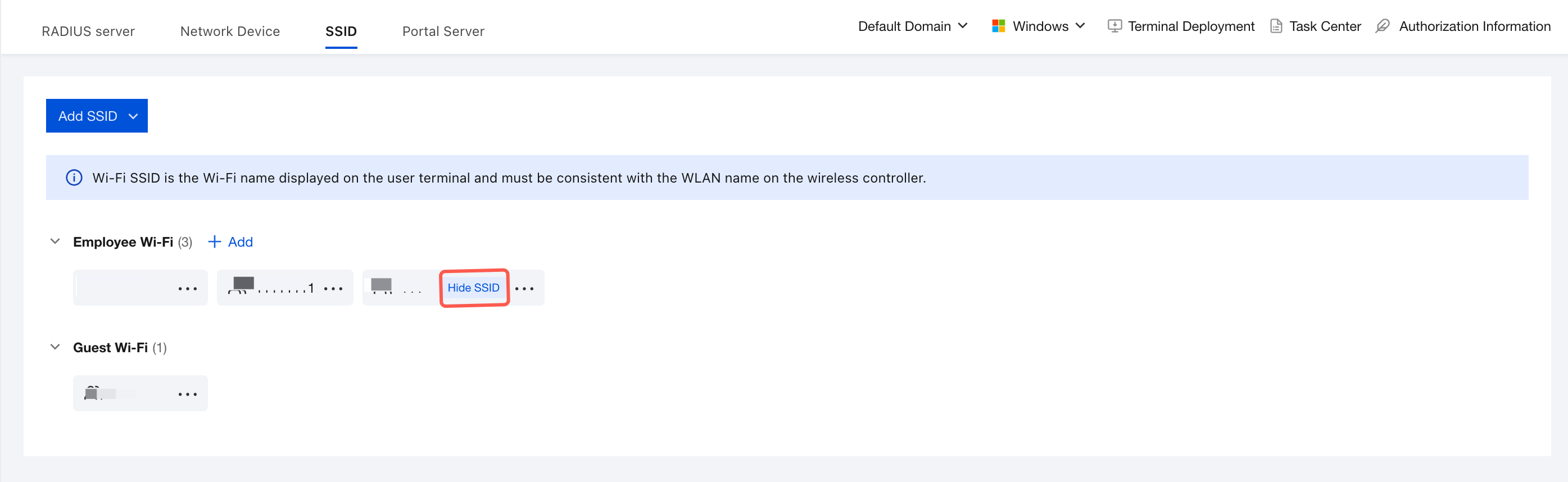
3. After an SSID is marked as hidden, a hidden SSID tag is displayed.
Bantuan dan Dukungan
Apakah halaman ini membantu?
Anda juga dapat Menghubungi Penjualan atau Mengirimkan Tiket untuk meminta bantuan.
masukan