Resource Management
Download
Focus Mode
Font Size
This document describes the basic feature operations of the Tencent Healthcare Data Services console, guiding you to easily use Tencent Healthcare Data Services. On the Viewer page, you can perform the full CRUD (Create, Read, Update, Delete) workflow for data resources and use the search feature.
Prerequisites
Creating an Instance has been finished.
Creating Data
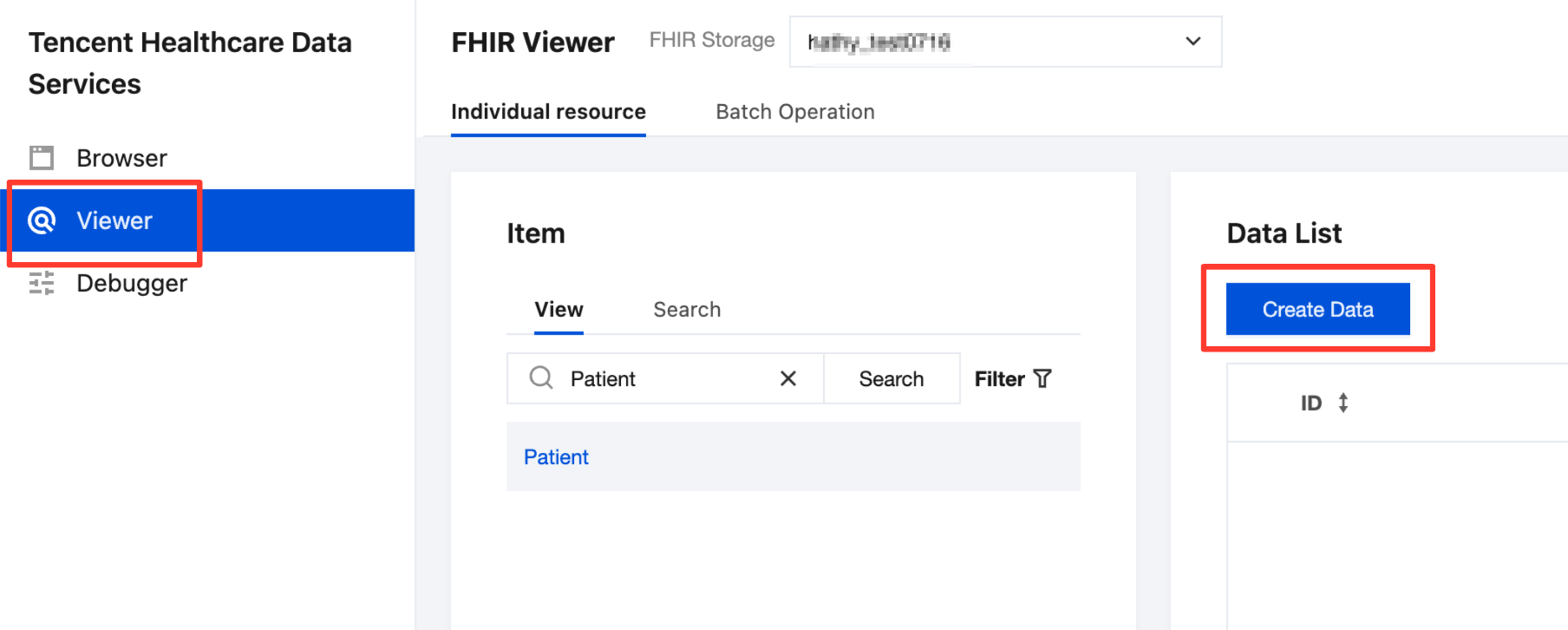
1. Go to the Tencent Healthcare Data Services > Viewer page, and then select the created instance at the top of the page.
2. On the Individual resource > View page, choose an FHIR resource type. You can scroll or search to view FHIR resource types. For a complete list of types, see the FHIR R4 Resource Type Index. Then, on the Data List page, click Create Data to go to the Create Data page.
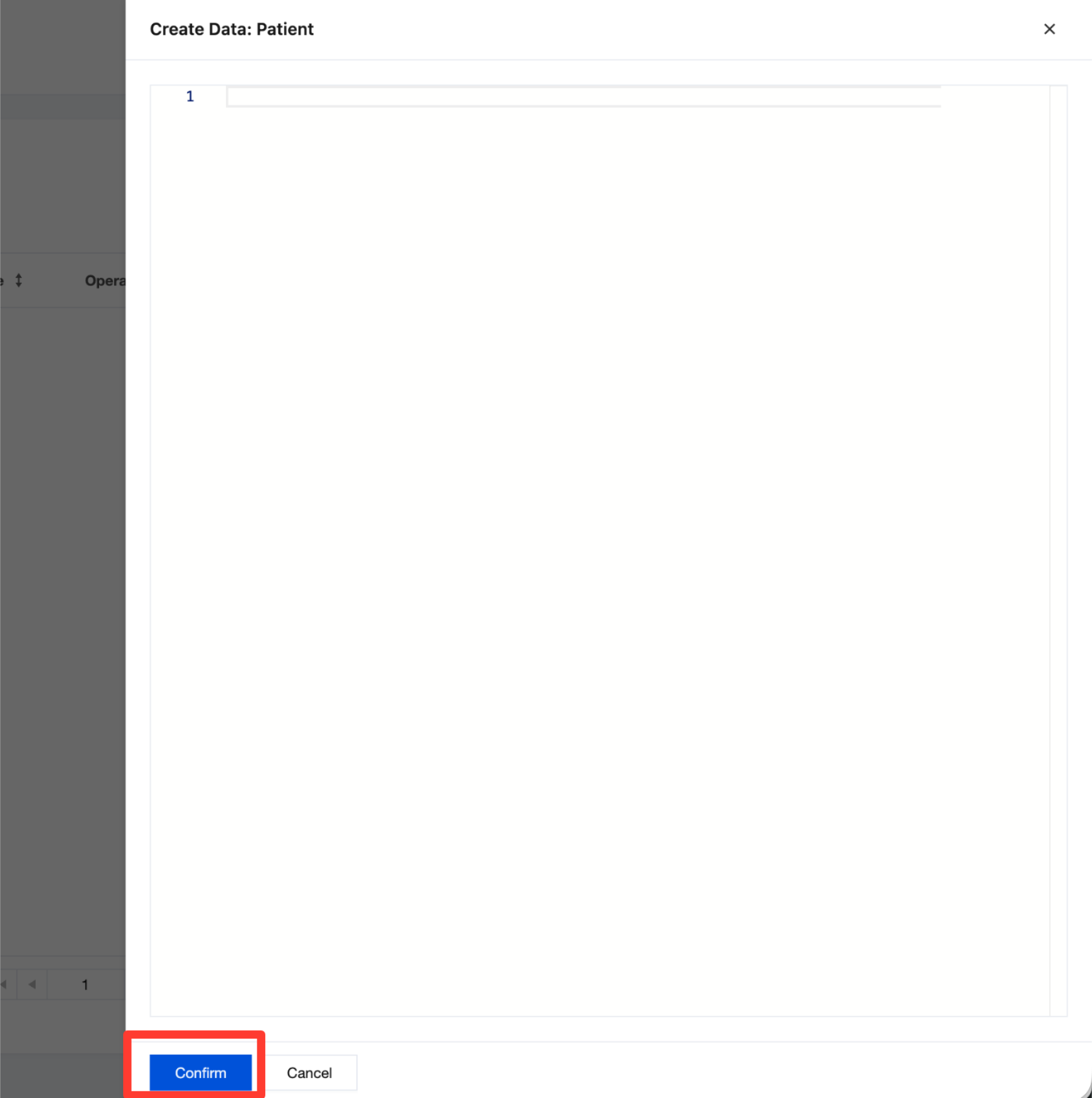
3. On the Create Data page, enter the data and click Confirm to create the data under the corresponding resource.
Example: Create a piece of hospital data information, select the Organization resource, and then enter the data.
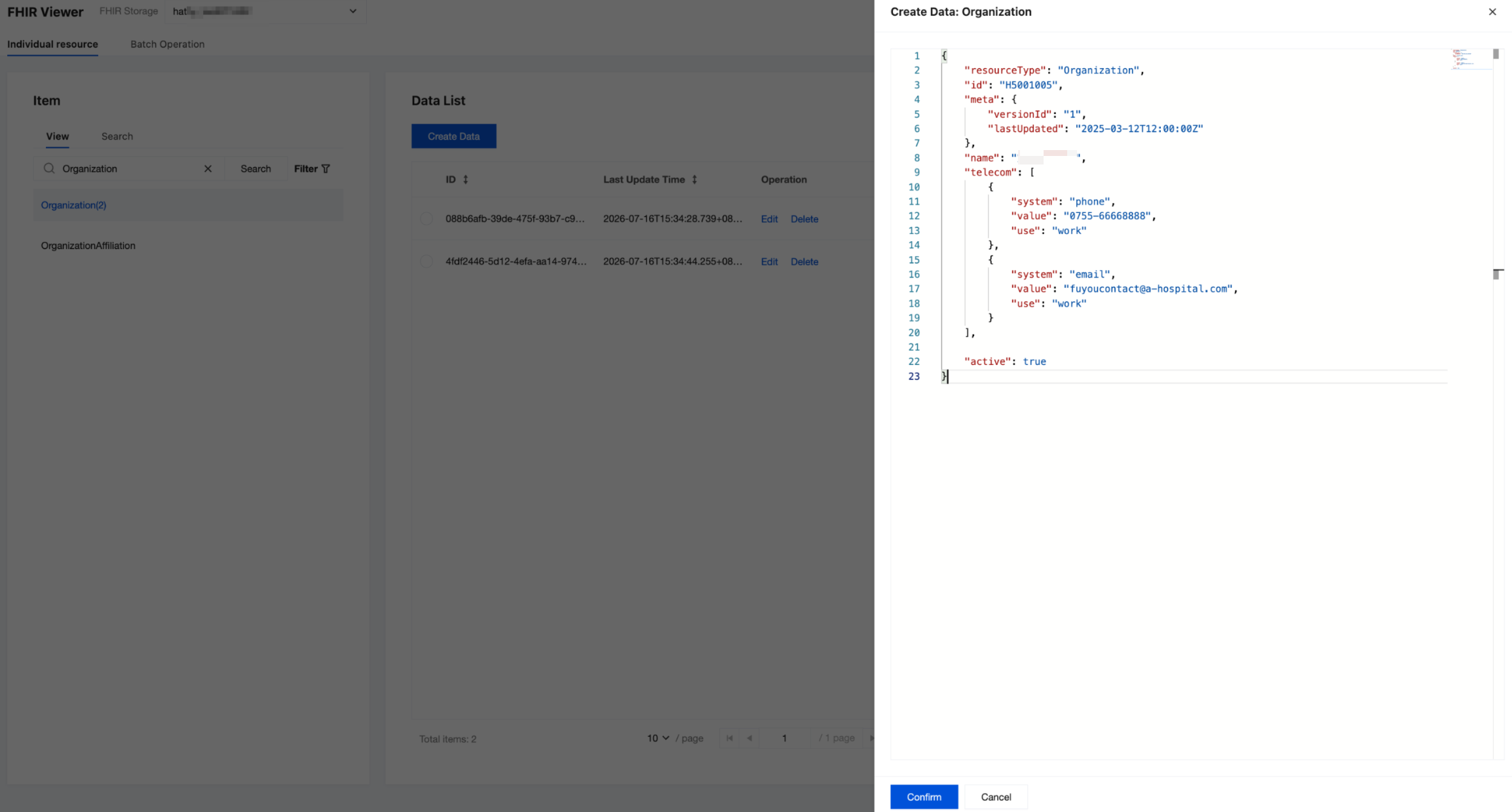
{"resourceType": "Organization","id": "H5001005","meta": {"versionId": "1","lastUpdated": "2025-03-12T12:00:00Z"},"name": "Bao'an Maternity and Child Healthcare Hospital","telecom": [{"system": "phone","value": "0755-66668888","use": "work"},{"system": "email","value": "fuyoucontact@a-hospital.com","use": "work"}],"active": true}
Updating Data
1. Go to the Tencent Healthcare Data Services > Viewer page, and then select the created instance at the top of the page.
2. On the Individual resource > View page, select an FHIR resource type. Then, in the data list, select the data to be updated and click Edit.
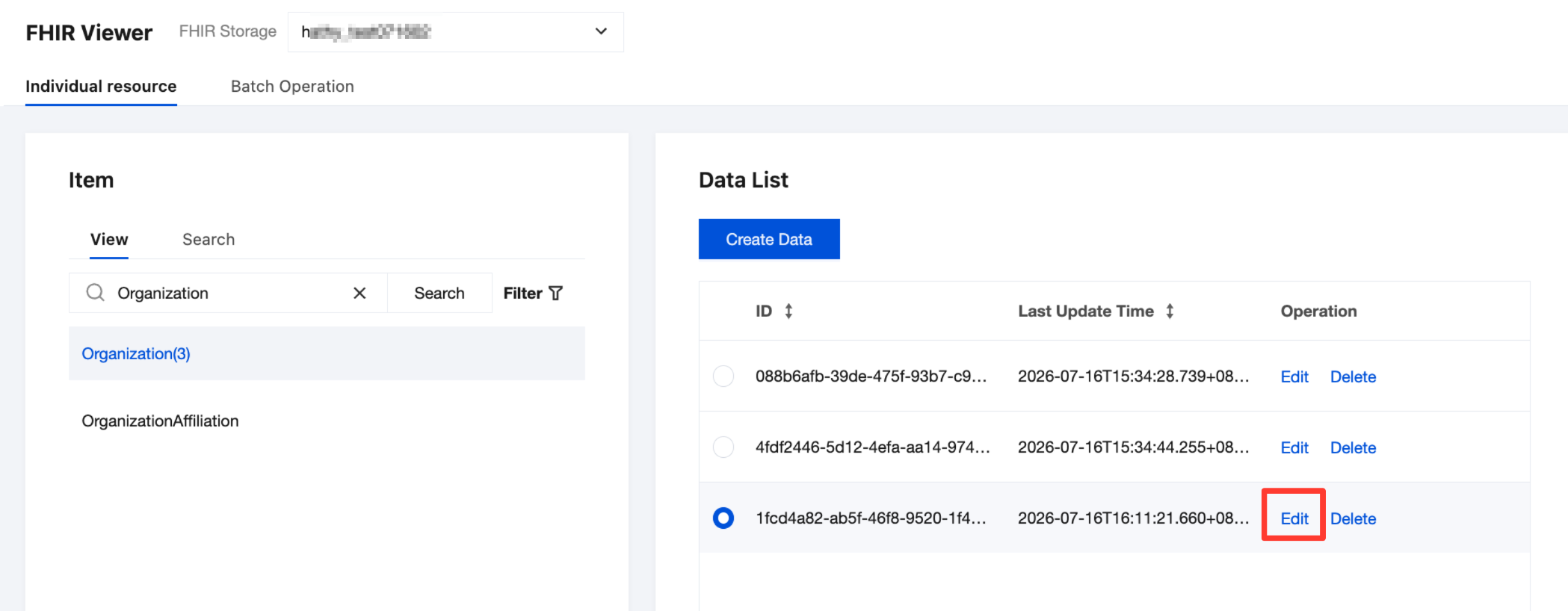
3. Select an appropriate update method, and then click Confirm.
PUT: A full update that overwrites the original data.
PATCH: A partial update that requires specifying the attributes and values to be updated.
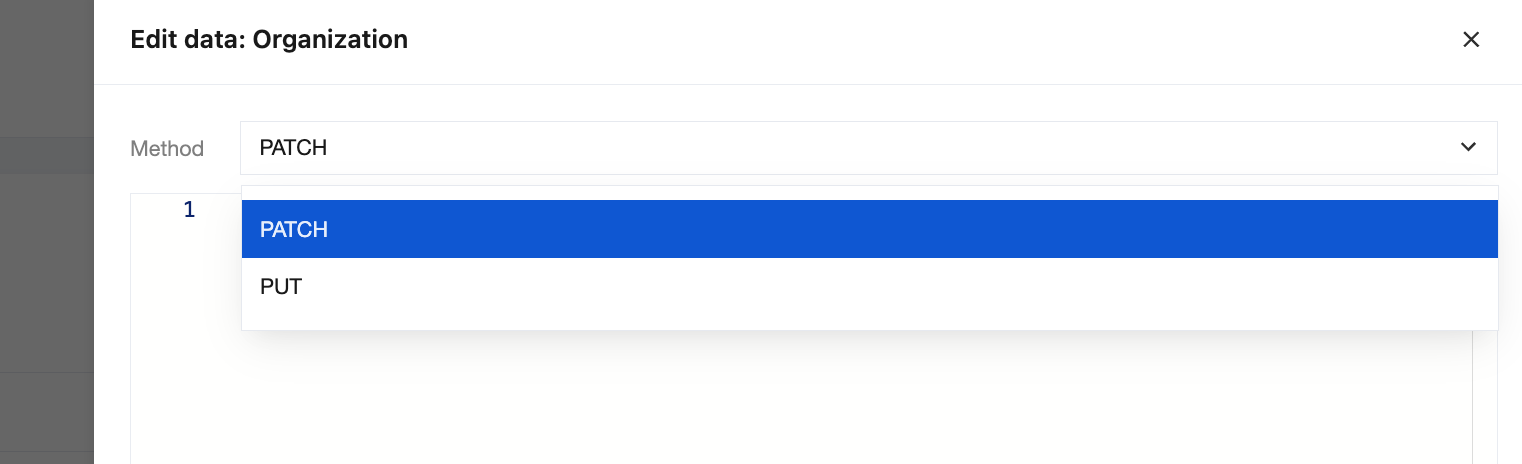
The following provides an example of a partial update using PATCH: updating the hospital name from Bao'an Maternity and Child Healthcare Hospital to Shenzhen Bao'an District Maternity and Child Healthcare Hospital.
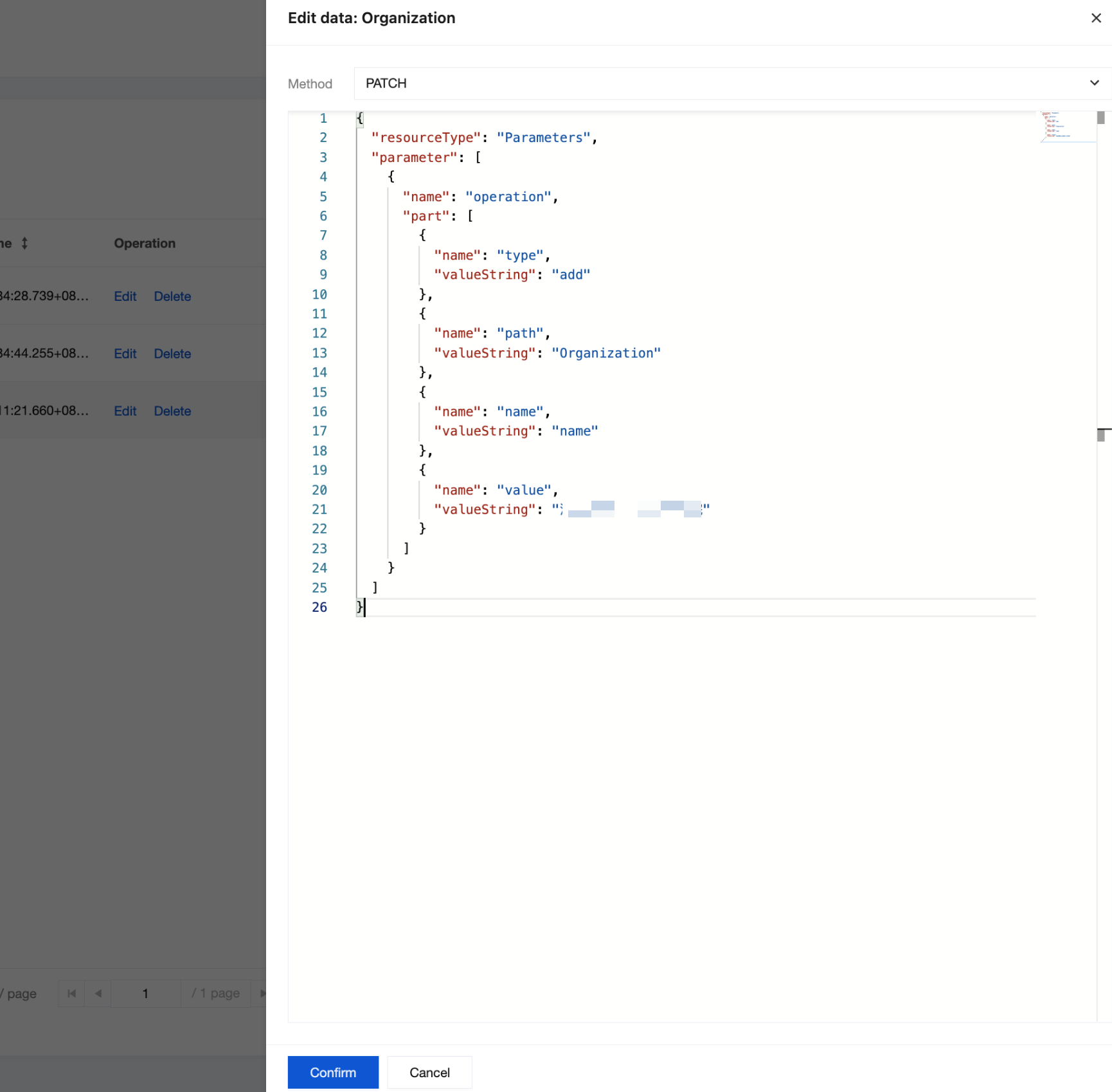
{"resourceType": "Parameters","parameter": [{"name": "operation","part": [{"name": "type","valueString": "add"},{"name": "path","valueString": "Organization"},{"name": "name","valueString": "name"},{"name": "value","valueString": "Shenzhen Bao'an District Maternity and Child Healthcare Hospital"}]}]}
Searching for Data
1. Go to the Tencent Healthcare Data Services > Viewer page, and then select the created instance at the top of the page.
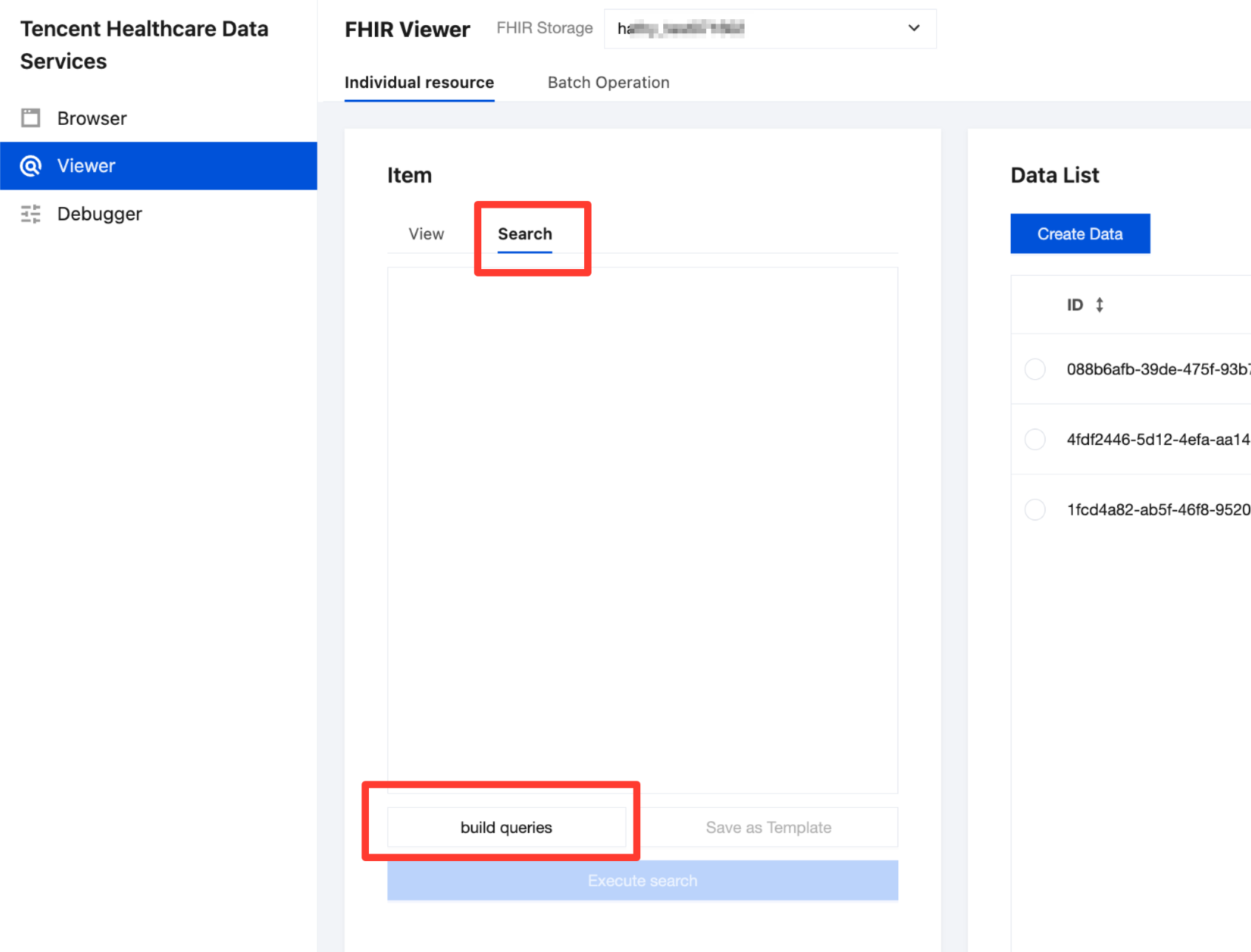
2. On the Individual resource > Search page, click build queries.
3. Select the FHIR resource type to search for, and then click Next.
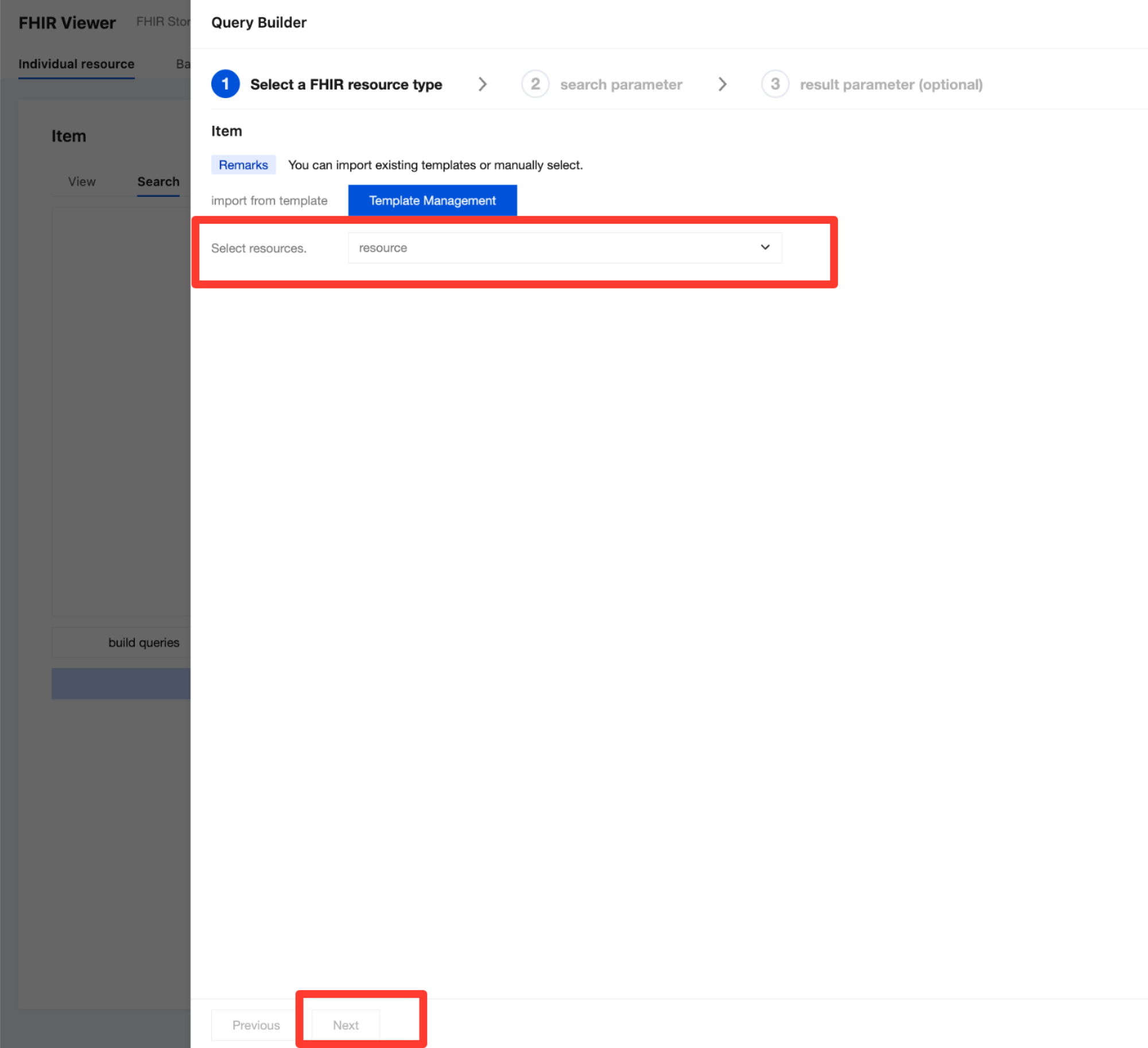
Alternatively, you can click Template Management, select a template, and then click Confirm to directly import FHIR resource types, search parameters, and result parameters from an existing template.
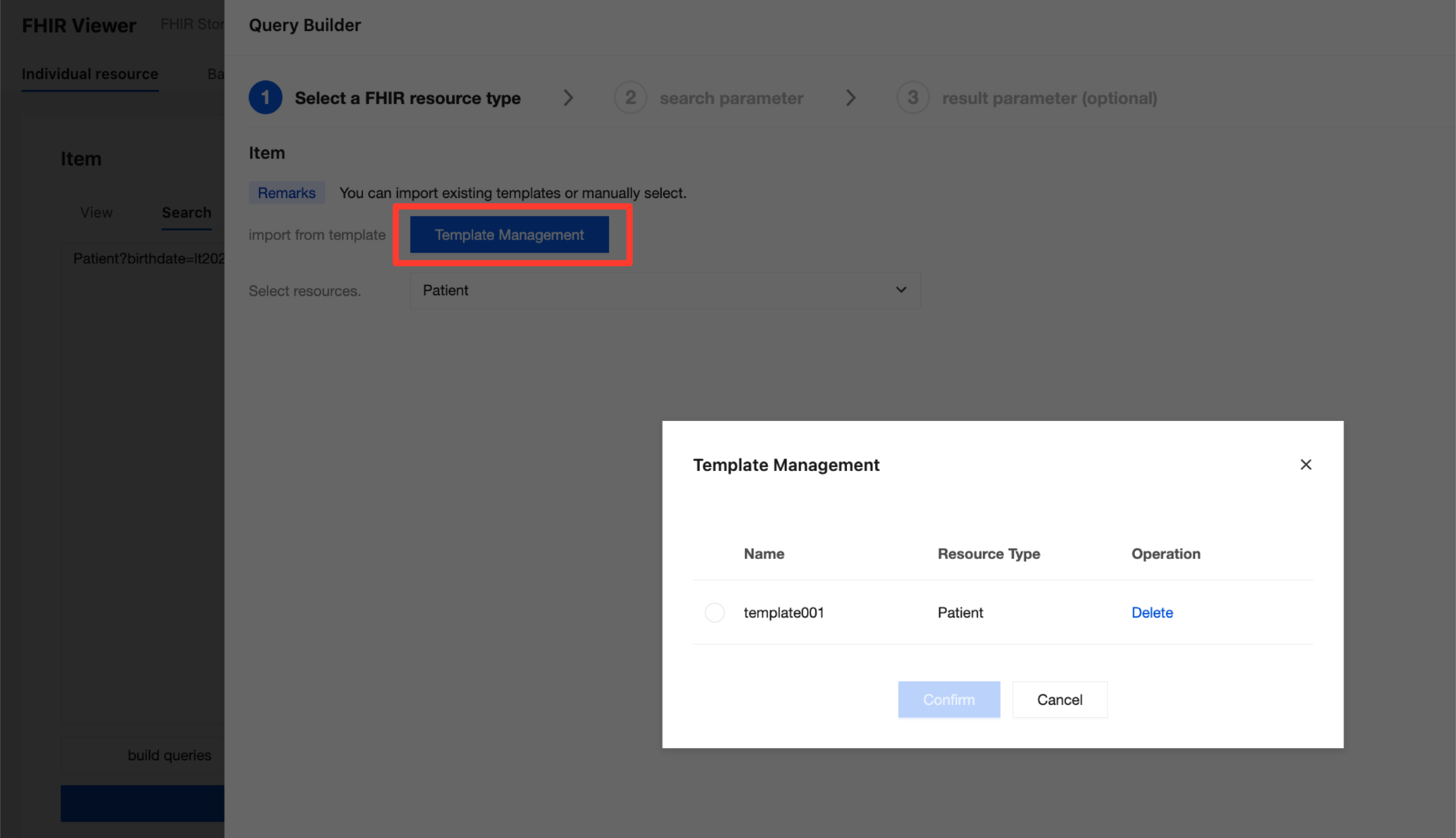
4. Click Add General Rule to support all search parameters in the dropdown list. After the addition is completed, click Next.
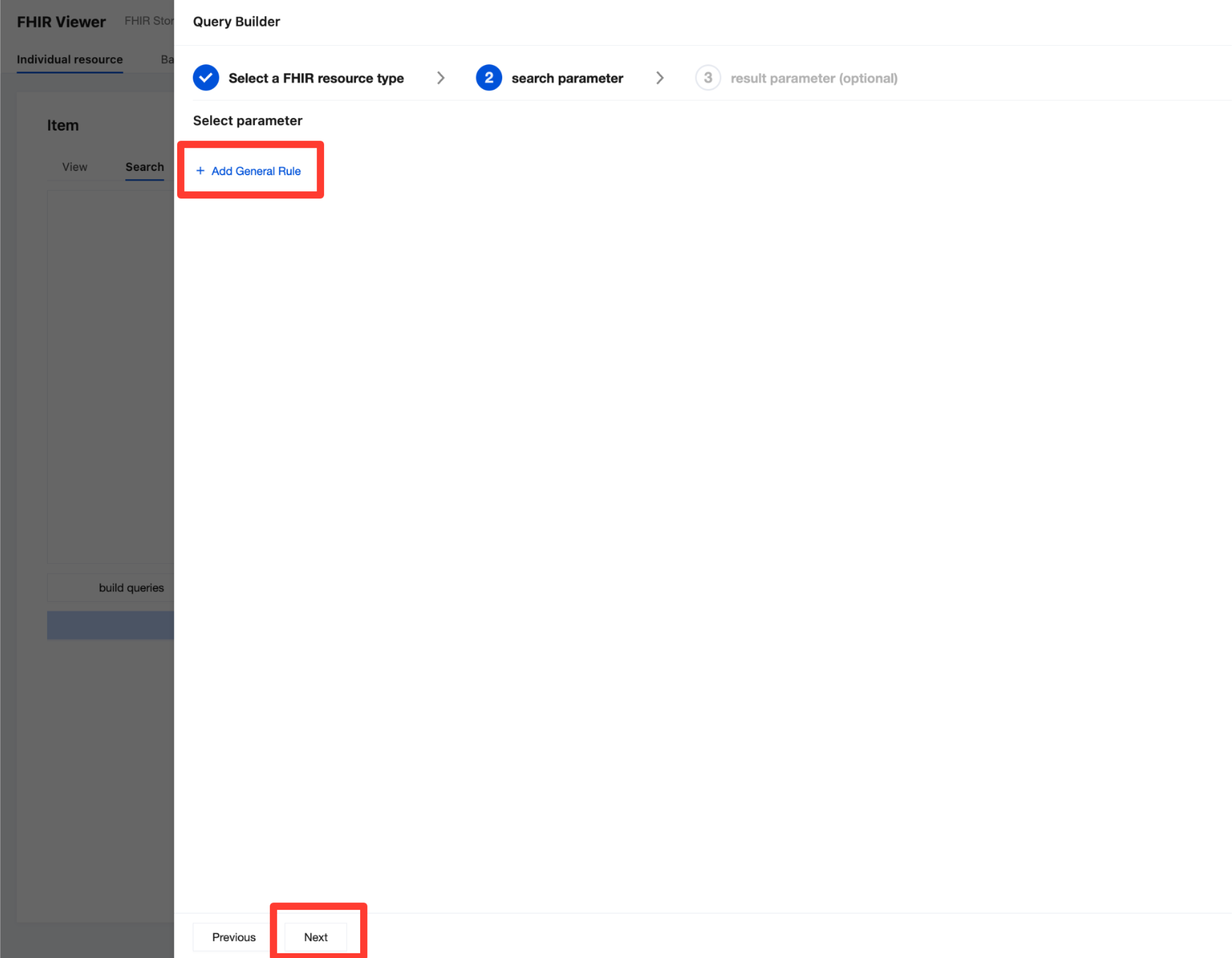
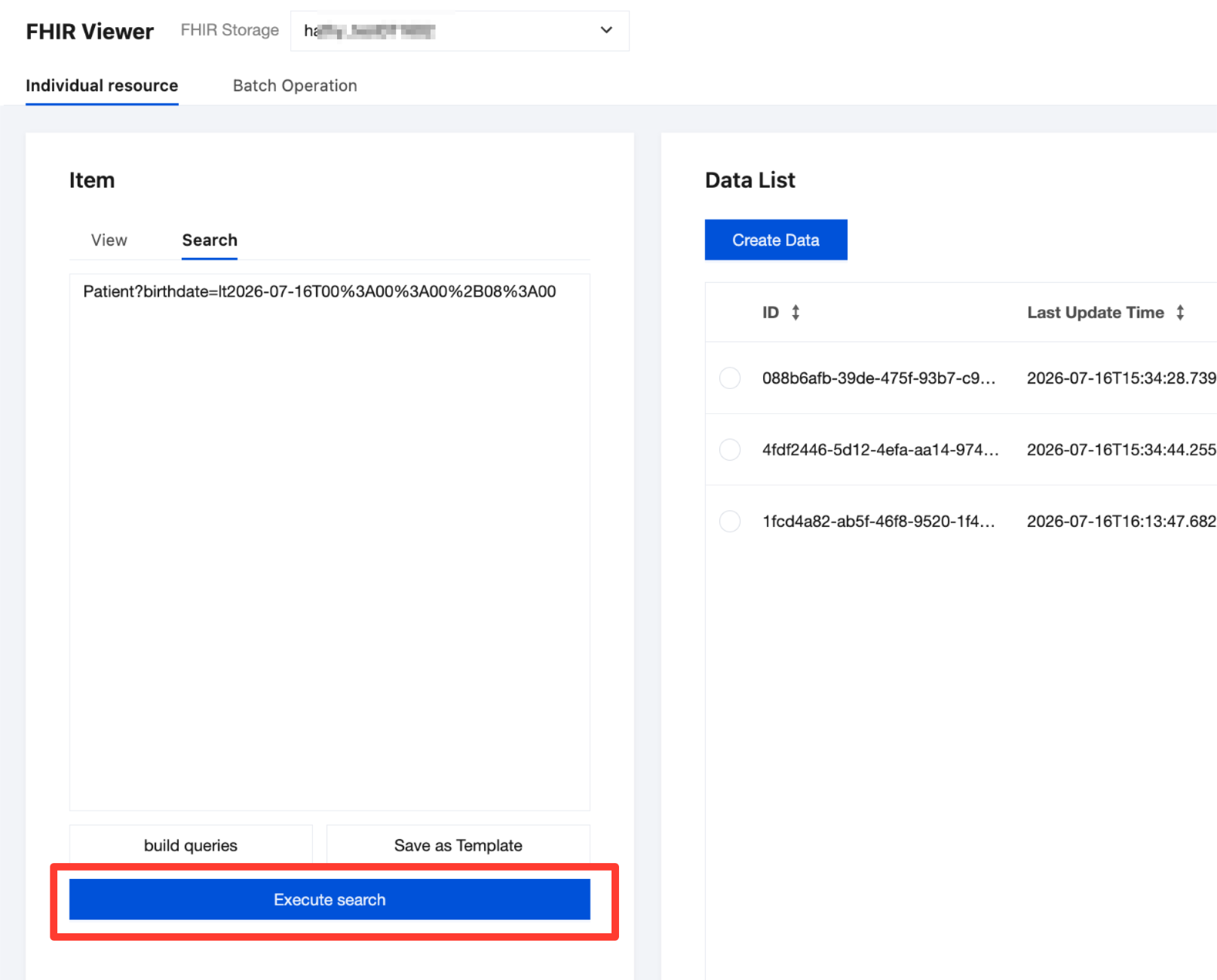
For example, to search for data where the birth date is less than (lt = less than) 2026.07.16, target the birthday element of the Patient resource.
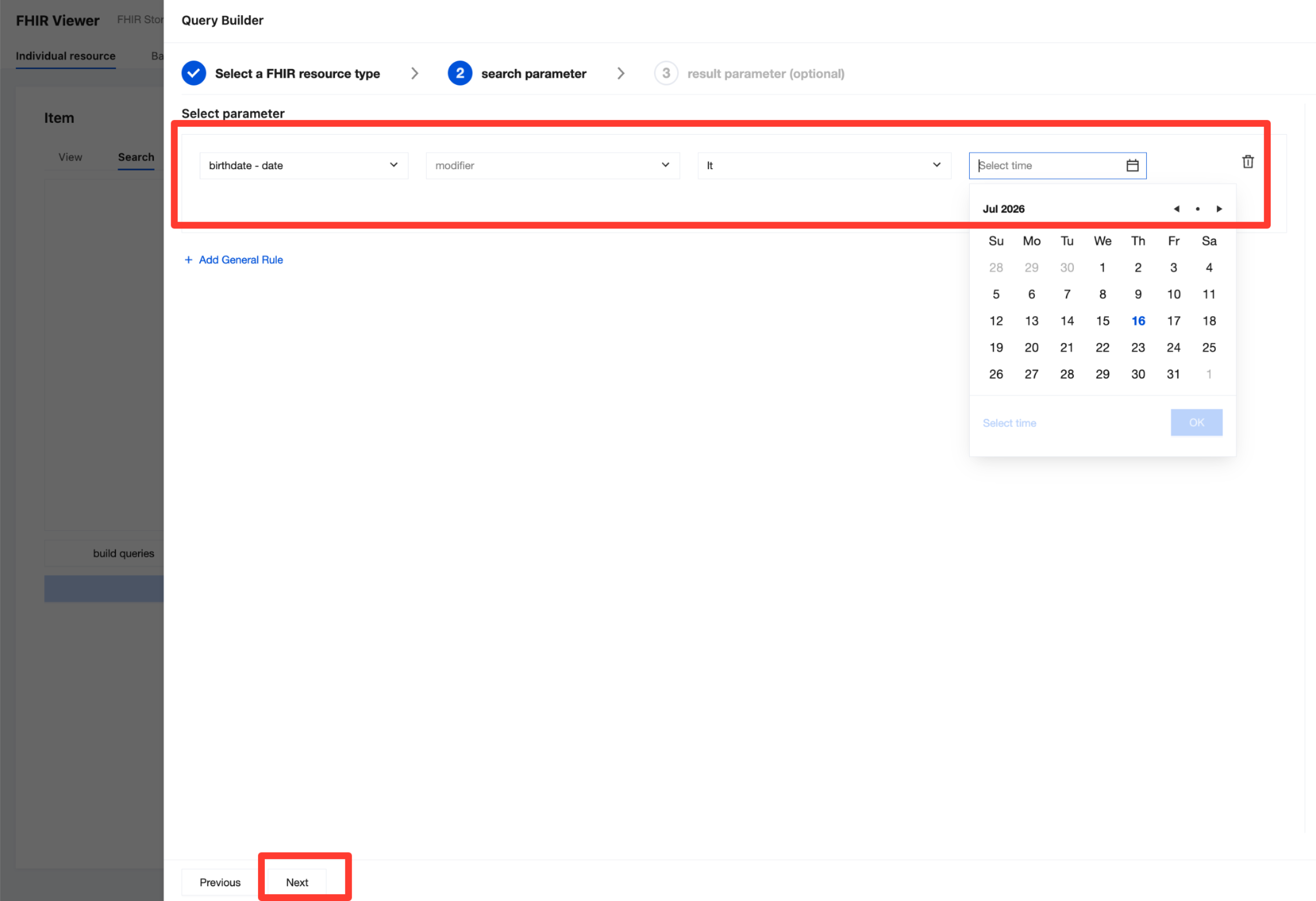
5. You can also set result parameters to help search for data. After completing the selection, click Completed.
Contains: Data contained within the search data.
Reverse Contains: Data that contains the search data.
6. Click Execute search to obtain the search results.
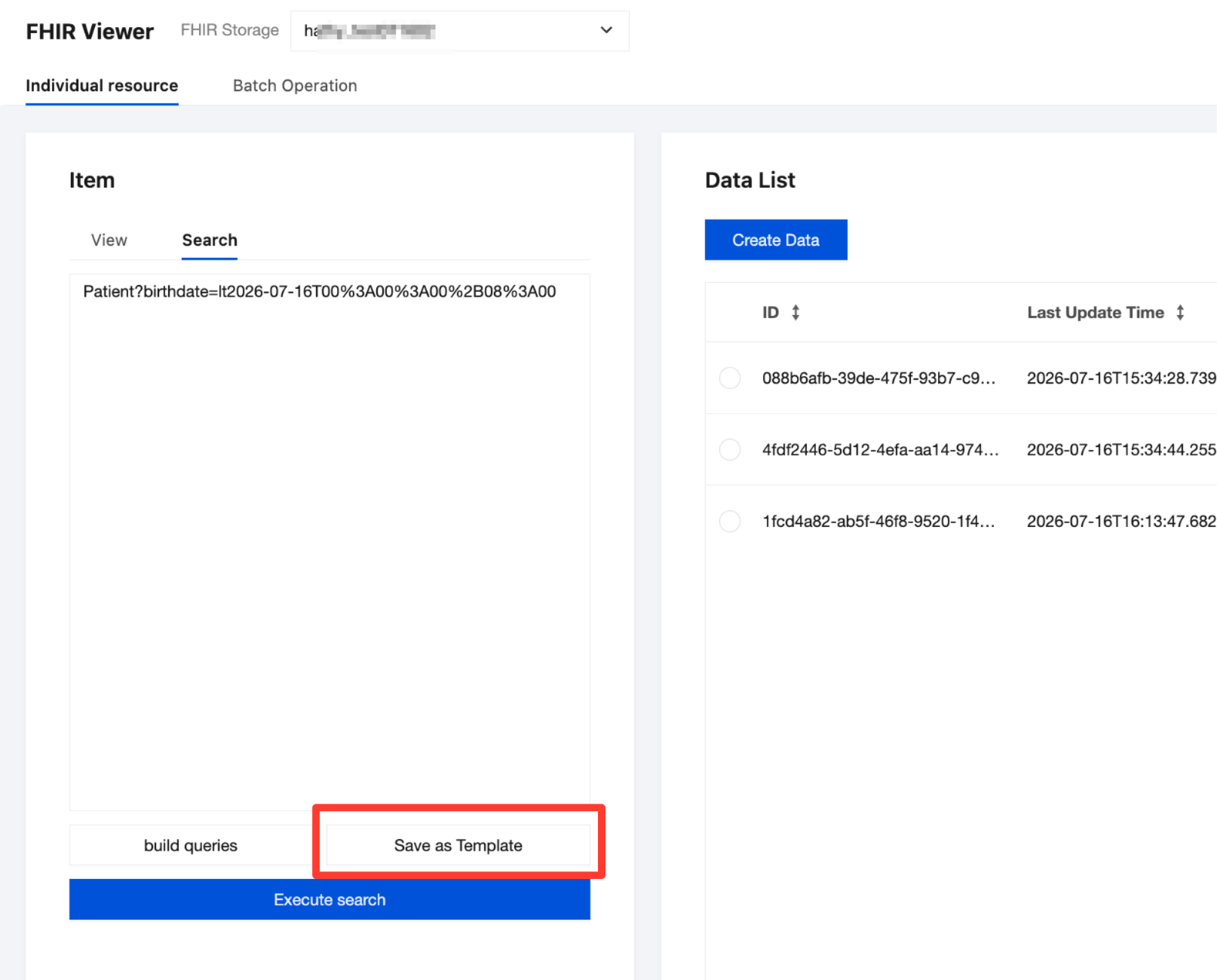
Click Save as Template to save the currently entered search parameters as a template, enabling you to directly import the search template for future searches.
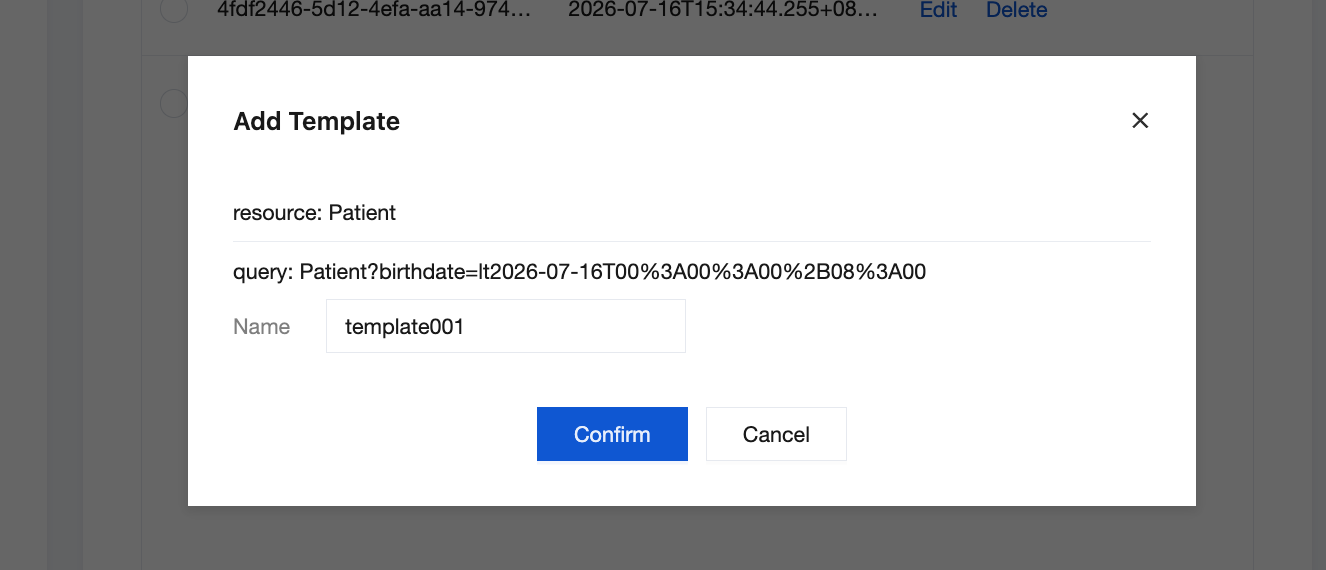
Name the current template, and then click Confirm.
Querying Data
1. Go to the Tencent Healthcare Data Services > Viewer page, and then select the created instance at the top of the page.
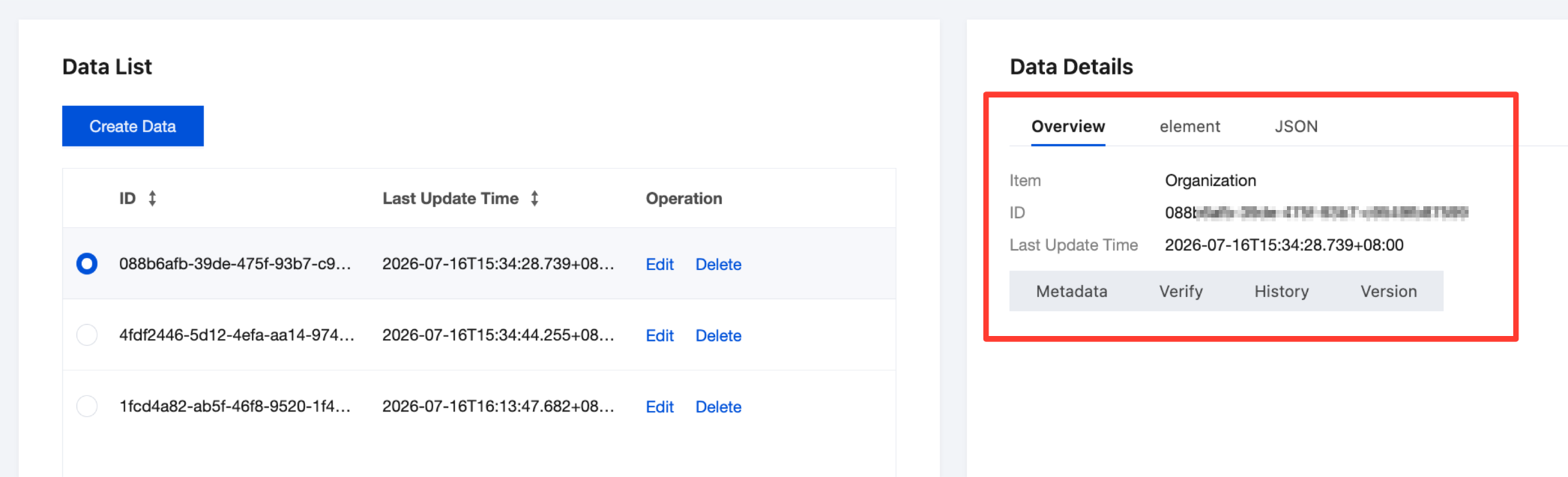
2. On the Individual resource > View page, select an FHIR resource type. Then, in the data list, select the data. The detailed information of that data will be displayed in the data details.
Data Details | Meaning | |
Overview | Item | Resource type |
| ID | Logical ID of the resource. |
| Last Update Time | The last update time of the resource, which follows the ISO 8601 format and includes time zone information. |
| All | The default view, which displays the complete content of the resource (business data + metadata). |
| Metadata | Displays only the meta field, which contains metadata such as versionId, lastUpdated, source, and profile. |
| Verify | Displays the result of performing FHIR Profile validation on the resource (whether it complies with the implementation guide constraints). |
| History | Displays the change record list of all versions for the resource of an instance that has the resource history version storage feature enabled. |
| Version | Displays the current version ID (such as 1, 2, and so on), which is used to identify the version number of the resource. |
Element | | Element path view, which is expanded level by level according to the element paths in the FHIR specification. |
JSON | | JSON-serialized original text of the FHIR resource. |
Deleting Data
1. Go to the Tencent Healthcare Data Services > Viewer page, and then select the created instance at the top of the page.
2. In the Data List, you can click Delete for the selected data.
Attention:
The delete data operation directly deletes the specified data. After you perform the delete operation, the relevant data is permanently deleted. This action is irreversible, and the data cannot be recovered by any means. This may cause your business to malfunction. Before performing the operation, be sure to back up your data and proceed with caution.
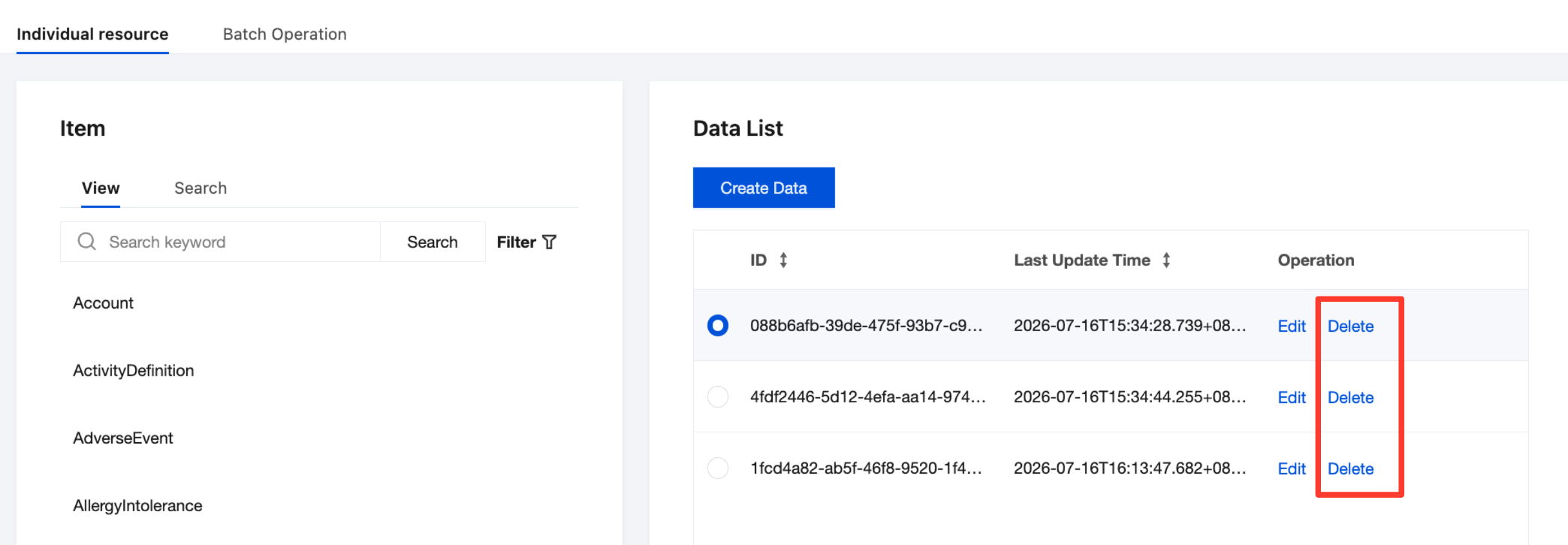
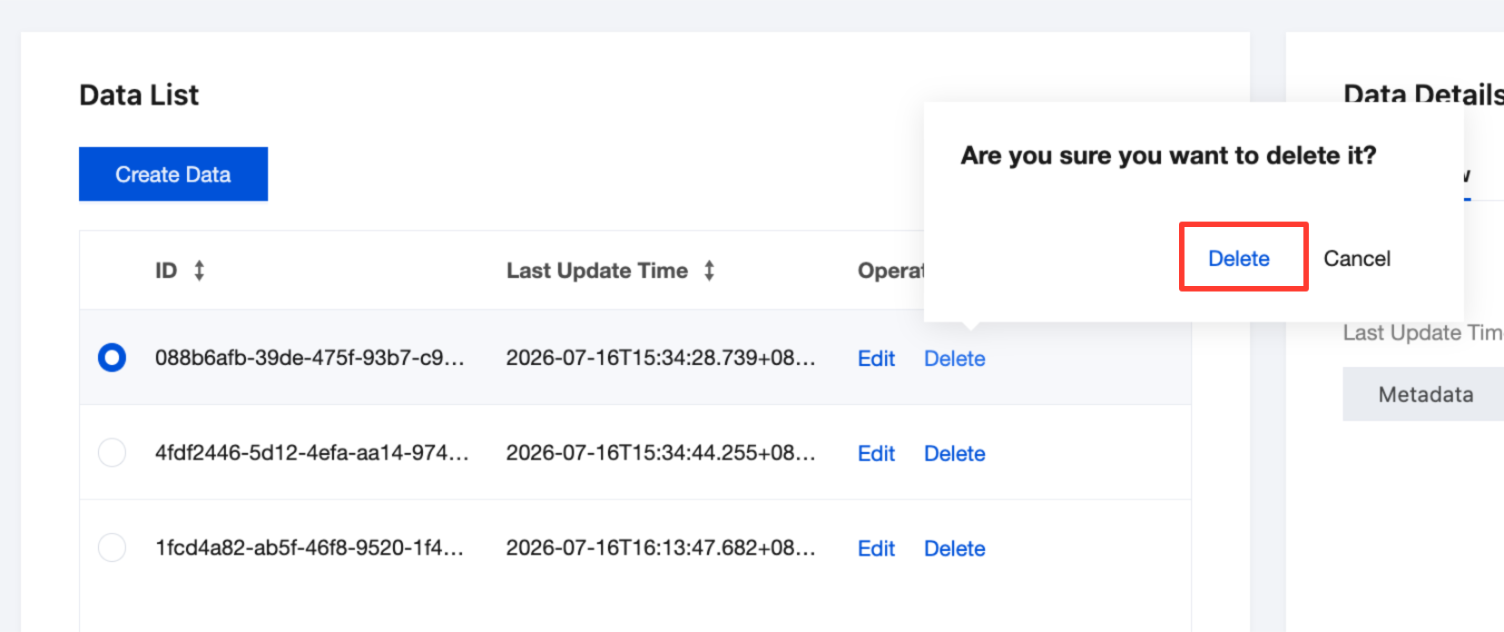
3. Click Delete in the pop-up dialog box, confirm the deletion, and the delete operation will be completed.
Batch Operations
1. Go to the Tencent Healthcare Data Services > Viewer page, and then select the created instance at the top of the page.
2. Select the Batch Operation tag to perform batch operations on the selected instances.
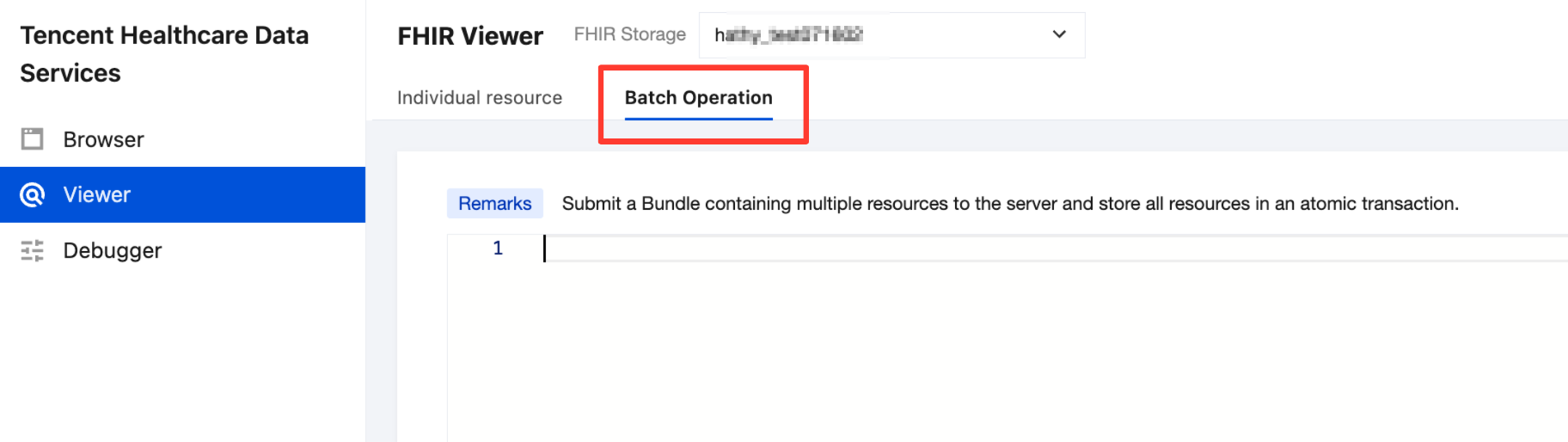
Example: Batch create two Patient resource data entries. Click Submit JSON to complete the creation.
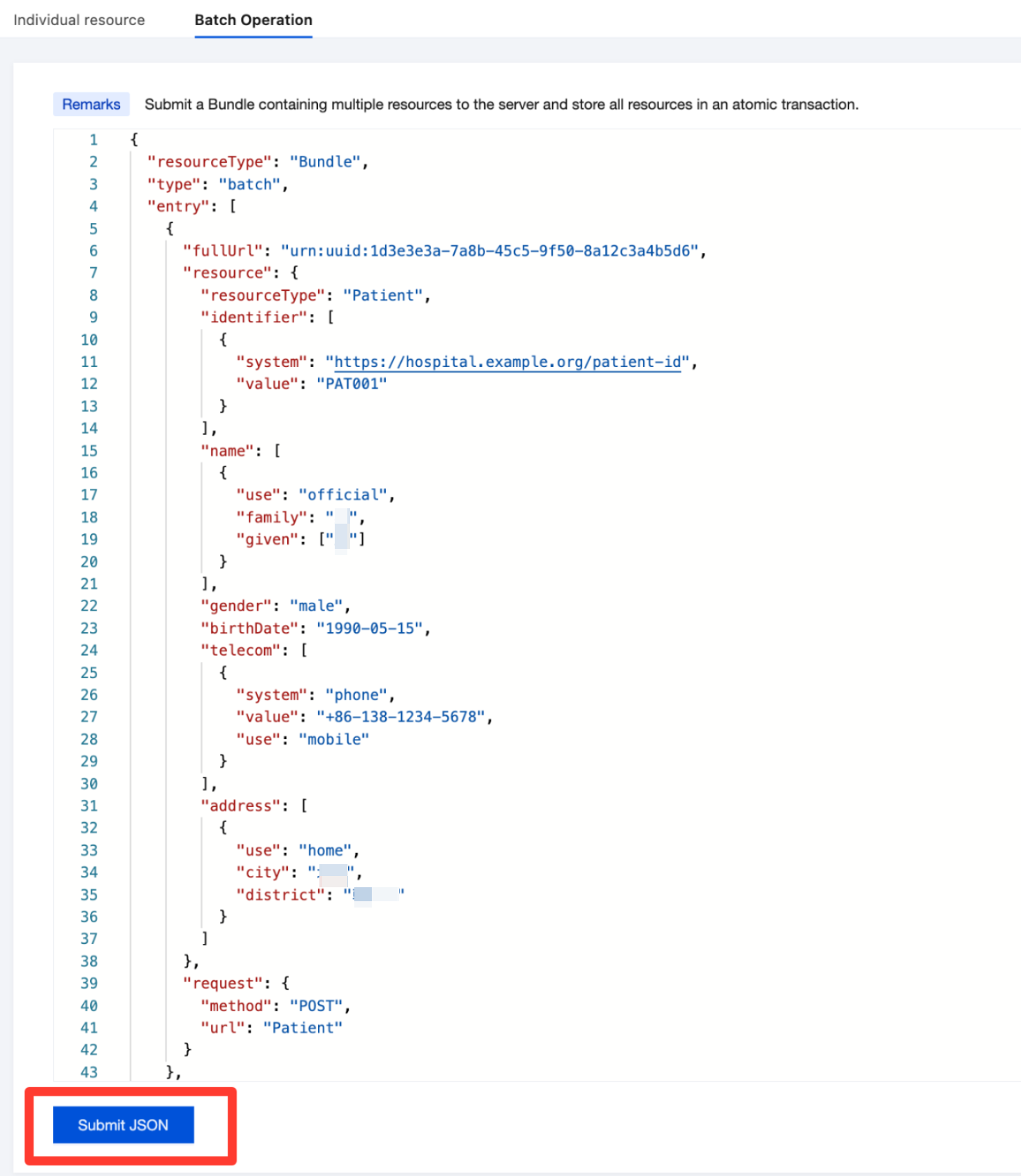
{"resourceType": "Bundle","type": "batch","entry": [{"fullUrl": "urn:uuid:1d3e3e3a-7a8b-45c5-9f50-8a12c3a4b5d6","resource": {"resourceType": "Patient","identifier": [{"system": "https://hospital.example.org/patient-id","value": "PAT001"}],"name": [{"use": "official","family": "Wu","given": ["San"]}],"gender": "male","birthDate": "1990-05-15","telecom": [{"system": "phone","value": "+86-138-1234-5678","use": "mobile"}],"address": [{"use": "home","city": "Beijing","district": "Chaoyang District"}]},"request": {"method": "POST","url": "Patient"}},{"fullUrl": "urn:uuid:2a5b8c1d-4e7f-469e-b3c9-f0a1d2e3f4a5","resource": {"resourceType": "Patient","identifier": [{"system": "https://hospital.example.org/patient-id","value": "PAT002"}],"name": [{"use": "official","family": "Li","given": ["Xiaofang"]}],"gender": "female"},"request": {"method": "POST","url": "Patient"}}]}
Help and Support
Was this page helpful?
You can also Contact sales or Submit a Ticket for help.
Help us improve! Rate your documentation experience in 5 mins.
Feedback