tencent cloud

Tencent Kubernetes Engine

Release Notes and Announcements
Release Notes
Announcements
Release Notes
Product Introduction
Overview
Strengths
Architecture
Scenarios
Features
Concepts
Native Kubernetes Terms
Common High-Risk Operations
Regions and Availability Zones
Service Regions and Service Providers
Open Source Components
Purchase Guide
Purchase Instructions
Purchase a TKE General Cluster
Purchasing Native Nodes
Purchasing a Super Node
Getting Started
Beginner’s Guide
Quickly Creating a Standard Cluster
Examples
Container Application Deployment Check List
Cluster Configuration
General Cluster Overview
Cluster Management
Network Management
Storage Management
Node Management
GPU Resource Management
Remote Terminals
Application Configuration
Workload Management
Service and Configuration Management
Component and Application Management
Auto Scaling
Container Login Methods
Observability Configuration
Ops Observability
Cost Insights and Optimization
Scheduler Configuration
Scheduling Component Overview
Resource Utilization Optimization Scheduling
Business Priority Assurance Scheduling
QoS Awareness Scheduling
Security and Stability
TKE Security Group Settings
Identity Authentication and Authorization
Application Security
Multi-cluster Management
Planned Upgrade
Backup Center
Cloud Native Service Guide
Cloud Service for etcd
TMP
TKE Serverless Cluster Guide
TKE Registered Cluster Guide
Use Cases
Cluster
Serverless Cluster
Scheduling
Security
Service Deployment
Network
Release
Logs
Monitoring
OPS
Terraform
DevOps
Auto Scaling
Containerization
Microservice
Cost Management
Hybrid Cloud
AI
Troubleshooting
Disk Full
High Workload
Memory Fragmentation
Cluster DNS Troubleshooting
Cluster kube-proxy Troubleshooting
Cluster API Server Inaccessibility Troubleshooting
Service and Ingress Inaccessibility Troubleshooting
Common Service & Ingress Errors and Solutions
Engel Ingres appears in Connechtin Reverside
CLB Ingress Creation Error
Troubleshooting for Pod Network Inaccessibility
Pod Status Exception and Handling
Authorizing Tencent Cloud OPS Team for Troubleshooting
CLB Loopback
API Documentation
History
Introduction
API Category
Making API Requests
Elastic Cluster APIs
Resource Reserved Coupon APIs
Cluster APIs
Third-party Node APIs
Relevant APIs for Addon
Network APIs
Node APIs
Node Pool APIs
TKE Edge Cluster APIs
Cloud Native Monitoring APIs
Scaling group APIs
Super Node APIs
Other APIs
Data Types
Error Codes
TKE API 2022-05-01
FAQs
TKE General Cluster
TKE Serverless Cluster
About OPS
Hidden Danger Handling
About Services
Image Repositories
About Remote Terminals
Event FAQs
Resource Management
Service Agreement
TKE Service Level Agreement
TKE Serverless Service Level Agreement
Contact Us
Glossary
DocumentationTencent Kubernetes EngineUse CasesAIUsing AIBrix for Multi-Node Distributed Inference on TKE

Using AIBrix for Multi-Node Distributed Inference on TKE

PDF
Focus Mode
Font Size
Last updated: 2025-04-30 16:02:27

Overview

AIBrix is an open-source cloud-native large model inference control plane project launched in February 2025. It is specifically designed to optimize the production deployment of large language models (LLMs). As the first full-stack Kubernetes solution deeply integrated with vLLM, it provides multiple core features such as LoRA dynamic loading, multi-node reasoning, heterogeneous GPU scheduling, and distributed KV cache.
Distributed inference refers to the technology of splitting and processing LLM models across multiple nodes or devices. This approach is particularly useful for large models that cannot be accommodated in the memory of a single machine. AIBrix uses Ray as its distributed computing framework, combined with KubeRay to coordinate Ray clusters to implement distributed inference technology.
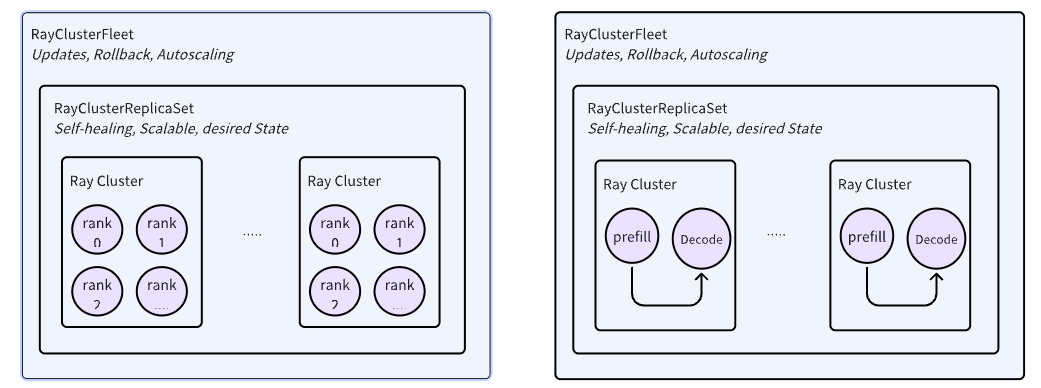
AIBrix introduced two key APIs for managing RayCluster, namely RayClusterReplicaSet and RayClusterFleet. RayClusterFleet manages RayClusterReplicaSet, and RayClusterReplicaSet manages RayCluster. The relationship among the three is similar to that among the core concepts of Kubernetes, Deployment, ReplicaSet, and Pod. In most cases, users only need to use RayClusterFleet.

In this document, we will introduce how to use AIBrix for distributed inference on a TKE cluster.
Image Description:
The image used in the example in this document is vllm/vllm-openai, hosted on DockerHub, with a relatively large volume (about 8GB).
In TKE environment, a free DockerHub image acceleration service is provided by default. Therefore, users in the Chinese mainland can directly pull images, but the speed may be slow. It is advisable to synchronize the image to Tencent Container Registry (TCR) to improve the image pull speed and replace the corresponding image address in the YAML file.

Operation Steps

1. Creating a TKE Cluster

Log in to the TKE console. Follow the steps in Create a Cluster to create a TKE cluster.
Cluster Type: TKE standard cluster.
Kubernetes version: Must be greater than or equal to 1.28 that recommend choose the latest version. (This document uses 1.30)
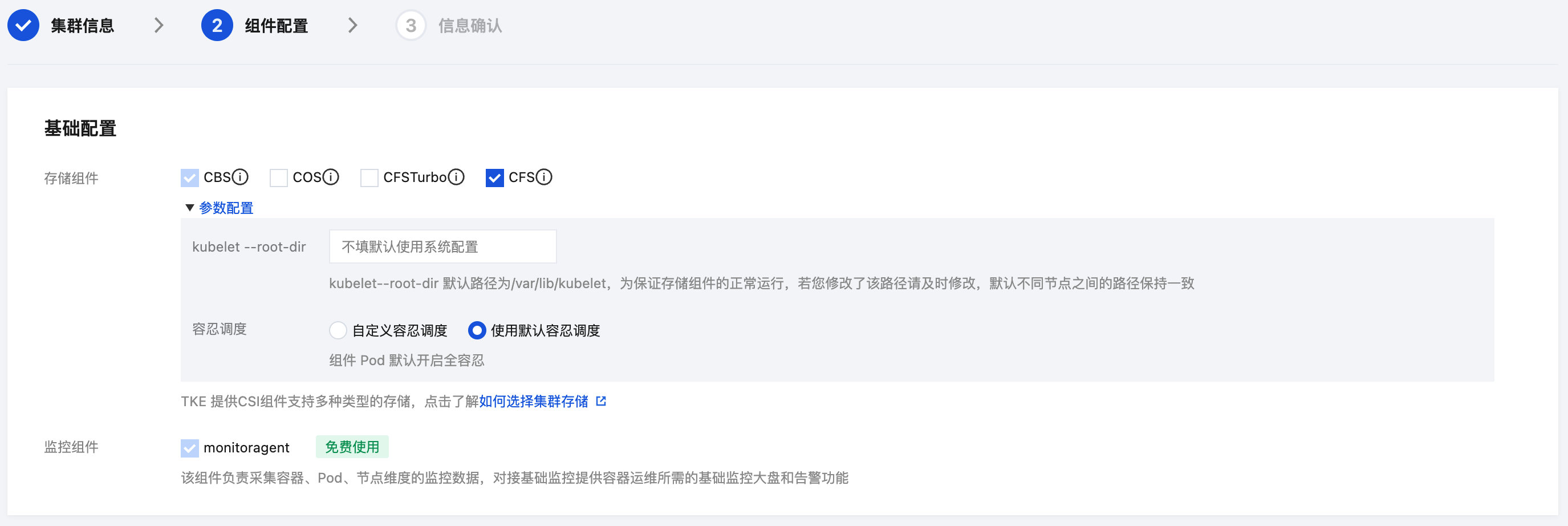
Basic configuration: Select CFS for the storage component, as shown below:


2. Creating a Super Node

In the cluster list, click the cluster ID to enter the cluster details page. Refer to step creating a super node, to create a super node pool.

3. Downloading a Model

3.1 Creating a StorageClass

Create a StorageClass through the console
1. In the cluster list, click the cluster ID to enter the cluster details page.
2. Select Storage in the left sidebar and click Create on the StorageClass page.
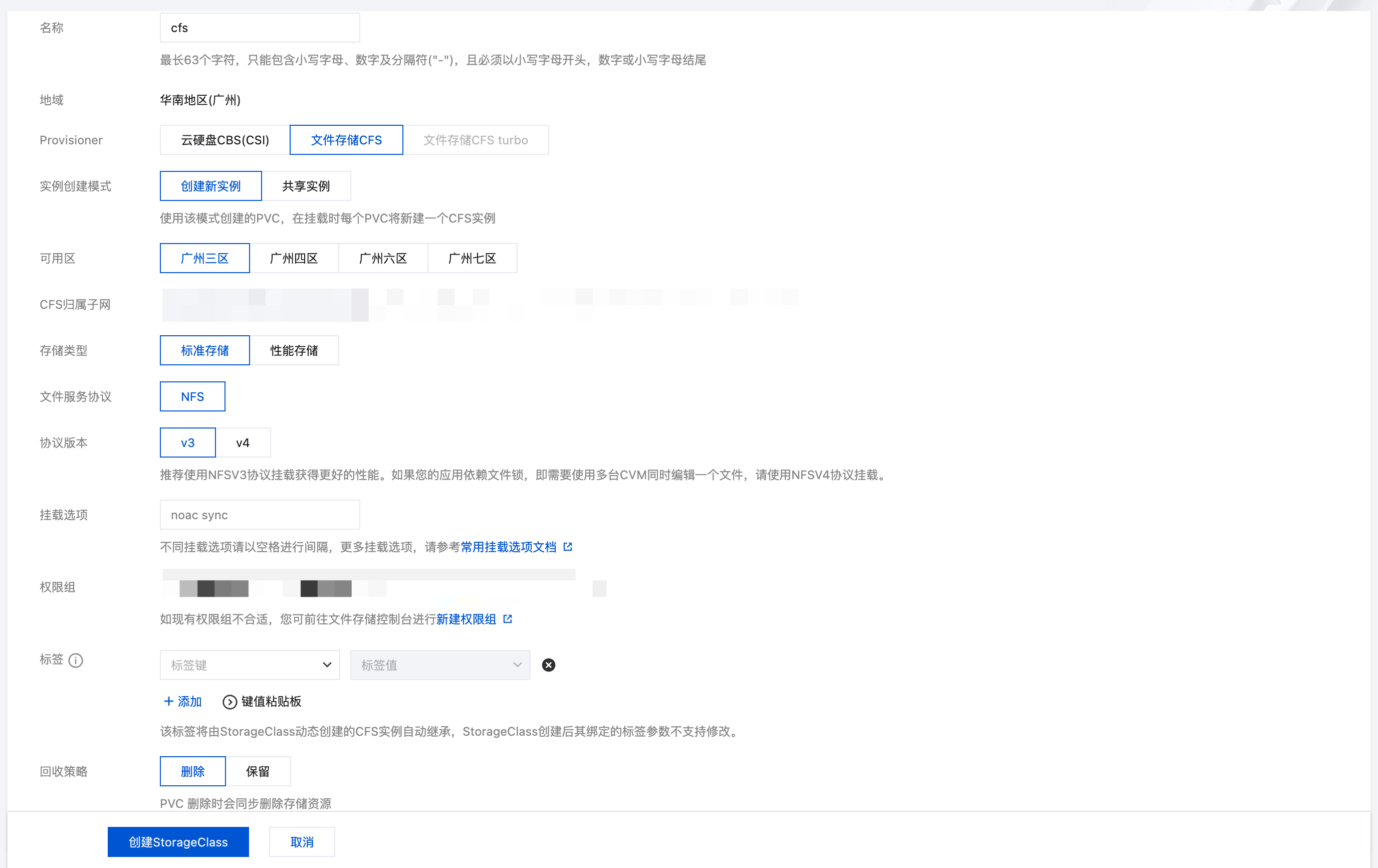
3. On the Create Storage page, create a CFS-type StorageClass according to actual needs. As shown below:


3.2 Create PVC

Create a PVC through the console
1. In the cluster list, click the tke cluster ID to enter the cluster details page.
2. Select Storage in the left sidebar and click Create on the PersistentVolumeClaim page.
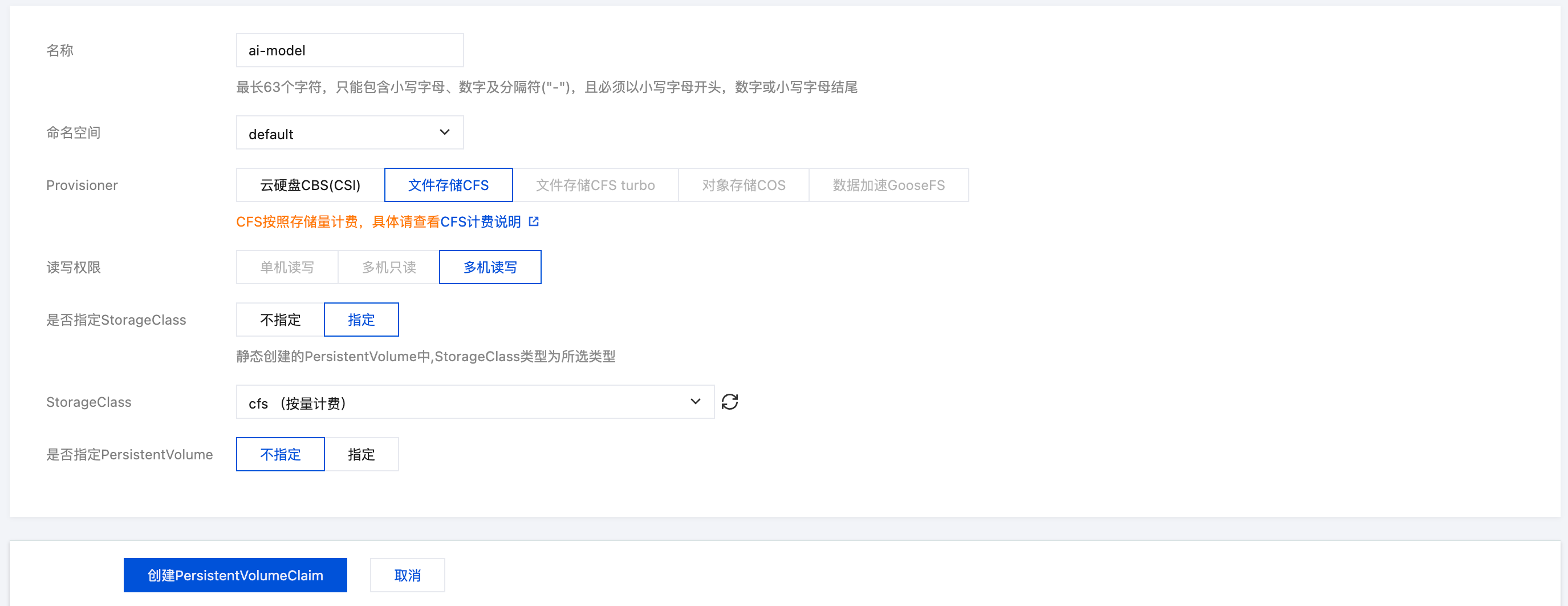
3. On the Create Storage page, create a PVC for the storage model file according to actual needs. As shown below:


3.3 Using a Job to Download Model Files

Create a Job used for downloading large model files to CFS.
Notes:
The model used in the example in this document is the 7B version of Qwen2.5-Coder.
apiVersion: batch/v1
kind: Job
metadata:
name: download-model
labels:
app: download-model
spec:
template:
metadata:
name: download-model
labels:
app: download-model
annotations:
eks.tke.cloud.tencent.com/root-cbs-size: "100" # The system disk capacity of a super node is only 20 Gi by default. After decompressing the vllm mirror, the disk will be full. Use this annotation to customize the system disk capacity (charges will apply for the part exceeding 20 Gi).
spec:
containers:
- name: vllm
image: vllm/vllm-openai:v0.7.1
command:
- modelscope
- download
- --local_dir=/data/model/Qwen2.5-Coder-7B-Instruct
- --model=Qwen/Qwen2.5-Coder-7B-Instruct
volumeMounts:
- name: data
mountPath: /data/model
volumes:
- name: data
persistentVolumeClaim:
claimName: ai-model # Name of the created PVC
restartPolicy: OnFailure

4. Install AIBrix

Refer to the official documentation of AIBrix Installation | AIBrix to install AIBrix.
# Install component dependencies
kubectl create -f https://github.com/vllm-project/aibrix/releases/download/v0.2.1/aibrix-dependency-v0.2.1.yaml

# Install aibrix components
kubectl create -f https://github.com/vllm-project/aibrix/releases/download/v0.2.1/aibrix-core-v0.2.1.yaml
Check the installation of AIBrix and confirm that all pods are in the Running state.
kubectl -n aibrix-system get pods

5. Deploying a Model

Create a RayClusterFleet deployment for the Qwen2.5-Coder-7B-Instruct model.
apiVersion: orchestration.aibrix.ai/v1alpha1
kind: RayClusterFleet
metadata:
labels:
app.kubernetes.io/name: aibrix
app.kubernetes.io/managed-by: kustomize
name: qwen-coder-7b-instruct
spec:
replicas: 1
selector:
matchLabels:
model.aibrix.ai/name: qwen-coder-7b-instruct
strategy:
rollingUpdate:
maxSurge: 25%
maxUnavailable: 25%
type: RollingUpdate
template:
metadata:
labels:
model.aibrix.ai/name: qwen-coder-7b-instruct
annotations:
ray.io/overwrite-container-cmd: "true"
spec:
rayVersion: "2.10.0" # Must match the Ray version within the container
headGroupSpec:
rayStartParams:
dashboard-host: "0.0.0.0"
template:
metadata:
annotations:
eks.tke.cloud.tencent.com/gpu-type: V100 # Specify the GPU card model
eks.tke.cloud.tencent.com/root-cbs-size: '100' # The system disk capacity of a super node is only 20 Gi by default. After decompressing the vllm image, the disk will be full. Use this annotation to customize the system disk capacity (charges will apply for the part exceeding 20 Gi).
spec:
containers:
- name: ray-head
image: vllm/vllm-openai:v0.7.1
ports:
- containerPort: 6379
name: gcs-server
- containerPort: 8265
name: dashboard
- containerPort: 10001
name: client
- containerPort: 8000
name: service
command: ["/bin/bash", "-lc", "--"]
args:
- |
ulimit -n 65536;
echo head;
$KUBERAY_GEN_RAY_START_CMD & KUBERAY_GEN_WAIT_FOR_RAY_NODES_CMDS;
vllm serve /data/model/Qwen2.5-Coder-7B-Instruct \\
--served-model-name Qwen/Qwen2.5-Coder-7B-Instruct \\
--tensor-parallel-size 2 \\
--distributed-executor-backend ray \\
--dtype=half
resources:
limits:
cpu: "4"
nvidia.com/gpu: 1
requests:
cpu: "4"
nvidia.com/gpu: 1
volumeMounts:
- name: data
mountPath: /data/model
volumes:
- name: data
persistentVolumeClaim:
claimName: ai-model # Name of the created PVC
workerGroupSpecs:
- replicas: 1
minReplicas: 1
maxReplicas: 5
groupName: small-group
rayStartParams: {}
template:
metadata:
annotations:
eks.tke.cloud.tencent.com/gpu-type: V100 # Assign the GPU card model
eks.tke.cloud.tencent.com/root-cbs-size: '100' # The system disk capacity of a super node is only 20 Gi by default. After decompressing the vllm image, the disk will be full. Use this annotation to customize the system disk capacity (charges will apply for the part exceeding 20 Gi).
spec:
containers:
- name: ray-worker
image: vllm/vllm-openai:v0.7.1
command: ["/bin/bash", "-lc", "--"]
args:
["ulimit -n 65536; echo worker; $KUBERAY_GEN_RAY_START_CMD"]
lifecycle:
preStop:
exec:
command: ["/bin/sh", "-c", "ray stop"]
resources:
limits:
cpu: "4"
nvidia.com/gpu: 1
requests:
cpu: "4"
nvidia.com/gpu: 1
volumeMounts:
- name: data
mountPath: /data/model
volumes:
- name: data
persistentVolumeClaim:
claimName: ai-model # Name of the created PVC

6. Verify API

After the Pod deployed by RayClusterFleet runs successfully, you can quickly verify the API through kubectl port-forward.
# Get service name
svc=$(kubectl get svc -o name | grep qwen-coder-7b-instruct)

# Use the forward function to expose the API to port 18000 locally
kubectl port-forward $svc 18000:8000

# Start another terminal and run the following command to test the API
curl -X POST "http://localhost:18000/v1/chat/completions" \\
-H "Content-Type: application/json" \\
-d '{
"model": "Qwen/Qwen2.5-Coder-7B-Instruct",
"messages": [
{"role": "system", "content": "You are an AI programming assistant."},
{"role": "user", "content": "Implement quick sort algorithm in Python"}
],
"temperature": 0.3,
"max_tokens": 512,
"top_p": 0.9
}'

FAQs

aibrix-kuberay-operator cannot start, Error runtime/cgo: pthread_create failed: Operation not permitted

Check whether aibrix-kuberay-operator is deployed on the super node. If aibrix-kuberay-operator is deployed on the super node, please refer to the following two solutions:
1. Modify the Deployment of aibrix-kuberay-operator and add the following annotations in the Pod Template:
eks.tke.cloud.tencent.com/cpu-type: intel # Specify the CPU type as Intel
2. Refer to setting scheduling rules for workloads and route aibrix-kuberay-operator to a regular node.

How to set up API Key to restrict access?

vLLM provides the following two methods to set the API key:
1. Set the --api-key parameter.
2. Set the environment variable VLLM_API_KEY.
Modify the definition of RayClusterFleet, after setting the API key in headGroupSpec using either of the above methods, include the following Header in the request for access:
Authorization: Bearer <VLLM_API_KEY>


Help and Support

Was this page helpful?

Help us improve! Rate your documentation experience in 5 mins.

Feedback