Adjusting Storage Space
Download
Focus Mode
Font Size
When cluster storage space cannot meet business requirements, you can adjust the cluster storage configuration to meet those requirements.
This document describes how to adjust the storage space for clusters whose instance mode is provisioned resources. For clusters whose instance mode is Serverless, the storage space is billed on a pay-as-you-go basis and does not require pre-purchase. However, the corresponding computing resource configuration has a corresponding storage space upper limit. For details, see Service Computing Resource Configuration. If you need to adjust the computing resource configuration to obtain a larger storage space upper limit, see Modify Cluster Computing Resource Configuration.
Note:
For a cluster whose instance mode is provisioned resources, if both the computing billing mode and storage billing mode are pay-as-you-go, you do not need to scale out the storage space. The maximum storage capacity you can use is the storage space upper limit corresponding to the computing specifications of the cluster's read-write instance. If you need to use storage space exceeding this upper limit, you can upgrade the computing specifications of that read-write instance. Alternatively, you can change the cluster billing mode to yearly/monthly subscription through Pay-as-You-Go to Yearly/Monthly Subscription and then modify the storage space. For detailed computing specifications and corresponding maximum storage space, see Product Specifications.
For a cluster whose instance mode is provisioned resources, if the computing billing mode is yearly/monthly subscription and the storage billing mode is pay-as-you-go, you can adjust the storage space when the storage billing mode is changed to yearly/monthly subscription, as this conversion is supported.
When the storage billing mode is yearly/monthly subscription, you can adjust the cluster storage space via the console. If you need to adjust storage space exceeding the upper limit of the current computing specifications, you can upgrade the computing specifications of the read-write instance. For detailed computing specifications and corresponding maximum storage space, see Product Specifications.
When the storage billing mode is yearly/monthly subscription, the effective billing period for storage space modification is from the time of modification until your cluster expires.
When the storage billing mode is yearly/monthly subscription, if a cluster overuses the storage space, the excess usage will be charged in the pay-as-you-go method. If a scale-out operation is performed after overuse of the storage space, the scale-out storage space should be greater than the overused space. For example, if 100 GB of storage space is purchased for a cluster originally and the used storage space exceeds this limit, the additional storage space added during scale-out should be greater than 100 GB. The upper limit of storage space depends only on the instance specifications for calculation. For detailed specifications for calculation and corresponding maximum storage space, see Product Specifications.
When the storage billing mode is yearly/monthly subscription, you can convert it to pay-as-you-go based on your business needs.
Operation Steps
Note:
The prepaid storage specification change must be greater than the used storage capacity.
Modifying the storage billing mode does not affect existing business.
Scenario 1: The storage billing mode is pay-as-you-go, and storage space exceeding the current computing specification upper limit is required
When the storage billing mode is pay-as-you-go, you do not need to scale out the storage space. The maximum storage capacity you can use is the storage space upper limit corresponding to the computing specifications of the read-write instance. If you need to use storage space exceeding this upper limit, you can upgrade the computing specifications of that read-write instance. For steps, see Adjust Computing Configuration. For detailed computing specifications and corresponding maximum storage space, see Product Specifications.
Scenario 2: The storage billing mode is pay-as-you-go and needs to be changed to yearly/monthly subscription with specified storage space
On the cluster list page, perform operations according to the view mode you are actually using:
1. Log in to the TDSQL-C for MySQL console and click the target cluster in the cluster list on the left to go to the Cluster Management page.
2. On the cluster management page, click the edit icon after the billing mode.

3. In the pop-up settings window, select the yearly/monthly subscription billing mode, then select the storage space size, and click OK to complete the payment. This will change the storage billing mode to yearly/monthly subscription and specify the storage space.
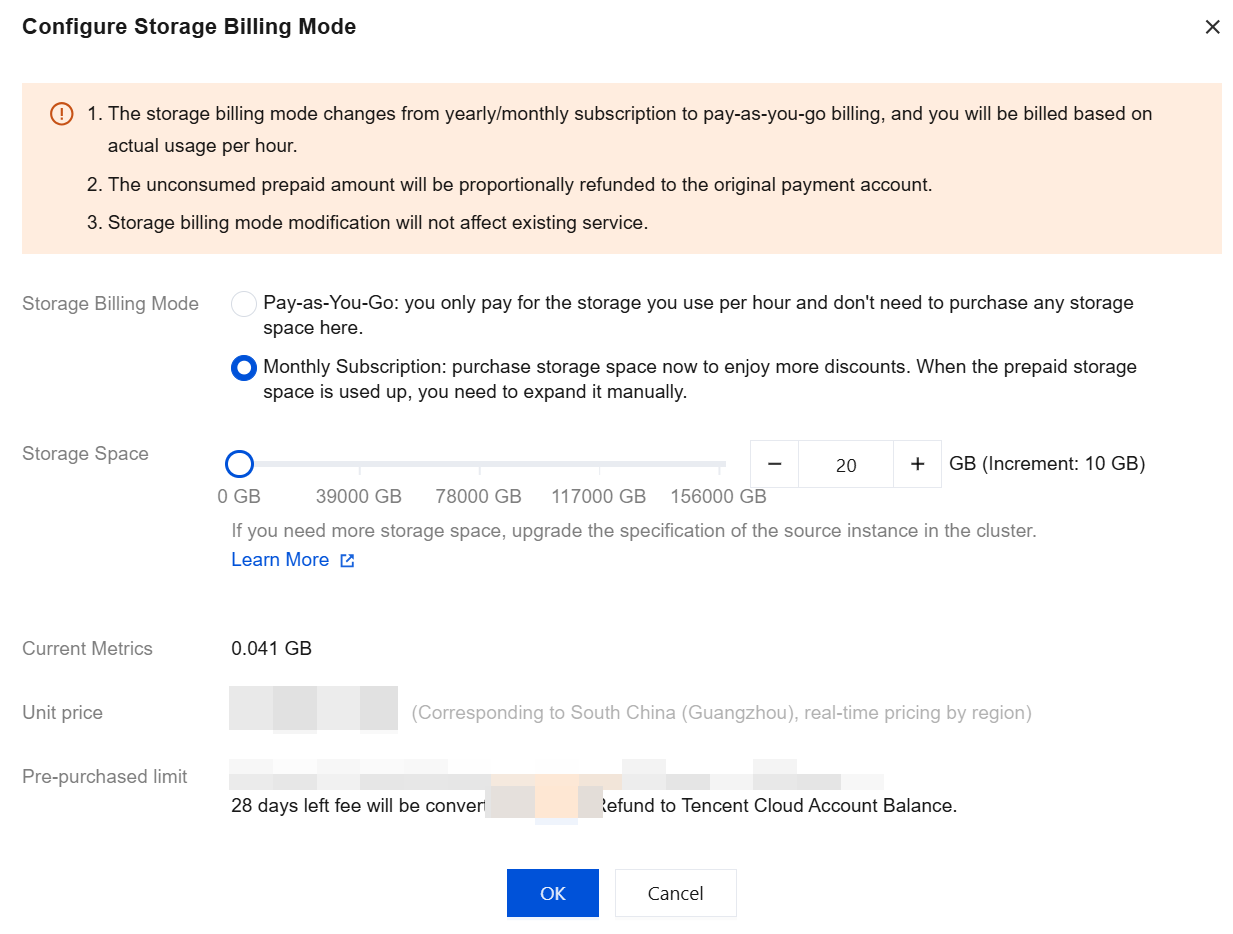
1. Log in to the TDSQL-C for MySQL console. In the cluster list, locate the cluster whose storage space you need to adjust, and click its cluster ID or the Manage option in the Operation column to go to the cluster management page.
2. After Cluster Details > Configuration Information > Primary Storage, click the edit icon.
Note:
You can also make adjustments by clicking the edit icon after Billing Information > Storage Billing on the cluster details page.
3. In the pop-up settings window, select the yearly/monthly subscription billing mode, then select the storage space size, and click OK to complete the payment.
Scenario 3: The storage billing mode is yearly/monthly subscription, and storage space needs to be adjusted
On the cluster list page, perform operations according to the view mode you are actually using:
1. Log in to the TDSQL-C for MySQL console and click the target cluster in the cluster list on the left to go to the Cluster Management page.
2. On the cluster management page, click the edit icon after the billing mode.

Note:
You can also adjust the storage by moving the mouse over the storage section in the topology diagram on the cluster details page and then clicking Scale-out after the storage specification.
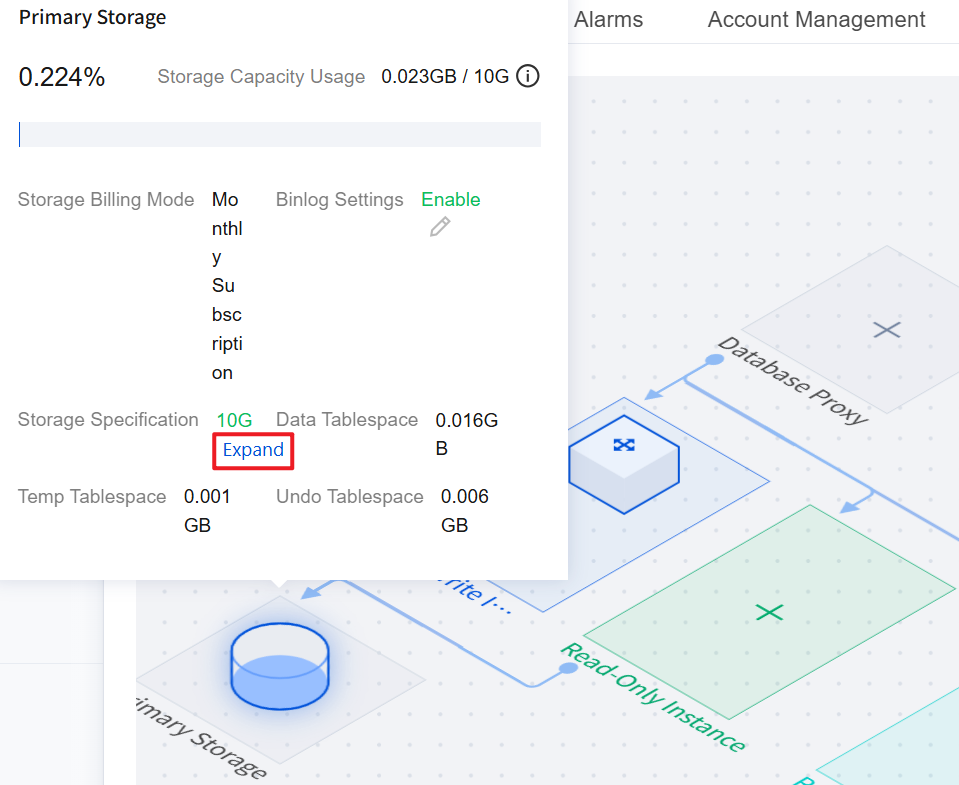
3. In the pop-up settings window, select the storage space size and click OK to complete the payment.
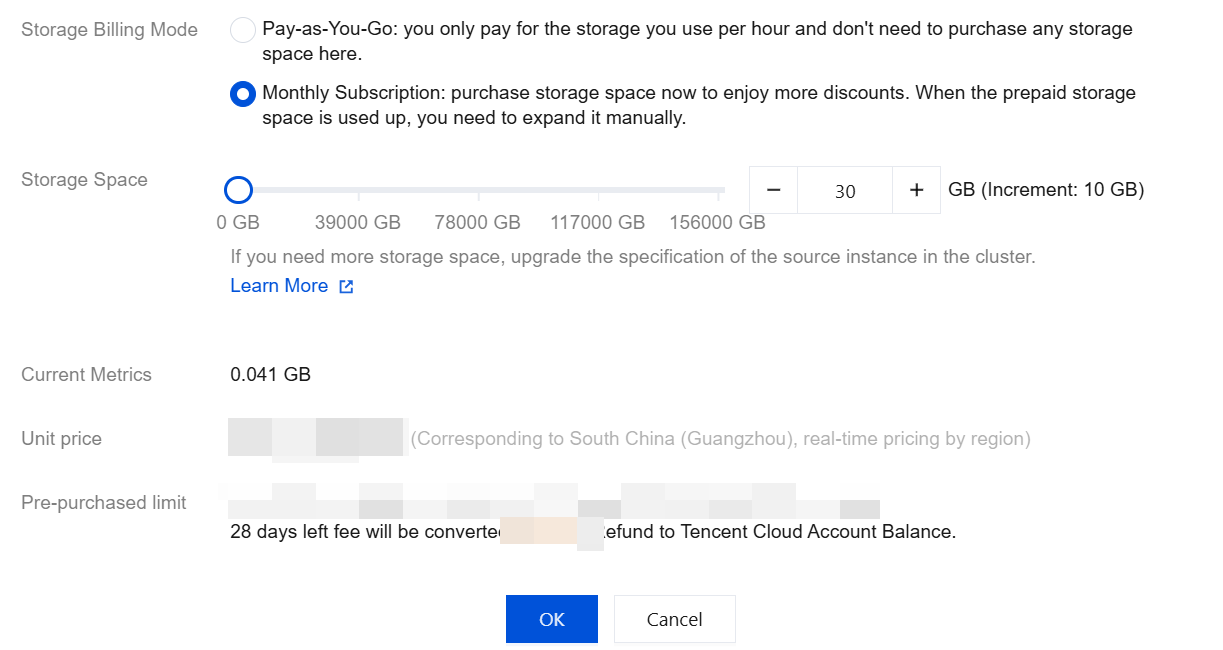
1. Log in to the TDSQL-C for MySQL console. In the cluster list, locate the cluster whose storage space you need to adjust, and click its cluster ID or the Manage option in the Operation column to go to the cluster management page.
2. After Cluster Details > Configuration Information > Primary Storage, click the edit icon.
Note:
You can also make adjustments by clicking the edit icon after Billing Information > Storage Billing on the cluster details page.
3. In the pop-up settings window, select the storage space size and click OK to complete the payment.
Help and Support
Was this page helpful?
You can also Contact sales or Submit a Ticket for help.
Help us improve! Rate your documentation experience in 5 mins.
Feedback