Task List
Download
Focus Mode
Font Size
You can view the details of executed tasks in the TDSQL-C for MySQL console to track the progress of operations on clusters and their instances. This document describes how to view the task list via the console.
Task type
Through the task list, you can view the following task types: Create and set a cluster, Cluster Creation, Cluster Rollback, Clone Cluster, Roll Back Entire Cluster to New Cluster, Create Cluster for Entire Cluster Rollback, Roll Back Database/Table to New Cluster, Create Cluster for Rolling Back Databases or Tables, Instance Upgrade/Downgrade, Storage Configuration Adjustment, Parameter Modification, Restart, Manual Backup, Automatic Backup, Version Upgrade, Add Replica AZ, Modify Replica AZ, Delete Replica AZ, Switch AZs, Modifying the secondary availability zone property, Promote a read-only instance to a read-write instance, Modify Binlog Settings, Create Database Proxy, Upgrade Database Proxy, Disable Database Proxy, Configure Proxy Connection Pool, Rebalance Proxy Node, Upgrade Proxy Kernel Minor Version, Configure Read/Write Separation, Enable Password Strength, Modify Password Strength, Disable Password Strength, Sync Password Strength, Enable Audit, Modify Audit, Disable Audit, Proxy Connection Creation, Proxy Connection Modification, Proxy Connection Deletion, SQL Automatic Forwarding Enable, SQL Automatic Forwarding Disable, Quick Migration, Switch Connection Address, Forcible Restart, Enable CLS shipping, Disable CLS shipping, Delete CLS shipping, Data Encryption, Set Global Encryption, Migrate across AZs, Switch to Serverless, Read-Only Instance Configuration, Serverless Configuration, Switching a read-only instance to serverless, Pausing a cluster, Starting a cluster, Pausing an instance, Starting an instance, Instance auto-pause, Instance auto-start, Add Instance, Isolating an instance, Serverless Archive, Enable SSL, Disable SSL, High-performance configuration, Create a GD, Add a secondary cluster to a GD, Remove Secondary Cluster [Secondary Cluster] from a GD, Remove a secondary cluster from a GD [primary cluster], Terminate a GD, Primary-secondary switch for a global database, Cluster termination, Enable Public Network Access, Disable Public Network Access, Cross-region snapshot backup policy settings, Sparse Backup Cross-regional Policy Settings, Modify storage compression, Enable prediction, Disable prediction, Instance elastic scale-out, Restore automatic scale-out, Release the secondary node used for the upgrade, Modify the automatic policy for binlog/redolog, Create Vault, Delete Vault, Modify Vault, Backup File Delivery to Vault, Delete backup files in the vault, Enable AI optimizer, Disable AI optimizer, Stop AI optimization, Resume AI training, Disable storage overuse, Enable storage overuse, Automatic storage scale-up configuration change, Automatic storage scale-up, Modify cluster category, and so on.
Viewing a Task List
1. Log in to the TDSQL-C for MySQL console.
2. In the left sidebar, click Task List to enter the task list page.
3. Select the corresponding region above.
4. You can directly search tasks or retrieve them by keywords in the task list to view the task details.

Search Keywords
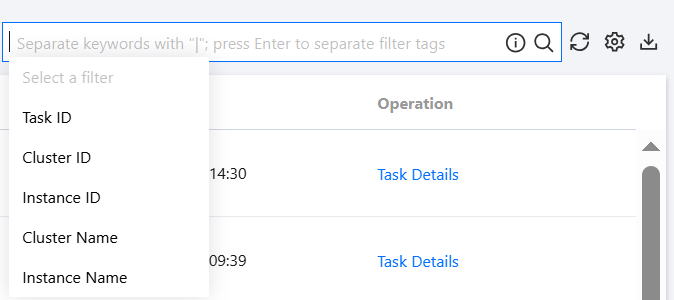
In the task list, you can quickly locate target tasks by searching for keywords in the search box. The search box supports searching by resource attributes such as task ID, cluster ID, instance ID, cluster name, and instance name. Separate multiple keywords with "|" and multiple filter tags with the Enter key.
Downloading Task Data
1. Log in to the TDSQL-C for MySQL console.
2. In the left sidebar, click Task List to enter the task list page.
3. Select the corresponding region above.
4. Click the download button next to the search box to download data from the current page or data under the current query conditions.
Viewing Task Details
1. Log in to the TDSQL-C for MySQL console.
2. In the left sidebar, click Task List to enter the task list page.
3. Select the corresponding region above.
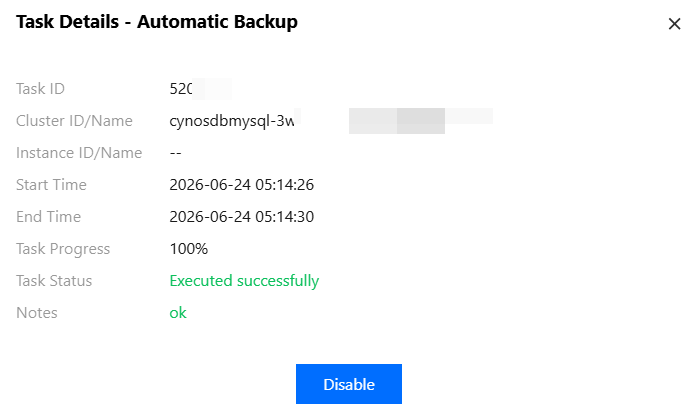
4. Locate the task item for which you want to view details, and then click Task Details in the Operation column.

Related APIs
API | Description |
This interface (DescribeTasks) is used to query task lists. |
Help and Support
Was this page helpful?
You can also Contact sales or Submit a Ticket for help.
Help us improve! Rate your documentation experience in 5 mins.
Feedback