Blocklist
Download
Focus Mode
Font Size
Scenarios
Blocklist management is used to quickly block abnormal or illegal MTT client connections. When you detect abnormal client behavior (such as frequent connection attempts, malicious attacks, or unauthorized access), you can configure blocklist rules to immediately block the target client's connections and secure your instance.
The blocklist supports configuring blocking rules based on three dimensions: Client ID, Username, and IP address. It also supports wildcard and CIDR matching, making it suitable for scenarios requiring rapid blocking of a small number of clients. For more granular permission control, it is recommended to configure the ACL policy.
Restrictions and Limitations
A maximum of 10 blocklist rules can be created per instance, and each rule supports up to 3 exclusion conditions.
This feature is effective only for standard MQTT client connections and is not currently effective for the HTTP Publish method.
The order of blocking rules is not sensitive. Multiple rules have an OR relationship, and if any rule is matched, the connection is blocked.
Configuration and Management
Creating Rules
1. Log in to the TDMQ for MQTT console > Client Management > Blocklist Management, and click the Create Rule button in the upper-left corner to configure the rule.

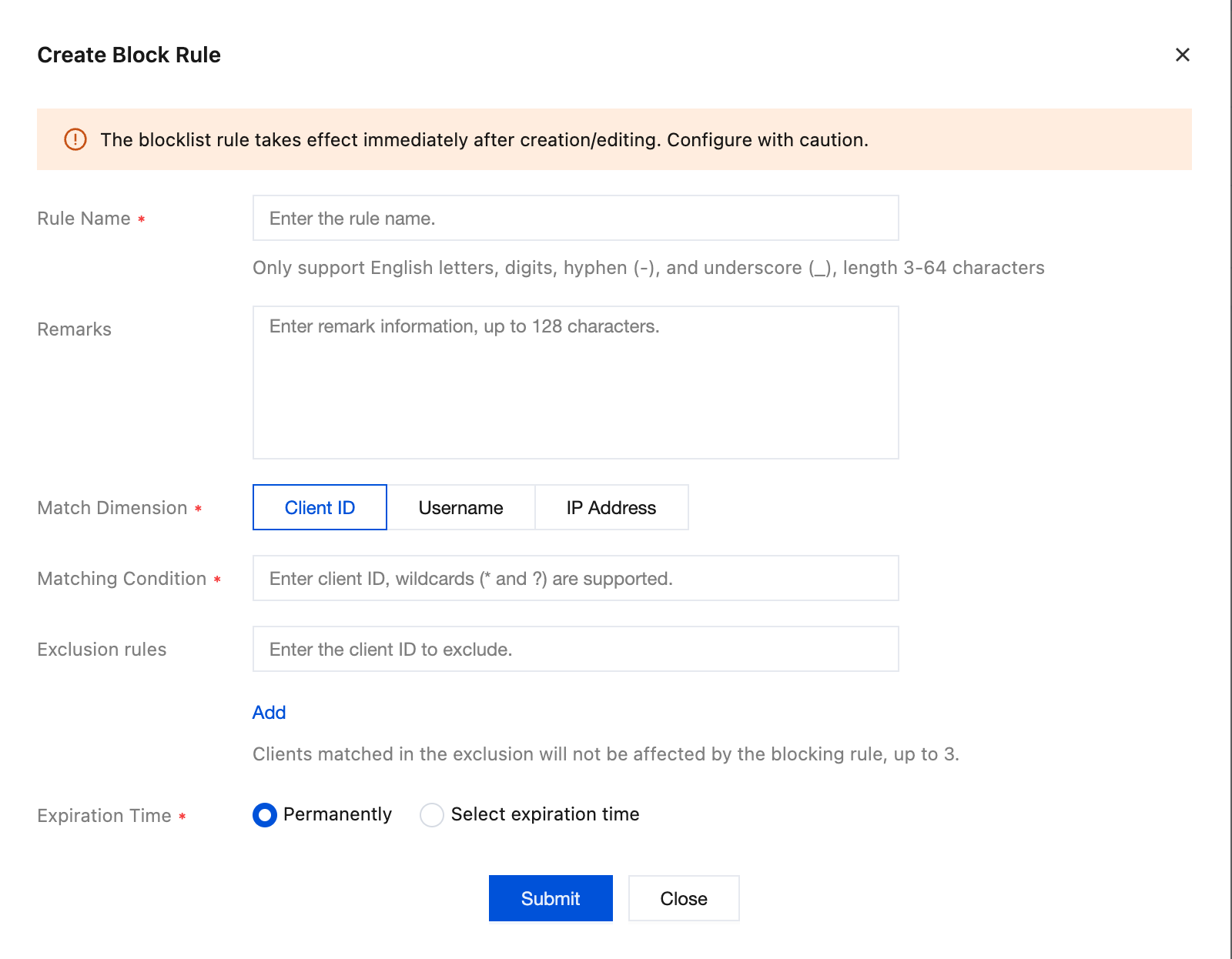
Parameter | Required | Description |
Rule Name | Yes | The unique identifier for a blocklist rule. Supports only English letters, digits, hyphens (-), and underscores (_), with a length of 3-64 characters. |
Remarks | No | A free description of the rule's purpose. Supports Chinese and is limited to a maximum of 128 characters. |
Matching Dimension | Yes | The matching dimension for which the rule takes effect. Supports selecting one from Client ID, Username, and IP Address. A single rule can select only one dimension, and the matching condition and exclusion condition must belong to the same dimension. |
Matching Condition | Yes | The matching expression under the selected dimension. Client ID and Username support wildcards ( * matches any character, ? matches a single character); IP Address supports exact IP address or CIDR format (such as 203.0.113.0/24). |
Exclusion Rules | No | Specifies the specific objects not affected by the rule within the scope matched by the condition. It uses the same dimension as the matching dimension and supports wildcards ( * matches any character, ? matches a single character). A maximum of 3 exclusion conditions can be filled in per rule. |
Expiration Time | No | The automatic expiration time for the rule. You can choose Permanent or Specify Expiration Time. After expiration, the rule automatically becomes invalid, but the record is retained on the console and can be manually deleted. |
2. Click Submit. The rule takes effect immediately upon creation, and both existing connections that match the rule and subsequent new connections will be blocked.
Viewing Rules
1. Log in to the TDMQ for MQTT console > Client Management > Blocklist Management to view all blocklist rules under the current instance.
The following information is displayed in a list:
Field | Description |
Rule Name | The unique identifier for a blocklist rule |
Remarks | Description of the rule |
Matching Dimension | The connection attribute dimension for which the rule takes effect (Client ID / Username / IP Address) |
Matching Condition | Matching expression for the rule |
Exclusion Rules | List of objects excluded by the rule (if any) |
Expiration Time | Expiration time of the rule. Displayed as a specific time or "Permanent". |
Status | Current status of the rule: Active or Expired |
Operation | Supports Edit and Delete operations. |
Editing Rules
1. On the Blocklist Management page, locate the target rule and click Edit in the Actions column.
2. In the dialog box that pops up, modify the rule parameters.
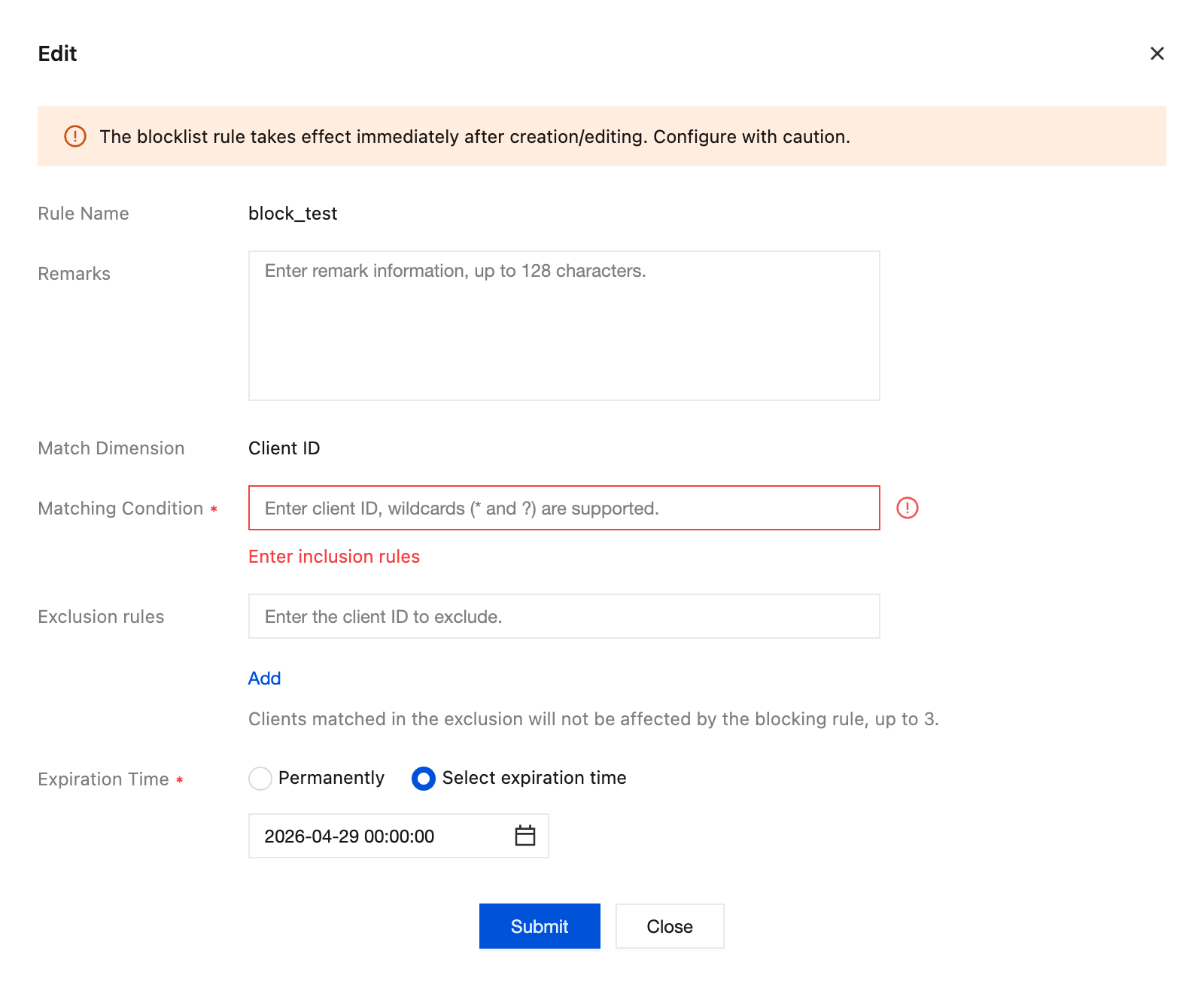
3. Click OK to save the changes. The changes take effect immediately.
Deleting Rules
1. On the Blocklist Management page, locate the target rule and click Delete in the Actions column.
2. In the confirmation dialog box that pops up, confirm the deletion.
3. Click Confirm Deletion to complete the rule deletion.
Note:
After you edit a rule, the new block conditions will be applied immediately. Please verify that your modifications are correct before saving.
After deletion, the rule becomes invalid immediately and cannot be recovered. Previously blocked clients will be able to reconnect to the instance.
Examples
Scenario: Block abnormal test clients while retaining monitoring clients. After a service test is completed, you need to block all test clients with the
test- prefix in batches, but retain the connection of the test-monitor monitoring client.Configuration Method:
Matching Dimension: Client ID
Matching Condition:
test-*Exclusion Condition:
test-monitorExpiration Time: Specify an expiration time (for example, it automatically expires after 7 days).
Help and Support
Was this page helpful?
You can also Contact sales or Submit a Ticket for help.
Help us improve! Rate your documentation experience in 5 mins.
Feedback