Extending System Disk Partitions and File Systems Online
Download
Focus Mode
Font Size
Overview
Expanding a data disk in the console only increases its storage capacity. You need to expand the partition or file system of the cloud disk. This document describes how to expand partitions and file systems online.
Prerequisite
Before expanding a partition or file system, create a snapshot of the system disk to back up data. For detailed directions, see Creating Snapshots.
This practice helps you roll back snapshot to recover data in case of data loss due to maloperation.
You have expanded the cloud disk in the console. For detailed directions, see Expanding Cloud Disks.
The Linux CVM kernel should be version 3.6.0 or later. You can use the
uname -a command to check the kernel version.
If the kernel version is earlier than 3.6.0, see Extending MBR Partitions and File Systems (Smaller than 2 TB).Operating Environment
Resource | Description |
Operating system | CentOS 8.0 64-bit |
Cloud disk (system disk) | /dev/vda: Uses the MBR partition and the EXT4 file system, and expands from 50 GB to 60 GB online in the console. |
Resource | Description |
Operating system | Windows Server 2012 R2 IDC 64-bit Chinese |
Cloud disk (system disk) | C drive: Uses the MBR partition and the NTFS file system, and expands from 50 GB to 100 GB online in the console. |
Directions
Perform the following steps based on your operating system:
2. Run the following command to query partitions of the cloud disk.
fdisk -l
The 60 GB data disk 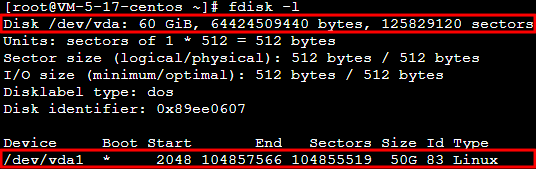
dev/vda contains a 50 GB MBR partition /dev/vda1.
3. Run the following command to confirm the file system that has a partition.
df -TH
The 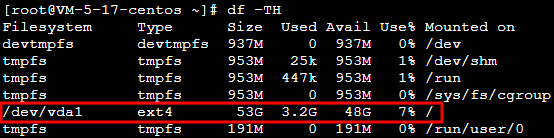
/dev/vda1 file system type is EXT4.
4. Run the following command to install the growpart tool according to the operating system of the CVM instance.
CentOS
yum install -y cloud-utils-growpart
Ubuntu or Debian
apt-get install -y cloud-guest-utils
5. Run the following command to use the growpart tool to expand the
/dev/vda1 partition. In the command, you need to separate /dev/vda and 1 by space.growpart /dev/vda 1
The following information appears:

6. Run the following command to extend the EXT file system.
resize2fs /dev/vda1
The following information appears:

7. Run the following command to view the result.
df -TH
If information similar to what is shown below is returned, the file system has been expanded successfully.
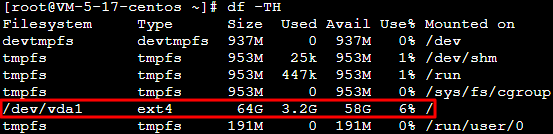
1. Log in to the CVM instance as instructed in Logging in Using Standard Method (Recommended).
2. On the desktop, right-click 
3. In the Disk Management pop-up window, select Operation > Rescan the disk at the top of the page.
After the scan, you can view the newly added space.
4. Right-click the area of the C drive and select Expand Volume in the pop-up menu.
5. Follow the Expand Volume Wizard to expand the volume. After the operation, the newly added space will be merged into the original volume.
After the successful expansion, check the data integrity and whether the business in the CVM instance runs normally.
Help and Support
Was this page helpful?
You can also Contact sales or Submit a Ticket for help.
Help us improve! Rate your documentation experience in 5 mins.
Feedback