Auto Scaling Lifecycle Hook
Baixar
Modo Foco
Tamanho da Fonte
Use Cases
In the scaling group, you can set elastic scaling-out and elastic scaling-in activities. If you want to perform custom operations before officially launching these instances, the lifecycle hook can assist you:
To mount the instance scaled out from the scaling group to CLB after a period of delay so as to provide services externally.
To perform data backup when the scaling group releases instances.
To perform some user-defined operations when the scaling group performs elastic scaling-out or scaling-in.
Note:
Lifecycle hooks are only effective when instances are automatically created or removed. Other instances within the scaling group are not affected.
If the expansion mode is set, lifecycle hooks will also be effective when users manually add or remove instances and during power on/off.
Only 10 lifecycle hooks can be created within a scaling group.
How It Works
After a lifecycle hook is created in a scaling group, the scaling activity is suspended when the scaling activity type linked to the lifecycle hook occurs. You can perform custom operations during suspension of the scaling activity. When the lifecycle hook times out, the suspension terminates.
Attributes of Lifecycle Hooks
Name | Description | Sample |
Name | Lifecycle hook name. It supports only Chinese characters, letters, digits, underscores, dashes (-), and dots. | fehwnl_ |
Scaling Activity Type | Elastic scaling-in activity/elastic scaling-out activity | Elastic scaling-in activity |
Expanded Activities | Expanded activities include NORMAL and EXTENSION. The default value is NORMAL. NORMAL: Lifecycle hooks are only effective when instances are automatically created or removed. EXTENSION: Lifecycle hooks are also effective when instances are manually added or removed, or during power on/off. | NORMAL |
Timeout Period | By default, it is the time an instance remains in a waiting status. It must be an integer between 30 and 7200 (seconds). | 300 |
Execution Policy | The execution policies include Continue and Refuse. Continue policy: The suspended scaling activity will continue. Refuse policy: For elastic scaling-out activities, the created CVM instances are directly released. There is no impact on elastic scaling-in activities. When multiple lifecycle hooks are set for a scaling group, operations are queued in sequence. However, only the first Refuse policy is executed, and subsequent lifecycle hooks' Refuse policies do not take effect. | Refuse |
Notification Method | Notification methods include TDMQ topic, TDMQ queue, and TAT command. After selecting a notification method, you also need to choose a specific TDMQ topic, TDMQ queue, or TAT command. | CMQ topic |
Notification Identifier | Each time Auto Scaling (AS) pushes a message to the notification object, it simultaneously sends the pre-specified notification identifier, which makes it easier to manage and mark different types of notification information. | Notification Message |
Creating a Lifecycle Hook
1. Log in to AS Console.
2. Select the scaling group to which you need to bind the lifecycle hook, and click the scaling group ID/Name to enter the details page of the scaling group. For details, see the following figure.

3. Select the Lifecycle Hook tab, and click New.
4. In the pop-up Create Lifecycle Hook dialog box, fill in the relevant information for the lifecycle hook. For details, see the following figure.
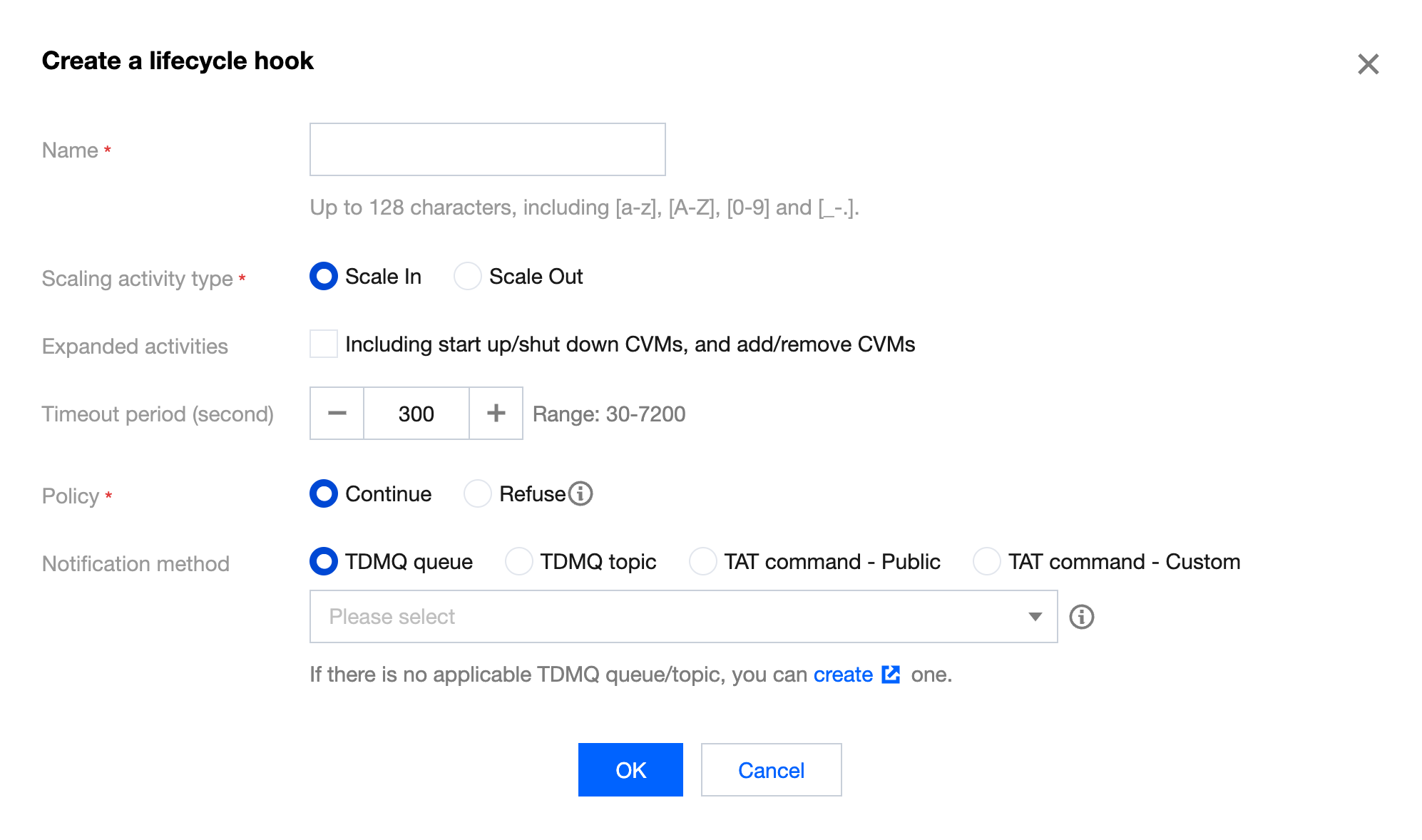
Note:
When creating a lifecycle hook, you need to select or create TDMQ. This includes creating a TDMQ topic and a TDMQ queue.
When multiple lifecycle hooks are set for a scaling group, operations are queued in sequence. However, only the first Refuse policy is executed, and the subsequent lifecycle hooks' policies do not take effect.
If you do not specify a notification method, you will not be notified by default.
The name of the lifecycle hook within the same scaling group cannot be the same.
Modifying a Lifecycle Hook
1. Log in to AS Console.
2. Select the scaling group for which you need to modify the lifecycle hook, and click the scaling group ID/Name to enter the details page of the scaling group. For details, see the following figure.

3. Select the Lifecycle Hook tab, and click Modify in the row where the lifecycle hook needs to be modified. As shown below:
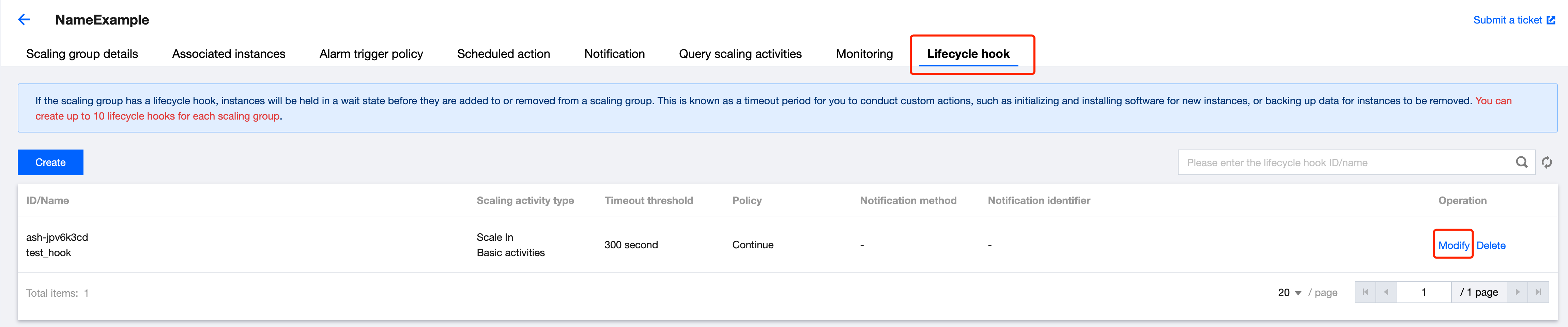
4. In the pop-up Modify Lifecycle Hook window, modify the information as needed.
Deleting a Lifecycle Hook
1. Log in to AS Console.
2. Select the scaling group for which you need to delete the lifecycle hook, and click the scaling group ID/Name to enter the details page of the scaling group. For details, see the following figure.

3. Select the Lifecycle Hook tab, and click Delete in the row where the lifecycle hook needs to be deleted. As shown below:
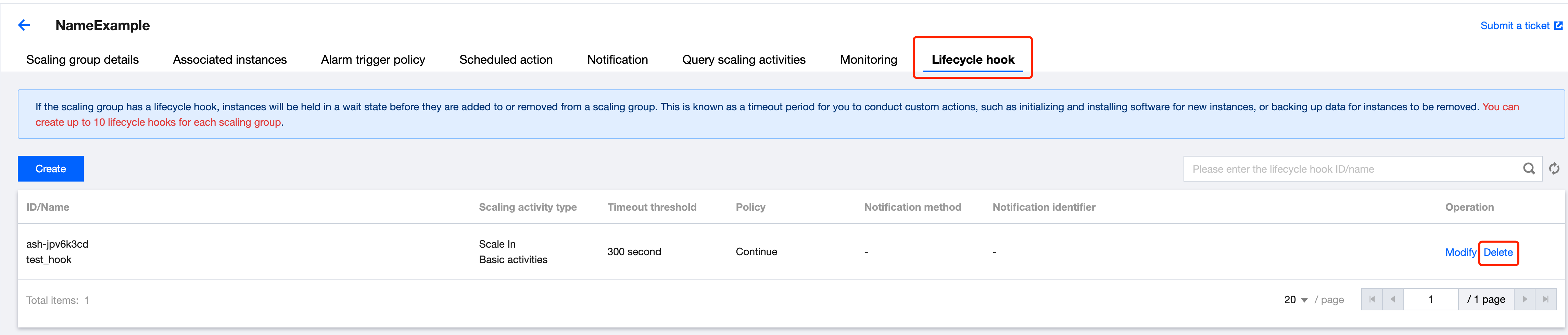
4. In the pop-up Delete Lifecycle Hook window, click OK.
Ajuda e Suporte
Esta página foi útil?
Você também pode entrar em contato com a Equipe de vendas ou Enviar um tíquete em caso de ajuda.
comentários