React Native
Download
Focus Mode
Font Size
This guide provides step-by-step instructions to help you quickly set up and run the Live Streaming Demo. You’ll be able to launch the demo in about 10 minutes and explore a complete live streaming user interface.
Host Live Stream Page | Co-host Management Page | Audience Viewing Page |
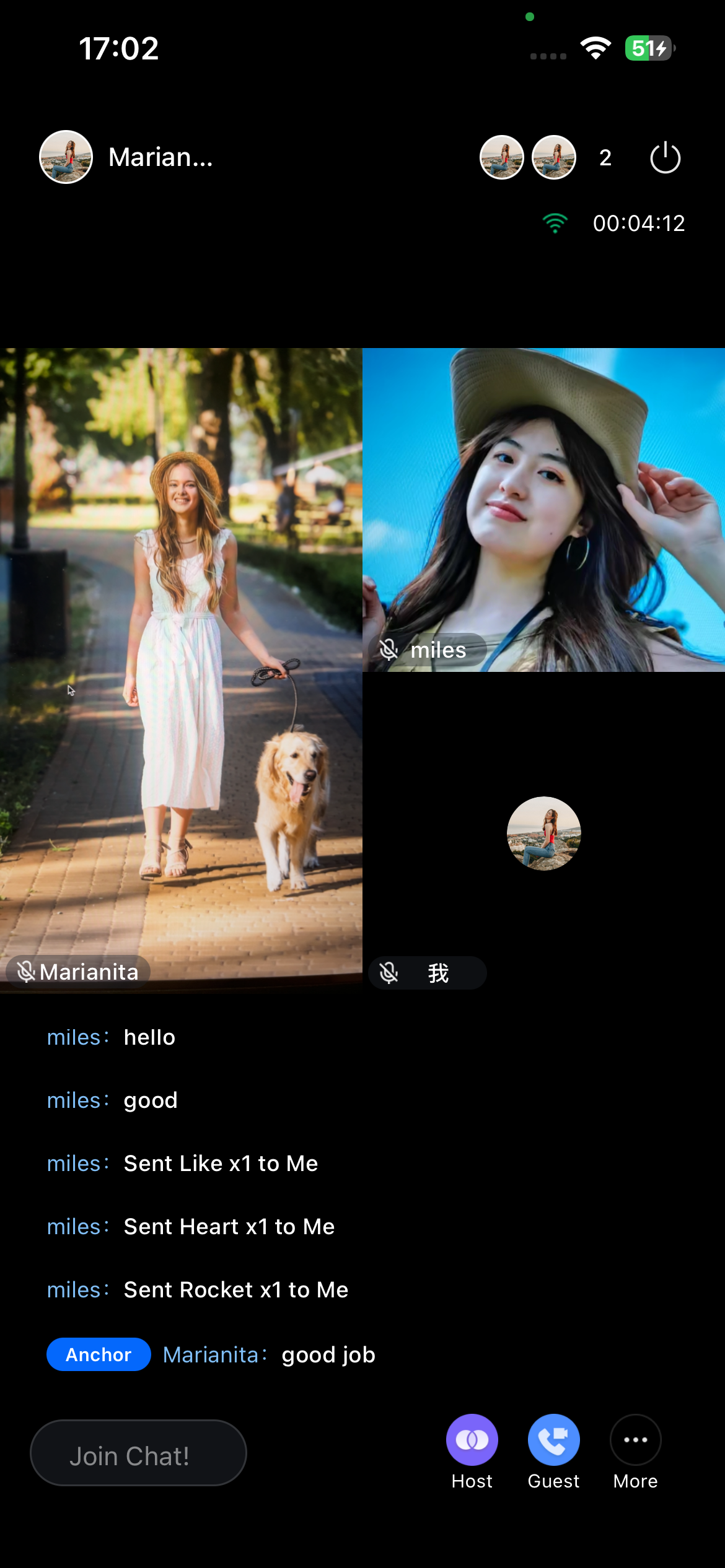 | 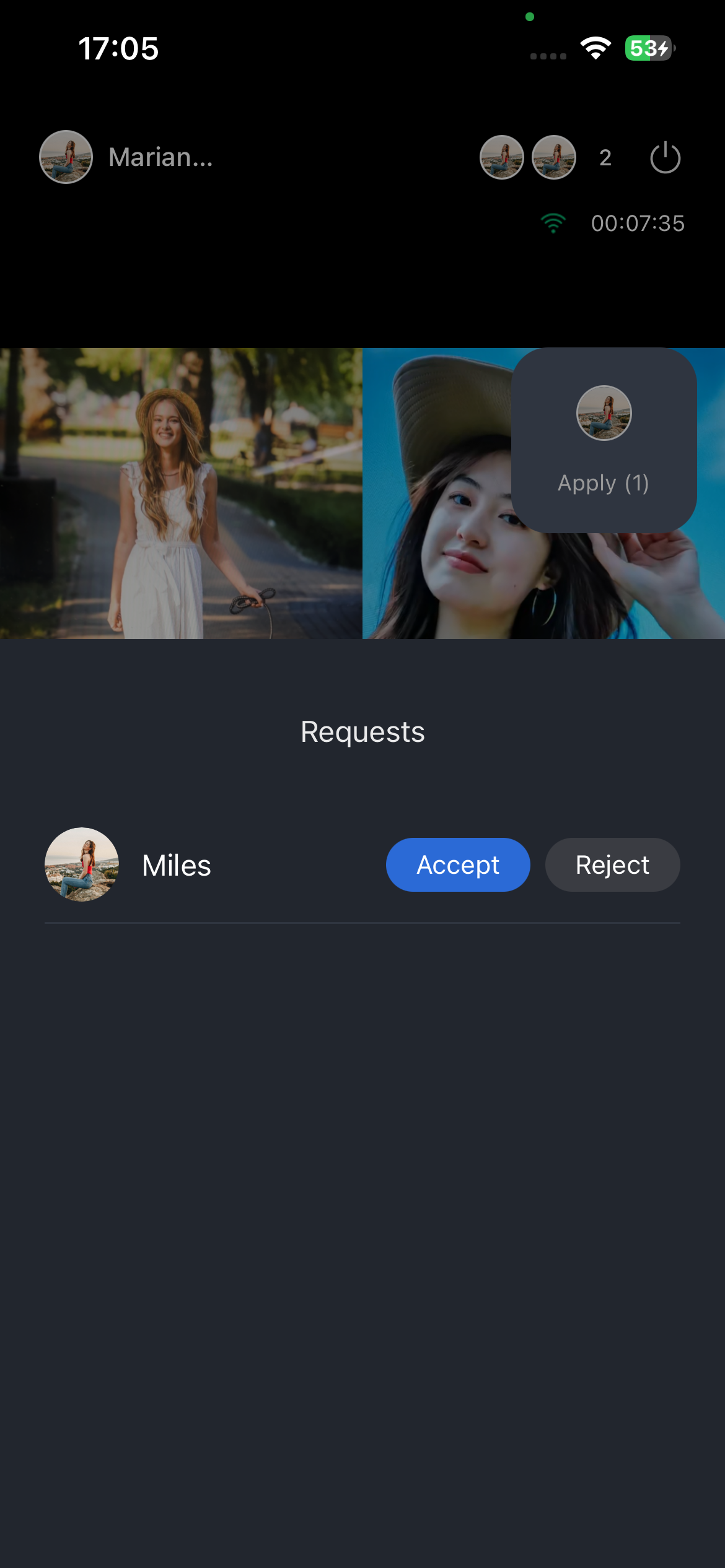 | 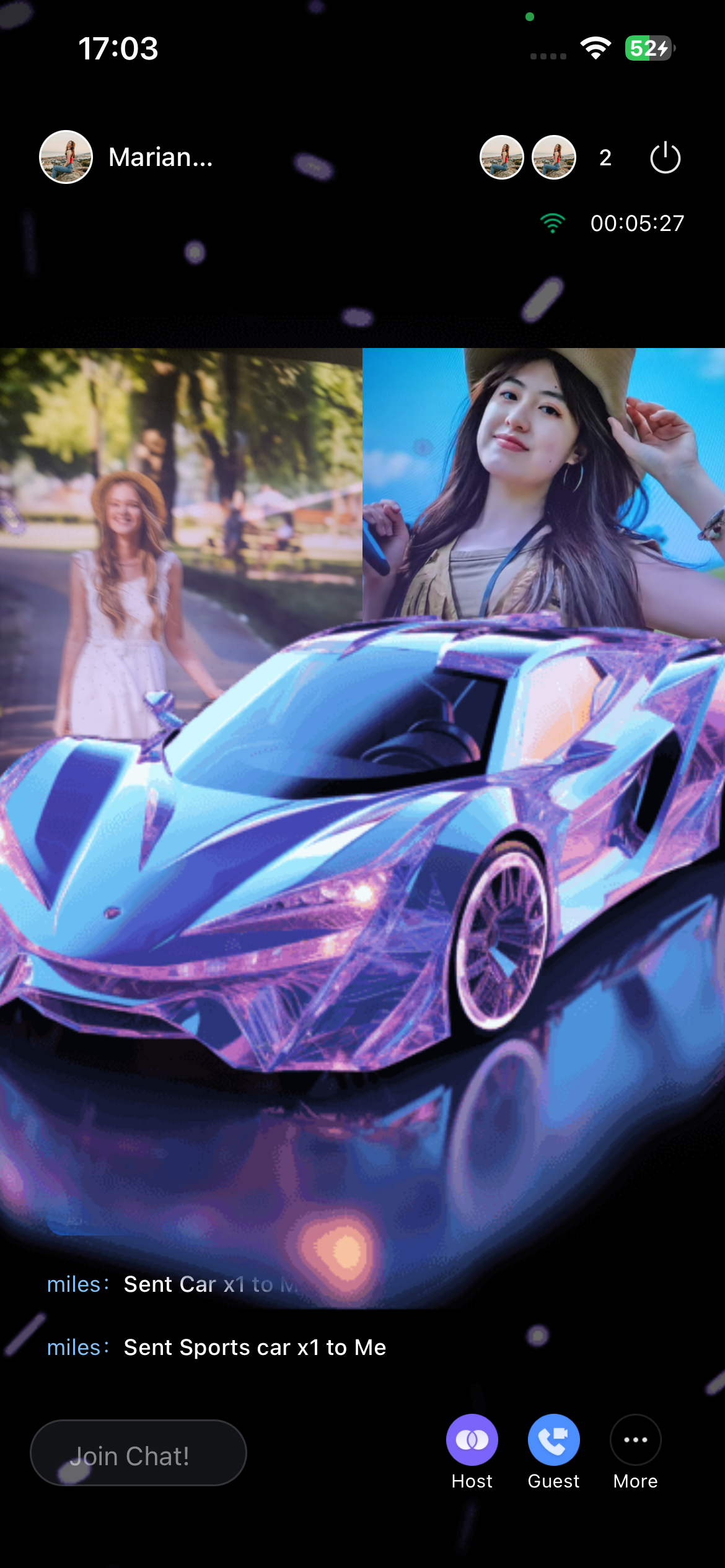 |
Prerequisites
Activate the Service
Go to Activate the Service to obtain a TUILiveKit Trial Edition. Then, on the Application Management page, collect the following details:
SDKAppID: Your application identifier (required). TRTC uses SDKAppId for billing and statistics.
SDKSecretKey: Your application SecretKey, required for initializing configuration files.
Environment Setup
Node.js: Version 20.0.0 or higher (LTS recommended)
Yarn: Version 4.11.0 or higher
Android Studio (Android only): Required for Android development
Xcode 14+: Required for iOS development (macOS only)
CocoaPods (iOS only): CocoaPods installed. If not, see the CocoaPods Installation Guide or run:
sudo gem install cocoapods in your terminal.Tips:
When running
sudo gem install cocoapods, you may be prompted for your computer password. Enter your administrator password to continue.Devices: Two smartphones with working cameras and microphones
Instructions
Download the Demo
1. Clone the TUILiveKit Demo source code from GitHub, or run:
git clone https://github.com/Tencent-RTC/TUIKit_ReactNative.git
2. Install project dependencies:
cd TUIKit_ReactNativeyarn install
3. Install iOS Pod dependencies (skip this step if you are only running on Android):
cd TUIKit_ReactNative/application/iospod install
Configure the Demo
1. Set SDKAppID and SDKSecretKey: Open
TUIKit_ReactNative/application/src/debug/UserSigGenerator.ts and enter the SDKAppID and SDKSecretKey you obtained when activating the service:// Your SDKAppIDexport const sdkAppID = 0;// Your SDKSECRETKEYconst SDKSECRETKEY = "";
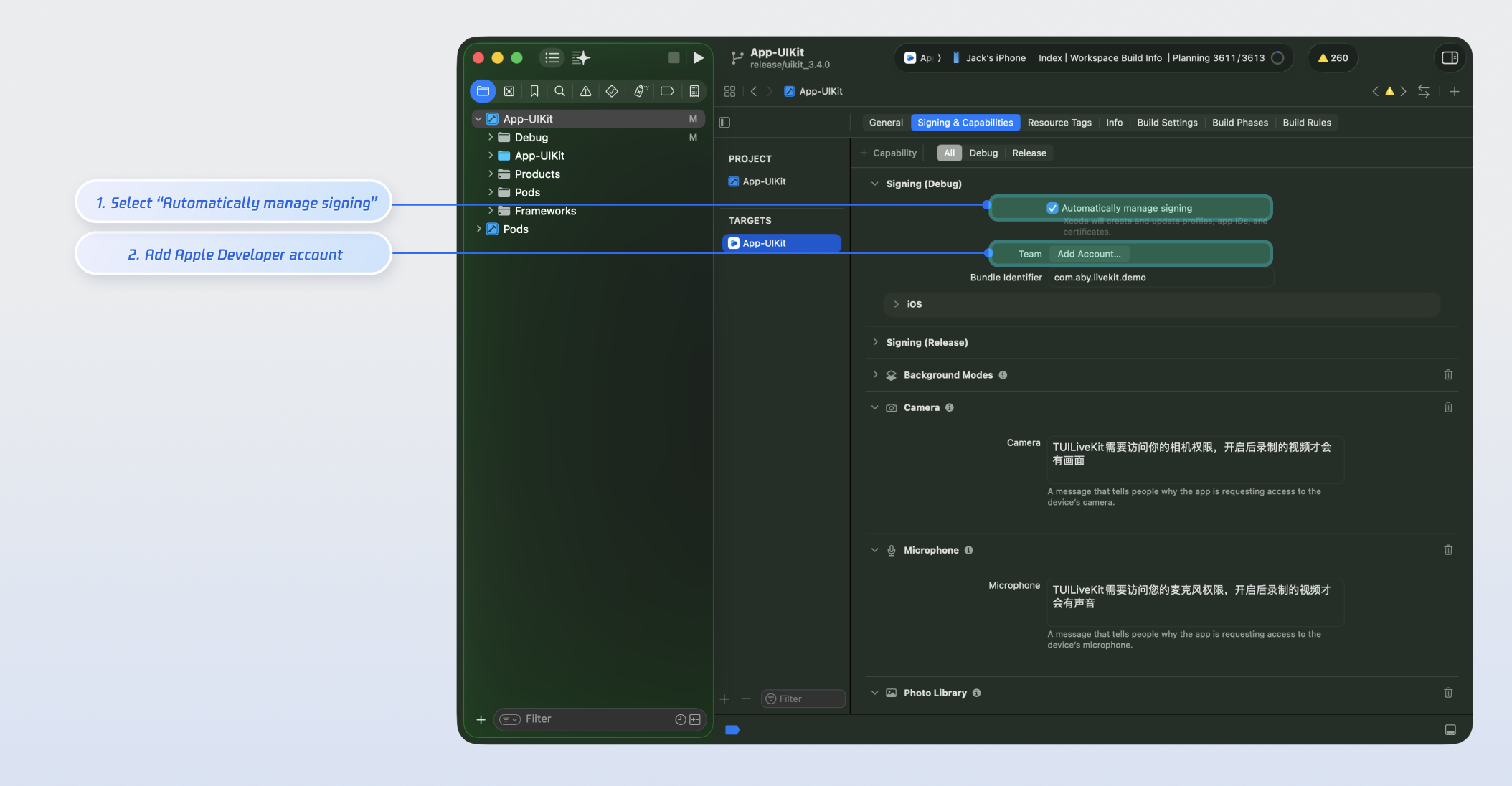
2. Set up Apple Developer signing (skip this step if you are only running on Android): In your project, go to TARGETS > Signing & Capabilities, enable Automatically manage signing, and select your Apple Developer account and Bundle Identifier:
Build and Run
To run the demo on Android:
cd TUIKit_ReactNative/applicationyarn android
To run the demo on iOS:
cd TUIKit_ReactNative/applicationyarn ios
Try Live Streaming and Viewing
1. Log in or sign up with a custom user ID.
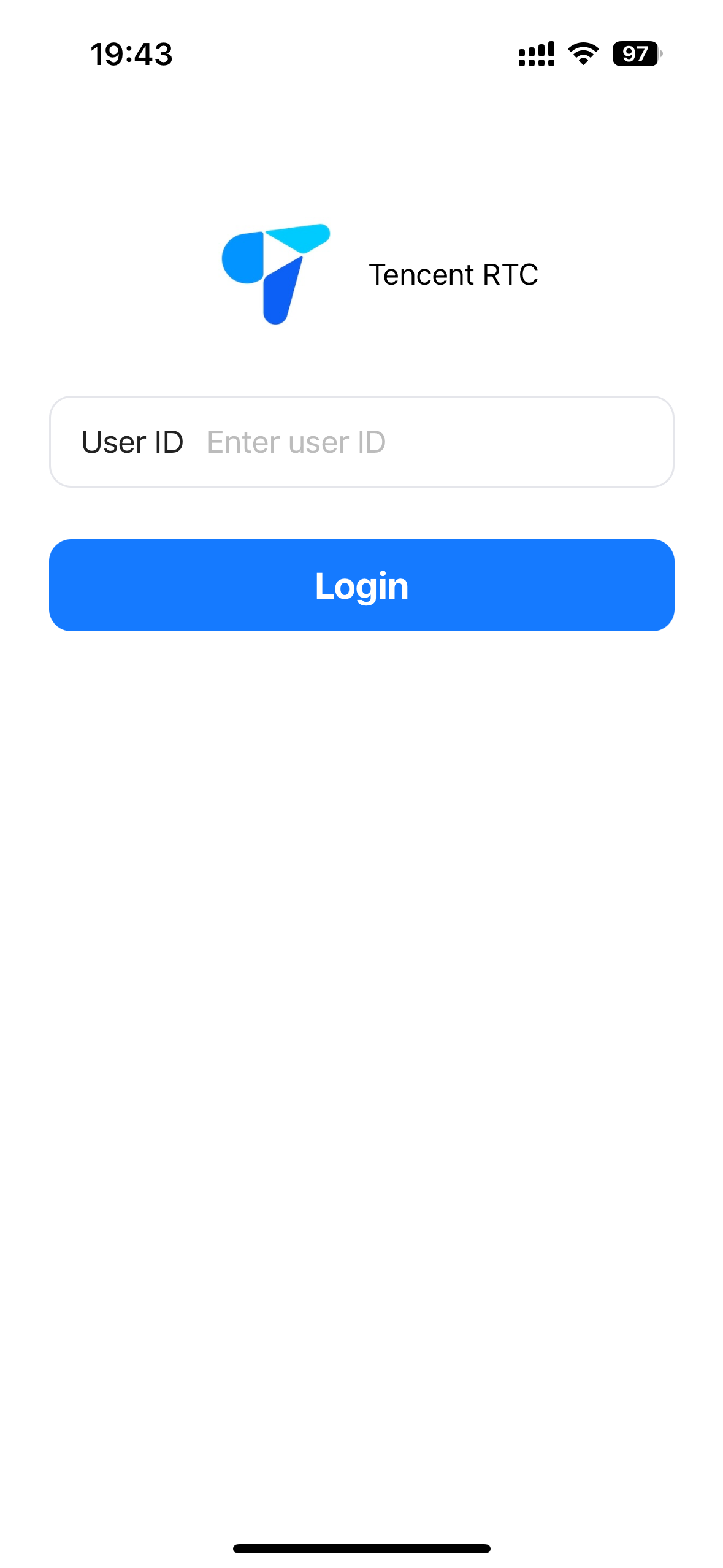
Note:
TUILiveKit does not support logging in on multiple devices with the same UserID. During team development, simple UserIDs like “1”, “123”, or “111” may be occupied, causing login failures.
Use unique UserIDs for testing. To fully experience the live streaming workflow, log in on two devices with different users—one as the host, one as the audience.
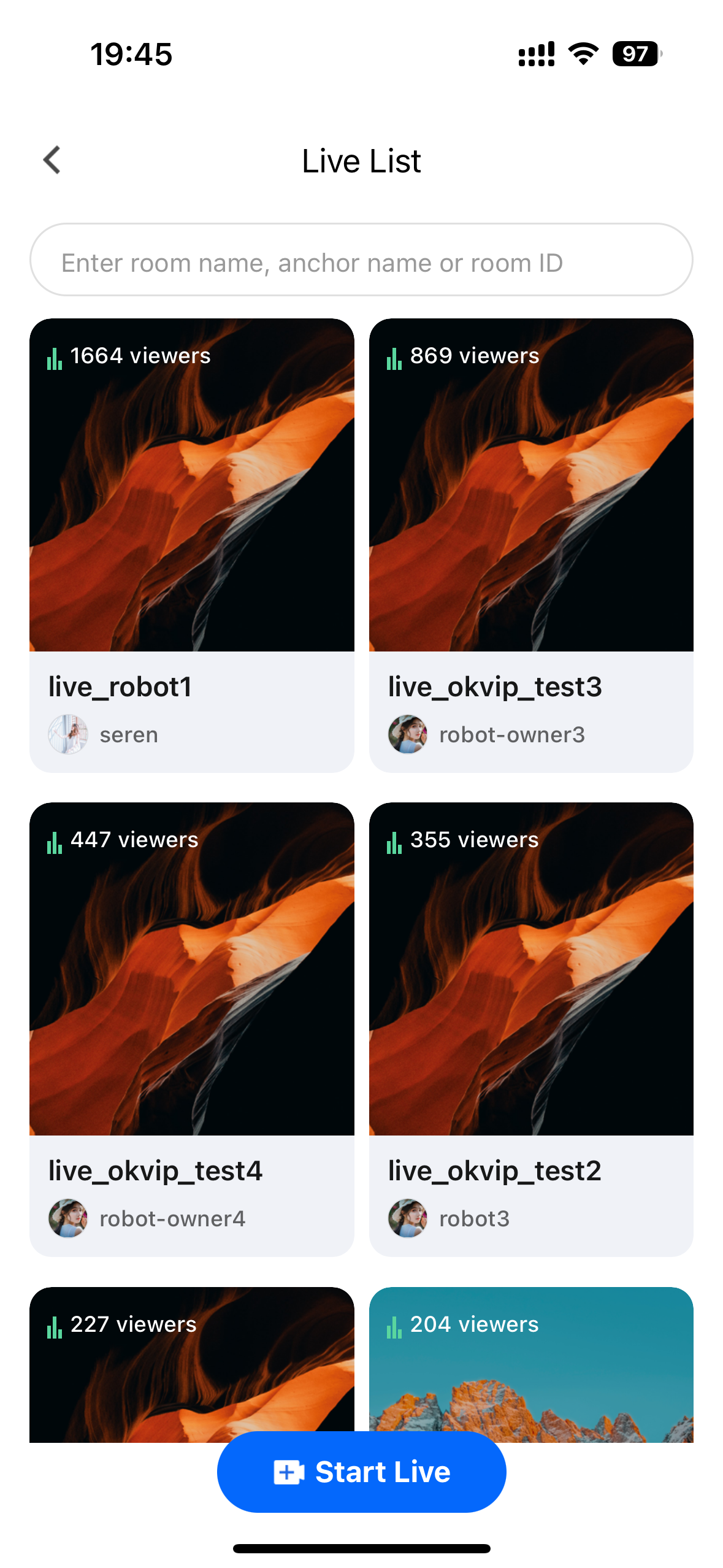
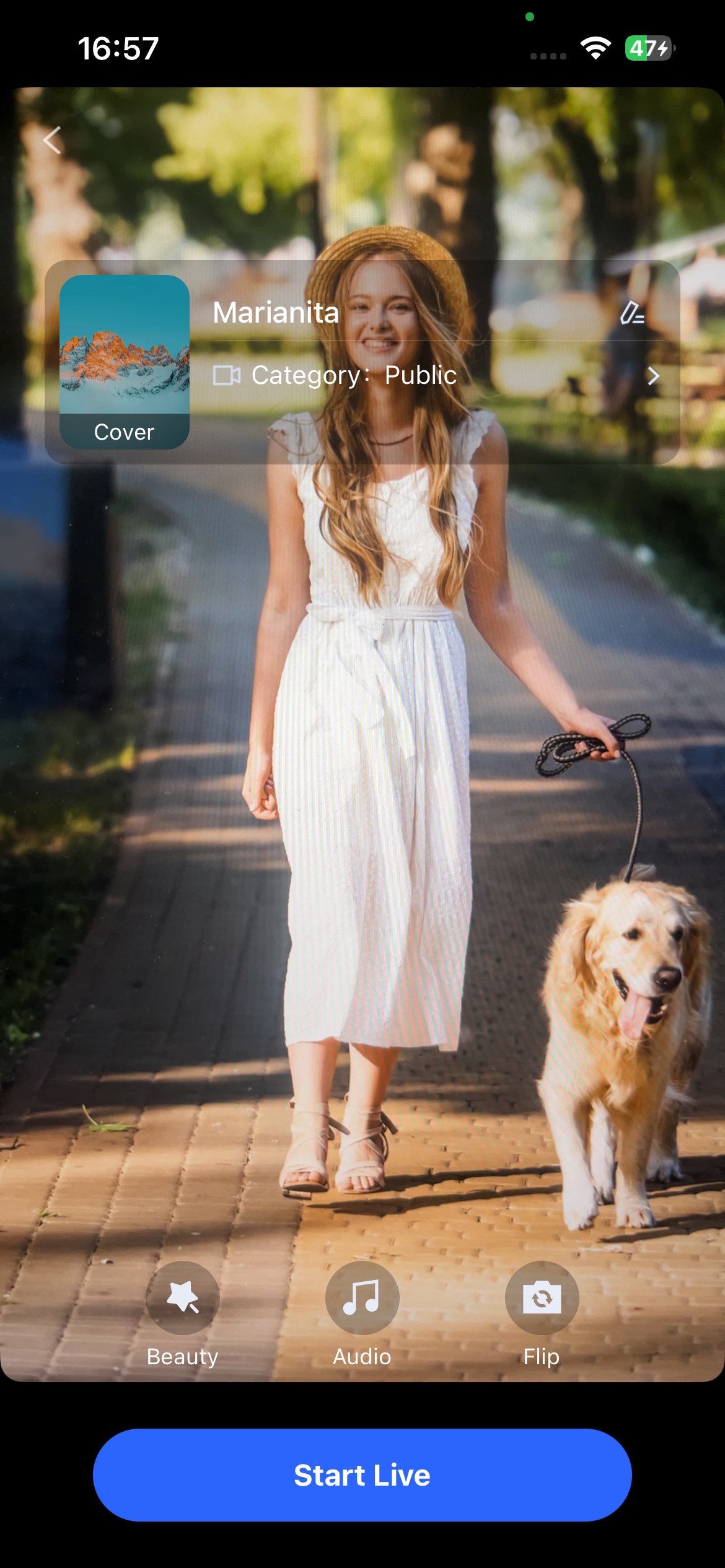
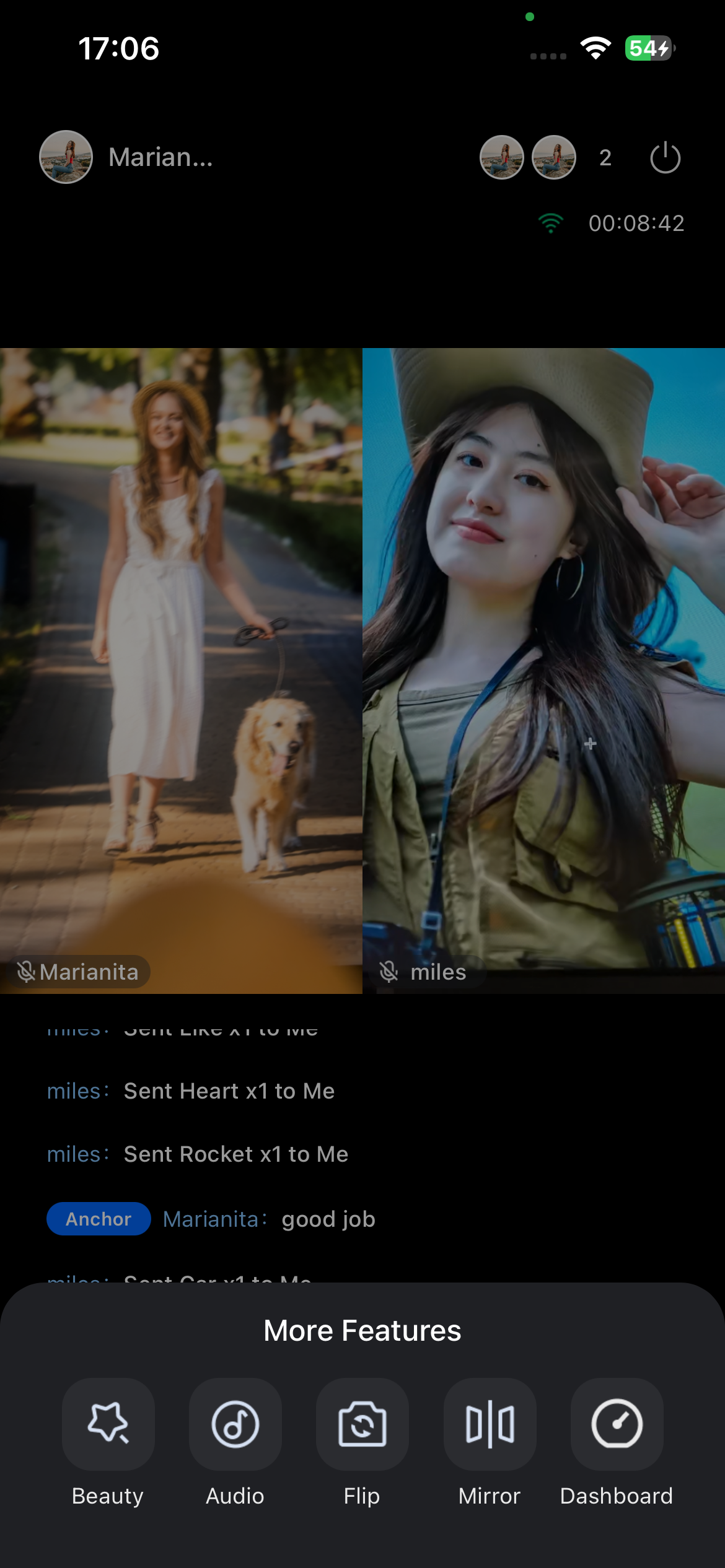
2. Start a live stream as a host:
Tap the center button at the bottom of the homepage to open the live preview page. Then tap Start Live to begin streaming.
Live Stream List Page | Host Preview Page | Host Live Page |
 |  |  |
3. Join as an audience member:
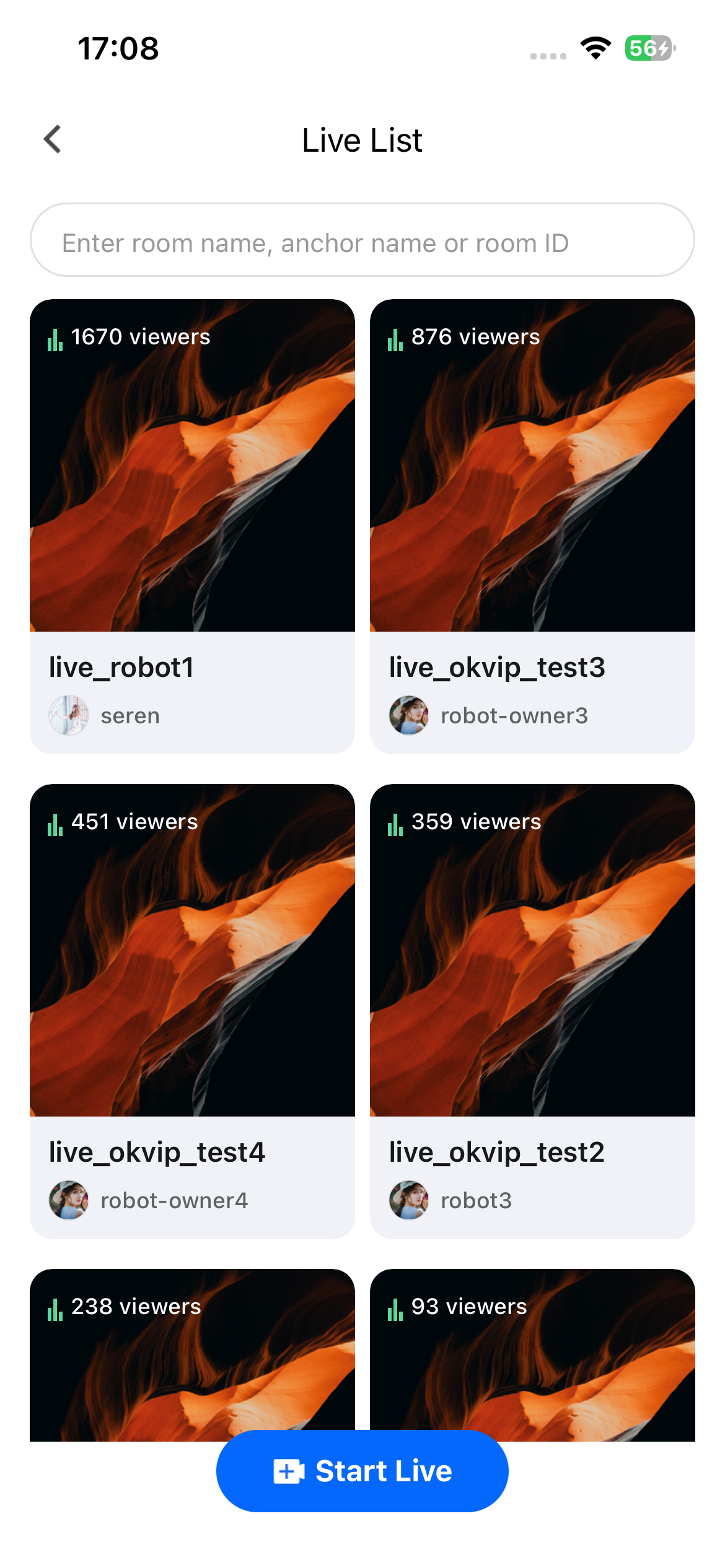
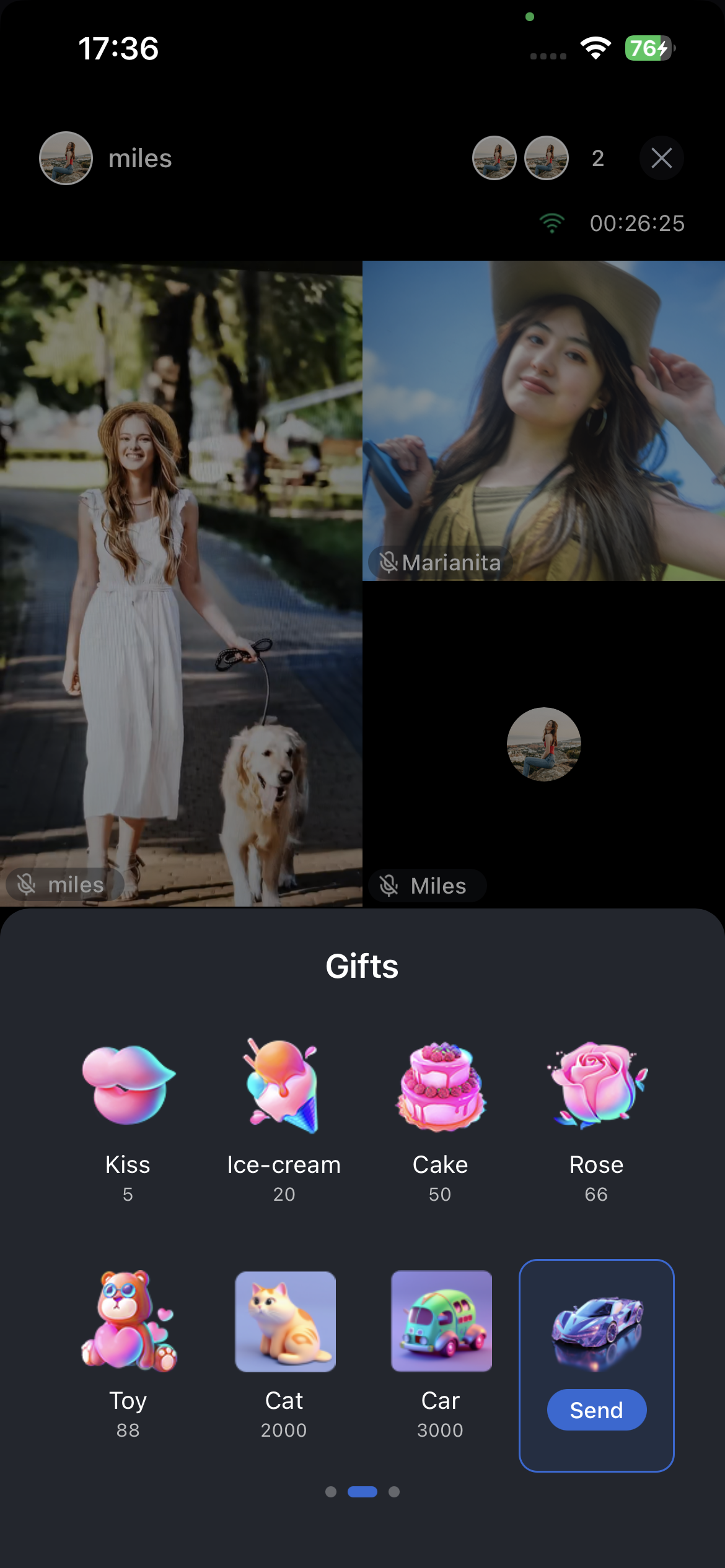
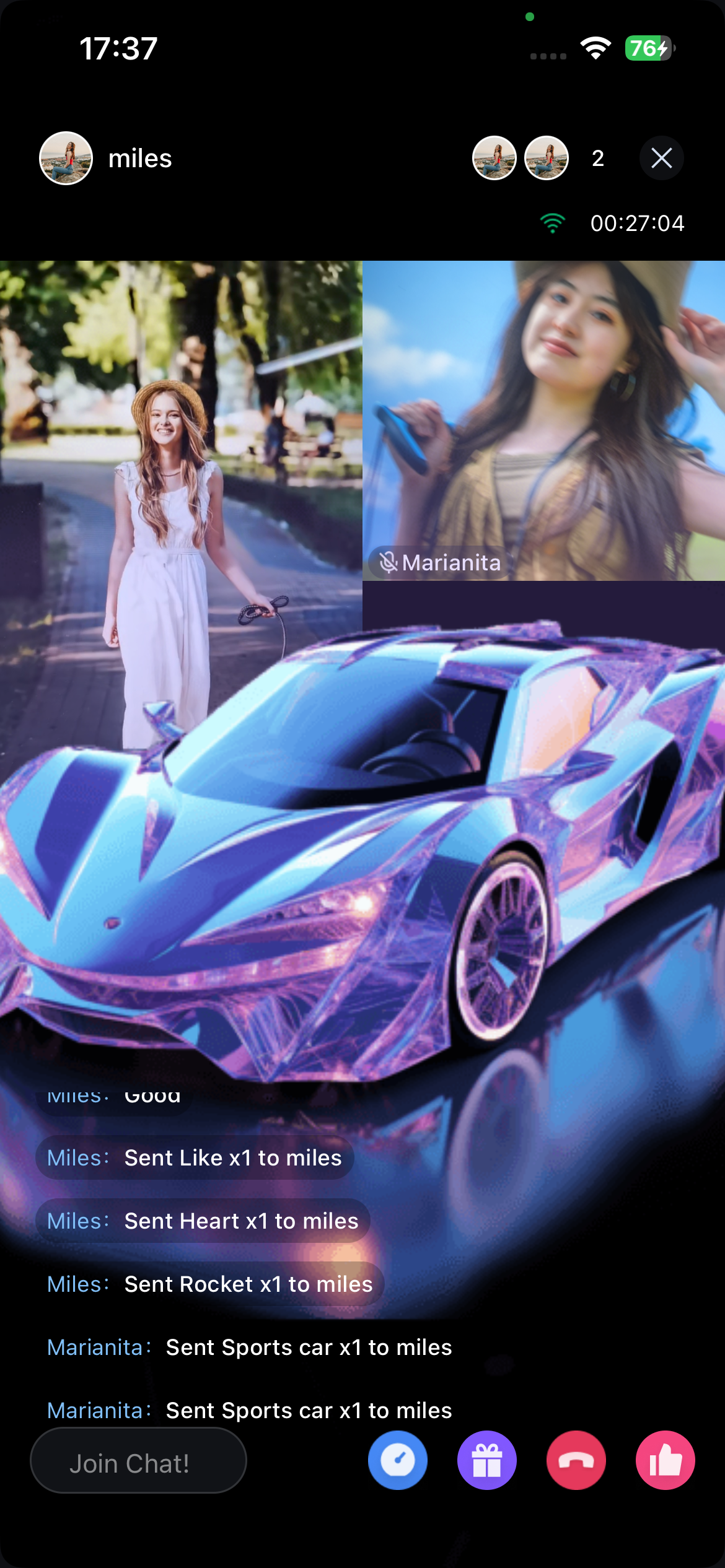
On a second device, log in with a different userID as an audience. Tap any room in the Live Stream List or enter a specific liveID to join a stream. You can interact with the host by co-hosting, sending gifts, or participating in chat.
Live Stream List Page | Gift Selection Page | Audience Viewing Page |
 |  |  |
Next Steps
After you’ve successfully run the demo, you can integrate its features into your own project as needed. For detailed integration instructions, refer to the following guides:
Page | Documentation link |
Live Stream Publishing | |
Audience Viewing | |
Live Stream List |
Contact Us
If you have any questions or suggestions during running the demo or usage, join our Telegram technical group or contact us for support.
FAQs
Signature error or login failure in the demo?
Verify that the SDKAppID and SDKSecretKey entered in
TUIKit_ReactNative/application/src/debug/UserSigGenerator.ts match the credentials from the TRTC Console Application Management page.How to check React Native environment issues?
To check your React Native environment, run the following command:
npx react-native doctor
Help and Support
Was this page helpful?
You can also Contact sales or Submit a Ticket for help.
Help us improve! Rate your documentation experience in 5 mins.
Feedback