Viewing the Account List
Download
Focus Mode
Font Size
Scenarios
The account list serves as a unified view of account assets for a TencentDB for MongoDB instance and is the entry point for permission control, security auditing, and account Ops. Through the account list, you can comprehensively obtain information such as the account inventory, bound roles, and password status within the instance, providing a basis for daily Ops and compliance audits. It is applicable to the following scenarios:
Daily Ops and management
For a database administrator, regularly viewing the account list is essential to obtain an overview of all accounts, including which accounts exist and their authorized databases and permission scopes.
When permission risk detection is required, viewing the account list enables a quick review of the permissions and role bindings for all accounts. This helps promptly identify whether there are excessive authorizations, inactive accounts, or suspicious unauthorized accounts, thereby facilitating the timely cleanup of redundant identities and effectively strengthening the database security posture.
One-stop account lifecycle management
The account list interface integrates a full set of operations, including creating accounts, creating databases, configuring permissions, obtaining connection URIs, and modifying passwords. It enables one-stop end-to-end management, from account initialization and permission configuration to access credential distribution, significantly enhancing Ops efficiency and management experience.
Feature Description
The Account List page integrates the core capabilities for account lifecycle management:
Feature | Specific Description |
Account list | Centrally displays all accounts of the current instance and their basic information, including account name, remarks, password update time, CAM verification status, and so on. |
Create an Account | Creates a new account and sets permissions in the current instance. For details, see Create Account. |
Copy Account | Quickly creates a new account with identical permissions based on the role of an existing account. |
View/Set Permissions | Views the roles bound to a specified account and adjusts permissions in either Quick Configuration or Custom Configuration mode. |
Change Password | Changes the account login password to enhance access security. |
Connection URI | Obtains the standard format string for the specified account to connect to the database. |
Enable/Disable CAM Verification | Binds the account to Tencent Cloud Access Management (CAM), using dynamically generated security credentials to replace static passwords. For details, see Enable CAM Verification. |
Create a New Database | Creates a logical database under the current instance. |
Delete Account | Cleans up accounts that are no longer in use. |
Account Sources and Display Rules
Accounts from the console and the MongoDB kernel are automatically merged and displayed in the account list, which serves as the unified single source of truth for management. The display rules for accounts from different sources are as follows.
Note:
Starting from MongoDB version 3.6, a user named `mongouser` is created by default for new instances. This account, along with all accounts subsequently created in the console, is uniformly authenticated using the SCRAM-SHA-1 mechanism.
Account Source | Description |
Accounts Created via the Console | Stored in the admin database by default and can perform all account management operations. |
Accounts Created via mongo shell or Drivers in the admin Database | Displayed together with accounts created from the console, and the connection URI automatically points to the admin database. |
Accounts Created via mongo shell or Drivers in a Non-admin Database | The authentication database to which the account belongs is displayed in the list, and the authSource in the connection URI automatically points to the database where the account resides. |
Default Account mongouser | Supports viewing permissions, modifying passwords, enabling CAM, and obtaining connection URIs. Permission modification and deletion are not supported. |
Operation Steps
Step 1: Go to the Account Management Page
1. Log in to the TencentDB for MongoDB console.
2. In the left sidebar, expand the MongoDB dropdown list, and select either Replica Set Instance or Shard Instance. The operations for replica set instances and sharded cluster instances are similar.
3. Select a region at the top of the instance list page on the right.
4. Find the target instance in the instance list.
5. Click the target instance ID to go to the Instance Details page.
6. Select the Database Management tab to go to the Account Management page, where you can view information about all current database accounts.

Field Name | Field Description |
Account Name | The unique identifier of an account, corresponding to the user name in the MongoDB kernel. |
Verification Method | The encryption authentication algorithm used by the account. Accounts created via the console support SCRAM-SHA-1 and SCRAM-SHA-256 authentication by default. |
Database | The database namespace to which the account belongs (corresponding to the db field in the MongoDB kernel). Accounts created via the console usually belong to the admin database. |
Creation Time | The time when the account was first successfully created on the platform. |
Update Time | The time when the account attributes (such as permissions, password, remarks, and so on) were last changed. |
Rotation Cycle (Day) | The time interval (in days) for automatically changing the account password. The system automatically generates and enables a new password periodically to enhance security. A display of "--" indicates that automatic rotation is not enabled. |
Remarks | The description information filled in during account creation, used to identify the account's purpose or responsible person. |
Operation | The management actions that can be performed on the current account, including connecting to the URI, viewing/setting, modifying passwords, enabling/disabling CAM verification, copying accounts, deleting, and more. |
Step 2: View or Set Account Permissions
Identify the account you want to view and click View/Set in its operation column to open the Set Permissions window. The page displays information by default based on the account's current permission settings and roles.
Note:
The default system account mongouser can only view its permissions in the Operation column. Permission modification and deletion are not supported for this account.
The "Create Database" operation does not create a physical database, but a logical namespace with preset access permissions for the database.
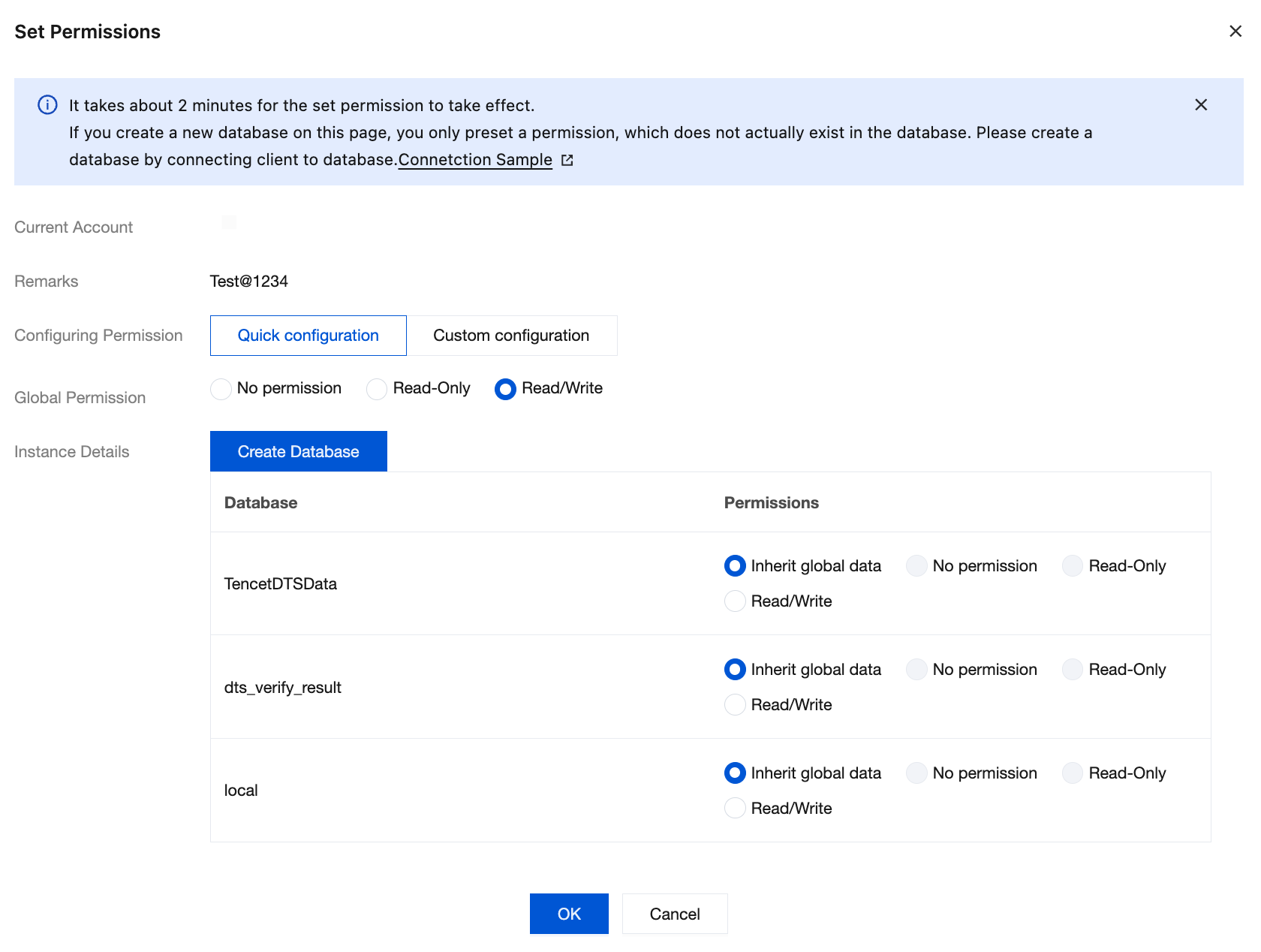
Mode A: Quick configuration for Permission Adjustment
View or modify the account's permissions and its database access permissions, as shown in the figure below. After making adjustments, click OK to save.
In the Global Permission section, adjust the account's default permissions for all databases from the dropdown list: No Access / Read-Only / Read-Write.
In the Instance Details section, you can refine permissions for individual databases, with options to inherit global settings / No Access / Read-Only / Read-Write.
Click Create Database to pre-configure authorization records for the new database in the database list.
Mode B: Custom configuration for Permission Adjustment
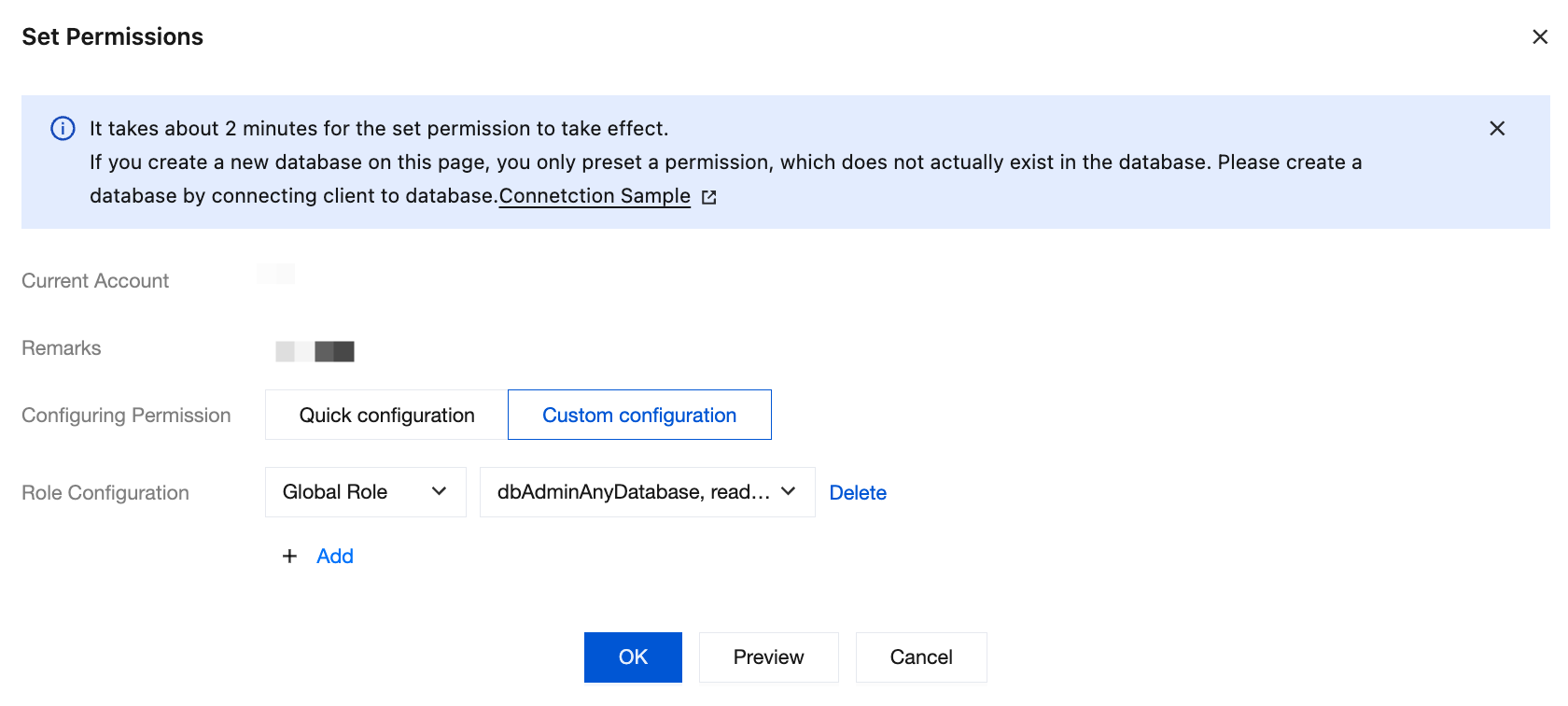
This applies to scenarios requiring fine-grained authorization at the database/table level, or where an account is originally bound to a database role combination, global role, or custom role. After making adjustments, click OK to save.
In Role Configuration, you can directly adjust the role category (Database Role / Global Role / Custom Role), selected role, or database scope for a specific record.
Click Add to create a new authorization record, enabling multi-role and multi-category authorization overlay.
Click Delete to remove an authorization record that is no longer needed.
Click Preview to view the command line preview that will be generated by this adjustment.
Step 3: Copy an Account
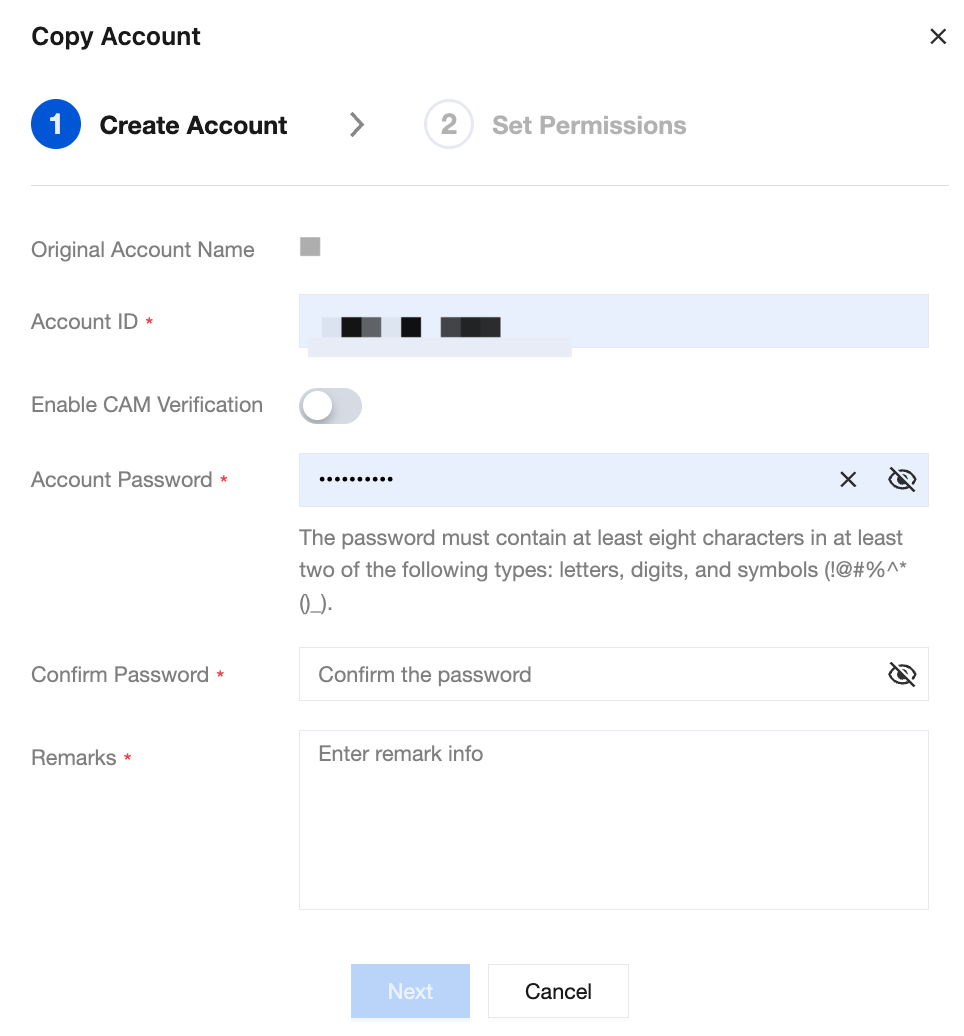
Copy Account is used to quickly create a new account with identical permissions based on the roles of an existing account. For the new account, only the account name, password, and remarks need to be reconfigured.
1. In the row of the target account, click Copy Account in the Operation column.
2. In the Copy Account pop-up window, confirm the Original Account Name, and fill in the new account's account name, password, confirm password, and remarks.
3. Click Next to go to the Set Permissions page. The system automatically selects all roles previously configured for the original account by default.
4. (Optional) Adjust roles or permission scopes based on the original account's permissions.
5. Click OK to complete the creation. After waiting for 2 minutes for the system configuration to take effect, you can use the new account for database access.
Step 4: Reset Password
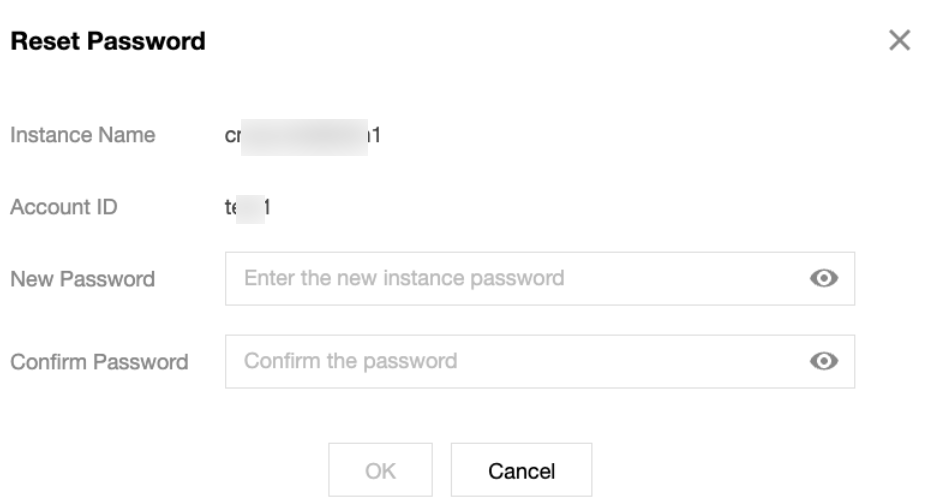
1. In the row of the target account, click Reset Password in its Operation column.
2. In the Reset Password window, enter and confirm the New Password. The password complexity requirements are subject to the prompts on the interface.
The password length must not be less than 8 characters.
The password length must not exceed 32 characters.
It must contain at least two of the following: letters, numbers, and the characters (!@#%^*()_).
3. Click OK to complete the modification.
Step 5: Obtain the Account Connection String
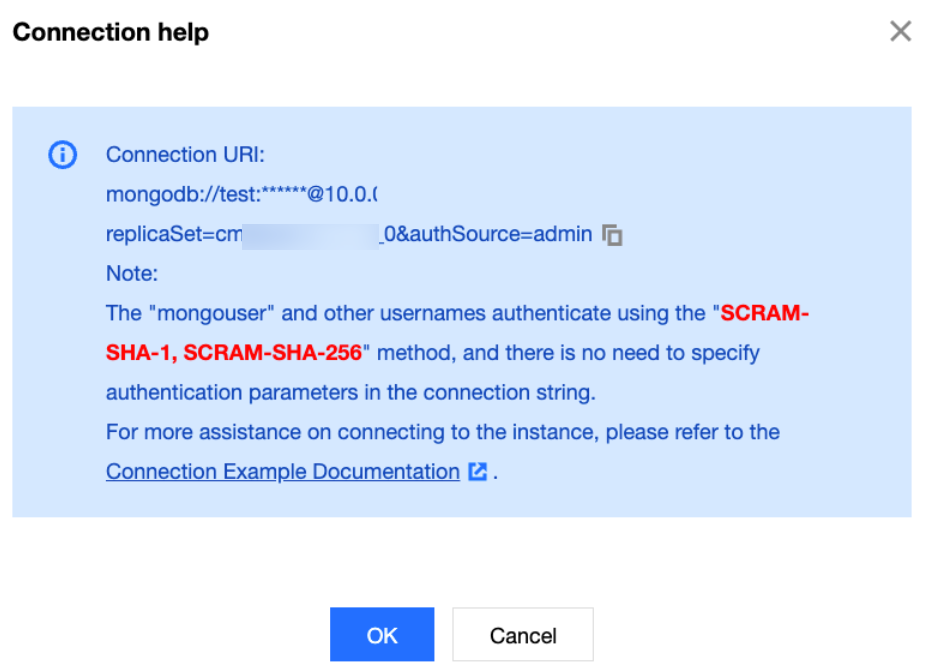
1. (Optional) Find the account to be viewed, and click Connection URI in the operation column to directly copy the connection string used by the account to connect to the database instance in the Connection help window.
2. In the Connection Help window, copy the standard connection string for the account to establish connections to the database instance.
Note:
For accounts not in the admin database, the authSource parameter in the connection string is automatically pointed to the account's database. Do not modify it manually, otherwise authentication will fail.
Step 6: Enable or Disable CAM Verification
Find the account to be viewed, and click Enable CAM Verification in the Operation column to perform identity authentication with the dynamically generated security token. For detailed operations and usage, see Enable CAM Verification.
Step 7: Delete an Account
Find the account to be viewed, click Delete in the operation column, and confirm deletion of the account in the Delete User pop-up window by clicking OK to remove the account.
Attention:
Once an account is deleted, it cannot be recovered, and applications bound to it will immediately lose access permissions. Before deletion, confirm that the account is no longer used by any business. The default system account mongouser and Tencent Cloud's built-in system accounts do not support deletion.
Related APIs
API Name | Feature Description |
Customizes an account to access the instance. | |
Obtains all accounts accessing the current instance. | |
Changes the password of the account accessing the instance. | |
Sets account access permissions for the instance. | |
Delete Account |
FAQs
Why Can Accounts Created via mongo shell Also Be Seen in the Console?
Accounts from the console and the MongoDB kernel are merged and displayed in the account list. Regardless of whether an account is created through the console, mongo shell, or drivers directly in the kernel, it appears in the account list and is managed uniformly by the console. For instance stability, Tencent Cloud's built-in system accounts (in formats such as cmgo-xxxxxxxx) are not displayed.
Where to View Accounts Created in Non-admin Databases?
Accounts not in the admin database are also displayed in the account list, and the Authentication Database field shows the actual database where the account resides. When you obtain the connection URI, the authSource parameter in the connection string is automatically pointed to the account's database, requiring no manual modification.
Will Deleting an Account Also Clean Up Its Authentication Records in Non-admin Databases?
Yes. When an account is deleted, the system synchronously clears its authentication records in the MongoDB kernel, including the user metadata in the account's database. After deletion, the account cannot be used for authentication with any database. Proceed with caution.
Can mongouser Accounts Be Deleted?
No. mongouser is the system default account for the MongoDB instance. It only supports viewing permissions, modifying passwords, and enabling CAM authentication. Permission modification and deletion are not supported. If you do not want to use this account, you can modify its password to prevent external access.
Help and Support
Was this page helpful?
You can also Contact sales or Submit a Ticket for help.
Help us improve! Rate your documentation experience in 5 mins.
Feedback