tencent cloud

Tencent Cloud Distributed Cache (Redis OSS-Compatible)

Release Notes and Announcements
Release Notes
Announcements
User Tutorial
Product Introduction
Overview
Product Strengths
Use Cases
Storage Engine
Product Series
Product Versions
Specifications and Performance
Read/Write Separation
Multi-AZ Deployment
Regions and AZs
Terms
Service Regions and Service Providers
Purchase Guide
Billing Overview
Pricing Center
Instance Purchasing
Renewal (Yearly/Monthly Subscription)
Refund (Yearly/Monthly Subscription)
Overdue Payments
Switching from Pay-as-You-Go to Yearly/Monthly Subscription
Getting Started
Quickly Creating an Instance
Connecting to Redis Instance
Operation Guide
Operation Overview
Connecting to a Database Instance
Managing Instances
Upgrade Instance
Management Node (Redis/ValKey Edition)
Multi-AZ Deployment Management
Backup and Restoration
Managing Accounts
Parameter Configuration
Slow Query
Access Management
Network and Security
Monitoring and Alarms
Event Management (Redis/ValKey Edition)
Data Migration
Global Replication for Redis Edition
Database Audit
Performance Optimization
Sentinel Mode
Development Guidelines
Naming Rules
Basic Usage Guidelines
Design Principles of Key and Value
Command Usage Guidelines
Design Principles of Client Programs
Connection Pool Configuration
Command Reference
Command Reference Overview
Redis Edition and Valkey Edition Command Compatibility
Version Command Usage Differences
Differences Between the Proxy Architecture and Direct Connection Mode
More Command Operations (Redis/Valkey Edition)
Memcached Edition Command Compatibility
Practical Tutorial
Building TencentDB for Redis® Client Monitoring Based on Spring Boot
Redis Client Connection Configuration Policy and Practice
Global SCAN Guide for Cluster Architecture
Eliminating Instances Securely
Hot Key and Big Key
AZ Migration Scheme
Troubleshooting
Connection Exception
Exception Analysis and Solution of Redisson Client Timeout Reconnection
Performance Troubleshooting and Fine-Tuning
API Documentation
History
Introduction
API Category
Making API Requests
Instance APIs
Parameter Management APIs
Other APIs
Backup and Restoration APIs
Region APIs
Monitoring and Management APIs
Log APIs
Data Types
Error Codes
FAQs
General
Connection and Login
Purchase
Service Agreement
Service Level Agreement
Terms of Service
Glossary
Contact Us

Setting Instance Parameters

PDF
Focus Mode
Font Size
Last updated: 2026-03-17 17:45:58

Scenarios

Tencent Cloud Distributed Cache supports customizing some instance parameters. You can use the Tencent Cloud Distributed Cache console to view and modify supported parameters, and view parameter modification records in the console.
Note:
To ensure the stability of the instance, the console only allows modification of some parameters. The parameters displayed on the console's parameter configuration page are the parameters that users can modify.

Edit Parameters

Edit a single parameter.

2. Above the Instance List page on the right, select the target region.
3. In the instance list, click Instance ID to go to the Instance Details page.
4. On the Instance Details page, select the Parameter Settings tab.
5. Select the row of the target parameter, in the Current Value column, hover over the parameter value, and click

to modify the parameter value.


6. Enter the parameter value according to the prompt in the Reference Value column, click

to save, or click

to cancel the operation.


Batch Edit Parameters

2. Above the Instance List page on the right, select the target region.
3. In the instance list, click Instance ID to go to the Instance Details page.
4. Select the Parameter Settings tab and click Modify Current Value.
5. In the Current Value column, select the parameter that needs to be modified and modify it. After confirming that the modification is correct, click OK, and the parameter will be modified.

Import a parameter template for the current instance

2. Above the Instance List page on the right, select the target region.
3. In the instance list, click Instance ID to go to the Instance Details page.
4. Select the Parameter Settings tab and click Import from Template.
5. In the Import from Template dialog box, select the already created parameter template from the drop-down list after Select Parameter Template.
6. Click Import and Overwrite Original Parameters, and all parameters of the current instance will be configured according to the parameter values in the template.

Export Instance Parameters

2. Above the Instance List page on the right, select the target region.
3. In the instance list, click Instance ID to go to the Instance Details page.
4. Select the Parameter Settings tab and click Export Parameters.
5. At the bottom of the page, you will see the exported parameter file, which can be opened locally for viewing.

Viewing Parameter Modification History

2. Above the Instance List page on the right, select the target region.
3. In the instance list, click Instance ID to go to the Instance Details page.
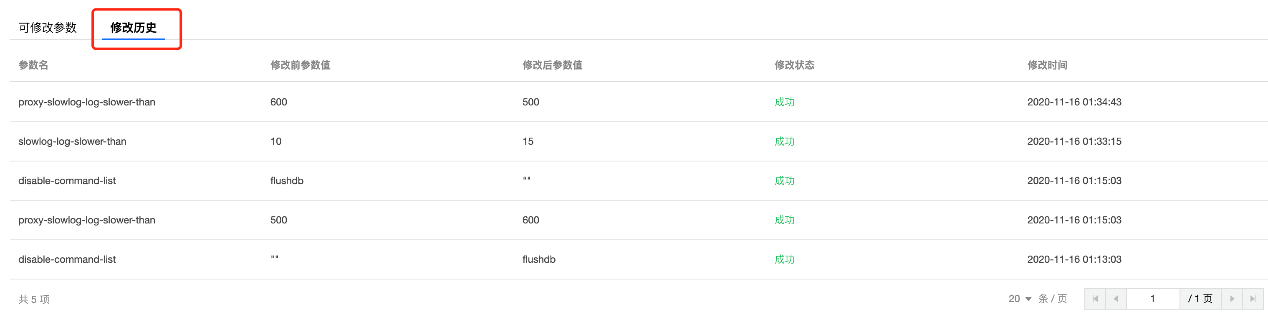
4. Select the Parameter Settings tab, then select the Modification Log tab to view recent parameter modification records.


Related APIs

API
Feature Description
Applies a parameter template.
Creating a Parameter Template
Deleting a parameter template
Queries the list of parameter modifications.
Queries the parameter list of instances.
Querying parameter template list
Modifies instance parameters.
Modifying parameter template

Help and Support

Was this page helpful?

Help us improve! Rate your documentation experience in 5 mins.

Feedback