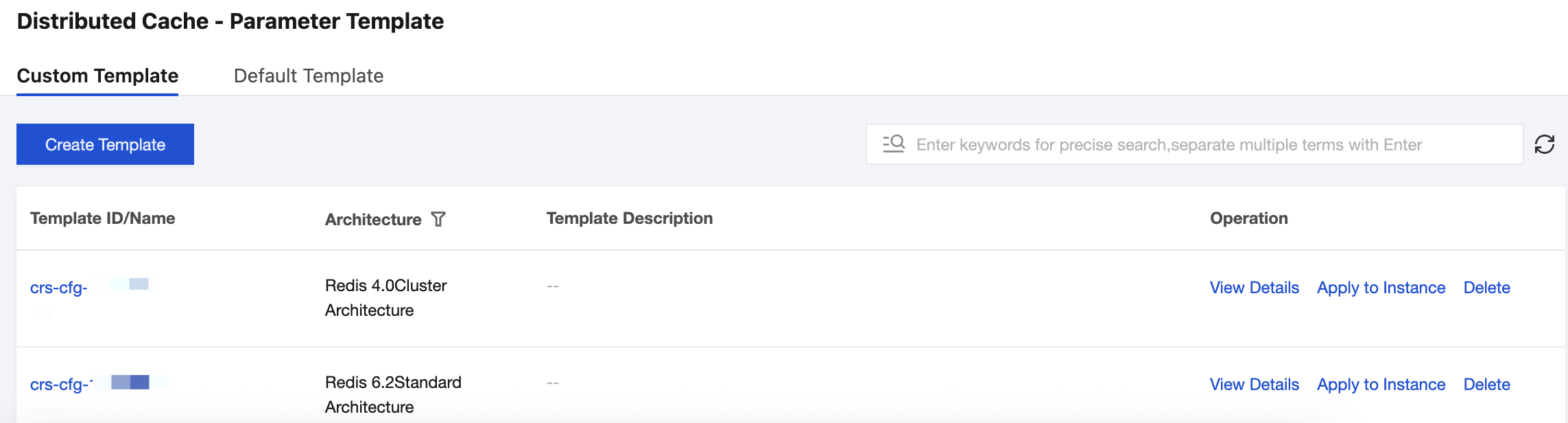
Tencent Cloud Distributed Cache provides the parameter template feature, supporting batch management of database engine parameter configurations through templates. A parameter template is a collection of engine parameter configurations that can be applied to one or more database instances simultaneously, helping you efficiently manage parameter configuration schemes for different business scenarios.
Applies to scenarios that require customizing parameter configuration schemes based on business characteristics (such as high concurrency read/write and big Key scenarios).
Applies to scenarios where multiple instances need to be managed with unified parameter configuration standards to reduce the workload of modifying parameters one by one.
Applies to scenarios where tuned instance parameters need to be saved as templates for quick reuse on new or other instances.
Functional Description
The parameter template feature provides flexible parameter configuration management capabilities. The specific features are as follows.
Note:
If the parameters in the template are updated, the instance parameters are not updated unless they are manually re-applied to the instances.
You can apply the parameter changes to single or multiple instances by importing a template.
Supported Feature
Description
System Default Template
The system provides default parameter templates containing recommended parameter configuration values, which can be directly applied to database instances.
Create Custom Template
Supports creating custom parameter templates by adjusting values based on system default parameters, forming parameter optimization solutions tailored to their business needs.
Save as template from instance
Allows saving the current parameter configuration of a specified instance directly as a template, facilitating the conversion of tuned parameter configurations into reusable solutions.
Importing Parameters from Template
When parameters are configured for single or multiple instances, it supports importing parameter configurations from existing templates to implement batch parameter settings.
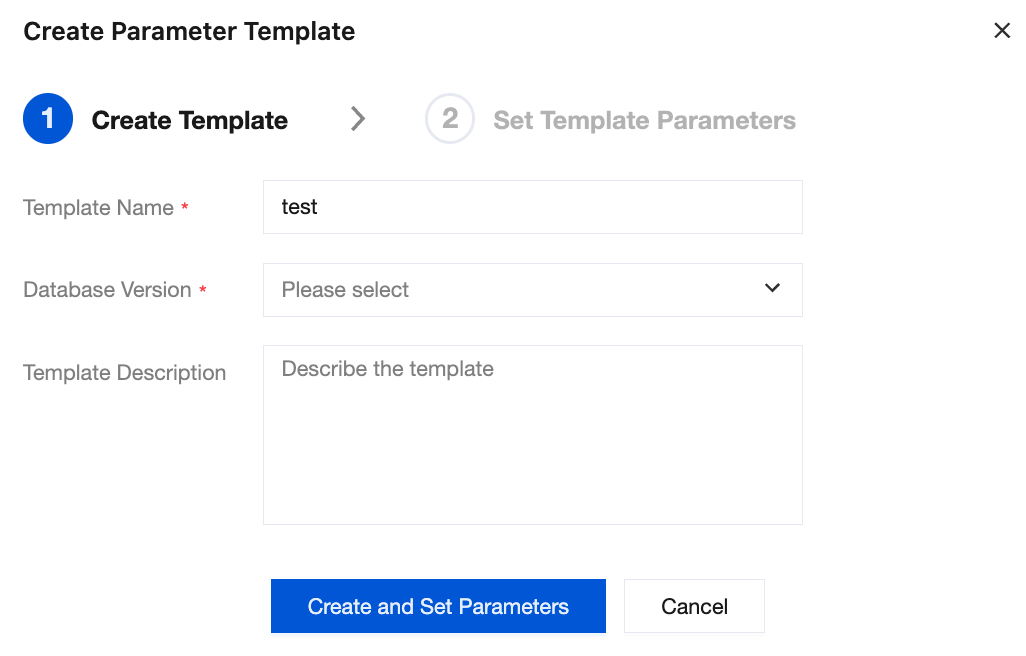
2. In the pop-up window, configure the following parameters and click Create and Set Parameters.
Template Name: Enter a unique template name.
Database Version: Select a database version.
Template Description: Enter a brief description of the parameter template.
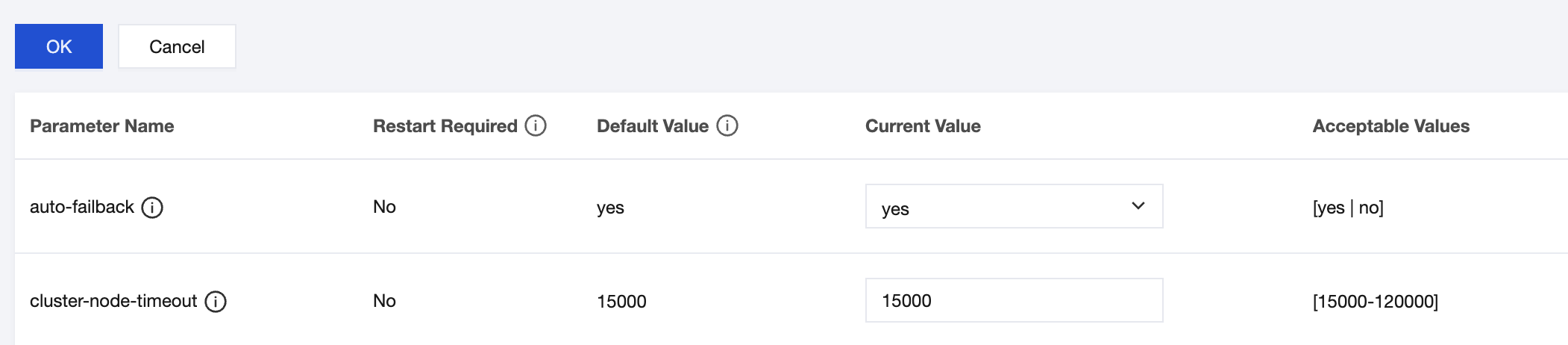
3. On the parameter configuration page of the selected database version, click Batch Modify Parameters. Modify parameters in the Current Value column as needed. After confirming the information, click OK to complete the configuration.
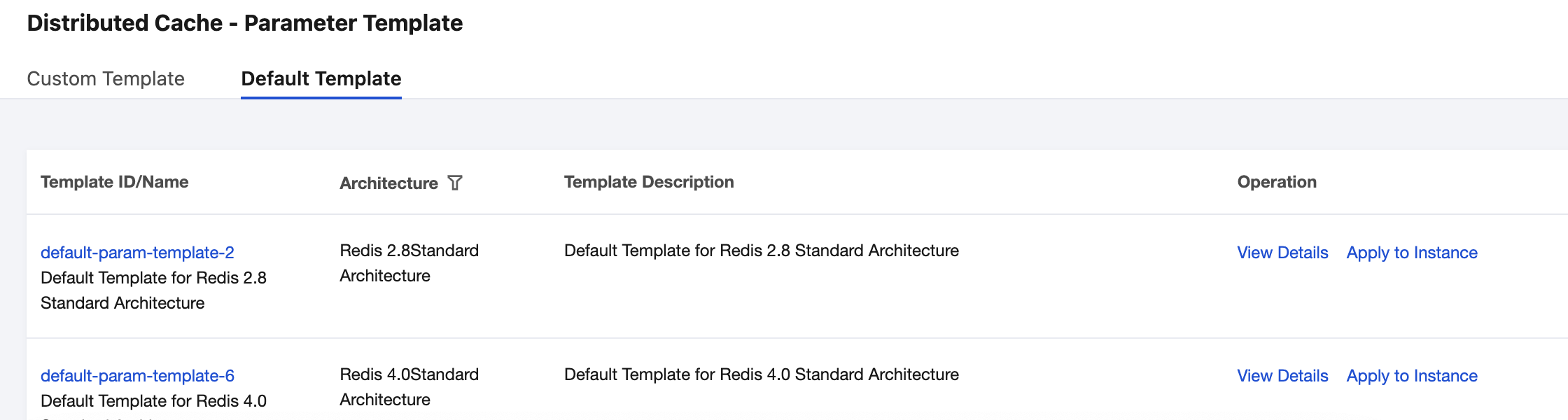
Default template
The system default templates cover parameter configurations for Redis 2.8 (standard architecture), Redis 4.0/5.0/6.2/7.0 (standard and cluster architectures), and Valkey 8.0 (standard and cluster architectures).
Note:
When you purchase an instance, the system automatically matches the appropriate default template based on the selected compatible version and architecture. For detailed directions, see Creating Instance.
Note:
On the Default Template page, you can click View Details to view a template, but on the displayed details page, you cannot do any operation.
Applying a parameter template to instances
Applying to existing instances
Applying a parameter template to one or more instances
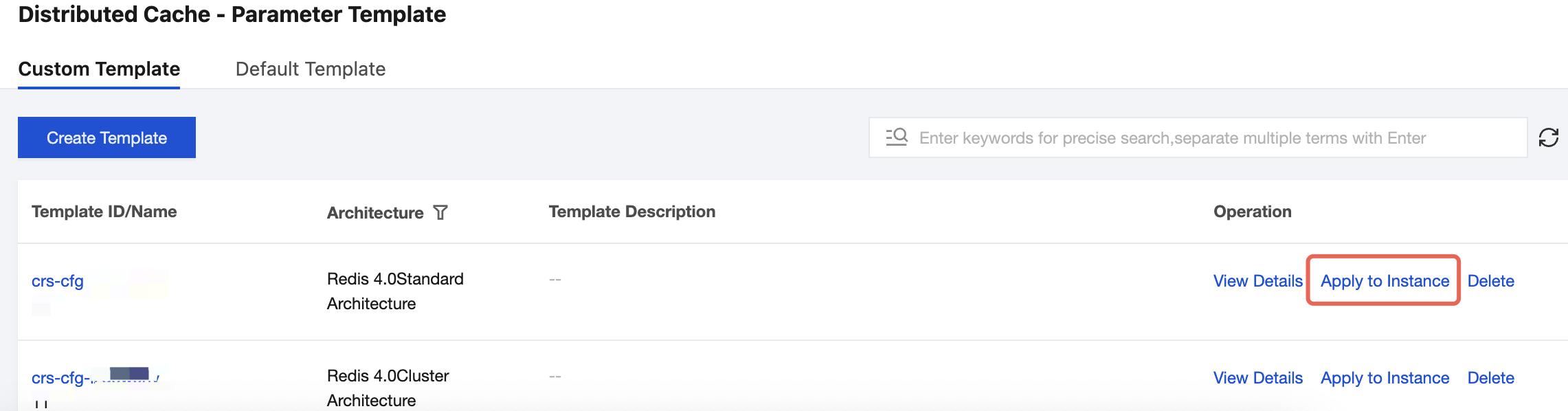
2. In the parameter template list, locate the desired template, and click Apply to Instance in the Operation column. Or, click View Details, enter the template details page, and click Apply to Instance.
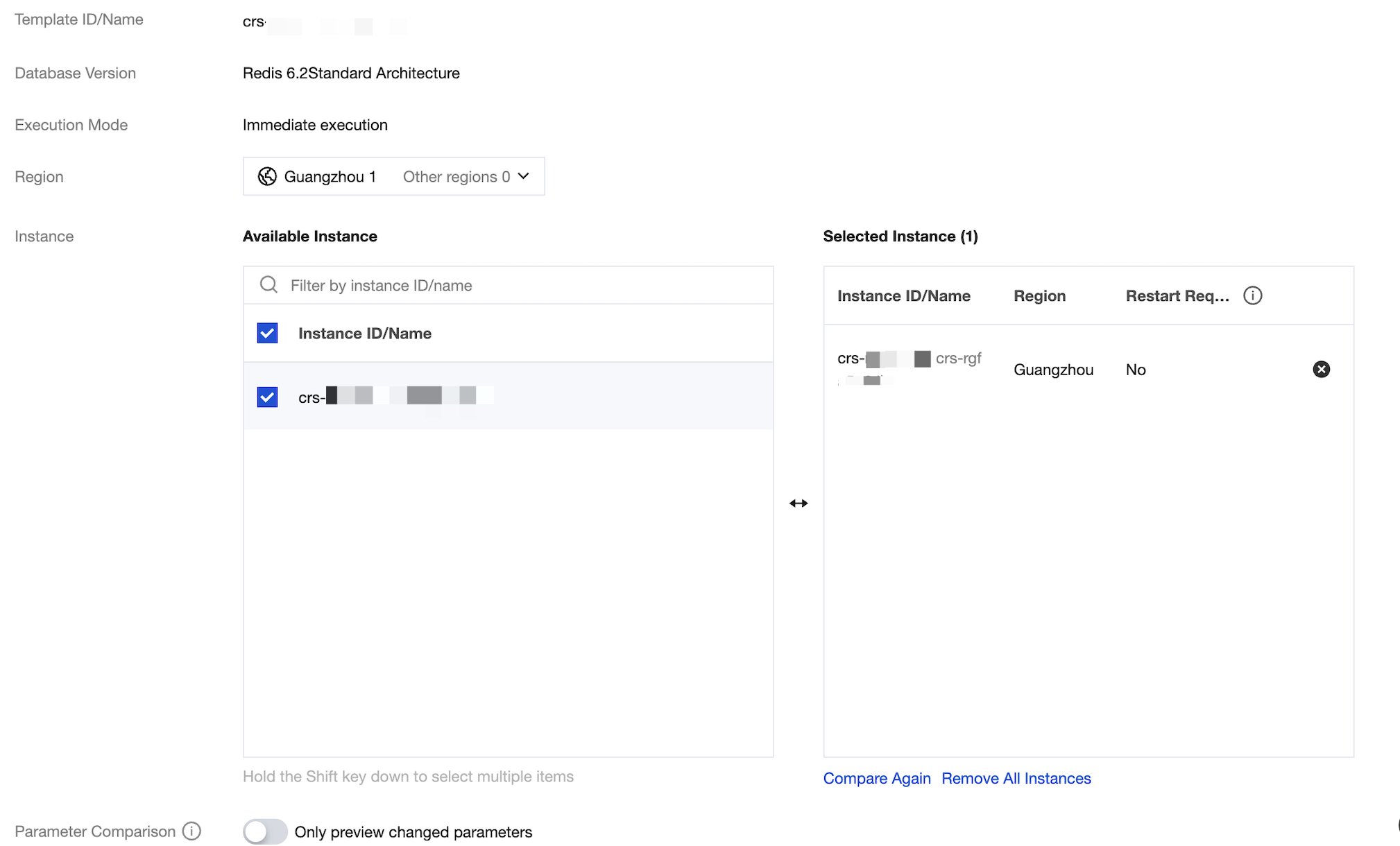
3. On the displayed page, specify the execution mode and instances, make sure that all parameter values are correct, and click Submit.
Redis Instance: Select one or more instances that need to apply the parameter template in the specified region.
Parameter Comparison: View the changed parameter values of the selected instance.
Note:
Before applying a parameter template to multiple instances, make sure that the instances do support those parameters.
Importing a parameter template into the current instance
2. Click the Instance ID on the instance list page to enter the instance management page.
3. On the instance management page, select the Parameter Settings tab.
4. On the Modifiable Parameters tab, click Import from Template.
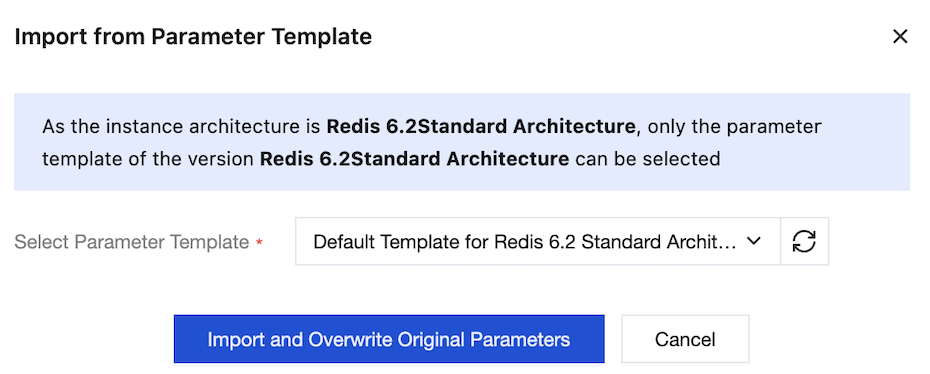
5. In the Import from Parameter Template window, select a created parameter template in the drop-down list after Select Parameter Template.
6. Click Import and Overwrite Original Parameters, and all parameters of the current instance will be configured according to the parameter values in the template.
Applying to new instances
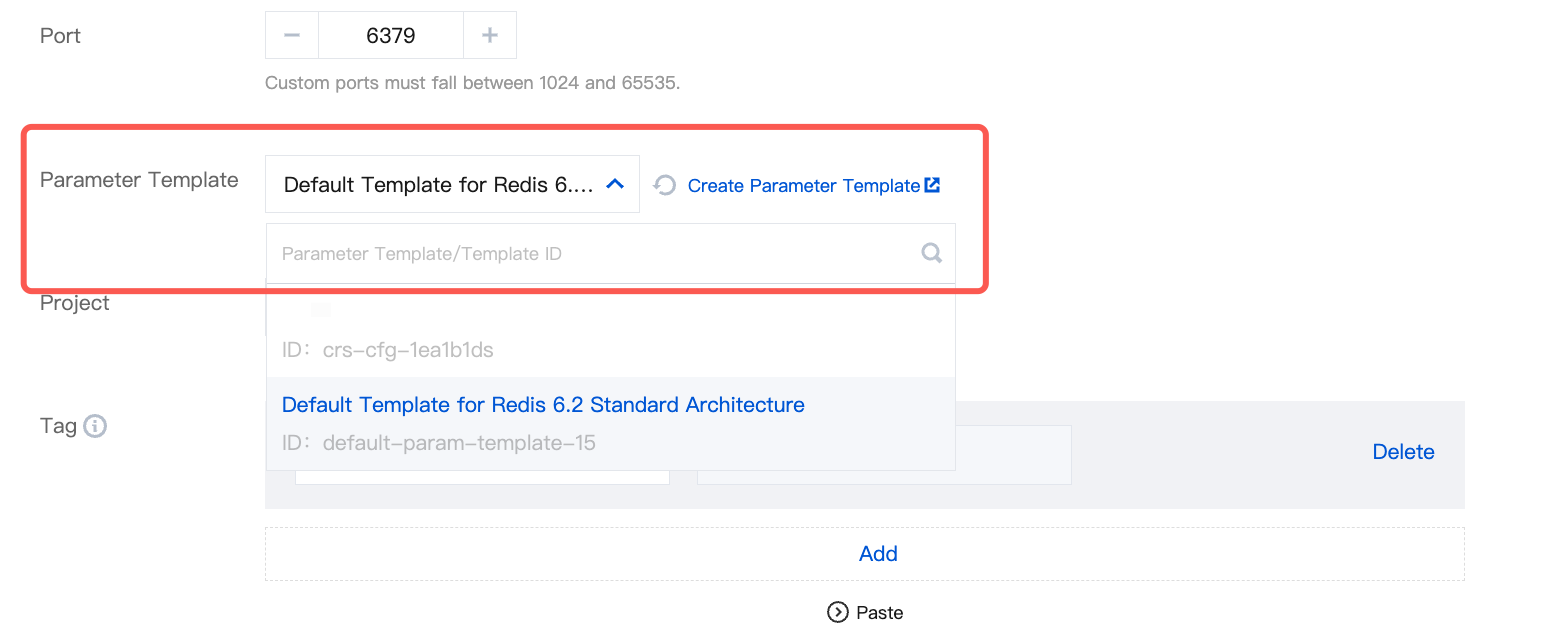
On the instance purchase page, select a default or custom parameter template for the new instances.
Click the selection box next to Parameter Template and a drop-down list with a search box will pop up. The list shows the names and IDs of all existing parameter templates.
Enter the parameter template name or ID in the search box to search for a template.
Save As New Template
To quickly create a new template based on an existing parameter template, save the target template as a new template. The new template will inherit all parameter configurations from the original template. You can then make adjustments as needed without having to reconfigure each parameter individually.
2. Select Parameter Templates on the left sidebar, click the parameter template name or View Details in the Operation column in the template list, and enter the parameter template details page.
3. Click Save as Template.
4. In the pop-up window, specify the following configurations:
Template Name: Enter a unique template name.
Template Description: Enter a brief description of the parameter template.
5. After confirming that everything is correct, click Save.
Option 2
1. Log in to the Tencent Cloud Distributed Cache console, select Instance List on the left sidebar, click an instance ID, and enter the instance management page.
2. On the Parameter Settings tab, click Save as Template.
3. In the pop-up window, specify the following configurations:
Template Name: Enter a unique template name.
Template Description: Enter a brief description of the parameter template.
4. After confirming that everything is correct, click Create and Save.
Modifying parameter values in a parameter template
1. Log in to the Tencent Cloud Distributed Cache console, select Parameter Templates on the left sidebar, click the parameter template name or View Details in the Operation column in the template list, and enter the parameter template details page.
2. Click Batch Modify Parameters or
in the Current Value column to modify parameter values.
Note:
Default templates do not support the Batch Modify Parameters feature, and the Current Value column cannot be modified.