Live Stream Package Configuration
Download
Focus Mode
Font Size
CSS offers the Live Stream Package service, supporting packaging protocols such as HLS - CMAF, DASH - ISO, DASH - CMAF, LL-HLS - TS, and LL-HLS - CMAF.
Package Protocol | Slice Format | Technical Principles | Supported Encoding Formats |
HLS - CMAF | CMAF | Combine the HLS protocol with the CMAF container, utilizing the fMP4 packaging format as a replacement for the traditional MPEG-TS. | Video encoding formats: H.264, H.265, AV1 |
| | | Audio encoding formats: AAC, MP3, OPUS |
DASH - ISO | M4S (ISO BMFF) | Based on the MPEG-DASH standard, the video stream is segmented into multiple short fragments, with each fragment independently encapsulated in the ISO BMFF format. | Video encoding formats: H.264, H.265, AV1 |
| | | Audio encoding formats: AAC, MP3, OPUS |
DASH - CMAF | CMAF | The DASH protocol is seamlessly integrated with the CMAF container, leveraging CMAF's chunked transfer mechanism to achieve low latency. | Video encoding formats: H.264, H.265, AV1 |
| | | Audio encoding formats: AAC, MP3, OPUS |
LL-HLS - TS | TS | The low-latency HLS solution continues to utilize the MPEG-TS encapsulation format, effectively reducing latency by shortening the segment duration and preloading segments. | Video encoding formats: H.264, H.265, AV1, H.266 |
| | | Audio encoding formats: AAC, MP3, OPUS |
LL-HLS - CMAF | CMAF | Low-latency HLS, combined with CMAF, achieves ultra-low latency through segmented encoding. | Video encoding formats: H.264, H.265, AV1 |
| | | Audio encoding formats: AAC, MP3, OPUS |
Prerequisites
You have activated CSS and logged in to the CSS console.
You have added a playback domain.For more details, please refer to Adding Your Own Domain.
Must-Knows
The first package configuration is expected to take effect in 15 minutes. Using the live stream package feature will incur live stream package fees.
Due to Safari browser limitations, HTTPS 2.0 needs to be enabled for pulling over low-latency HLS in environments such as Safari and iOS. Otherwise, the stream cannot be playbacked.
It is recommended to maintain a stable GOP value for the live stream during broadcasting. The GOP value at the push side or transcoding side is advised to be set to 1 or 2 seconds.
Using the pulling parameter txPackageType during pulling can achieve playback of live streams in the corresponding container format. The parameter indicates the container format. Valid values: hls-cmaf, dash-iso, dash-cmaf, ll-hls-ts, and ll-hls-cmaf.
Note:
Example of Playback URL Construction:
HLS - CMAF Playback URL Example
http(s)://${your_domain_name}/${path}/${streamname}.m3u8?txPackageType=hls-cmafDASH - ISO Playback URL Example
http(s)://${your_domain_name}/${path}/${streamname}.mpd?txPackageType=dash-isoDASH - CMAF Playback URL Example
http(s)://${your_domain_name}/${path}/${streamname}.mpd?txPackageType=dash-cmafLL-HLS - TS Playback URL Example
http(s)://${your_domain_name}/${path}/${streamname}.m3u8?txPackageType=ll-hls-tsLL-HLS - CMAF Playback URL Example
http(s)://${your_domain_name}/${path}/${streamname}.m3u8?txPackageType=ll-hls-cmaf
Create Configuration for Live Stream Package
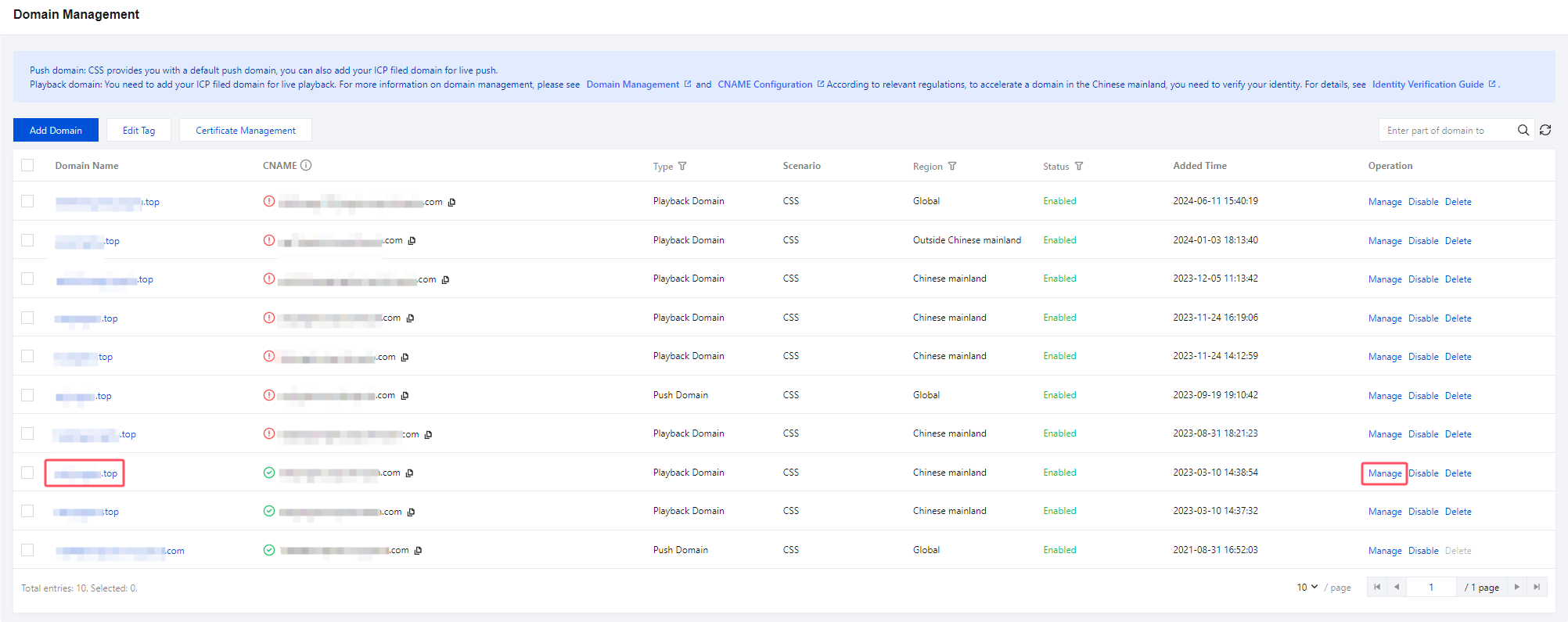
1. Log in to the CSS console, Select Domain Management , and click the playback domain for which you want to configure a Live Stream Package, or click Manage on the right to access the domain management page.
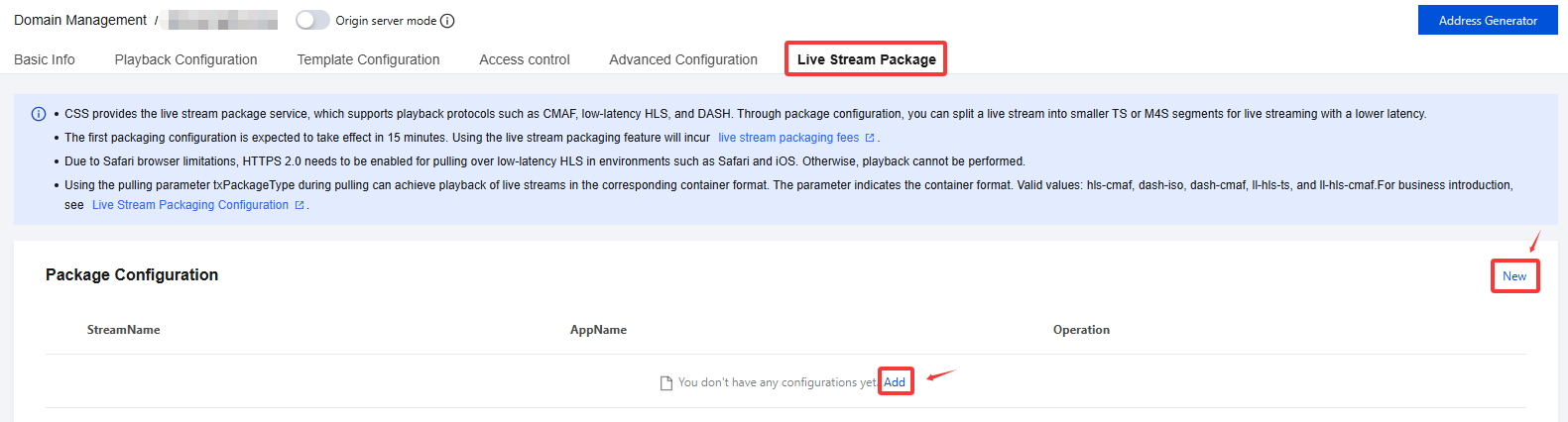
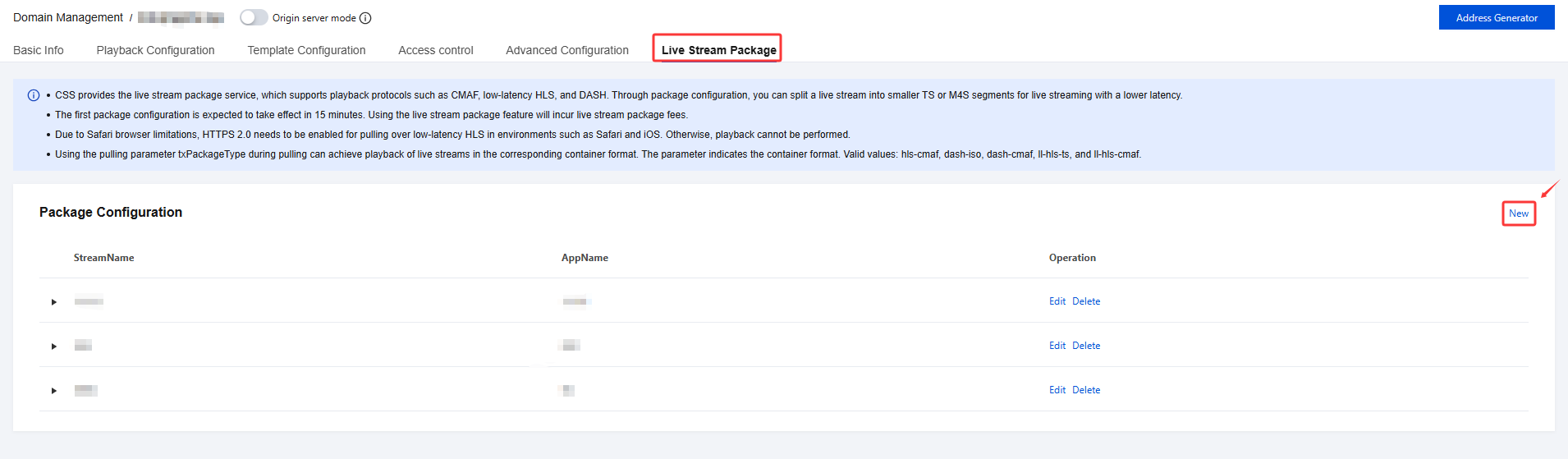
2. Select the Live Stream Package. If you need to add a new package, you can click Add or New on the right to configure a new Live Stream Package.
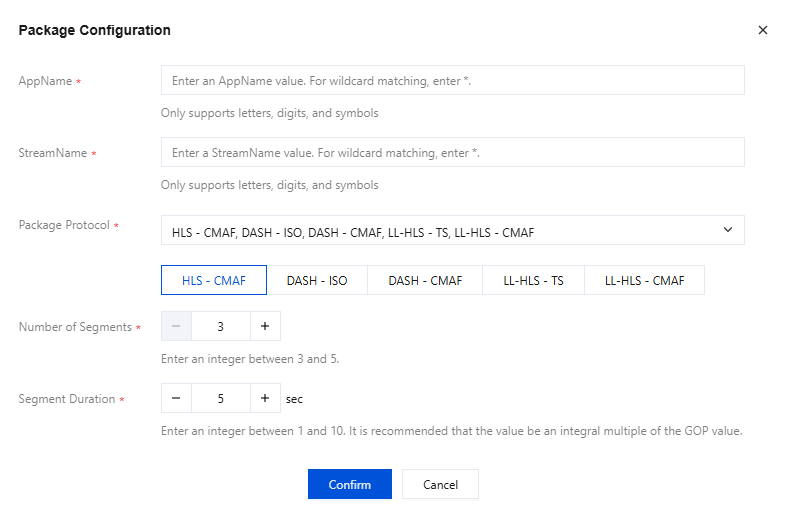
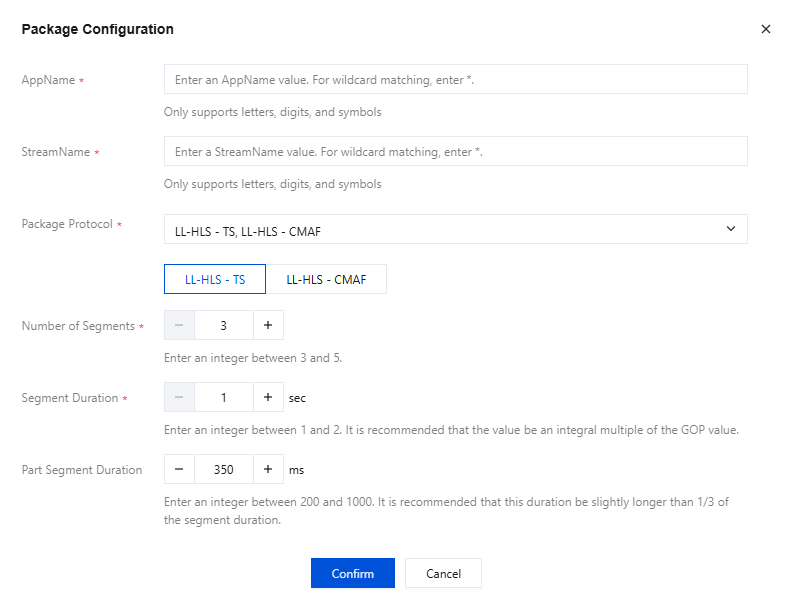
3. In the pop-up window, you can configure the settings according to your specific business requirements.
Configuration Item | Required Item | Description |
AppName | Yes | Only supports letters, digits, and symbols.* serves as a wildcard. |
StreamName | Yes | Only supports letters, digits, and symbols.* serves as a wildcard. |
Package Protocol | Yes | Supports multiple selections; you may choose from the following options: HLS-CMAF DASH-ISO DASH-CMAF LL-HLS-TS LL-HLS-CMAF |
Number of Segments | Yes | The default value is 3, with an allowable range of integers from 3 to 5. |
Segment Duration | Yes | When the Package Protocol is set to HLS - CMAF, DASH - ISO, or DASH - CMAF, the default value for Segment Duration is 5, with an allowable range of integers from 1 to 10. It is recommended to configure this parameter as an integer multiple of the GOP value. |
| | When the Package Protocol is set to LL-HLS - TS or LL-HLS - CMAF, the default value is 1, with an allowable range of integers from 1 to 2. It is recommended to configure this parameter as an integer multiple of the GOP value. |
Part Segment Duration | Yes | Part Segment Duration must be configured only when selecting the LL-HLS - TS or LL-HLS - CMAF Package Protocol. The default value is 350, with an acceptable range of integers between 200 and 1000, measured in milliseconds (ms). It is recommended to set this value slightly greater than one-third of the segment duration. |
4. Click Confirm to save the configuration.
5. Based on your specific business requirements, click New on the right to proceed with adding the Live Stream Package configuration.
Viewing Live Stream Package Configuration
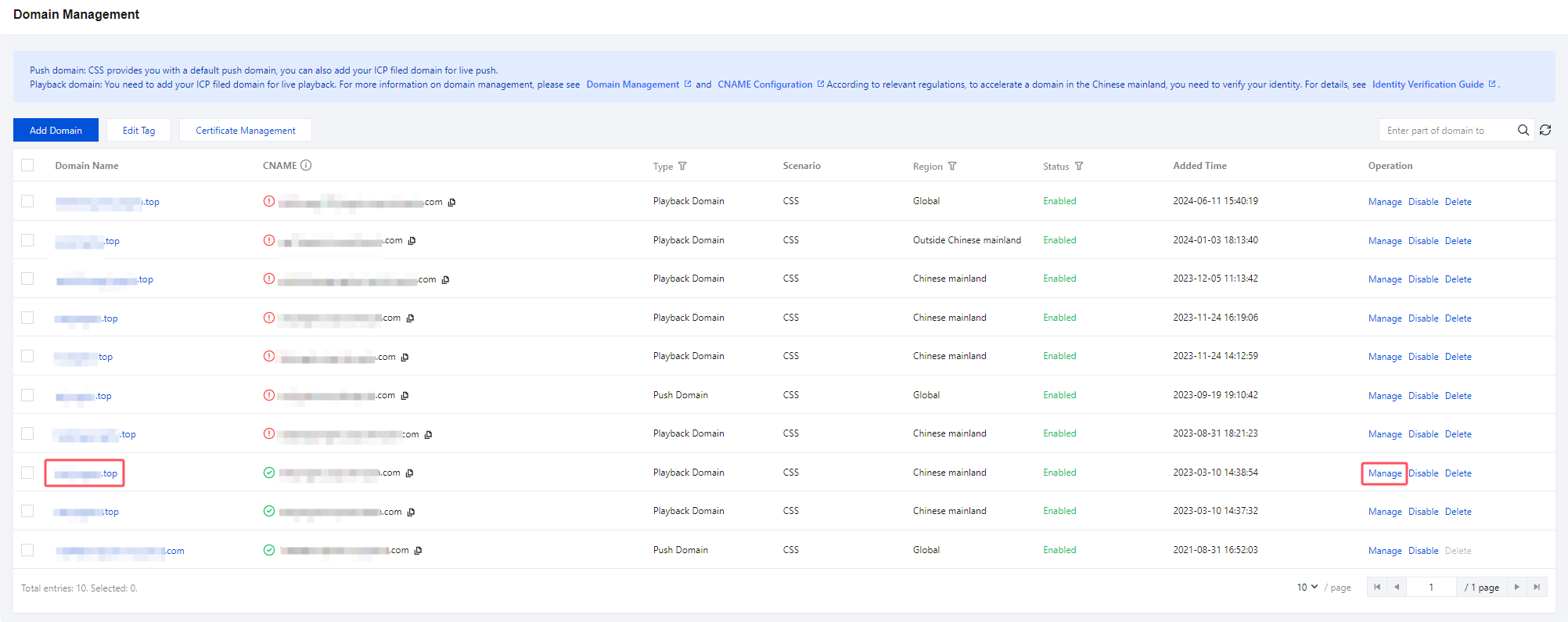
1. Log in to the CSS console, Select Domain Management , and click the playback domain for the Live Stream Package you want to view, or click Manage on the right to access the domain management page.
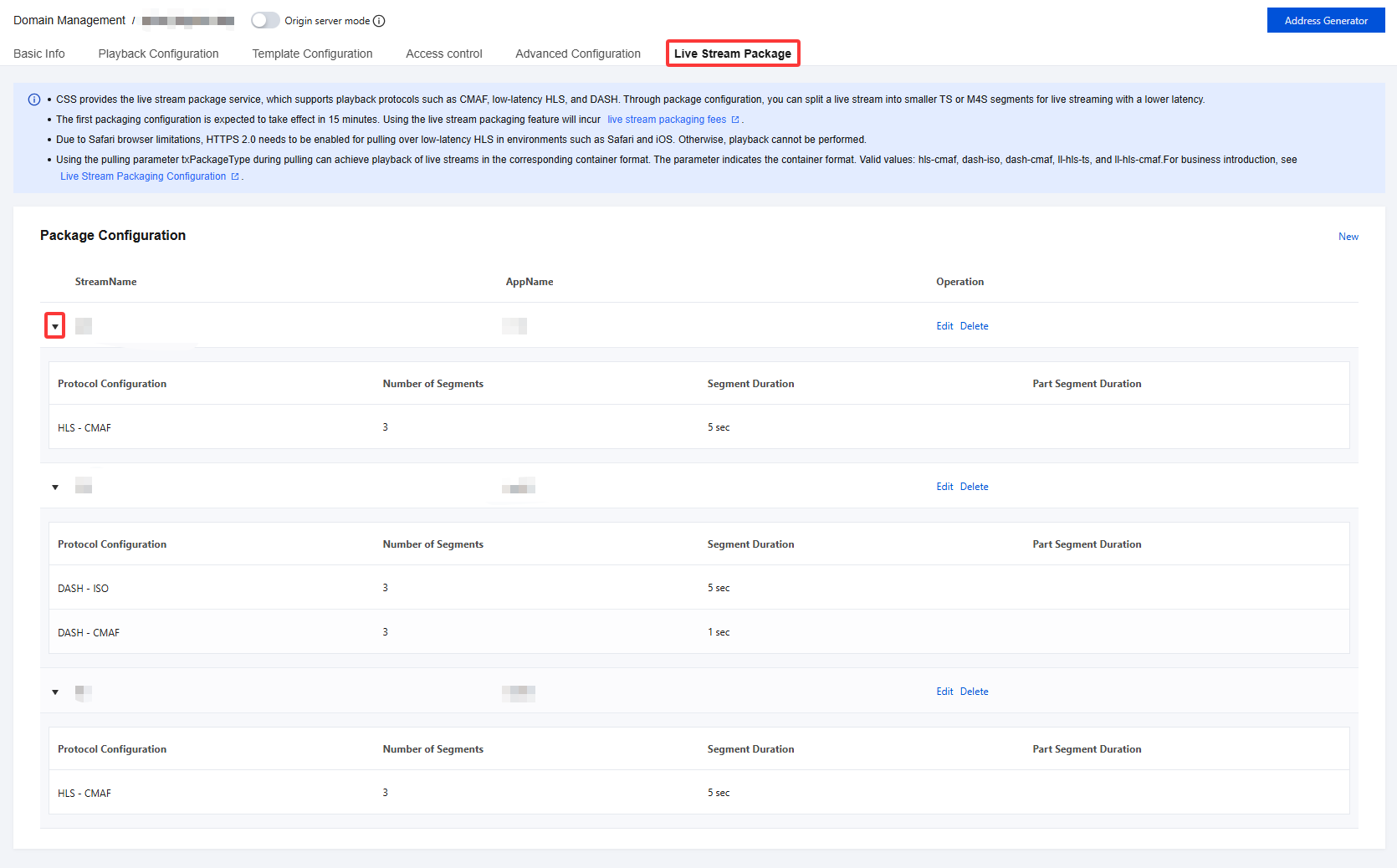
2. Select the Live Stream Package and click the triangular icon on the left to reveal the expanded Package Protocol options.
Modify Live Stream Package Configuration
1. Log in to the CSS console, Select Domain Management , and click the playback domain of the Live Stream Package you want to modify, or click Manage on the right to access the domain management page.
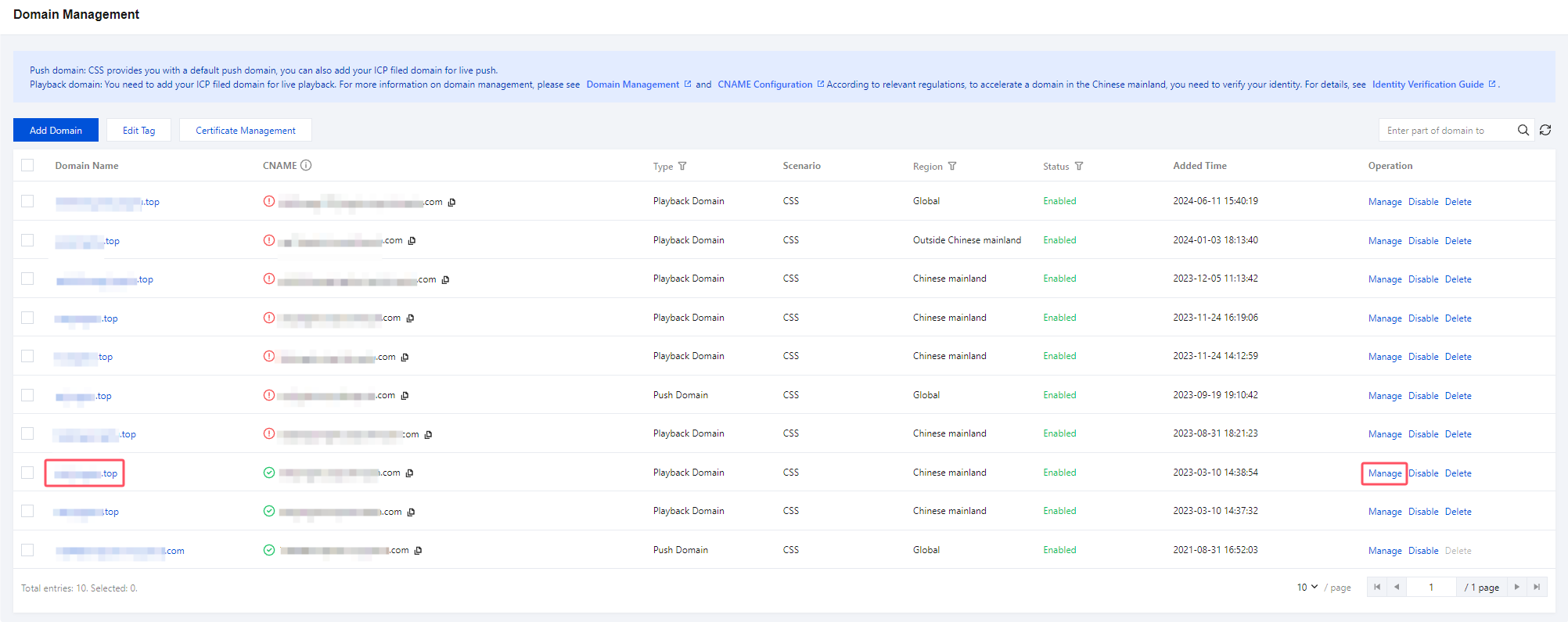
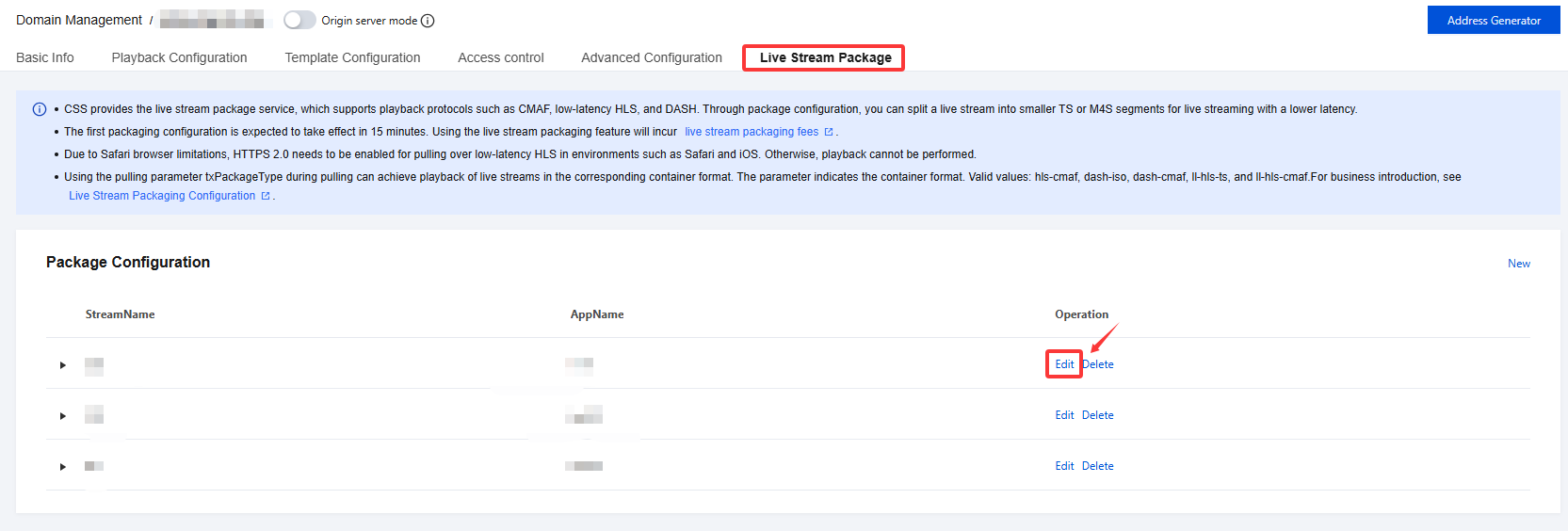
2. Select the Live Stream Package and click Edit to access the packaging configuration page.
3. Modify the configuration settings according to your specific requirements, then click Confirm to finalize the changes.
Delete Live Stream Package Configuration
1. Log in to the CSS console, Select Domain Management , and click the playback domain for the Live Stream Package you want to delete, or click Manage on the right to access the domain management page.
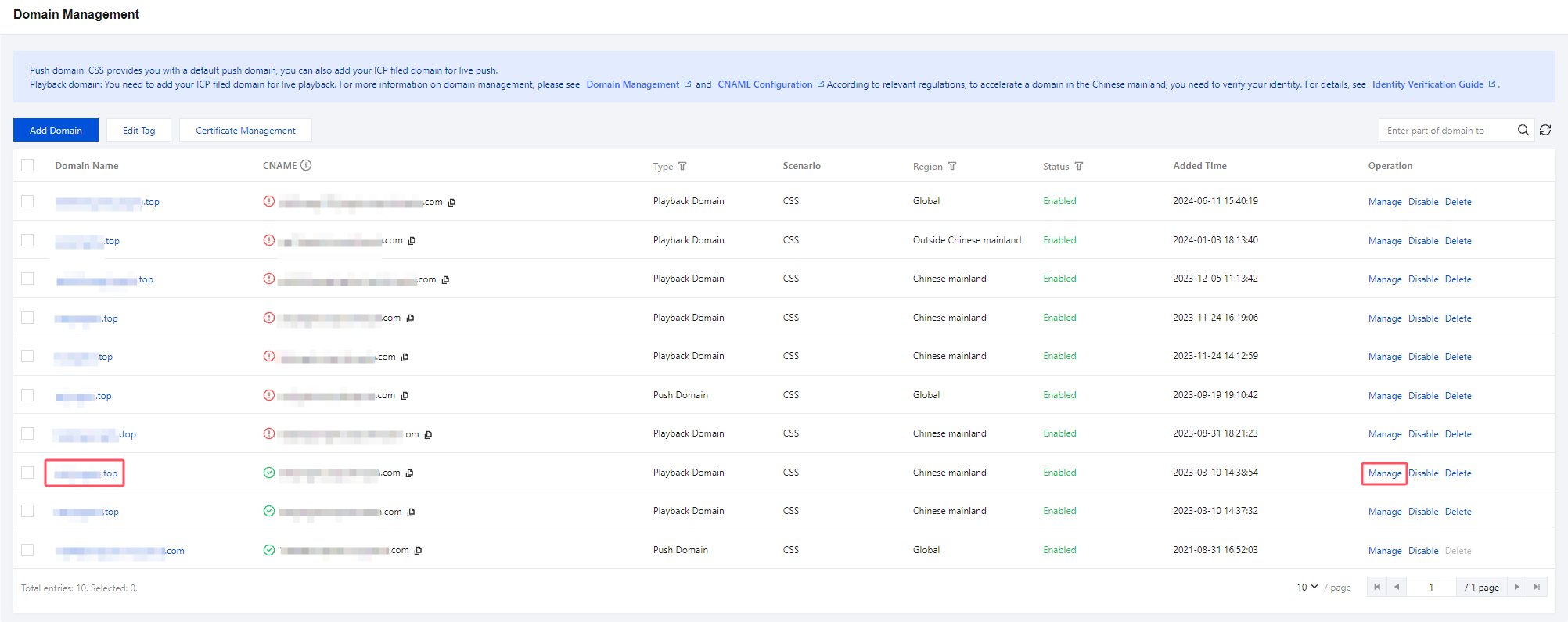
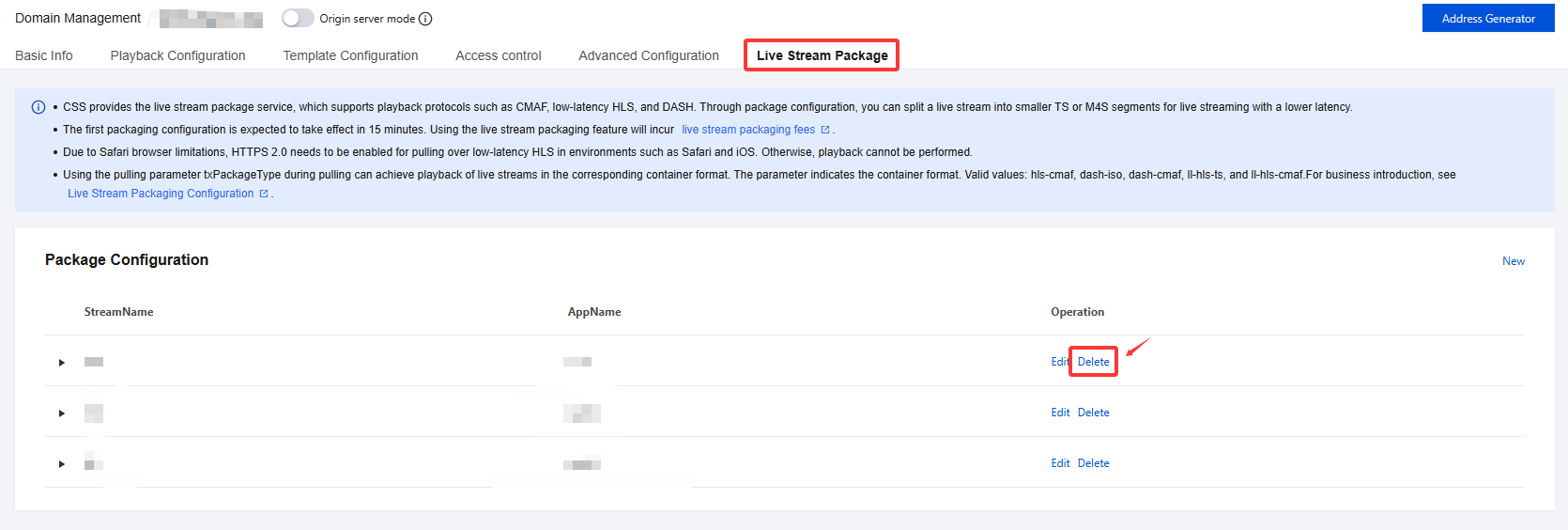
2. Select the Live Stream Package, choose the successfully configured Live Stream Package, and click Delete in the upper-right corner.
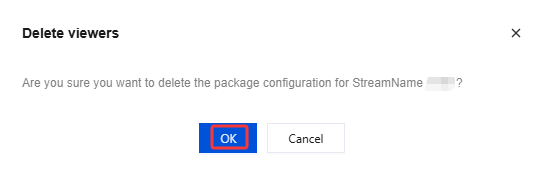
3. Confirm whether to delete the current packaging configuration. Click OK to proceed with the deletion successfully.
Help and Support
Was this page helpful?
You can also Contact sales or Submit a Ticket for help.
Help us improve! Rate your documentation experience in 5 mins.
Feedback