Log in to the CSS console and enter Stream Management. Stream Management includes interrupting live streams and disabling live streams, as well as viewing Live Streams, Primary/Backup Streams, Stream History, Disabled Streams, and their detailed information. Here is a brief introduction and usage of these features:
Live Streams Management
Log in to the CSS console, then navigate to Stream Management > Live Streams, and perform operations according to your actual business needs.
Preview live stream
In the Live Streams list, you can select the domain and corresponding online stream you want to query. Click "Preview" on the right to view the real-time live streaming image, Smart Highlight, and Smart Highlight information.
Note:
Smart Highlight and Summary are expected to be generated 5 minutes after the Live Stream begins.
Click on the streaming data on the right side to view detailed information of the online live stream, such astraffic, bandwidth, frame rate, bitrate, etc.
Interrupt live stream
Click Stream Interruption on the right to interrupt the current live stream publishing.
Note:
After the interruption, the current live stream will stop publishing. You can resume the live stream by republishing with the same Stream Name.
Standby stream
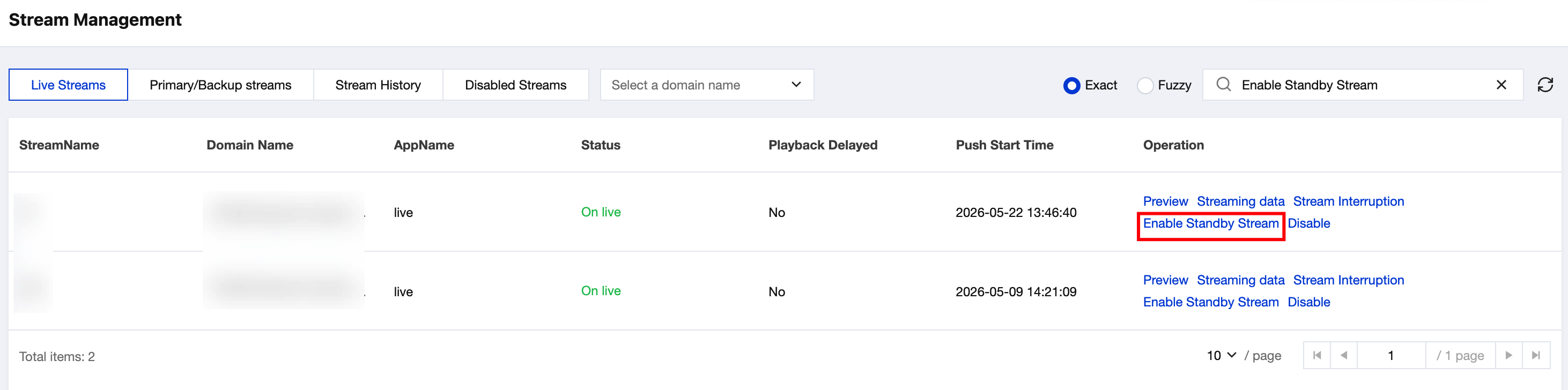
Enable standby stream
Note:
After manually switching a live stream to the standby stream, the standby stream will continue running until it is manually stopped or automatically disconnected after 10 days. Billing will continue during this period.
The standby stream takes effect immediately after being enabled, but the page status may take 1–30 seconds to update.
Click Enable Standby Stream to manually switch to the standby stream.
Disable Standby Stream
Disable the standby stream according to your actual business needs and specific circumstances.
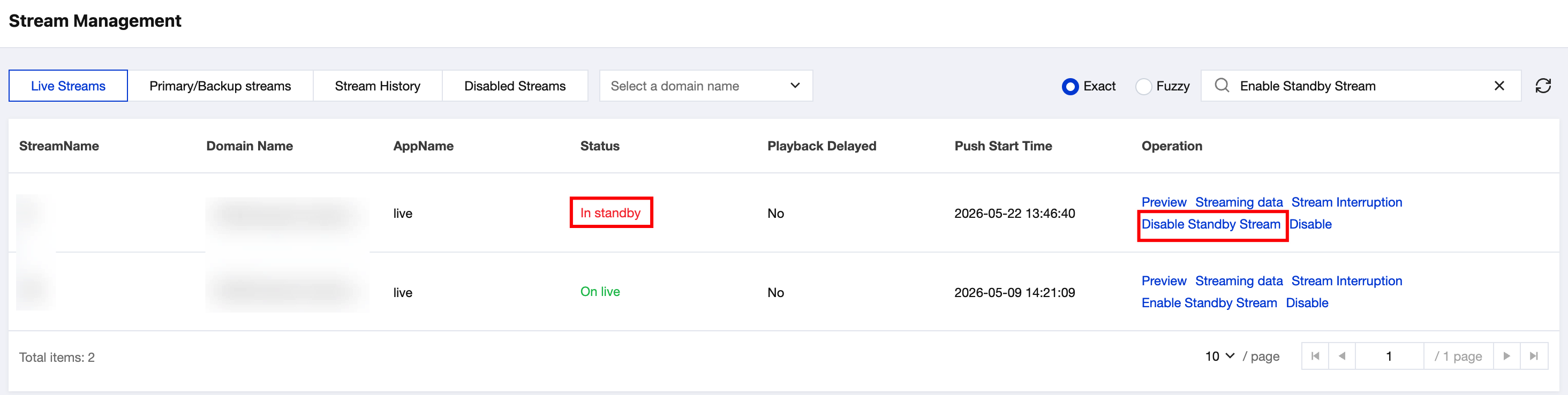
When the live stream is active
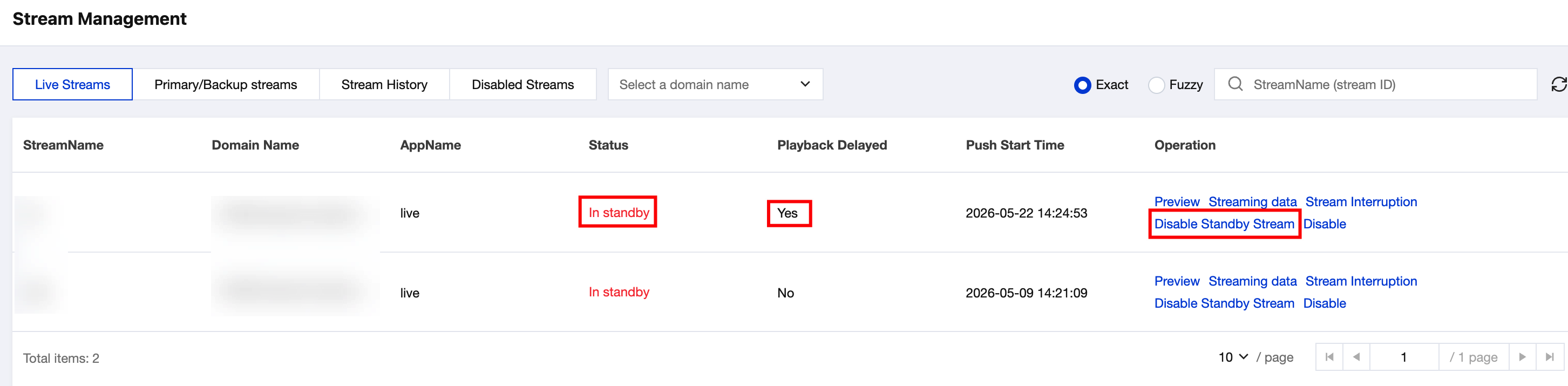
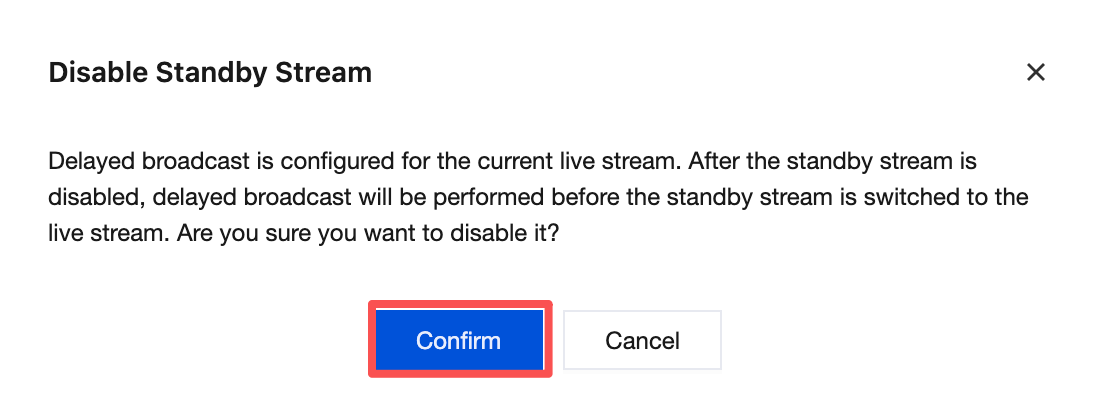
When stream delay is configured
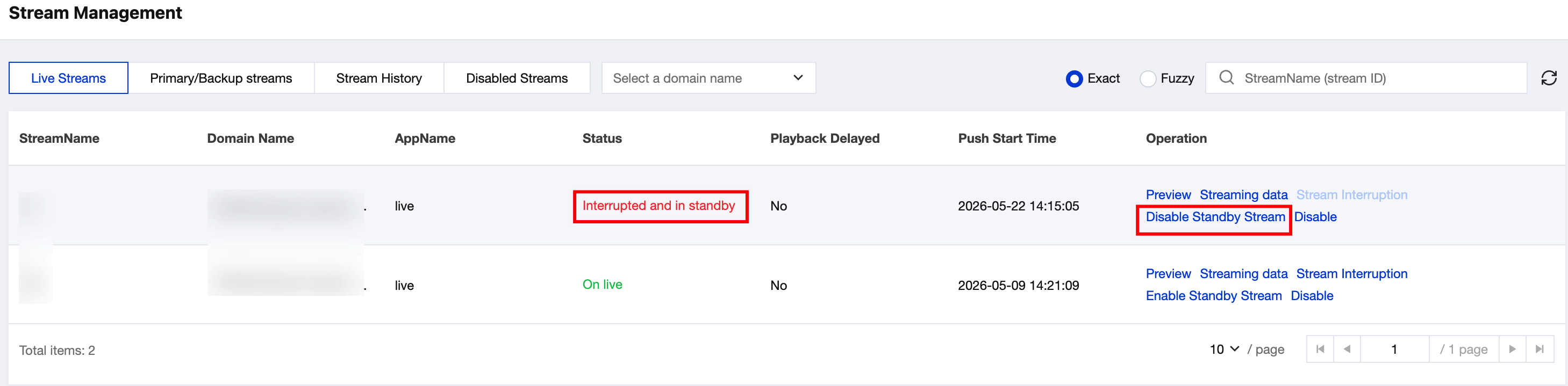
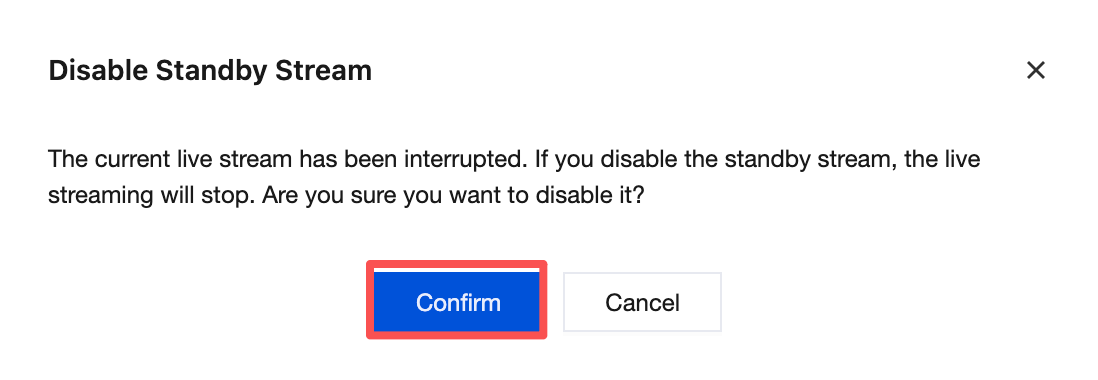
When the live stream is disconnected
1. Click Disable Standby Stream.
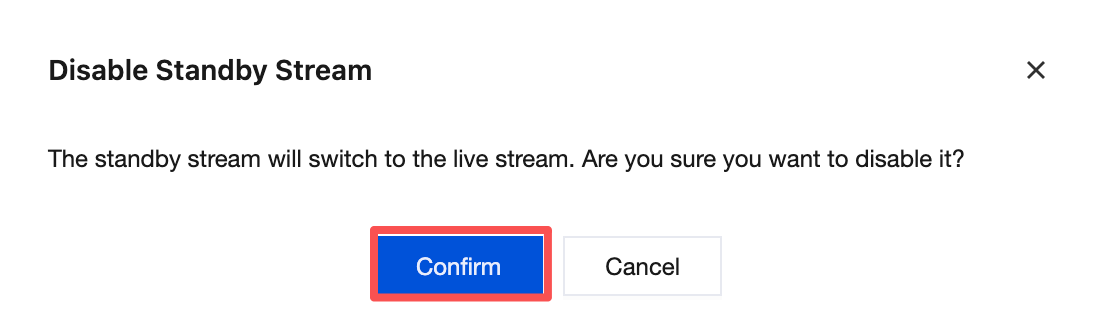
2. After clicking Confirm, the live stream resumes.
Note:
When the standby stream is disabled for a delayed stream, the standby stream will continue playing through the delay period before switching back to the live stream.
1. Click Disable Standby Stream.
2. After clicking Confirm, the stream will automatically switch back to the live stream once the standby stream delay ends.
1. Click Disable Standby Stream.
2. After clicking Confirm, the standby stream is disabled and the live stream will be disconnected.
Disable live stream
Click Disable to disable the live stream.
Note:
After disabling, the current live stream will stop publishing (republishing is not possible for the current Stream Name until it is re-enabled). You can manually resume it or it will be automatically enabled after 7 days by default.
Primary and backup stream management
The primary and backup stream feature refers to the system's ability to automatically merge and output two live streams with the same Stream ID. The primary stream's content is prioritized for playback. If there are issues with the primary stream's content, you can automatically or manually switch to the backup stream content to ensure the stability of the live image. The primary and backup streams can be enabled or disabled for optimal scheduling. When optimal scheduling is enabled, the system will dynamically evaluate the quality of each stream and select the highest-quality stream as the primary stream,
The primary and backup streams automatically become invalid after they end.
Log in to the CSS console, then navigate to Stream Management > Primary/Backup streams, and perform operations according to your actual business needs.
Preview live stream
Click Preview on the right to view the real-time live streaming image.
View stream data
Click on the stream data on the right side to view detailed information of the online live stream, such astraffic, bandwidth, frame rate, bitrate, etc.
Optimal Scheduling Management
Enable optimal scheduling
Click
,to enable optimal scheduling. When optimal scheduling is enabled, the system will dynamically evaluate the quality of each stream and select the highest-quality stream as the primary stream, The primary and backup streams automatically become invalid after they end.
Disable Optimal Scheduling
Click
,to disable optimal scheduling.
Primary and Backup Stream Switching
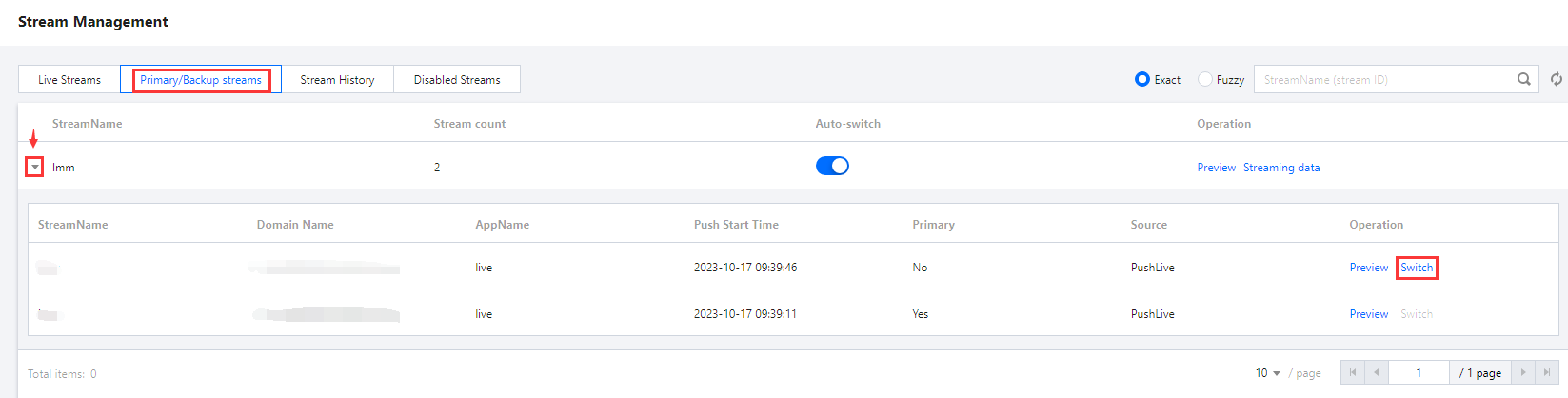
Click on the left-pointing triangle to expand the manual switch to the standby option.
Click the Switch on the right side to switch between the main and backup streams. By manually switching the main and backup streams, you can flexibly deal with issues that may arise during the live broadcast.
Stream History Management
Log in to the CSS console, then navigate to Stream Management > Stream History, You can query historical live stream data and perform operations according to your actual business needs.
Replay Historical Live Stream
In the historical stream list, you can select the domain name to be queried and the corresponding historical live stream. Click Replay to view Historical live screen, smart highlight, and intelligent summary information.
In the historical stream list, you can select the domain name to be queried and the corresponding historical live stream. Click Disable to disable the historical live stream.
Note:
After being disabled, the current live broadcast will stop pushing (streaming cannot be re-pushed until the current StreamName is restored). It can be manually restored or automatically enabled after 7 days by default.
You can view stream history in the past 7 days under the Stream History tab or query records in the past month in Stream Interruption Records.
View streaming data
Click on the Streaming data on the right side to view detailed information of the online live stream, such as traffic, bandwidth, frame rate, bitrate, etc.
Disabled Streams Management
Log in to the CSS console, then navigate to Stream Management >Disabled Streams, and perform operations according to your actual business needs.
Enable live streaming
In the Disabled Streams list, select the corresponding disabled live stream and click Enable to resume the live stream publishing.
View streaming data
Click on the streaming data on the right side to view detailed information of the online live stream, such as traffic, bandwidth, frame rate, bitrate, etc.