tencent cloud

Chat

News and Announcements
Release Notes
Announcements
Product Introduction
Overview
Basic Concepts
Scenarios
Features
Account System
User Profile and Relationship Chain
Message Management
Group Related
Official Account
Audio/Video Call
Use Limits
Purchase Guide
Billing Overview
Pricing
Purchase Instructions
Renewal Guide
Service Suspension Explanation
Refund Policy
Development Guidelines
Demo Zone
Activate Service
Free Demos
Quick Run
Download
SDK and Demo Source Code
Update Log
Chat Interaction (UI Included)
TUIKit Introduction
Getting Started
Full-feature Integration
Single-function Integration
Build with AI
Build Basic Interfaces
More Features
Customizing Appearance
Internationalization
Push Service
Overview
Noun explanation
Activate the Service
Quick Start
Manufacturer Channel
Statistics
Troubleshooting Tool
Client APIs
REST API
Push Callback
Advanced Features
Release Notes
Error Codes
FAQS
Desk
Overview
Quick Start
Integration Guide
Admin Operation Manual
Agent Manual
More Practices
Live Streaming Setup Guide
AI Chatbot
Super Large Entertainment and Collaboration Community
Discord Implementation Guide
How to Integrate Chat into Games
WhatsApp Channel-style Official Account Integration Solution
Send Red Packet
Firewall Restrictions
No UI Integration
Quick Start
SDK Integration
Initialization
Login and Logout
Message
Conversation
Group
Community Topic
User Profile and Relationship Chain
Offline Push
Cloud Search
Local Search
Official Channel Management
Client APIs
JavaScript
Android
iOS & macOS
Swift
Flutter
Electron
Unity
React Native
C APIs
C++
Server APIs
Secure authentication with UserSig
RESTful APIs
Webhooks
Console Guide
New Console Introduction
Creating and Upgrading an Application
Basic Configuration
Feature Configuration
Account Management
Group Management
Official Channel Management
Webhook Configuration
Usage
Viewing Guide for Resource Packages
Real-Time Monitor
Auxiliary Development Tools
Access Management
Advanced Features
FAQs
uni-app FAQs
Purchase
SDK
Account Authentication
User Profile and Relationship Chain
Message
Group
Audio-Video Group
Nickname and Profile Photo
Security Compliance Certification
Service Level Agreement
Security Compliance Certification
Chat Policies
Privacy Policy
Data Privacy and Security Agreement
Migration
Migration Solutions
Migration Solutions Lite
Error Codes
Contact Us

iOS

PDF
Focus Mode
Font Size
Last updated: 2026-03-03 14:24:42
This document will guide you through integrating TUIKit or TUIChat and successfully sending your first message.
Or, if you prefer a faster and more automated approach, you can refer to Get started with AI integration to streamline the process.

Environment Requirements

Xcode 10 or later
iOS 9.0 or later
CocoaPods 1.7.5 or later

Create an Application

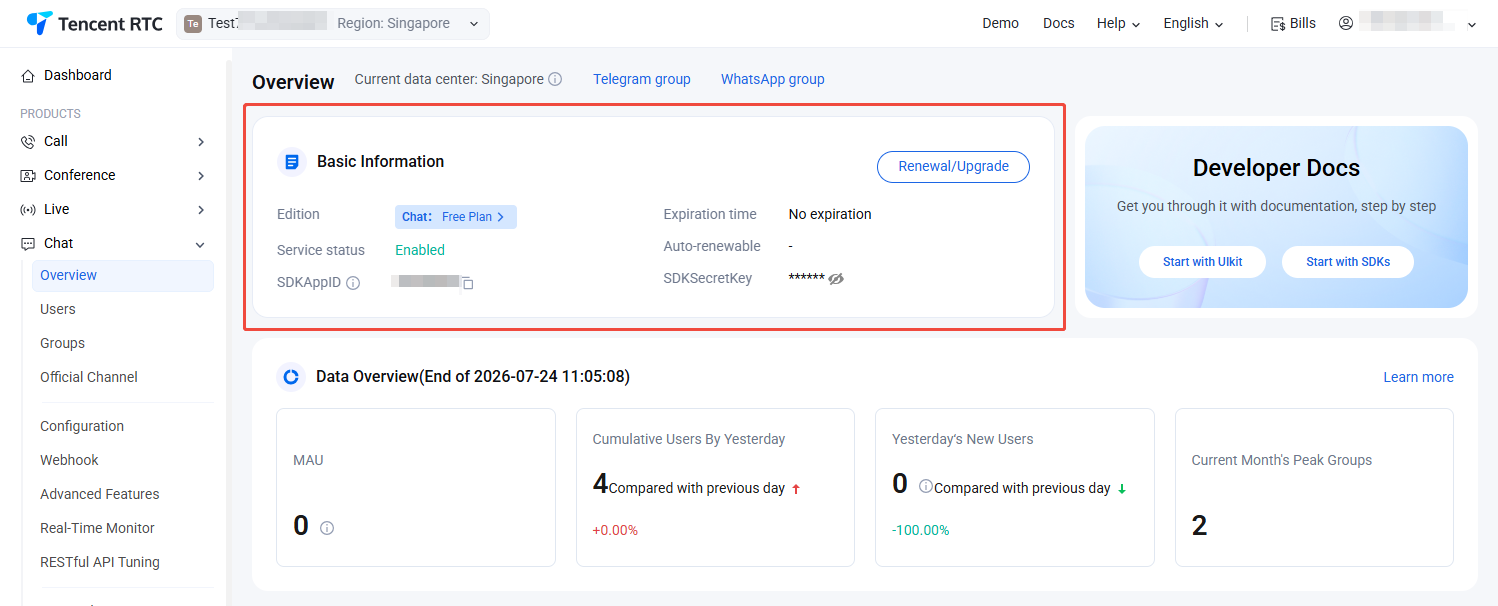
Before integrating TUIKit, you need to go to the Console to create a new Chat application as follows:
1. Register Tencent Cloud account and add a payment method.
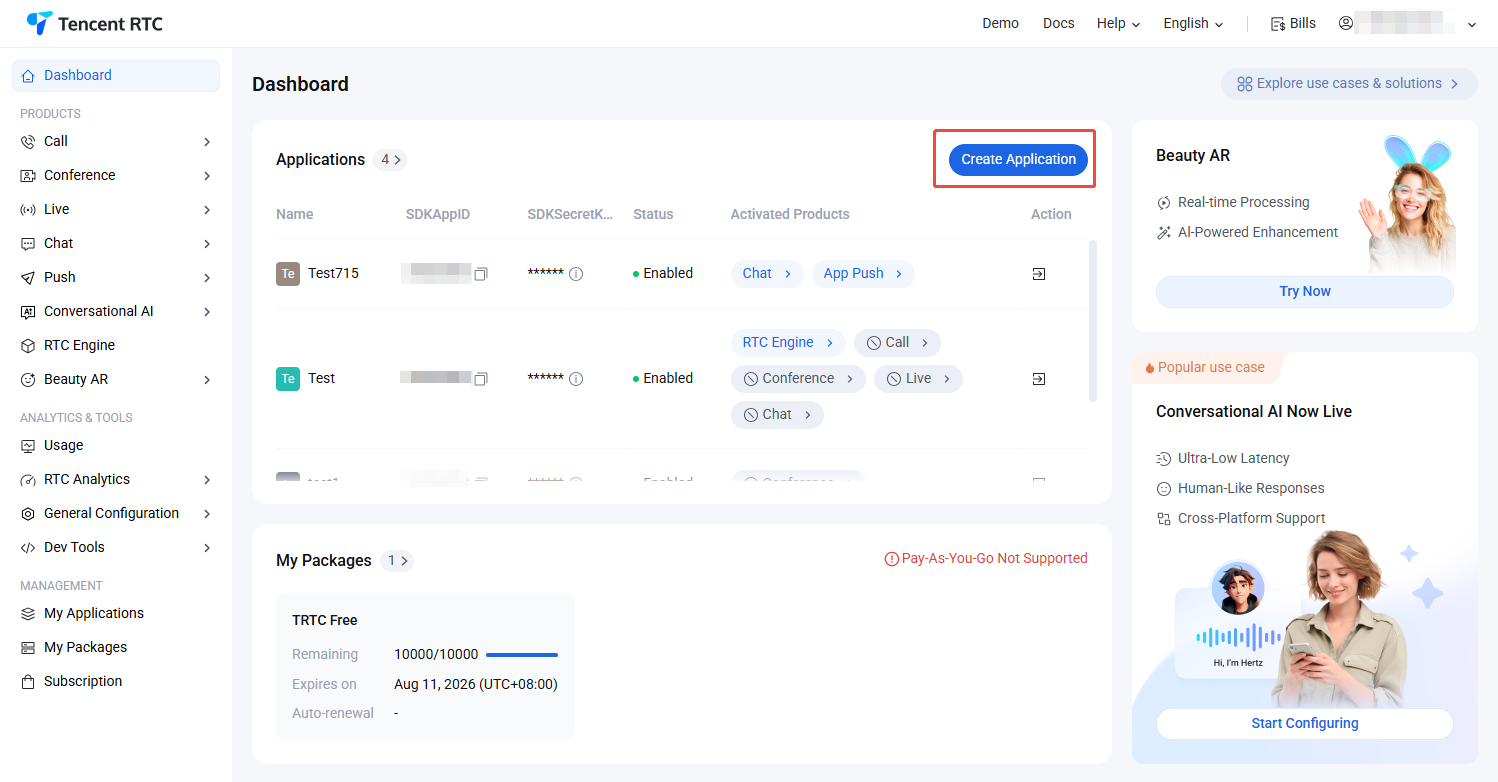
2. Log in to the Chat console and click Create Application.


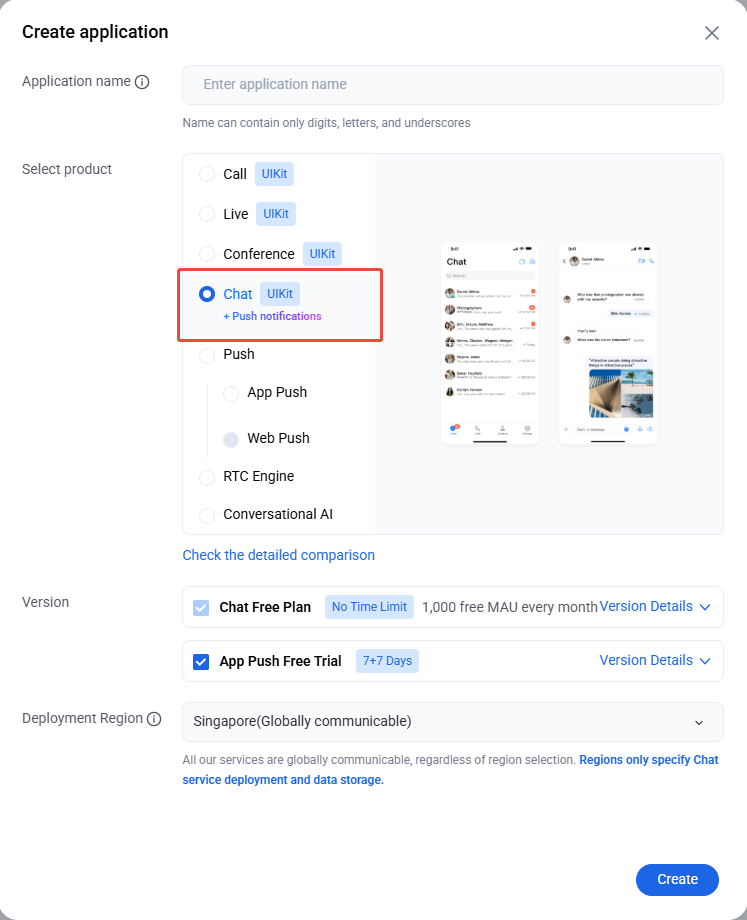
3. Enter the application name in the create pop-up window and choose Chat, select appropriate Deployment Region, then click Create.


4. After creation, you can view the application status, service version, SDKAppID, SDKSecretKey, creation time, and expiry time on the current Chat Product Details Page or My Applications.
Note
The service version of a new application defaults to Trial Edition, and the status is enabled by default.
A single Tencent Cloud account can create up to 300 Chat applications. If you already have 300 applications, you can first deactivate and delete unused applications before creating new ones. After application deletion, all data and services corresponding to the SDKAppID cannot be restored. Proceed with caution.


Create Accounts

Creating an Application only ensures you can normally initialize the SDK. To successfully send messages, you also need to create user accounts in the Application. There are many ways to create accounts, such as directly in the console or through API client registration. You can choose any suitable method.
Note:
Sending messages requires at least two users to interact with each other, so you need to create at least 2 accounts for this step. Please record the userIDs of these 2 accounts, as they will be used in the next steps.
Option A: Create in Console
Note:
For more account-related operations, see Account Management.
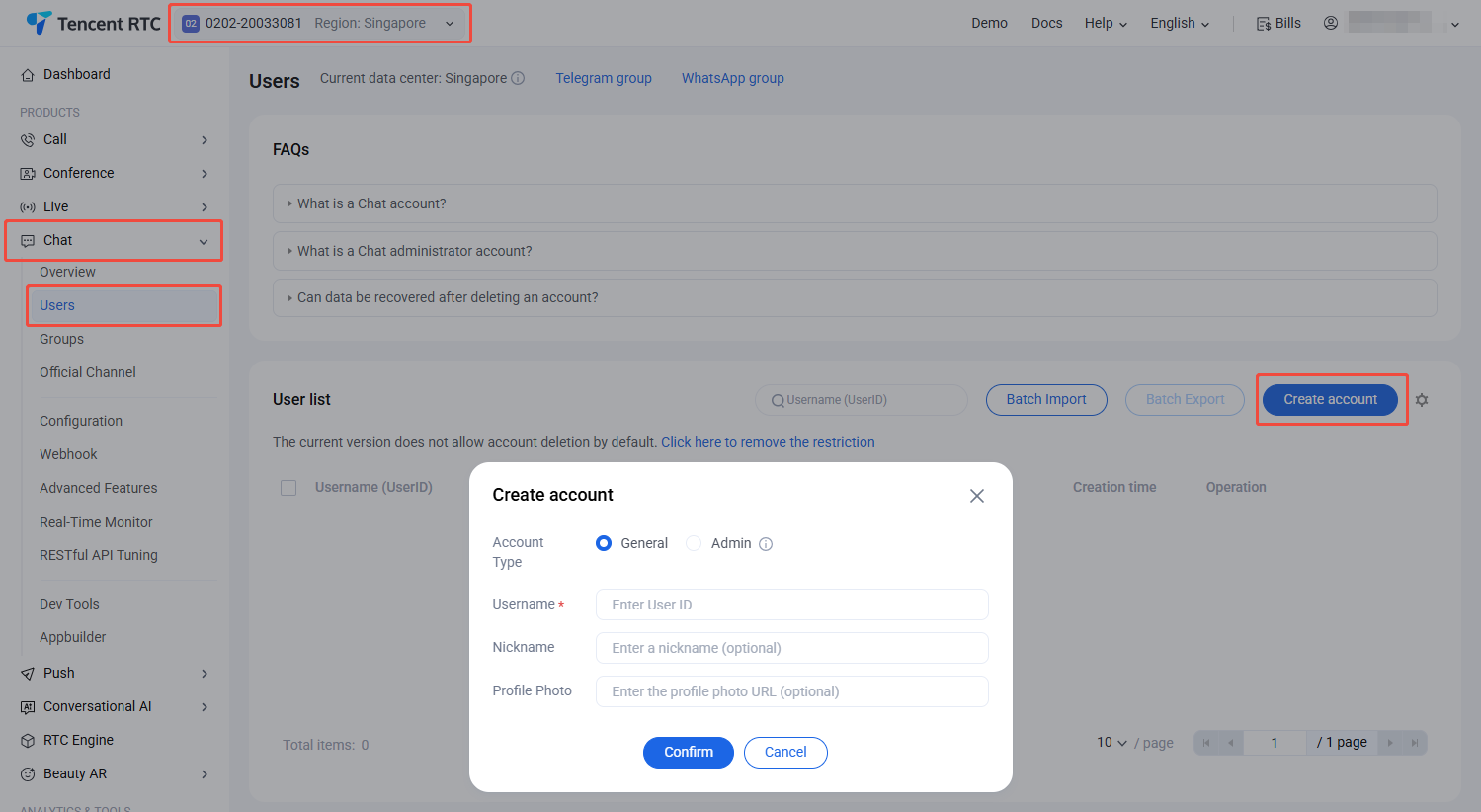
1. Log in to the Chat console, select Chat > Users in the left sidebar, and choose the target application at the top.
2. On the account management page, click Create Account.
3. In the pop-up Create Account dialog box, configure the following parameters:


Account type: Case-sensitive for ordinary account and admin account. "App admin" is a role with the highest level of privileges for the App, allowing calls to RESTful APIs to perform operations such as creating/disbanding groups and sending All Users Push messages. Each application supports configuration of up to 10 administrators.
Username: Enter username (UserID), required.
User nickname: Enter user nickname, optional.
Avatar: Enter user avatar URL, optional.
4. Click Confirm to save configuration.
5. After creating an account, you can view the username, nickname, account type, avatar, and creation time in the account list.
Option B: Create accounts upon logging in
To register via the client, just input a brand new UserID in the Log In to TUIKit section below. At this point, TUIKit will automatically register the UserID for you.

Generate UserSig

Note:
For more UserSig related operations, please refer to UserSig Generation & Validation.
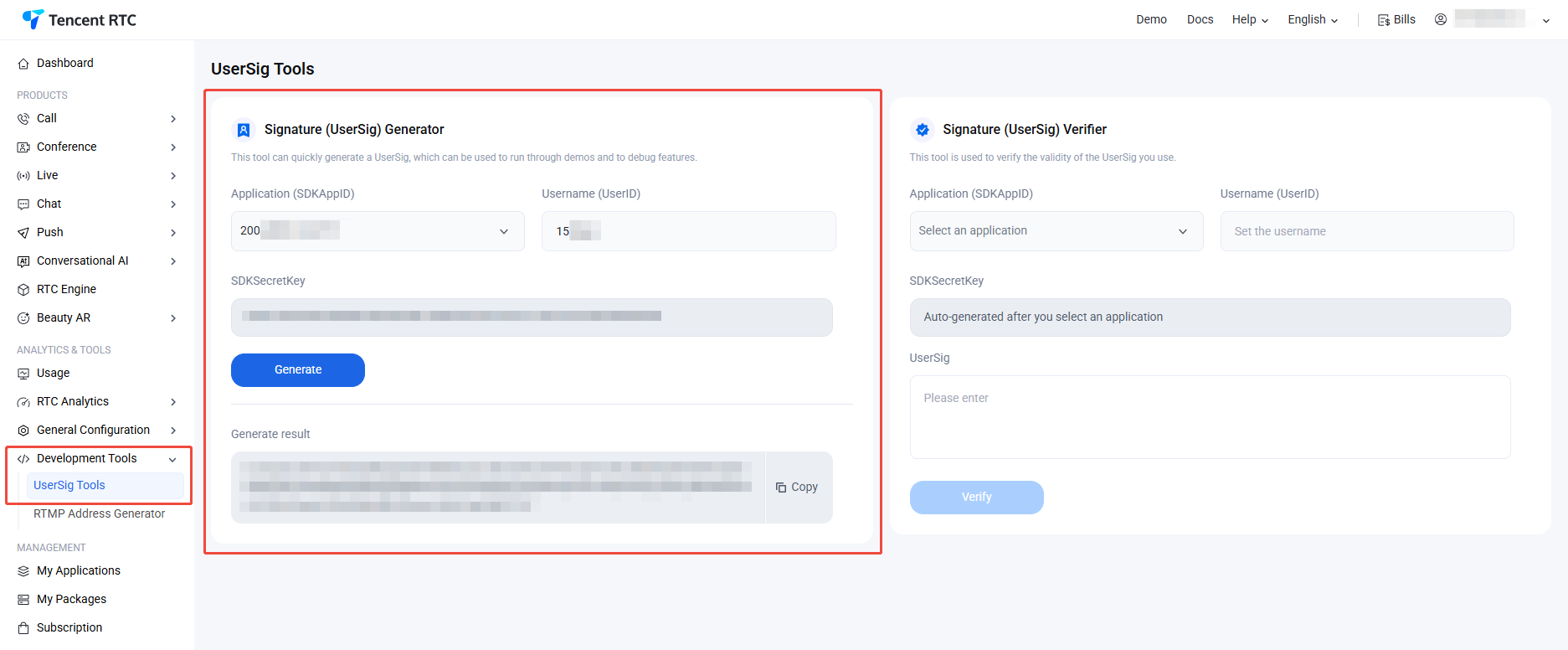
2. In the UserSig generation tool section, select an application and manually input the UserID.
3. Click Generate Signature (UserSig) to generate a signature. The signature validity period defaults to 180 days.
4. Click Copy Signature (UserSig) to paste and save the signature.


Integrate TUIKit

The feature of sending messages in chat interactions is implemented by TUIChat. You need to integrate at least TUIChat to properly send and receive messages. Other components, such as TUIConversation, TUIContact, and TUIGroup, can be integrated as needed.
If you need multiple UI components, you can integrate TUIKit. For details, see Integrate TUIKit.
If you only need to integrate TUIChat, see Integrate TUIChat Only.

Log In to TUIKit

TUILogin provides an API to log in to TUIKit, as follows:
// API location: TUICore/TUILogin.h
+ (void)login:(int)sdkAppID userID:(NSString *)userID userSig:(NSString *)userSig succ:(__nullable TSucc)succ fail:(__nullable TFail)fail;
This API requires three parameters:
SDKAppID, the SDKAppID of the new application creation, was obtained in the previous Create Application.
UserID, the UserID of User1, was obtained in the previous Create Account. Note that it is not the user's NickName.
UserSig, User1's UserSig, has been obtained in the Generating UserSig context before.
Example:
Swift
Objective-C
#pragma mark - Life cycle
func application(_ application: UIApplication, didFinishLaunchingWithOptions launchOptions: [UIApplication.LaunchOptionsKey: Any]?) -> Bool {
TUILogin.login(Int32(SDKAPPID), userID: userID, userSig: userSig, config: loginConfig, succ:{
//Success
}, fail: { code, msg in
//Failed
})
return true
}
#pragma mark - Life cycle
- (BOOL)application:(UIApplication *)application didFinishLaunchingWithOptions:(NSDictionary *)launchOptions {
[TUILogin login:SDKAPPID userID:self.userID userSig:self.userSig config:self.loginConfig succ:^{
//Success
} fail:^(int code, NSString *msg) {
//Failed
}];
return YES;
}

Navigate to Chat Interface

To send messages, the next step is:
1. Use one of the previously registered accounts (hereinafter referred to as user1) to log in to TUIKit, and user1 comes online.
2. User1 sends a message to another account (hereinafter referred to as user2). User2 does not need to log in and does not need to be friends with user1.
Note:
The following steps explain how to send a message to user2 after logging in as user1. If you wish for user1 and user2 to interact via chat, you need to use the same steps to log in as user2 and enter the chat interface with user1.
You can redirect or nest the chat interface in the callback of user1's successful login to send a message to user2.
The sample code is as follows, where userID needs to be user2's userID.
Swift
Objective-C
// Pass userID for 1v1 conversation.
func pushToChatViewController(groupID: String?, userID: String?) {
// Create conversationData.
let conversationData = TUIChatConversationModel()
conversationData.userID = userID
// Create c2c chatVC.
let chatVC = TUIC2CChatViewController_Minimalist()
chatVC.conversationData = conversationData
// Option 1: navigate to chatVC.
navigationController?.pushViewController(chatVC, animated: true)
// Option 2: add chatVC as a childVC to your parent VC.
// addChild(chatVC)
// view.addSubview(chatVC.view)
}
// Pass userID for 1v1 conversation.
- (void)pushToChatViewController:(NSString *)groupID userID:(NSString *)userID {
// Create conversationData.
TUIChatConversationModel *conversationData = [[TUIChatConversationModel alloc] init];
conversationData.userID = userID;
// Create c2c chatVC.
TUIBaseChatViewController_Minimalist *chatVC = [[TUIC2CChatViewController_Minimalist alloc] init];
chatVC.conversationData = conversationData;
// Option 1: navigate to chatVC.
[self.navigationController pushViewController:chatVC animated:YES];
// Option 2: add chatVC as a childVC to your parent VC.
// [self addChildViewController:vc];
// [self.view addSubview:vc.view];
}

Send Your First Message

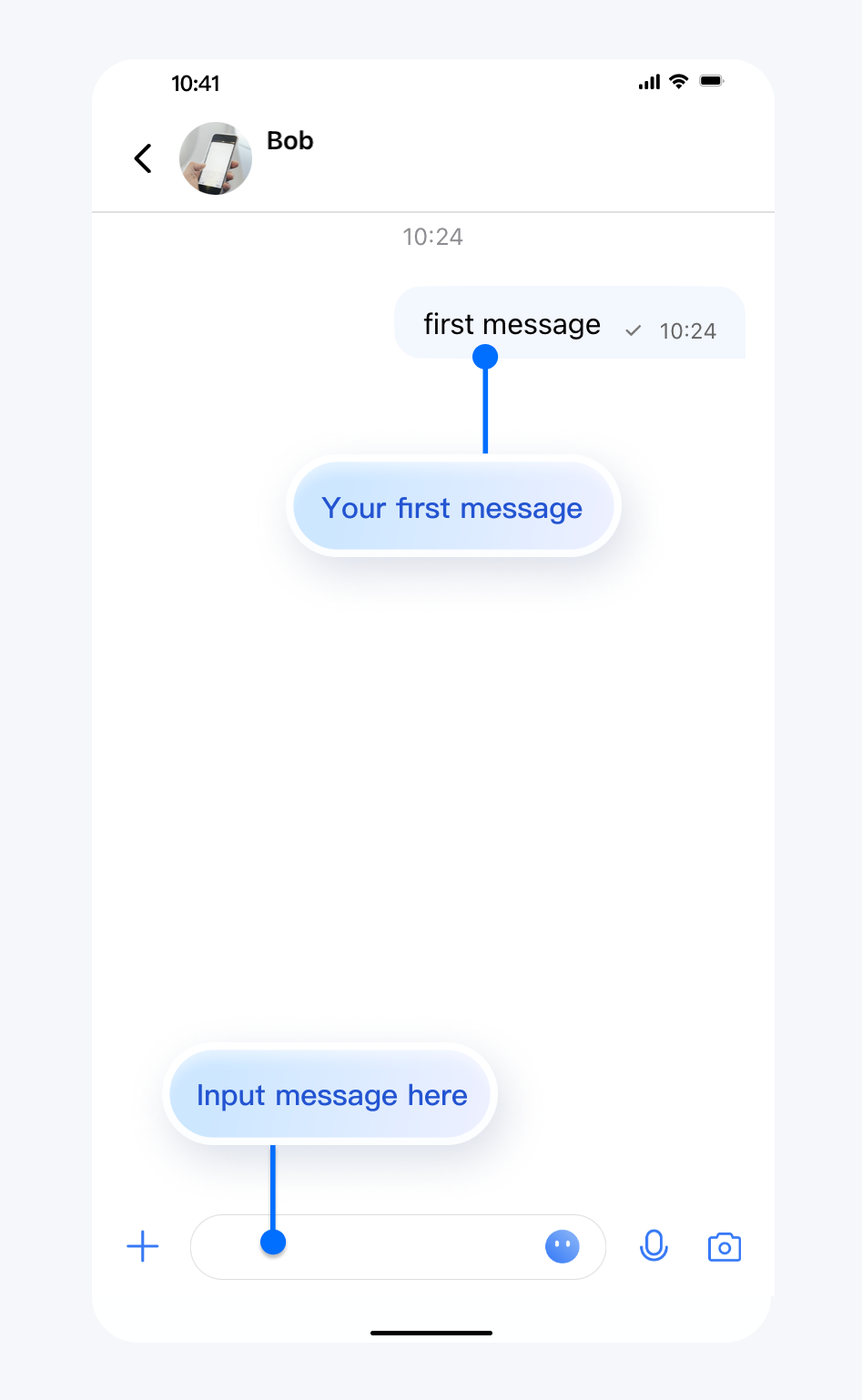
After completing the previous steps, you can navigate to the chat interface shown below. Quickly and manually click the input field to send your first message:


Contact Us

If you have any questions about this article, feel free to join the Telegram Tech Support Group, where you will receive reliable technical support.
Help and Support

Was this page helpful?

Help us improve! Rate your documentation experience in 5 mins.

Feedback