Android (Compose)
Download
Focus Mode
Font Size
This guide walks you through integrating TUIKit Compose and sending your first message.
Development Environment Requirements
Android Studio Ladybug (2024.2.1) or later, and JDK 17.
A physical device or emulator running Android 6.0 (API 23) or later.
Your project must use Kotlin 2.0 or later and Android Gradle Plugin 8.6 or later (TUIKit is developed with Kotlin and Jetpack Compose).
minSdk >= 23, compileSdk >= 35.
Prerequisites
Activate the Service
1. Log in to the Console. If you already have an application, note down its
SDKAppID and SDKSecretKey, then proceed to the next section.2. Click Create in the overview panel to start a new application.
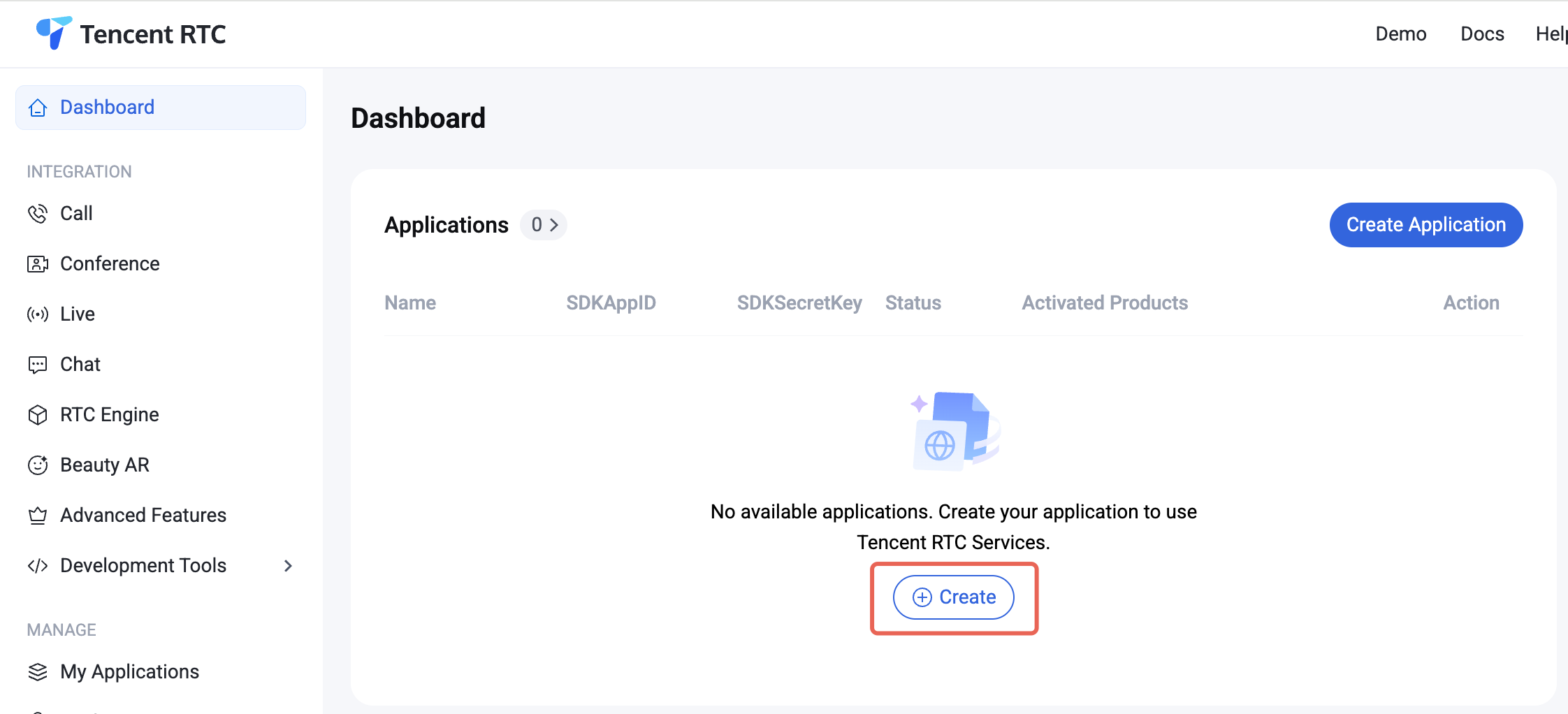
3. In the application creation dialog, enter the Application Name and select Chat as the product.
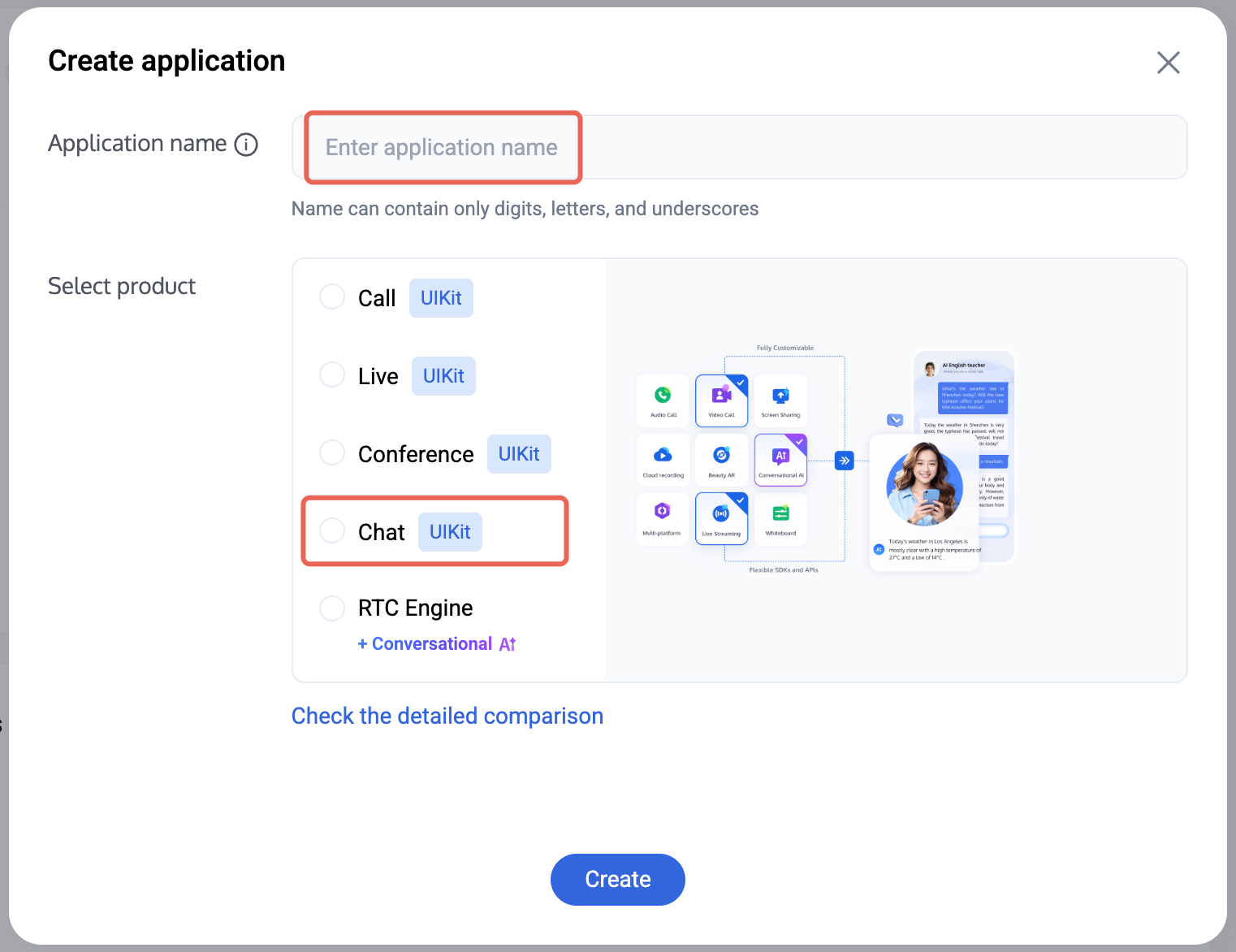
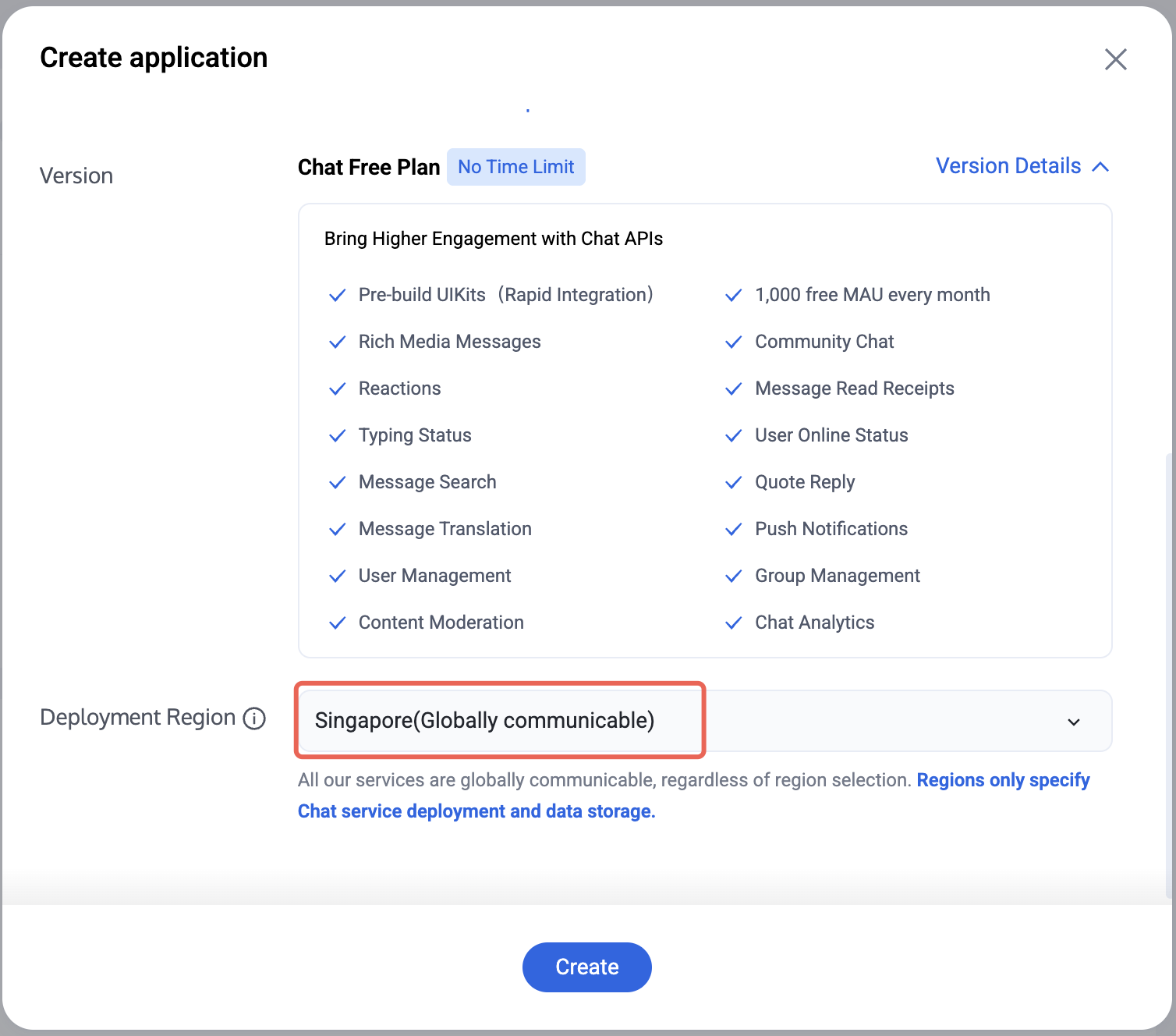
4. After choosing the product, select the Deployment Region as needed.
5. After the application is created, locate the
SDKAppID and SDKSecretKey in the console overview panel. You will need both to run the Demo.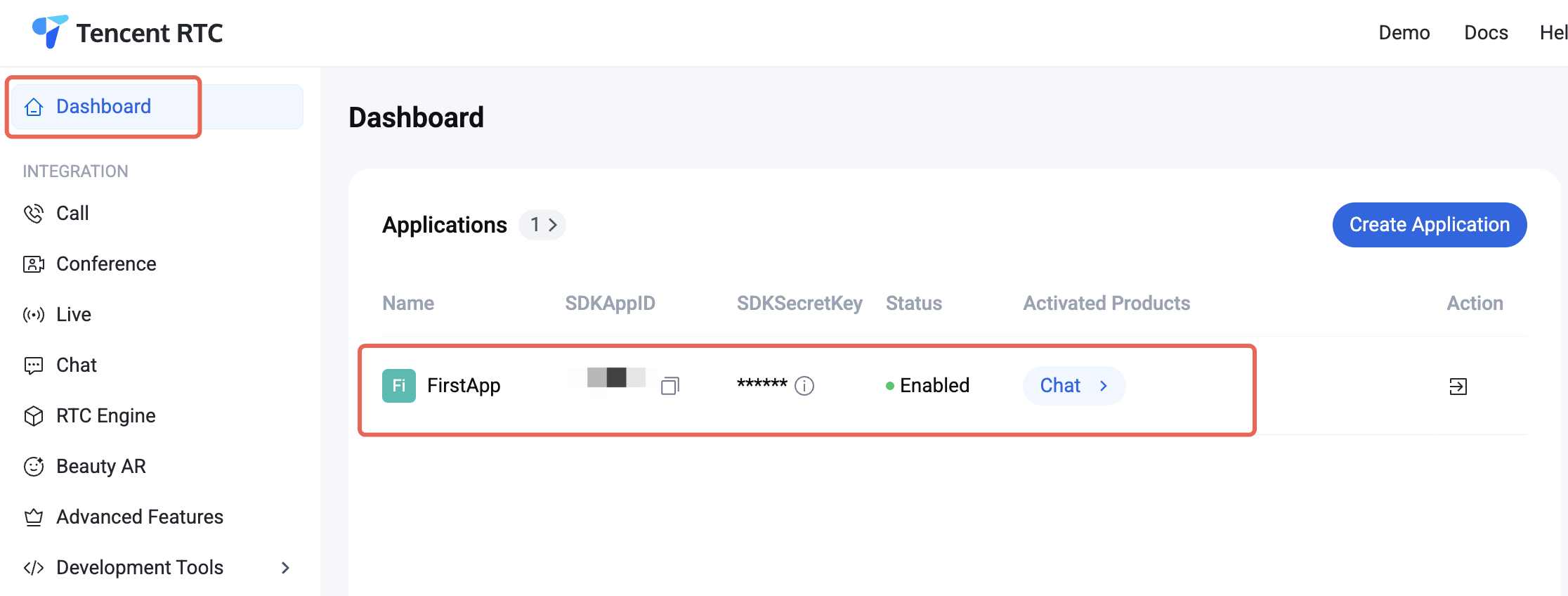
Prohibited:
Secure your
SDKSecretKey to protect your Application from unauthorized access.Create Accounts
You can create accounts using either of the following methods:
When logging in to TUIKit, provide a new UserID. TUIKit automatically registers the UserID for you.
Steps:
1. Navigate to the Chat > Account Management page.
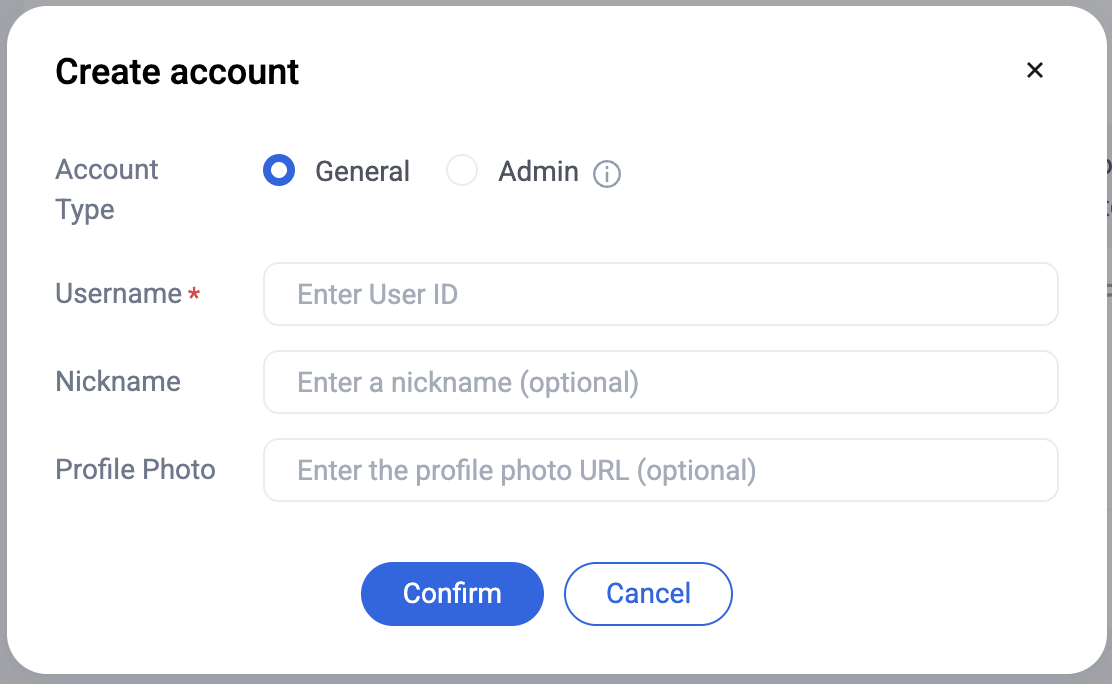
2. Click "Create Account" to open the account creation dialog.
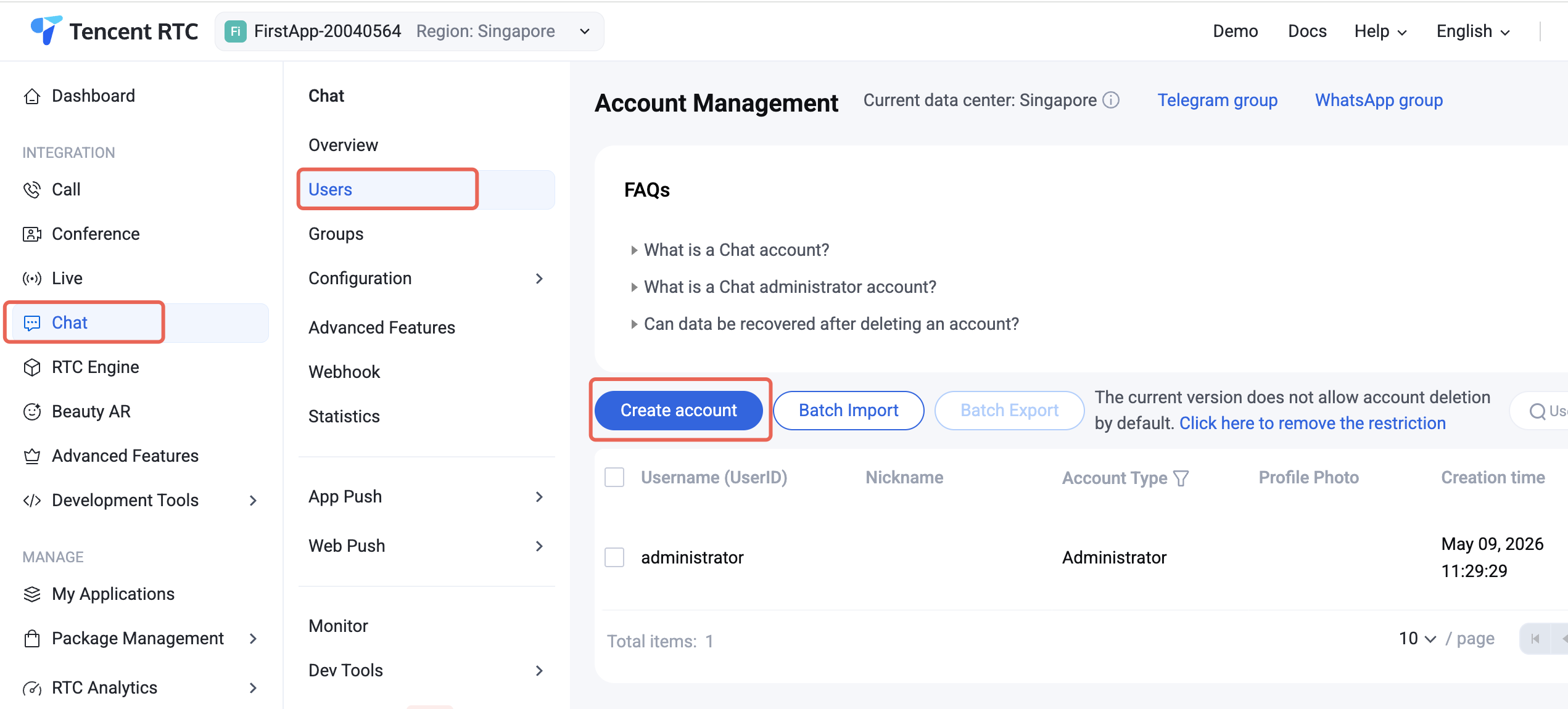
3. For regular users, select "Regular Account". We recommend setting a nickname to help display users distinctly in the UI.
Note:
You need at least two users to send messages. Create at least two accounts at this step, and record their userIDs for use in later steps.
Generate UserSig
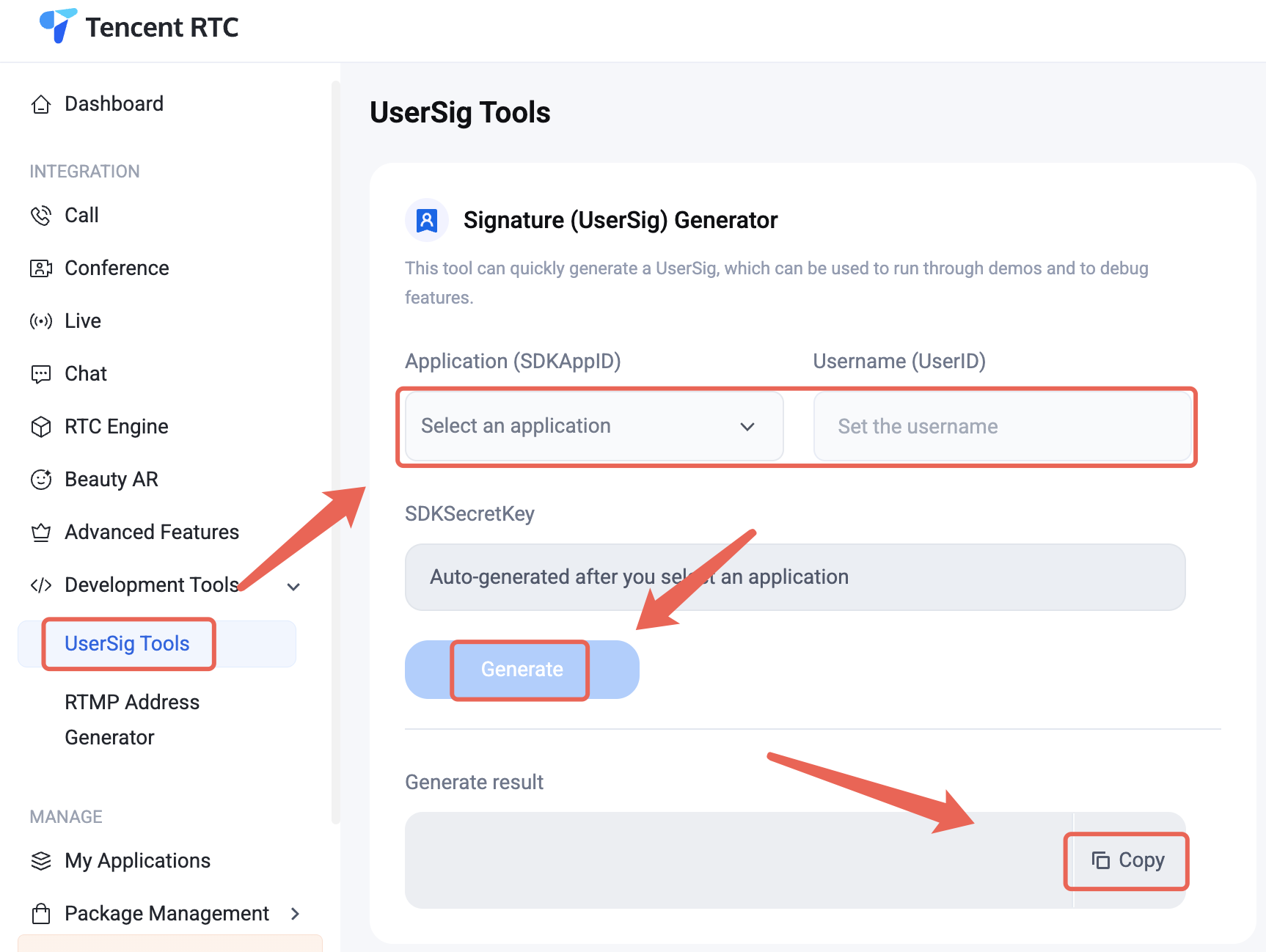
1. Log in to Console > Developer Tools > UserSig Tool.
2. In the UserSig generation tool, select your application, input the UserID, and click "Generate". The signature is valid for 180 days by default. Click "Copy" to save the signature.
Note:
Integrate the TUIKit
Notice:
If you are integrating TUIKit Compose into a new Android project, follow the steps below to send your first message.
If you are integrating TUIKit Compose into an existing project, keep your original UI code and refer only to the login and chat logic shown below.
Log in
To use TUIKit Compose features, log in to a user account using the
login API from LoginStore. There are two scenarios:If you have not created user accounts in the console beforehand, log in with user1 and user2 sequentially using LoginStore. Finally, ensure user1 is online.
If you have already created user1 and user2 in the console, log in with user1 only.
Note:
1. After logging in as user1, you can send messages to user2. User2 does not need to log in; Chat allows sending C2C Messages between users, friends, and strangers by default.
2. For interactive chat between user1 and user2, log in as user2 on another device and join the chat interface with user1.
Example:
// API location: io.trtc.tuikit.atomicxcore.api.login.LoginStoreLoginStore.shared.login(activity, // Activity contextsdkAppID, // Int, SDK application IDuserID, // String, User IDuserSig, // String, User signatureobject : CompletionHandler {override fun onSuccess() {// Login successful}override fun onFailure(code: Int, desc: String) {// Login failed}})
Load the Chat Interface
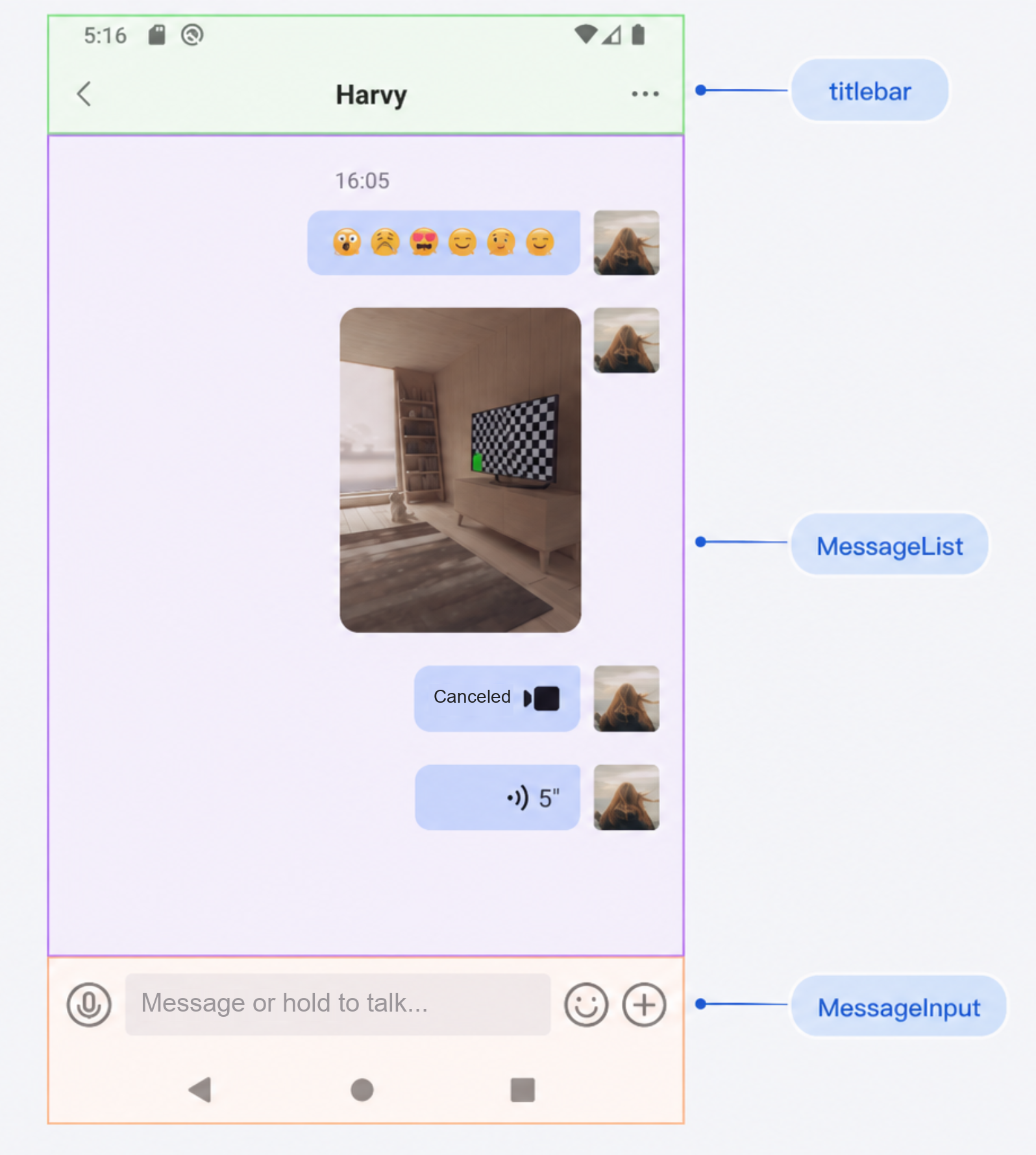
As an example, use an Activity that handles the entire login process and loads the chat interface. The app launches this Activity at startup.
If you use the sample code below, fill in these parameters:
sdkAppID: The SDKAppID obtained earlier.senderUserID: The userID of the sender (user1).senderUserSig: The UserSig generated for the sender.receiverUserID: The userID of the receiver.Sample code:
// ChatDemoActivity.ktimport android.os.Bundleimport androidx.activity.compose.setContentimport androidx.appcompat.app.AppCompatActivityimport androidx.compose.foundation.backgroundimport androidx.compose.foundation.layout.Boximport androidx.compose.foundation.layout.Columnimport androidx.compose.foundation.layout.fillMaxSizeimport androidx.compose.foundation.layout.fillMaxWidthimport androidx.compose.foundation.layout.navigationBarsPaddingimport androidx.compose.foundation.layout.paddingimport androidx.compose.foundation.layout.statusBarsPaddingimport androidx.compose.material3.CircularProgressIndicatorimport androidx.compose.material3.Textimport androidx.compose.runtime.getValueimport androidx.compose.runtime.mutableStateOfimport androidx.compose.runtime.rememberimport androidx.compose.runtime.setValueimport androidx.compose.ui.Alignmentimport androidx.compose.ui.Modifierimport io.trtc.tuikit.chat.uikit.components.theme.LocalThemeimport io.trtc.tuikit.chat.uikit.components.messageinput.ui.MessageInputimport io.trtc.tuikit.chat.uikit.components.messagelist.ui.MessageListimport io.trtc.tuikit.atomicxcore.api.CompletionHandlerimport io.trtc.tuikit.atomicxcore.api.login.LoginStoreclass ChatDemoActivity : AppCompatActivity() {private val sdkAppID: Int = 1234567890 // TODO: Enter your SDKAppID here.private val senderUserID = "" // TODO: Enter your userID here (sender).private val senderUserSig = "" // TODO: Enter your generated UserSig here.private val receiverUserID = "" // TODO: Enter the receiver's userID here.// C2C conversationID: "c2c_${userID}", Group conversationID: "group_${groupID}"private val conversationID: String get() = "c2c_${receiverUserID}"override fun onCreate(savedInstanceState: Bundle?) {super.onCreate(savedInstanceState)login()}private fun login() {LoginStore.shared.login(this, sdkAppID, senderUserID, senderUserSig, object : CompletionHandler {override fun onSuccess() {showChatPage()}override fun onFailure(code: Int, desc: String) {// Handle login failure}})}private fun showChatPage() {setContent {val colors = LocalTheme.current.colorsColumn(modifier = Modifier.fillMaxSize().background(color = colors.bgColorOperate).statusBarsPadding()) {// MessageListBox(modifier = Modifier.weight(1f)) {MessageList(conversationID = conversationID,onUserClick = { userID ->// Handle user avatar click})}// MessageInputMessageInput(conversationID = conversationID,modifier = Modifier.navigationBarsPadding())}}}}
Send Your First Message
After completing the steps above, the app will automatically log in and load the chat interface at startup. Tap the input box to send your first message:
Contact Us
Help and Support
Was this page helpful?
You can also Contact sales or Submit a Ticket for help.
Help us improve! Rate your documentation experience in 5 mins.
Feedback