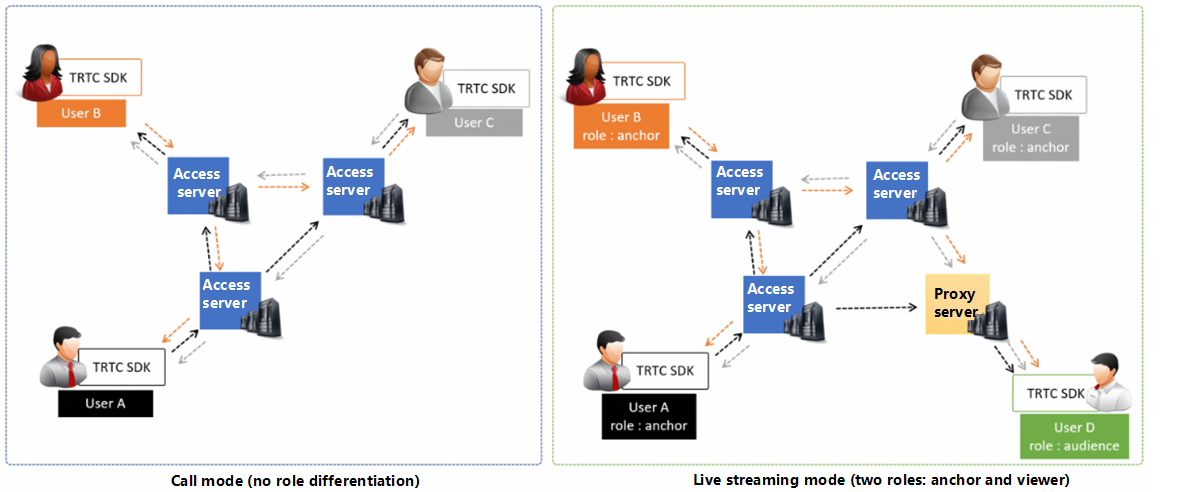
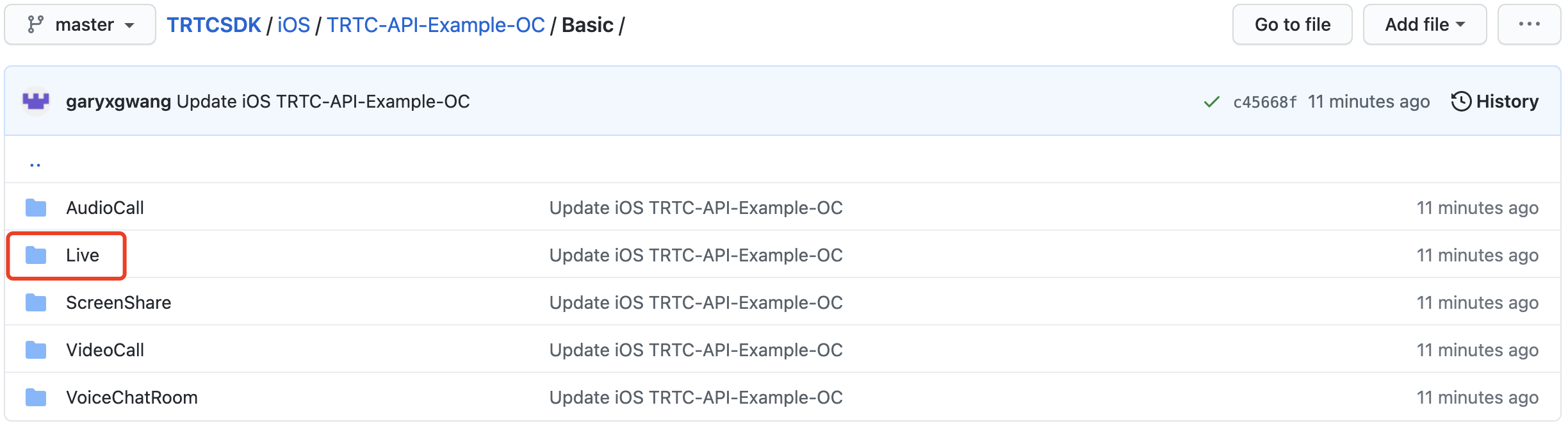
TRTC supports four room entry modes. Video call (VideoCall) and audio call (VoiceCall) are the call modes, and interactive video streaming (Live) and interactive audio streaming (VoiceChatRoom) are the live streaming modes.
The live streaming modes allow a maximum of 100,000 concurrent users in each room with smooth mic on/off. Co-anchoring latency is kept below 300 ms and watch latency below 1,000 ms. The live streaming modes are suitable for use cases such as low-latency interactive live streaming, interactive classrooms for up to 100,000 participants, video dating, online education, remote training, and mega-scale conferencing.
How It Works
TRTC services use two types of server nodes: access servers and proxy servers.
Access server
This type of nodes use high-quality lines and high-performance servers and are better suited to drive low-latency end-to-end calls.
Proxy server
This type of servers use mediocre lines and average-performance servers and are better suited to power high-concurrency stream pulling and playback.
In the live streaming modes, TRTC has introduced the concept of "role". Users are either in the role of "anchor" or "audience". Anchors are assigned to access servers, and audience to proxy servers. Each room allows up to 100,000 users in the role of audience.
For audience to speak, they must switch the role (switchRole) to “anchor”. The switching process involves users being migrated from proxy servers to access servers. TRTC’s low-latency streaming and smooth mic on/off technologies help keep this process short.
Sample Code
You can visit GitHub to obtain the sample code used in this document.
Note:
If your access to GitHub is slow, download the ZIP file here.
Directions
Step 1. Integrate the SDKs
You can integrate the TRTC SDK into your project in the following ways:
Method 1: integrating through CocoaPods
1. Install CocoaPods. For detailed directions, please see Getting Started.
2. Open the Podfile file in the root directory of your project and add the code below.
Note:
If you cannot find a Podfile file in the directory, run the pod init command to create one and add the code below.
target 'Your Project'do
pod 'TXLiteAVSDK_TRTC'
end
3. Run the command below to install the TRTC SDK.
pod install
After successful installation, an XCWORKSPACE file will be generated in the root directory of your project.
4. Open the XCWORKSPACE file.
Method 2: manual integration
If you do not want to install CocoaPods, or your access to CocoaPods repositories is slow, you can download the ZIP file of the SDK and integrate it into your project as instructed in SDK Quick Integration > iOS.
Step 2. Add device permission requests
Add camera and mic permission requests in the Info.plist file.
Key
Value
Privacy - Camera Usage Description
The reason for requesting camera permission, for example, “camera access is required to capture video”
Privacy - Microphone Usage Description
The reason for requesting mic permission, for example, “mic access is required to capture audio”
Step 3. Initialize an SDK instance and configure event callbacks
1. Call the sharedInstance() API to create a TRTCCloud instance.
// Create a `TRTCCloud` instance
_trtcCloud = [TRTCCloud sharedInstance];
_trtcCloud.delegate = self;
2. Set the attributes of delegate to subscribe to event callbacks and listen for event and error notifications.
// Error events must be listened for and captured, and error messages should be sent to users.
3. Call setBeautyLevel() to set the skin smoothing strength (5 is recommended).
4. Call setWhitenessLevel() to set the skin brightening strength (5 is recommended).
5. Given the yellow tint of the iPhone camera, we recommended that you call setFilter() to apply the skin brightening filter to your video. You can download the file for the filter here.
Step 7. Create a room and push streams
1. Set the role field in TRTCParams to TRTCRoleType.anchor to take the role of “anchor”.
2. Call enterRoom(), specifying appScene, and a room whose ID is the value of the roomId field in TRTCParams will be created.
TRTCAppScene.LIVE: the interactive video streaming mode, which is used in the example of this document
TRTCAppScene.voiceChatRoom: the interactive audio streaming mode
3. After the room is created, start encoding and transferring audio/video data. The SDK will return the onEnterRoom(result) callback. If result is greater than 0, room entry succeeds, and the value indicates the time (ms) room entry takes; if result is less than 0, room entry fails, and the value is the error code for the failure.
If you do not know the anchor’s userId, find the anchor’s userId in the onUserVideoAvailable() callback, which you will receive after room entry, and call startRemoteView(userId, view: view) with the anchor’s userId passed in to play the anchor’s video.
Anchors from two rooms can compete with each other without exiting their current rooms.
1. Anchor A calls the connectOtherRoom() API. The API uses parameters in JSON strings, so anchor A needs to pass the roomId and userId of anchor B in the format of {"roomId": 978,"userId": "userB"} to the API.
For example, after anchor A in room "001" uses connectOtherRoom() to call anchor B in room “002” successfully all users in room "001" will receive the onUserVideoAvailable(B, available: true) and onUserAudioAvailable(B, available: true) callbacks, and all users in room "002" will receive the onUserVideoAvailable(A, available: true) and onUserAudioAvailable(A, available: true) callbacks.
3. Users in both rooms can call startRemoteView(userId, view: view) to play the video of the anchor in the other room, and audio will be played back automatically.
Call exitRoom() to exit the room. The SDK disables and releases devices such as cameras and mics during room exit. Therefore, room exit is not an instant process. It completes only after the onExitRoom() callback is received.
// Please wait for the `onExitRoom` callback after calling the room exit API.
[self.trtcCloud exitRoom];
- (void)onExitRoom:(NSInteger)reason {
NSLog(@"Exited room: reason: %ld", reason)
}
Note:
If your application integrates multiple audio/video SDKs, please wait after you receive the onExitRoom callback to start other SDKs; otherwise, the device busy error may occur.